> For the complete documentation index, see [llms.txt](https://docs.didomi.io/llms.txt). Markdown versions of documentation pages are available by appending `.md` to page URLs; this page is available as [Markdown](https://docs.didomi.io/regulations-manager/frameworks/google-consent-mode-v2/google-consent-mode-v2-basic.md).

# Google Consent Mode v2 (Basic)

{% hint style="success" %}
**Access Type**: Regulations Manager - Editor
{% endhint %}

Google Consent Mode v2 ensures that Google vendors associated with a regulation comply with an end-user's consent choices (called [consent types](/regulations-manager/frameworks/google-consent-mode-v2.md#google-consent-types)) defined by Google. In this article, we will cover how to implement Google Consent Mode v2 on a regulation utilizing Google basic consent mode setup.

* [Google Consent Mode v2 (Basic) overview](#google-consent-mode-v2-basic-overview)
* [Google consent mode products](#google-consent-mode-products)
* [Implement Google Consent Mode v2 (Basic)](#implement-google-consent-mode-v2-basic)
* [Test Google Consent Mode v2 (Basic)](#test-google-consent-mode-v2-basic)

***

### Google Consent Mode v2 (Basic) overview

In the basic version of Google Consent Mode v2, Google product tags should be blocked by your organization from loading until an end-user interacts with your widget on the website or app. Once the end-user interacts with the widget, one of the following can occur:

<table data-header-hidden><thead><tr><th width="166"></th><th></th></tr></thead><tbody><tr><td>Consent</td><td>If an end-user grants consent then Google product tags will load and execute the consent mode APIs. </td></tr><tr><td>No Consent</td><td>If an end-user does not grant consent then no data is transmitted to Google (not even a default consent state). Google tags will remain blocked and Google Consent mode's modeling for ads will be based on a general model.</td></tr></tbody></table>

<figure><img src="https://1825037175-files.gitbook.io/~/files/v0/b/gitbook-x-prod.appspot.com/o/spaces%2FNDxbAdc00ce6bH5u1urh%2Fuploads%2FgN7Y0iSRoNNmzQ79o6Op%2Fdidomi-consent-widget-flow.jpg?alt=media&amp;token=3dbad1e3-5618-415a-a9cf-ae45b42d4eeb" alt="" width="563"><figcaption></figcaption></figure>

### Google consent mode products

The following Google products have built-in [consent checks](/regulations-manager/frameworks/google-consent-mode-v2.md#google-consent-types) and will adjust behavior based on the end-user's consent state for Google consent types:

* Google Tag
* Google Analytics (includes Google Analytics for Firebase SDK)
* Google Ads (includes Google Ads Conversion Tracking and Remarketing; support for Phone Call Conversions is pending.)
* Floodlight
* Conversion Linker

{% hint style="info" %}
Google Consent Mode only supports  `gtag.js` . Ensure your organization is not utilizing legacy tags for your Google products such as `ga.js`, `analytics.js`, or `conversion.js` .
{% endhint %}

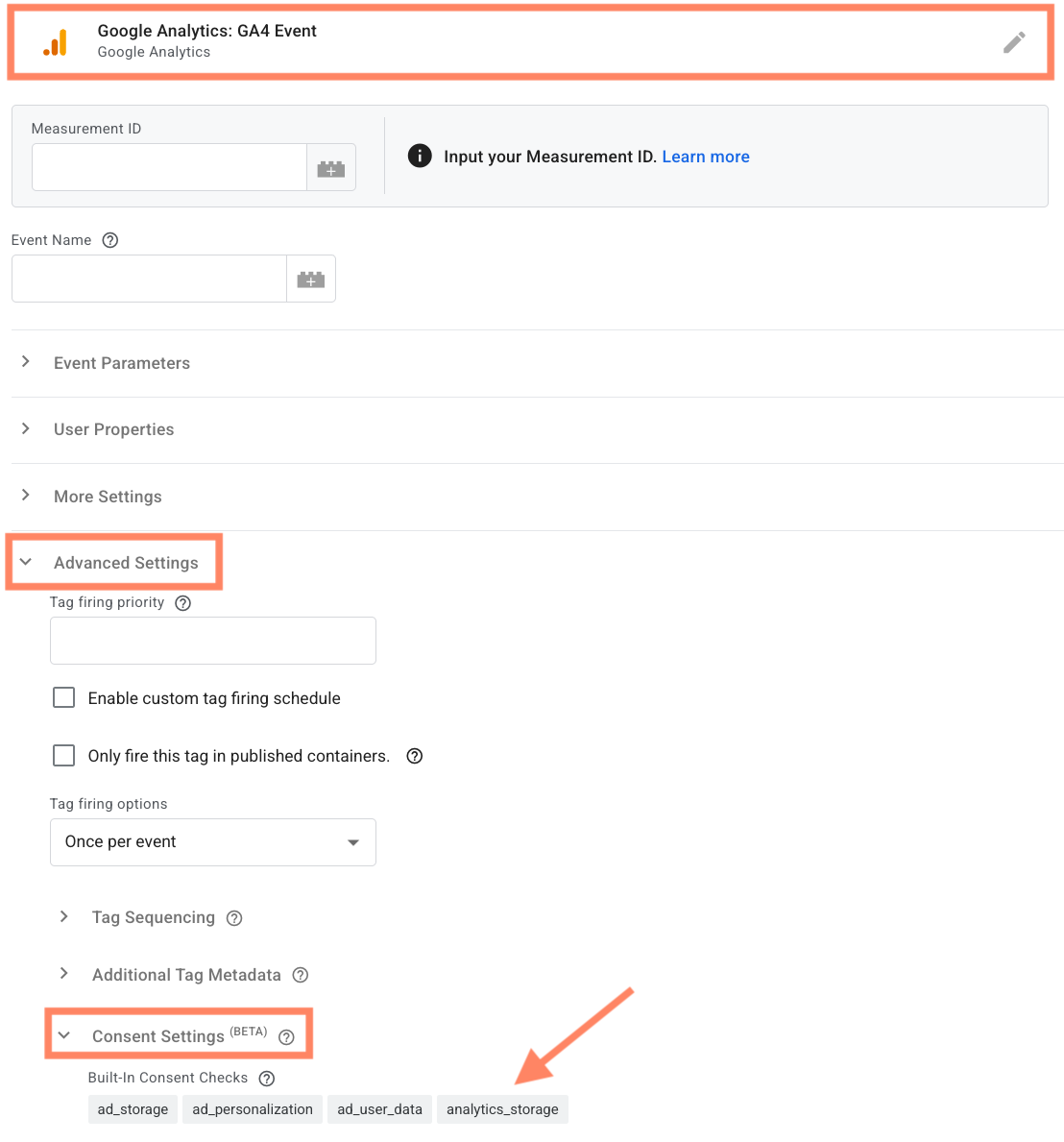
Consent check varies across each Google product and can be viewed by selecting a vendor from the GTM platform and expanding the **Advanced Settings > Consent Settings** tab.

<figure><img src="https://1825037175-files.gitbook.io/~/files/v0/b/gitbook-x-prod.appspot.com/o/spaces%2FNDxbAdc00ce6bH5u1urh%2Fuploads%2FeiAi7zqRpij89nRaTxqJ%2FScreenshot%202025-12-02%20at%2012.16.07%E2%80%AFPM.png?alt=media&amp;token=97bcaf08-ab89-45ef-8107-a6acef4d73a9" alt="" width="563"><figcaption></figcaption></figure>

### Implement Google Consent Mode v2 (Basic)

Didomi offers multiple ways your organization can implement Google Consent Mode v2 (Basic) for a regulation. Please see the tabs below for the method that best suits your organization's needs:

{% tabs %}
{% tab title="Google Tag Manager" %}
In this tab, we will cover how to utilize Google Tag Manager to implement Google Consent Mode v2 (Basic) for your regulation.

* [Configure Google Consent Mode v2 (Basic) on regulation](#configure-google-consent-mode-v2-basic-on-regulation)
* [Configure Google product tag(s)](#configure-google-product-tag-s)

#### Configure Google Consent Mode v2 (Basic) on regulation

{% hint style="warning" %}
Google Consent Mode v2 is enabled by default for regulations but may still require additional configuration to align with the basic mode implementation.
{% endhint %}

Select a regulation and navigate to the **Frameworks** card on the **Global Settings** page.&#x20;

Ensure that **Google Consent Mode** is enabled.

<figure><img src="https://1825037175-files.gitbook.io/~/files/v0/b/gitbook-x-prod.appspot.com/o/spaces%2FNDxbAdc00ce6bH5u1urh%2Fuploads%2FXro3Ez8wymCvLrEFxlon%2FScreenshot%202026-09-02%20at%2011.31.37%E2%80%AFAM.png?alt=media&amp;token=32273004-07f9-4f0f-acd7-32897e26ff42" alt="" width="563"><figcaption></figcaption></figure>

By enabling the Google Consent Mode framework for the regulation, Didomi will automatically add the following vendors to the regulation:

<table><thead><tr><th width="242">Vendor</th><th>Description</th></tr></thead><tbody><tr><td>Google Advertising Products</td><td><p>Will add Google Advertising Products vendor (API ID: <code>google</code>) to the regulation. Designed to encompass Google products who utilize one or more of the following consent types:</p><ul><li><code>ad_storage</code></li><li><code>ad_user_data</code></li><li><code>ad_personalization</code></li><li><code>functionality_storage</code></li><li><code>personalization_storage</code></li><li><code>security_storage</code></li></ul></td></tr><tr><td>Google Analytics Products</td><td>Will add Google Analytics Products vendor (API ID: <code>googleana-4TXnJigR</code>) to the regulation. Designed to encompass Google products who require the <code>analytics_storage</code> consent type.</td></tr></tbody></table>

Next, navigate to the **Vendors & Purposes** tab to associate purposes with the added Google vendors. See the table for more information:

<table><thead><tr><th width="173">Data collection scope</th><th>Configuration</th></tr></thead><tbody><tr><td>By vendor</td><td>Use the provided vendor x purpose matrix to configure processing rules, remove one of the purposes, etc... for the added vendors. See <a href="/regulations-manager/manage-regulations/configure-regulation-by-vendor.md#vendors-and-purposes">Configure regulation (by vendor)</a> for more information.</td></tr><tr><td>By country/region</td><td>Use the provided <strong>Vendors</strong> section to select which purposes in the regulation should be associated with the added vendors. See <a href="/regulations-manager/manage-regulations/configure-regulation-by-country-region.md#vendors-and-purposes">Configure regulation (by country/region)</a> for more information.</td></tr></tbody></table>

<figure><img src="https://1825037175-files.gitbook.io/~/files/v0/b/gitbook-x-prod.appspot.com/o/spaces%2FNDxbAdc00ce6bH5u1urh%2Fuploads%2Fjbqd4I7o4JyoFaj2ZZ1f%2FScreenshot%202026-09-17%20at%207.17.13%E2%80%AFAM.png?alt=media&amp;token=521d9093-6588-46f8-9853-45b1d6f6815a" alt="" width="563"><figcaption></figcaption></figure>

Finally, navigate to the **Frameworks** tab and expand the **Google Consent Mode v2** accordion to configure the details of the framework.

<figure><img src="https://1825037175-files.gitbook.io/~/files/v0/b/gitbook-x-prod.appspot.com/o/spaces%2FNDxbAdc00ce6bH5u1urh%2Fuploads%2FC6KJvxDN0XCGKrZeriNN%2FScreenshot%202026-09-02%20at%203.08.09%E2%80%AFPM.png?alt=media&amp;token=32c96644-ac04-48f7-a19d-a9aba81778a4" alt="" width="563"><figcaption></figcaption></figure>

Review the table below for information on each toggle in the integration configuration:

{% hint style="warning" %}
**Note**: In order to successfully implement Google Consent Mode v2 (Basic) for the regulation, your organization will **need** to have Google Advertising Products and/or Google Analytics Products enabled depending on the Google products your organization utilizes.
{% endhint %}

<table><thead><tr><th width="276">Toggle</th><th>Description</th></tr></thead><tbody><tr><td>Set the default status of Google Consent Mode when the page loads</td><td><p>The basic version of Google Consent Mode v2 will block Google product tags an end-user interacts with your widget.<br></p><div data-gb-custom-block data-tag="hint" data-style="warning" class="hint hint-warning"><p>Ensure this toggle is <strong>de-activated</strong> to ensure no default status is set for the basic version.</p></div></td></tr><tr><td>Enable Google Advertising Products</td><td>When enabled, indicates that Google Advertising Products vendor (API ID: <code>google</code>) is added to the regulation. If the toggle is deactivated then the vendor will be removed.</td></tr><tr><td>Enable <strong>{consent type}</strong> before user gives consent</td><td><p>For each consent type, will override the default status of the Google consent type and set it to <code>granted</code> as soon as the Google product tag loads.</p><div data-gb-custom-block data-tag="hint" data-style="warning" class="hint hint-warning"><p>With Google Consent Mode v2 (Basic), Google product tags will be blocked until the end-user grants consent and not even the consent state is sent to Google. These settings <strong>do not</strong> need to be enabled.</p></div></td></tr><tr><td>Enable Google Analytics Products</td><td>When enabled, indicates that Google Analytics Products vendor (API ID: <code>googleana-4TXnJigR</code>) is added to the regulation. If the toggle is deactivated then the vendor will be removed.</td></tr><tr><td>Enable IAB TCF integration with Google Consent Mode</td><td><p>Enables Didomi to set an additional flag (<code>TCData.enableAdvertiserConsentMode</code> to <code>true</code>) for <code>getTCData</code> and <code>addEventListener</code> commands. This additional flag allows Google to infer and map consent settings to the following Google Consent Mode v2 consent types based on IAB TCF purposes:</p><ul><li><code>ad_storage</code></li><li><code>ad_user_data</code></li><li><code>ad_personalization</code></li></ul><p><a href="https://developers.google.com/tag-platform/security/guides/implement-TCF-strings?hl=en#tcf_integration_behavior">Click here</a> for more information on how Google calculates the mapping between IAB TCF purposes and Google consent types.<br><br>The TCF integration with Google Consent Mode does not support Google product tags that require the <code>analytics_storage</code>, <code>functionality_storage</code>, <code>personalization_storage</code>, or <code>security_storage</code> consent types. </p><p></p><p>For Google products that require the <code>analytics_storage</code> consent type, Didomi will set this consent type to <code>granted</code> if the end-user consents globally (consent to vendor and all of its purposes) for Google Analytics Products (API ID: <code>googleana-4TXnJigR</code>).</p><div data-gb-custom-block data-tag="hint" data-style="warning" class="hint hint-warning"><p>Only available when the IAB TCF is also added to the regulation's frameworks.</p></div></td></tr><tr><td>Data layer name</td><td>By default, Didomi utilizes <code>dataLayer</code> as the variable name for your organization's Google Tag Manager dataLayer. If your organization has edited the variable name for your dataLayer then input that variable name in the provided space.</td></tr><tr><td>Tracking app conversions with Firebase and Google's AAP partners</td><td><a href="#mobile-sdks">Click here</a> for more information when configuring Google Consent Mode v2 (Basic) for mobile SDKS.</td></tr></tbody></table>

<figure><img src="https://1825037175-files.gitbook.io/~/files/v0/b/gitbook-x-prod.appspot.com/o/spaces%2FNDxbAdc00ce6bH5u1urh%2Fuploads%2FQyntvXXnQVePHKQ0t1Or%2FScreenshot%202026-09-03%20at%207.12.52%E2%80%AFAM.png?alt=media&amp;token=3df2789b-5ed1-4475-8aba-0411554058f0" alt="" width="563"><figcaption></figcaption></figure>

#### Configure Google product tag(s)

{% hint style="warning" %}
**Note**: This section assumes that your organization has already embedded the Google Tag Manager tags onto your website.
{% endhint %}

In order to ensure Google product tags are blocked in accordance with a Google Consent Mode v2 (Basic) setup your organization must configure the Google product tags in Google Tag Manager to trigger only when an end-user grants consent to the respective Google product.

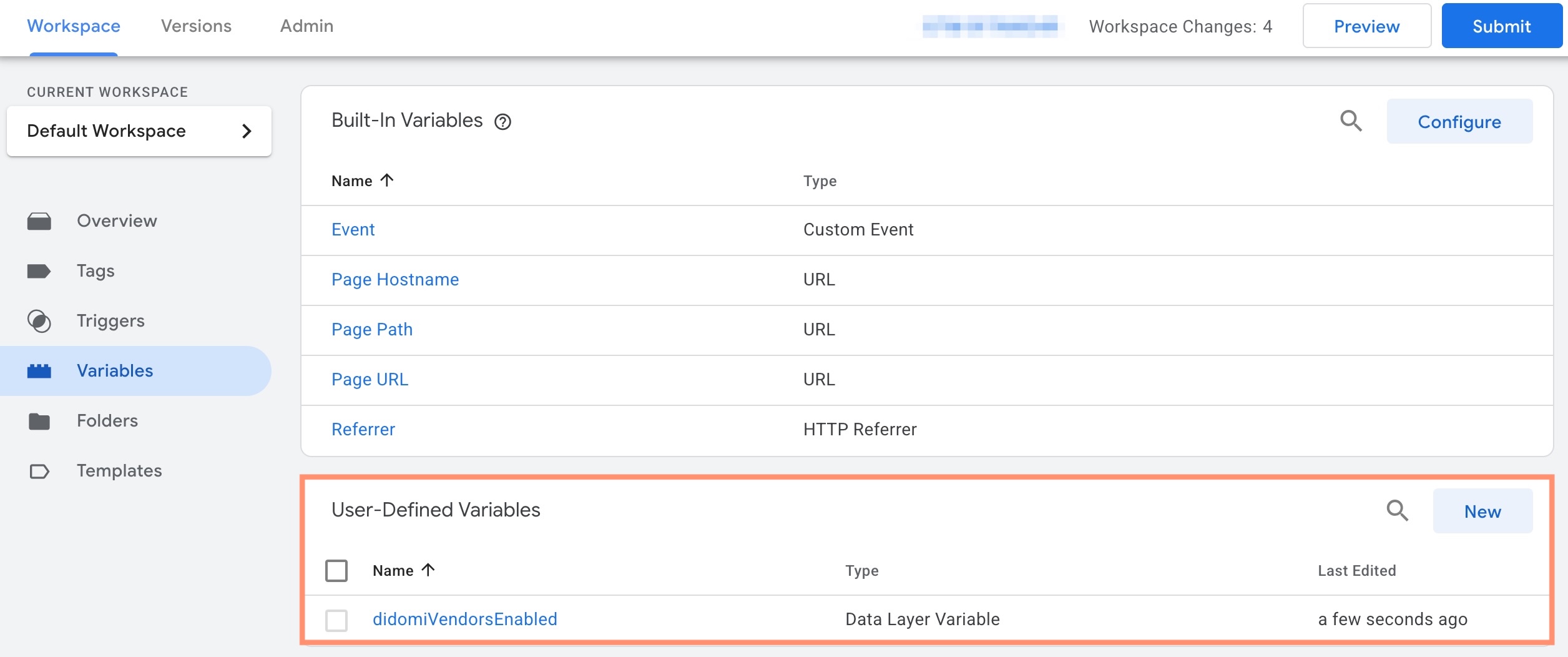
First, your organization should create a data layer variable for `didomiVendorsEnabled` as it will be used in the triggering:

<figure><img src="https://1825037175-files.gitbook.io/~/files/v0/b/gitbook-x-prod.appspot.com/o/spaces%2FNDxbAdc00ce6bH5u1urh%2Fuploads%2FeLToLCNJ9q6i2Xfd2JKf%2FScreenshot_2025-12-12_at_11_18_50%E2%80%AFAM.jpg?alt=media&amp;token=29253ee5-d57f-4f39-b31b-2e429dbc7c9f" alt="" width="563"><figcaption></figcaption></figure>

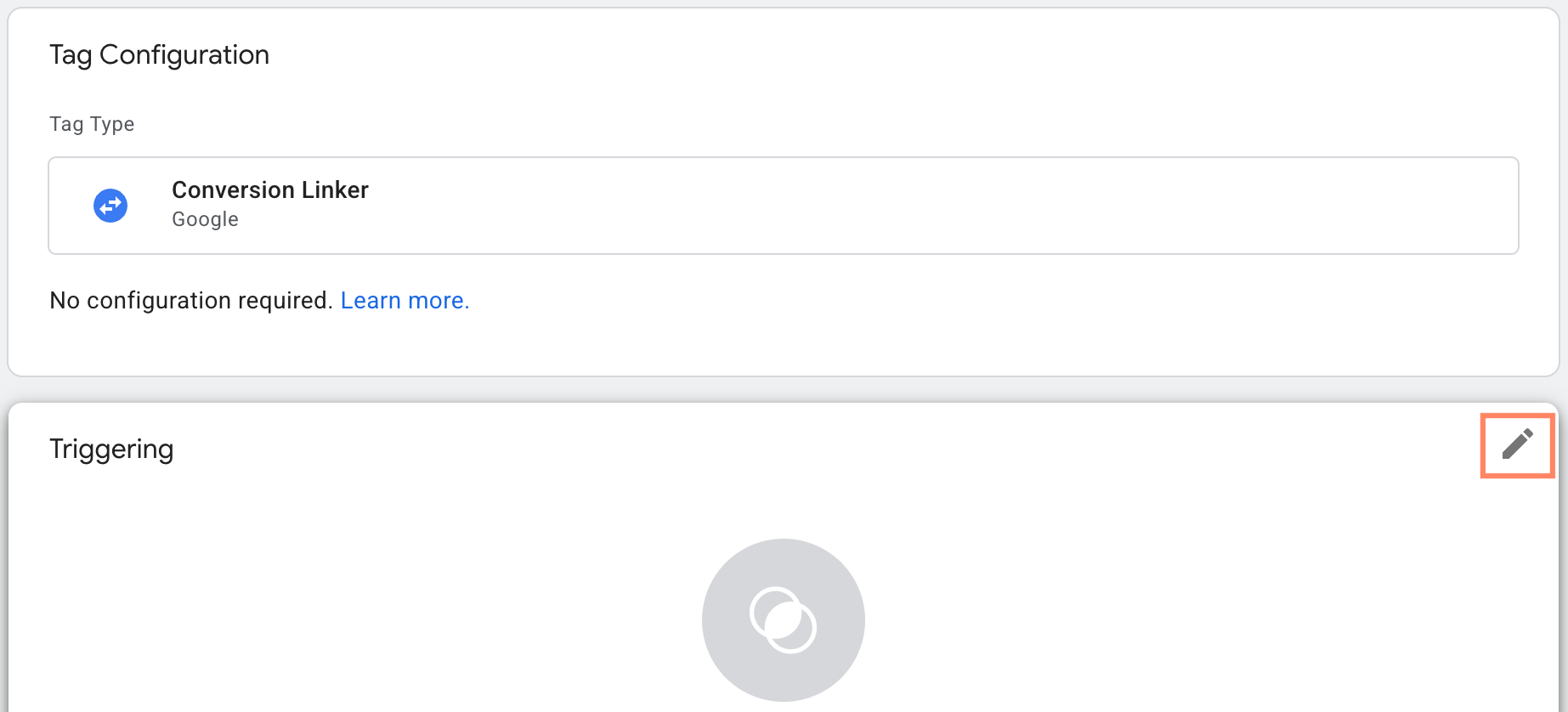
From your organization's Google Tag Manager workspace, navigate to your Google product tag and edit the trigger.

<figure><img src="https://1825037175-files.gitbook.io/~/files/v0/b/gitbook-x-prod.appspot.com/o/spaces%2FNDxbAdc00ce6bH5u1urh%2Fuploads%2FQ4WJKSfXKY21kTsSahoK%2FScreenshot%202025-12-03%20at%201.40.34%E2%80%AFPM.png?alt=media&amp;token=c36e1a27-2cc0-45d9-80d6-8103777459b2" alt="" width="563"><figcaption></figcaption></figure>

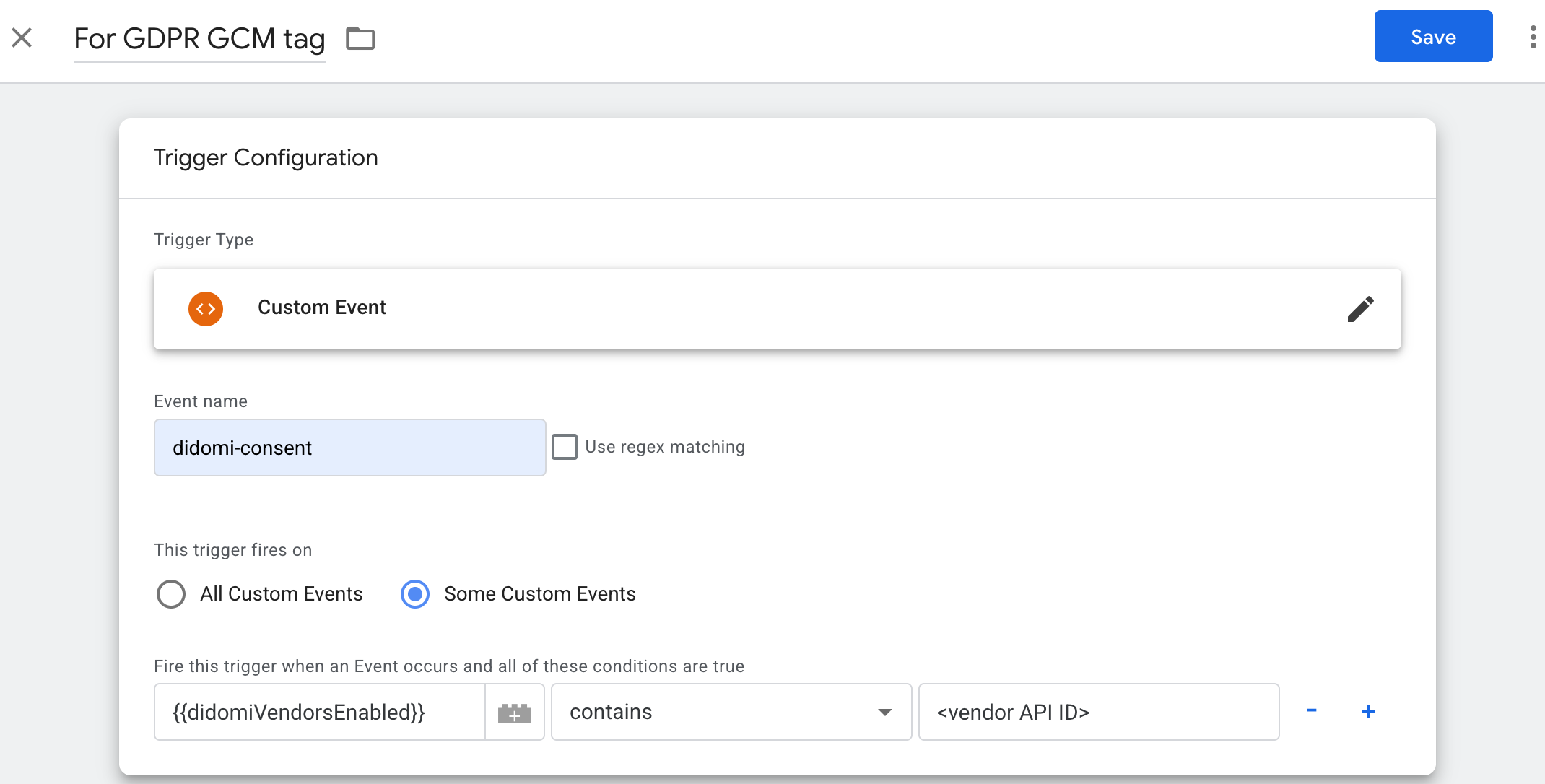
Configure your trigger with the following fields:

<table><thead><tr><th width="202">Field</th><th>Value</th></tr></thead><tbody><tr><td>Trigger Type</td><td>Custom Event</td></tr><tr><td>Event name</td><td><code>didomi-consent</code></td></tr><tr><td>This trigger fires on</td><td>Some Custom Events</td></tr><tr><td>Event condition</td><td><code>didomiVendorsEnabled</code> contains &#x3C;vendor API ID><br><br><mark style="background-color:$warning;"><strong>Note</strong>: Replace <strong>&#x3C;vendor API ID></strong> with the actual ID for the vendor that when consented to will trigger the Google product tag.</mark></td></tr></tbody></table>

<figure><img src="https://1825037175-files.gitbook.io/~/files/v0/b/gitbook-x-prod.appspot.com/o/spaces%2FNDxbAdc00ce6bH5u1urh%2Fuploads%2FNsd8Y5gZBxg2kngx9CDW%2FScreenshot%202025-12-12%20at%2011.36.20%E2%80%AFAM.png?alt=media&amp;token=981e44d1-b18e-4ca5-b61f-8f953ee0994c" alt="" width="563"><figcaption></figcaption></figure>

When finished, **Save** the trigger and tag setup. **Submit** your Google Tag Manager container changes aligned with your organization's policies.
{% endtab %}

{% tab title="gtag.js" %}
In this tab, we will cover how to implement Google Consent Mode v2 (Basic) on your regulation when your organization utilizes `gtag.js` tags for the Google products directly on your website.

* [Configure Google Consent Mode v2 (Basic) on regulation](#configure-google-consent-mode-v2-basic-on-regulation-1)
* [Install Google product tag(s)](#install-google-product-tag-s)

#### Configure Google Consent Mode v2 (Basic) on regulation

{% hint style="warning" %}
Google Consent Mode v2 is enabled by default for regulations but may still require additional configuration to align with the basic mode implementation.
{% endhint %}

Navigate to a regulation and navigate to the **Frameworks** card on the **Global Settings** page.&#x20;

Ensure that **Google Consent Mode** is enabled.

<figure><img src="https://1825037175-files.gitbook.io/~/files/v0/b/gitbook-x-prod.appspot.com/o/spaces%2FNDxbAdc00ce6bH5u1urh%2Fuploads%2FXro3Ez8wymCvLrEFxlon%2FScreenshot%202026-09-02%20at%2011.31.37%E2%80%AFAM.png?alt=media&amp;token=32273004-07f9-4f0f-acd7-32897e26ff42" alt="" width="563"><figcaption></figcaption></figure>

By enabling the Google Consent Mode framework for the regulation, Didomi will automatically add the following vendors to the regulation:

<table><thead><tr><th width="242">Vendor</th><th>Description</th></tr></thead><tbody><tr><td>Google Advertising Products</td><td><p>Will add Google Advertising Products vendor (API ID: <code>google</code>) to the regulation. Designed to encompass Google products who utilize one or more of the following consent types:</p><ul><li><code>ad_storage</code></li><li><code>ad_user_data</code></li><li><code>ad_personalization</code></li><li><code>functionality_storage</code></li><li><code>personalization_storage</code></li><li><code>security_storage</code></li></ul></td></tr><tr><td>Google Analytics Products</td><td>Will add Google Analytics Products vendor (API ID: <code>googleana-4TXnJigR</code>) to the regulation. Designed to encompass Google products who require the <code>analytics_storage</code> consent type.</td></tr></tbody></table>

Next, navigate to the **Vendors & Purposes** tab to associate purposes with the added Google vendors. See the table for more information:

<table><thead><tr><th width="173">Data collection scope</th><th>Configuration</th></tr></thead><tbody><tr><td>By vendor</td><td>Use the provided vendor x purpose matrix to configure processing rules, remove one of the purposes, etc... for the added vendors. See <a href="/regulations-manager/manage-regulations/configure-regulation-by-vendor.md#vendors-and-purposes">Configure regulation (by vendor)</a> for more information.</td></tr><tr><td>By country/region</td><td>Use the provided <strong>Vendors</strong> section to select which purposes in the regulation should be associated with the added vendors. See <a href="/regulations-manager/manage-regulations/configure-regulation-by-country-region.md#vendors-and-purposes">Configure regulation (by country/region)</a> for more information.</td></tr></tbody></table>

<figure><img src="https://1825037175-files.gitbook.io/~/files/v0/b/gitbook-x-prod.appspot.com/o/spaces%2FNDxbAdc00ce6bH5u1urh%2Fuploads%2Fjbqd4I7o4JyoFaj2ZZ1f%2FScreenshot%202026-09-17%20at%207.17.13%E2%80%AFAM.png?alt=media&amp;token=521d9093-6588-46f8-9853-45b1d6f6815a" alt="" width="563"><figcaption></figcaption></figure>

Finally, navigate to the **Frameworks** tab and expand the **Google Consent Mode v2** accordion to configure the details of the framework.

<figure><img src="https://1825037175-files.gitbook.io/~/files/v0/b/gitbook-x-prod.appspot.com/o/spaces%2FNDxbAdc00ce6bH5u1urh%2Fuploads%2FC6KJvxDN0XCGKrZeriNN%2FScreenshot%202026-09-02%20at%203.08.09%E2%80%AFPM.png?alt=media&amp;token=32c96644-ac04-48f7-a19d-a9aba81778a4" alt="" width="563"><figcaption></figcaption></figure>

Review the table below for information on each toggle in the integration configuration:

{% hint style="warning" %}
**Note**: In order to successfully implement Google Consent Mode v2 (Basic) for the regulation, your organization will **need** to have Google Advertising Products and/or Google Analytics Products enabled depending on the Google products your organization utilizes.
{% endhint %}

<table><thead><tr><th width="276">Toggle</th><th>Description</th></tr></thead><tbody><tr><td>Set the default status of Google Consent Mode when the page loads</td><td><p>The basic version of Google Consent Mode v2 will block Google product tags an end-user interacts with your widget.<br></p><div data-gb-custom-block data-tag="hint" data-style="warning" class="hint hint-warning"><p>Ensure this toggle is <strong>de-activated</strong> to ensure no default status is set for the basic version.</p></div></td></tr><tr><td>Enable Google Advertising Products</td><td>When enabled, indicates that Google Advertising Products vendor (API ID: <code>google</code>) is added to the regulation. If the toggle is deactivated then the vendor will be removed.</td></tr><tr><td>Enable <strong>{consent type}</strong> before user gives consent</td><td><p>For each consent type, will override the default status of the Google consent type and set it to <code>granted</code> as soon as the Google product tag loads.</p><div data-gb-custom-block data-tag="hint" data-style="warning" class="hint hint-warning"><p>With Google Consent Mode v2 (Basic), Google product tags will be blocked until the end-user grants consent and not even the consent state is sent to Google. These settings <strong>do not</strong> need to be enabled.</p></div></td></tr><tr><td>Enable Google Analytics Products</td><td>When enabled, indicates that Google Analytics Products vendor (API ID: <code>googleana-4TXnJigR</code>) is added to the regulation. If the toggle is deactivated then the vendor will be removed.</td></tr><tr><td>Enable IAB TCF integration with Google Consent Mode</td><td><p>Enables Didomi to set an additional flag (<code>TCData.enableAdvertiserConsentMode</code> to <code>true</code>) for <code>getTCData</code> and <code>addEventListener</code> commands. This additional flag allows Google to infer and map consent settings to the following Google Consent Mode v2 consent types based on IAB TCF purposes:</p><ul><li><code>ad_storage</code></li><li><code>ad_user_data</code></li><li><code>ad_personalization</code></li></ul><p><a href="https://developers.google.com/tag-platform/security/guides/implement-TCF-strings?hl=en#tcf_integration_behavior">Click here</a> for more information on how Google calculates the mapping between IAB TCF purposes and Google consent types.<br><br>The TCF integration with Google Consent Mode does not support Google product tags that require the <code>analytics_storage</code>, <code>functionality_storage</code>, <code>personalization_storage</code>, or <code>security_storage</code> consent types. </p><p></p><p>For Google products that require the <code>analytics_storage</code> consent type, Didomi will set this consent type to <code>granted</code> if the end-user consents globally (consent to vendor and all of its purposes) for Google Analytics Products (API ID: <code>googleana-4TXnJigR</code>).</p><div data-gb-custom-block data-tag="hint" data-style="warning" class="hint hint-warning"><p>Only available when the IAB TCF is also added to the regulation's frameworks.</p></div></td></tr><tr><td>Data layer name</td><td>By default, Didomi utilizes <code>dataLayer</code> as the variable name for your organization's Google Tag Manager dataLayer. If your organization has edited the variable name for your dataLayer then input that variable name in the provided space.</td></tr><tr><td>Tracking app conversions with Firebase and Google's AAP partners</td><td><a href="#mobile-sdks">Click here</a> for more information when configuring Google Consent Mode v2 (Basic) for mobile SDKS.</td></tr></tbody></table>

<figure><img src="https://1825037175-files.gitbook.io/~/files/v0/b/gitbook-x-prod.appspot.com/o/spaces%2FNDxbAdc00ce6bH5u1urh%2Fuploads%2FQyntvXXnQVePHKQ0t1Or%2FScreenshot%202026-09-03%20at%207.12.52%E2%80%AFAM.png?alt=media&amp;token=3df2789b-5ed1-4475-8aba-0411554058f0" alt="" width="563"><figcaption></figcaption></figure>

#### Install Google product tag(s)

In order to ensure Google product tags are blocked in accordance with a Google Consent Mode v2 (Basic) setup your organization must configure each Google product tag on your page to trigger only when an end-user grants consent to the respective Google product.

Utilize the [Didomi `<script>` tag attributes ](https://developers.didomi.io/cmp/web-sdk/third-parties/no-tag-manager)to edit the `gtag.js` tags for each Google product tag on your website to include `type="didomi/javascript" data-vendor="{Google Vendor API ID}"` .
{% endtab %}

{% tab title="GTM template" %}
{% hint style="danger" %}
**Do not** enable the Google Consent Mode v2 toggle in the Didomi console when utilizing the GTM template as the implementation method for Google Consent Mode v2 (Basic).
{% endhint %}

<figure><img src="https://1825037175-files.gitbook.io/~/files/v0/b/gitbook-x-prod.appspot.com/o/spaces%2FNDxbAdc00ce6bH5u1urh%2Fuploads%2FnUsjklGSL6bkSHicHWQH%2FScreenshot%202026-09-03%20at%208.49.28%E2%80%AFAM.png?alt=media&amp;token=50351b4f-3488-47bd-8e4a-c32f58f8019b" alt="" width="563"><figcaption></figcaption></figure>

Information on implementing Google Consent Mode v2 (Basic) via the Didomi GTM template can be found below:

[Didomi GTM template](https://developers.didomi.io/cmp/web-sdk/third-parties/tags-management/tag-managers/google-tag-manager/didomis-gtm-template)
{% endtab %}

{% tab title="Mobile SDKs" %}
{% hint style="info" %}
Didomi has updated its support since the release of Google Custom Mode v2 with simplified native integrations with Firebase and Advanced App Partners (AAP) like Airbridge, ApplyFlyer, etc...

Organizations who have implemented the previous Google Consent Mode v2 solution via the `setConsent` method should update their implementations via the instructions below and remove `setConsent` for Google Consent Mode v2 from the application code.
{% endhint %}

On mobile applications, Google Consent Mode v2 works through SDKs such as Firebase and Google Ads SDKs. These SDKs rely on consent signals that are provided programmatically at runtime. Consent signals must be passed early in the app lifecycle to ensure Google SDKs respect end-user choices.

In this tab, we will cover how to implement Google Consent Mode v2 (Basic) framework on a regulation for a mobile application.

* [Requirements](#requirements)
* [Configure Google Consent Mode v2 (Basic) on regulation](#configure-google-consent-mode-v2-basic-on-regulation-2)

#### Requirements

Review the table below for more information on the required minimum version of the Didomi mobile SDK used in your application that supports the Firebase SDK and Google Ads SDK:

<table><thead><tr><th width="191">Mobile SDK</th><th>Minimum version</th></tr></thead><tbody><tr><td>iOS/tvOS</td><td>>v2.27.0</td></tr><tr><td>Android</td><td>>v2.27.0</td></tr></tbody></table>

#### Configure Google Consent Mode v2 (Basic) on regulation

{% hint style="warning" %}
Google Consent Mode v2 is enabled by default for regulations but may still require additional configuration to align with the basic mode implementation.
{% endhint %}

Select a regulation and navigate to the **Frameworks** card on the **Global Settings** page.&#x20;

Ensure that **Google Consent Mode** is enabled.

<figure><img src="https://1825037175-files.gitbook.io/~/files/v0/b/gitbook-x-prod.appspot.com/o/spaces%2FNDxbAdc00ce6bH5u1urh%2Fuploads%2FXro3Ez8wymCvLrEFxlon%2FScreenshot%202026-09-02%20at%2011.31.37%E2%80%AFAM.png?alt=media&amp;token=32273004-07f9-4f0f-acd7-32897e26ff42" alt="" width="563"><figcaption></figcaption></figure>

By enabling the Google Consent Mode framework for the regulation, Didomi will automatically add the following vendors to the regulation:

<table><thead><tr><th width="242">Vendor</th><th>Description</th></tr></thead><tbody><tr><td>Google Advertising Products</td><td><p>Will add Google Advertising Products vendor (API ID: <code>google</code>) to the regulation. Designed to encompass Google products who utilize one or more of the following consent types:</p><ul><li><code>ad_storage</code></li><li><code>ad_user_data</code></li><li><code>ad_personalization</code></li><li><code>functionality_storage</code></li><li><code>personalization_storage</code></li><li><code>security_storage</code></li></ul></td></tr><tr><td>Google Analytics Products</td><td>Will add Google Analytics Products vendor (API ID: <code>googleana-4TXnJigR</code>) to the regulation. Designed to encompass Google products who require the <code>analytics_storage</code> consent type.</td></tr></tbody></table>

Next, navigate to the **Vendors & Purposes** tab to associate purposes with the added Google vendors. See the table for more information:

<table><thead><tr><th width="173">Data collection scope</th><th>Configuration</th></tr></thead><tbody><tr><td>By vendor</td><td>Use the provided vendor x purpose matrix to configure processing rules, remove one of the purposes, etc... for the added vendors. See <a href="/regulations-manager/manage-regulations/configure-regulation-by-vendor.md#vendors-and-purposes">Configure regulation (by vendor)</a> for more information.</td></tr><tr><td>By country/region</td><td>Use the provided <strong>Vendors</strong> section to select which purposes in the regulation should be associated with the added vendors. See <a href="/regulations-manager/manage-regulations/configure-regulation-by-country-region.md#vendors-and-purposes">Configure regulation (by country/region)</a> for more information.</td></tr></tbody></table>

<figure><img src="https://1825037175-files.gitbook.io/~/files/v0/b/gitbook-x-prod.appspot.com/o/spaces%2FNDxbAdc00ce6bH5u1urh%2Fuploads%2Fjbqd4I7o4JyoFaj2ZZ1f%2FScreenshot%202026-09-17%20at%207.17.13%E2%80%AFAM.png?alt=media&amp;token=521d9093-6588-46f8-9853-45b1d6f6815a" alt="" width="563"><figcaption></figcaption></figure>

Finally, navigate to the **Frameworks** tab and expand the **Google Consent Mode v2** accordion to configure the details of the framework.

<figure><img src="https://1825037175-files.gitbook.io/~/files/v0/b/gitbook-x-prod.appspot.com/o/spaces%2FNDxbAdc00ce6bH5u1urh%2Fuploads%2FC6KJvxDN0XCGKrZeriNN%2FScreenshot%202026-09-02%20at%203.08.09%E2%80%AFPM.png?alt=media&amp;token=32c96644-ac04-48f7-a19d-a9aba81778a4" alt="" width="563"><figcaption></figcaption></figure>

Review the table below for information on each toggle in the integration configuration:

{% hint style="warning" %}
**Note**: In order to successfully implement Google Consent Mode v2 (Basic) for the regulation, your organization will **need** to have Google Advertising Products and/or Google Analytics Products enabled depending on the Google products your organization utilizes.
{% endhint %}

<table><thead><tr><th width="276">Toggle</th><th>Description</th></tr></thead><tbody><tr><td>Set the default status of Google Consent Mode when the page loads</td><td><p>The basic version of Google Consent Mode v2 will block Google product tags an end-user interacts with your widget.</p><div data-gb-custom-block data-tag="hint" data-style="warning" class="hint hint-warning"><p>Ensure this toggle is <strong>de-activated</strong> to ensure no default status is set for the basic version.</p></div></td></tr><tr><td>Enable Google Advertising Products</td><td>When enabled, indicates that Google Advertising Products vendor (API ID: <code>google</code>) is added to the regulation. If the toggle is deactivated then the vendor will be removed.</td></tr><tr><td>Enable <strong>{consent type}</strong> before user gives consent</td><td><p>For each consent type, will override the default status of the Google consent type and set it to <code>granted</code> as soon as the Google product tag loads.</p><div data-gb-custom-block data-tag="hint" data-style="warning" class="hint hint-warning"><p>With Google Consent Mode v2 (Basic), Google product tags will be blocked until the end-user grants consent and not even the consent state is sent to Google. These settings <strong>do not</strong> need to be enabled.</p></div></td></tr><tr><td>Enable Google Analytics Products</td><td>When enabled, indicates that Google Analytics Products vendor (API ID: <code>googleana-4TXnJigR</code>) is added to the regulation. If the toggle is deactivated then the vendor will be removed.</td></tr><tr><td>Enable IAB TCF integration with Google Consent Mode</td><td><p>Enables Didomi to set an additional flag (<code>TCData.enableAdvertiserConsentMode</code> to <code>true</code>) for <code>getTCData</code> and <code>addEventListener</code> commands. This additional flag allows Google to infer and map consent settings to the following Google Consent Mode v2 consent types based on IAB TCF purposes:</p><ul><li><code>ad_storage</code></li><li><code>ad_user_data</code></li><li><code>ad_personalization</code></li></ul><p><a href="https://developers.google.com/tag-platform/security/guides/implement-TCF-strings?hl=en#tcf_integration_behavior">Click here</a> for more information on how Google calculates the mapping between IAB TCF purposes and Google consent types.<br><br>The TCF integration with Google Consent Mode does not support Google product tags that require the <code>analytics_storage</code>, <code>functionality_storage</code>, <code>personalization_storage</code>, or <code>security_storage</code> consent types. </p><p></p><p>For Google products that require the <code>analytics_storage</code> consent type, Didomi will set this consent type to <code>granted</code> if the end-user consents globally (consent to vendor and all of its purposes) for Google Analytics Products (API ID: <code>googleana-4TXnJigR</code>).</p><div data-gb-custom-block data-tag="hint" data-style="warning" class="hint hint-warning"><p>Only available when the IAB TCF is also added to the regulation's frameworks.</p></div></td></tr><tr><td>Data layer name</td><td>By default, Didomi utilizes <code>dataLayer</code> as the variable name for your organization's Google Tag Manager dataLayer. If your organization has edited the variable name for your dataLayer then input that variable name in the provided space.</td></tr><tr><td>Firebase</td><td><p>Firebase is the core SDK for Google apps. Once enabled, the integration ensures:</p><ul><li>proper mapping of Didomi consent signals to Firebase</li><li>automatic propagation to Google SDKs for measurement and advertising</li><li>simplified compliance for GDPR and similar regulations</li></ul></td></tr><tr><td>Branch</td><td><p><a href="https://support.google.com/google-ads/answer/12961402?hl=en">App Attribution Partners (AAP)</a> like Branch need to receive accurate consent signals to comply with privacy regulations and forwards these signals to Google.</p><p></p><p>When Branch is enabled for the regulation and the Branch SDK is present in your app, Didomi manages the Google Consent Mode signal propagation for Branch.</p><p></p><p>For end-users in GDPR-regulated regions, Didomi indicates compliance context by setting <code>eea</code> to <code>1</code> and applies default values for consent signals based on your configuration in the console. After the end-user provides consent, Didomi recalculates the status of these signals using the end-user’s consent for Google Advertising Products and Google Analytics Products and updates Branch accordingly.</p><p></p><p>For users outside GDPR regions, Didomi sets <code>eea</code> to <code>0</code> to indicate that no GDPR obligations apply.</p></td></tr><tr><td>Kochava</td><td><p><a href="https://support.google.com/google-ads/answer/12961402?hl=en">App Attribution Partners (AAP) </a>like Kochava need to receive accurate consent signals to comply with privacy regulations and forwards these signals to Google.</p><p></p><p>When Kochava is enabled for the regulation, Didomi ensures that Kochava receives the consent string needed to populate Google’s consent signals. Kochava uses this consent information during install and event transmissions.</p><p></p><p>When the CMP collects end-user consent, the consent string is shared with Kochava through Didomi, provided that the SDK is configured to send installs or events after the end-user has given consent.</p><p></p><p>Kochava parses the TCF consent string and applies it to build Google-required signals. This process works seamlessly with CMPs that support the IAB Transparency &#x26; Consent Framework (TCF) v2.3 or the Global Privacy Platform API v1.1.</p></td></tr><tr><td>Airbridge</td><td><p><a href="https://support.google.com/google-ads/answer/12961402?hl=en">App Attribution Partners (AAP)</a> like Airbridge need to receive accurate consent signals to comply with privacy regulations and forwards these signals to Google.</p><p>When Airbridge is enabled in the console and the Airbridge SDK is detected in the app, Didomi computes the appropriate Google Consent Mode signals and shares them with Airbridge.</p><p></p><p>For end-users located in the EEA (European Economic Area) and therefore subject to GDPR, Didomi informs Airbridge that the user is in a regulated region by setting <code>eeaRegion</code> to <code>true</code>. At the same time, Airbridge receives the default values for consent signals based on your configuration in the Didomi SDK. Once the end-user provides their consent through the CMP, Didomi updates these signals and ensures that Airbridge reflects the end-user’s actual preferences.</p><p></p><p>For end-users outside the EEA, Didomi signals that the end-user is not in a GDPR-regulated region by setting <code>eeaRegion</code> to <code>false</code>.</p></td></tr><tr><td>AppsFlyer</td><td><p></p><p><a href="https://support.google.com/google-ads/answer/12961402?hl=en">App Attribution Partners (AAP)</a> like AppsFlyer need to receive accurate consent signals to comply with privacy regulations and forwards these signals to Google.</p><p></p><p>When AppsFlyer is enabled in the console and the AppsFlyer SDK is present in your app, Didomi manages the Google Consent Mode signal propagation for AppsFlyer.</p><ul><li>For users in GDPR-regulated regions, Didomi indicates compliance context by setting <code>isUserSubjectToGDPR</code> to <code>true</code> and applies default values for consent signals based on your configuration in the console. After the end-user provides consent, Didomi recalculates the status of these signals using the end-user’s consent for Google Advertising Products and Google Analytics Products and updates AppsFlyer accordingly.</li><li>For users outside of GDPR jurisdiction, Didomi will set <code>isUserSubjectToGDPR</code> to <code>false</code> .</li><li>If you have enabled <strong>IAB TCF integration with Google Consent Mode</strong>, Didomi will automatically instruct AppsFlyer to use the TC string by setting <code>enableTCFDataCollection(true)</code> . As a result, AppsFlyer can directly get the user's consent from the TC string in <code>SharedPreferences</code></li></ul></td></tr></tbody></table>

<figure><img src="https://1825037175-files.gitbook.io/~/files/v0/b/gitbook-x-prod.appspot.com/o/spaces%2FNDxbAdc00ce6bH5u1urh%2Fuploads%2F2qcZQrfLMY5EtSRKsPQB%2FScreenshot%202026-09-03%20at%2010.22.23%E2%80%AFAM.png?alt=media&amp;token=2c57aa91-36eb-47f9-a8c8-be146020511c" alt="" width="563"><figcaption></figcaption></figure>
{% endtab %}
{% endtabs %}

### Test Google Consent Mode v2 (Basic)

When successfully and appropriately configured, a Google Consent Mode v2 (Basic) implementation will keep the relevant Google product tags from triggering until the end-user grants consent to the respective Google vendors associated with your regulation. In this section we will cover how to test whether your Google Consent Mode v2 (Basic) configuration is working as intended.

* [Confirm Google product vendors on widget](#confirm-google-product-vendors-on-widget)
* [Test Google product triggering](#test-google-product-triggering)

{% hint style="info" %}
If you need further assistance or have noticed something unusual, please feel free to reach out to <google-support@didomi.io>.
{% endhint %}

#### Confirm Google product vendors on widget

As mentioned above during the configuration, Google Consent Mode v2 (Basic) requires the use of the following vendors Google Advertising Products (API ID: `google`) and/or Google Analytics Products (API ID: `googleana-4TXnJigR`) depending on the Google products your organization utilizes.

Before continuing, ensure that the correct vendors are added to the widget to reflect the Google products that will be triggered:

<figure><img src="https://1825037175-files.gitbook.io/~/files/v0/b/gitbook-x-prod.appspot.com/o/spaces%2FNDxbAdc00ce6bH5u1urh%2Fuploads%2F03c0ofFQenm1FsZAWSTH%2FScreenshot_2026-09-03_at_12_00_52%E2%80%AFPM.jpg?alt=media&amp;token=5f1e0666-b58a-4f30-906a-1060531c2a86" alt="" width="375"><figcaption></figcaption></figure>

#### Test Google product triggering

When testing the Google Consent Mode v2 (Basic) implementation, your organization will want to confirm three actions :

* Google products do not fire prior to consent action
* Google products do not fire if an end-user denies consent
* Google products fire only when an end-user grants consent

How your organization tests that Google product tag(s) are triggering as expected of a Google Consent Mode v2 (Basic) setup is dependent on how you configured the implementation on the regulation:

<table><thead><tr><th width="222">Implementation method</th><th>Available testing</th></tr></thead><tbody><tr><td>Google Tag Manager</td><td><ul><li>Google Tag Manager</li><li>Website</li></ul></td></tr><tr><td>gtag.js</td><td><ul><li>Website</li></ul></td></tr><tr><td>GTM template</td><td><ul><li>Google Tag Manager</li><li>Website</li></ul></td></tr><tr><td>Mobile SDK</td><td><ul><li>Didomi SDK Logs</li><li>Firebase DebugView</li><li>ADB (Android) or Xcode Console (iOS) for runtime logs</li><li>Network sniffers (e.g. Charles Proxy) for verifying event payloads</li></ul></td></tr></tbody></table>

{% tabs %}
{% tab title="Website" %}
In this tab, we will cover how to test your organization's Google Consent Mode v2 (Basic) implementation via the website on which the Didomi widget is deployed.&#x20;

{% hint style="info" %}
It is recommended that the following tests are done using an Incognito window for your browser.&#x20;
{% endhint %}

**Google product tags do not fire prior to consent action**

Access the website on which you have deployed the Didomi widget with a Google Consent mode v2 (Basic) implementation and let the widget load on the page. It is important that you do not interact with the widget yet.&#x20;

Open the browser console and navigate to cookie storage (for Chrome it is the **Application> Cookies** and Firefox it is **Storage>Cookies).**

<figure><img src="https://1825037175-files.gitbook.io/~/files/v0/b/gitbook-x-prod.appspot.com/o/spaces%2FNDxbAdc00ce6bH5u1urh%2Fuploads%2FfL5RGvtLvO6vhnUKXrJk%2FScreenshot_2025-12-16_at_12_51_25%E2%80%AFPM.jpg?alt=media&amp;token=170dc7a3-cee8-4487-8715-0ff4c8f7777a" alt="" width="563"><figcaption></figcaption></figure>

Ensure that no cookies are dropped from consent-aware Google products utilized by your organization (e.g. Google Analytics, Ad Words, Floodlight, etc...).&#x20;

{% hint style="info" %}
[Click here](https://business.safety.google/adscookies/) for more information on cookie names for Google products.&#x20;
{% endhint %}

Next, select the **Network** tab in the browser console and use the provided search filter to search for:

* `analytics.js`
* `gtag`
* `collect`
* `gcs`
* `gcd`

Ensure there are no network requests being performed with these parameters.

<figure><img src="https://1825037175-files.gitbook.io/~/files/v0/b/gitbook-x-prod.appspot.com/o/spaces%2FNDxbAdc00ce6bH5u1urh%2Fuploads%2F16Ctaq48MRh12a6HjpdB%2FScreenshot%202025-12-16%20at%202.11.03%E2%80%AFPM.png?alt=media&amp;token=ebe9cdee-a5f4-4d20-8b98-ac0f490f4359" alt="" width="563"><figcaption></figcaption></figure>

**Google product tags do not fire if an end-user denies consent**

Access the website on which you have deployed the Didomi widget with a Google Consent mode v2 (Basic) implementation and let the widget load on the page. Deny consent for all vendors and purposes.

Open the browser console and navigate to cookie storage (for Chrome it is the **Application> Cookies** and Firefox it is **Storage>Cookies).**

<figure><img src="https://1825037175-files.gitbook.io/~/files/v0/b/gitbook-x-prod.appspot.com/o/spaces%2FNDxbAdc00ce6bH5u1urh%2Fuploads%2F1Y9HXDqYiAE9K0ADfU6A%2FScreenshot_2025-12-16_at_2_28_00%E2%80%AFPM.jpg?alt=media&amp;token=2b3cd9d6-8a0a-4abc-ac6a-1a110f132102" alt="" width="563"><figcaption></figcaption></figure>

Ensure that no cookies are dropped from consent-aware Google products utilized by your organization (e.g. Google Analytics, Ad Words, Floodlight, etc...).&#x20;

{% hint style="info" %}
[Click here](https://business.safety.google/adscookies/) for more information on cookie names for Google products.&#x20;
{% endhint %}

Next, select the **Network** tab in the browser console and use the provided search filter to search for:

* `analytics.js`
* `gtag`
* `collect`
* `gcs`
* `gcd`

Ensure there are no network requests being performed with these parameters.

<figure><img src="https://1825037175-files.gitbook.io/~/files/v0/b/gitbook-x-prod.appspot.com/o/spaces%2FNDxbAdc00ce6bH5u1urh%2Fuploads%2FteOyrFQXbi84gbUNy8kS%2FScreenshot%202025-12-16%20at%202.27.27%E2%80%AFPM.png?alt=media&amp;token=ae5f93df-0b22-4881-b6fc-f37f92b1c49c" alt="" width="563"><figcaption></figcaption></figure>

**Google product tags fire only when an end-user grants consent**

Access the website on which you have deployed the Didomi widget with a Google Consent mode v2 (Basic) implementation and let the widget load on the page. Grant consent for all vendors and purposes.

Select the **Network** tab in the browser console and verify that requests for Google Analytics and/or Google Ad Words contain a `gcd` parameter and that its value reflects the choices made by the end-user.

{% hint style="info" %}
The value for `gcd` will resemble a string of characters: `gcd=11<ad_storage>1<analytics_storage>1<ad_user_data>1<ad_personalization>5` \
Each storage has the possible value “e”, “r”, “n” or “v” which equal `granted` in a GCM update after user interaction with the CMP
{% endhint %}

![](https://1825037175-files.gitbook.io/~/files/v0/b/gitbook-x-prod.appspot.com/o/spaces%2FNDxbAdc00ce6bH5u1urh%2Fuploads%2FECpFI02T3poaNGd9KsZU%2FUntitled%20\(1\)-png.webp?alt=media\&token=0ec5a4ba-e3ea-4f9e-91bd-88e9faf7cab9)
{% endtab %}

{% tab title="Google Tag Manager" %}
In this tab, we will cover how to test your organization's Google Consent Mode v2 (Basic) implementation via Google Tag Manager.

{% hint style="info" %}
It is recommended that the following tests are done using an Incognito window for your browser or that you clear your cookies and local storage for your website in your favorite browser.&#x20;
{% endhint %}

Navigate to the container where you configured and published your Google Consent Mode v2 (Basic) in your Google Tag Manager account and click **Preview**.

<figure><img src="https://1825037175-files.gitbook.io/~/files/v0/b/gitbook-x-prod.appspot.com/o/spaces%2FNDxbAdc00ce6bH5u1urh%2Fuploads%2FjGEYLONhOsvgfdNq8I05%2FScreenshot_2025-12-16_at_3_45_24%E2%80%AFPM.jpg?alt=media&amp;token=6fb6d02d-016c-49d3-bce6-9e0fd7e4f962" alt="" width="563"><figcaption></figcaption></figure>

Use the provided field to input the URL of your website on which the Didomi widget is implemented. Click **Connect** when finished.&#x20;

<figure><img src="https://1825037175-files.gitbook.io/~/files/v0/b/gitbook-x-prod.appspot.com/o/spaces%2FNDxbAdc00ce6bH5u1urh%2Fuploads%2FYwCmJiKODtNEsTiHrJAd%2FScreenshot_2025-12-17_at_7_00_27%E2%80%AFAM.jpg?alt=media&amp;token=e223ee28-88df-4231-a9ea-fa56aa4d234e" alt="" width="375"><figcaption></figcaption></figure>

**Google product tags do not fire prior to consent action**

Let the widget load in the subsequent window of the tag assistant. It is important that you do not interact with the widget yet.&#x20;

Navigate to events on the left-hand side of the tag assistant and select the **Tags** tab. Ensure that none of your Google product tags are fired.&#x20;

<figure><img src="https://1825037175-files.gitbook.io/~/files/v0/b/gitbook-x-prod.appspot.com/o/spaces%2FNDxbAdc00ce6bH5u1urh%2Fuploads%2FCcxNfhgAThXrVQiTzVHh%2FScreenshot_2025-12-17_at_8_43_27%E2%80%AFAM.jpg?alt=media&amp;token=17a04852-c658-4a21-89cf-8645e6bcd72b" alt="" width="563"><figcaption></figcaption></figure>

Next, click the **Consent** tab for events on the left-hand side and ensure that **Consent state has not been set yet**.

<figure><img src="https://1825037175-files.gitbook.io/~/files/v0/b/gitbook-x-prod.appspot.com/o/spaces%2FNDxbAdc00ce6bH5u1urh%2Fuploads%2FDH6XwMzjFHU9yumfgQCh%2FScreenshot_2025-12-17_at_9_01_26%E2%80%AFAM.jpg?alt=media&amp;token=7cf15dc0-68a1-4bdd-bda6-1dca9d4571be" alt="" width="563"><figcaption></figcaption></figure>

**Google product tags do not fire if an end-user denies consent**

Let the widget load in the subsequent window of the tag assistant. Deny consent for all vendors and purposes.

Navigate to events related to the "deny consent" action on the left-hand side of the tag assistant and select the **Tags** tab. Ensure that none of your Google product tags are fired.&#x20;

<figure><img src="https://1825037175-files.gitbook.io/~/files/v0/b/gitbook-x-prod.appspot.com/o/spaces%2FNDxbAdc00ce6bH5u1urh%2Fuploads%2F0xhfMqHd75DugpXnBkPe%2FScreenshot_2025-12-17_at_9_18_00%E2%80%AFAM.jpg?alt=media&amp;token=45200ee2-bf63-4b6f-a50f-0bdc44efd883" alt="" width="563"><figcaption></figcaption></figure>

Next, click the **Consent** tab for events related to the "deny consent" action on the left-hand side and ensure that all Google consent types are set to **Denied** (except for `security_storage`).

<figure><img src="https://1825037175-files.gitbook.io/~/files/v0/b/gitbook-x-prod.appspot.com/o/spaces%2FNDxbAdc00ce6bH5u1urh%2Fuploads%2FMZAKGt9VsMwK8l9mrM88%2FScreenshot_2025-12-17_at_9_25_52%E2%80%AFAM.jpg?alt=media&amp;token=a0bad115-418d-42fa-b9d0-0d09834360a5" alt="" width="563"><figcaption></figcaption></figure>

**Google product tags fire only when an end-user grants consent**

Let the widget load in the subsequent window of the tag assistant. Grant consent for all vendors and purposes.

Navigate to `didomi-consent` event related to the "grant consent" action on the left-hand side of the tag assistant and select the **Tags** tab. Ensure that your Google product tags have fired.&#x20;

<figure><img src="https://1825037175-files.gitbook.io/~/files/v0/b/gitbook-x-prod.appspot.com/o/spaces%2FNDxbAdc00ce6bH5u1urh%2Fuploads%2FsnoHggV18sZZzaQpQKrT%2FScreenshot_2025-12-17_at_9_36_01%E2%80%AFAM.jpg?alt=media&amp;token=c2deaf87-bc16-4aa9-b887-6e17cd48aeca" alt="" width="563"><figcaption></figcaption></figure>

Next, click the **Consent** tab for events related to the "grant consent" action on the left-hand side and ensure that the appropriate Google consent types have *On-page Update* and *Current State* set to **Granted**.&#x20;

<figure><img src="https://1825037175-files.gitbook.io/~/files/v0/b/gitbook-x-prod.appspot.com/o/spaces%2FNDxbAdc00ce6bH5u1urh%2Fuploads%2Fo4YKVZ6PaxA5aXAFqddY%2FScreenshot_2025-12-17_at_9_46_45%E2%80%AFAM.jpg?alt=media&amp;token=b8afd34e-fdb3-4bd5-bde1-d623fa1a3c96" alt="" width="563"><figcaption></figcaption></figure>
{% endtab %}

{% tab title="Mobile SDK" %}
How your organization tests depends on the integrations configure and tools available for your mobile application. In this tab, we will cover how validations that your organization should perform in order to check default and updated signals are set and sent correctly.

* [Enable debug logs](#enable-debug-logs)
* [Testing criteria](#testing-criteria)
* [Test best practices](#test-best-practices)

#### Enable debug logs

Activate verbose logging in Didomi SDK via:

<table><thead><tr><th width="111"></th><th></th></tr></thead><tbody><tr><td>Android</td><td><pre><code>Didomi.getInstance().setLogLevel(LogLevel.DEBUG)
</code></pre></td></tr><tr><td>iOS</td><td><pre><code>Didomi.shared.setLogLevel(.debug)
</code></pre></td></tr></tbody></table>

If integrated with Firebase, enable Firebase DebugView via:

<table data-header-hidden><thead><tr><th width="111"></th><th></th></tr></thead><tbody><tr><td>Android</td><td><pre><code>adb shell setprop debug.firebase.analytics.app &#x3C;your.package.name>
</code></pre></td></tr><tr><td>iOS</td><td>Launch with <code>-FIRDebugEnabled</code> argument</td></tr></tbody></table>

#### Testing criteria

Analyze the logs and network payloads for each [criterion](#test-google-product-triggering) to ensure the expected results are set.

#### Test best practices

* Test your application across multiple regions and regulations
* Verify behavior on first app launch and after end-user consent actions
* Always use real SDK builds and not mocks for final validation
  {% endtab %}
  {% endtabs %}


---

# Agent Instructions
This documentation is published with GitBook. GitBook is the documentation platform designed so that both humans and AI agents can read, navigate, and reason over technical content effectively. Learn more at gitbook.com.

## Querying This Documentation
If you need additional information that is not directly available in this page, you can query the documentation by asking a question.

Perform an HTTP GET request on the following URL with the `ask` and `goal` query parameters:

```
GET https://docs.didomi.io/regulations-manager/frameworks/google-consent-mode-v2/google-consent-mode-v2-basic.md?ask=<question>&goal=<user_goal>
```

`ask` is the immediate question: it should be specific, self-contained, and written in natural language.
`goal` is what the user is ultimately trying to achieve, the reason they need the answer. Sharing it helps GitBook give you a better, more relevant answer. A goal is most helpful when it describes the outcome the user wants rather than restating the question. For example, with `ask=how do I create an API token`, a goal like `automate deployments from our CI pipeline` lets GitBook tailor the answer to that use case.

The response will contain a direct answer to the question and relevant excerpts and sources from the documentation.

Use this mechanism when the answer is not explicitly present in the current page, you need clarification or additional context, or you want to retrieve related documentation sections.