> For the complete documentation index, see [llms.txt](https://docs.didomi.io/llms.txt). Markdown versions of documentation pages are available by appending `.md` to page URLs; this page is available as [Markdown](https://docs.didomi.io/regulations-manager/manage-regulations/configure-regulation-by-country-region.md).

# Configure regulation (by country/region)

{% hint style="success" %}
**Access Type**: Regulations Manager - Editor
{% endhint %}

A regulation is a configuration of data collection practices by your organization which includes aspects such as vendors and purposes used, applicable regions, industry and legislative frameworks, etc... The regulation is used in conjunction with a widget when publishing a privacy flow to your website or application.&#x20;

In this article, we provide an overview of the configuration steps available when setting up a regulation that uses the country or region as the data collection scope.

* [Data collection scope by country/region overview](#data-collection-scope-by-country-region-overview)
* [Global settings](#global-settings)
* [Vendors & Purposes](#vendors-and-purposes)
* [Frameworks](#frameworks-1)
* [Tag managers](#tag-managers)

{% hint style="info" %}
For your convenience, Didomi provides dedicated resources for each supported framework (MSPS GPP, Google Consent Mode v2, etc...). [Click here](/regulations-manager/frameworks.md) for more information.
{% endhint %}

To start, click **Regulations Manager** on the left-hand panel.&#x20;

<figure><img src="https://1825037175-files.gitbook.io/~/files/v0/b/gitbook-x-prod.appspot.com/o/spaces%2FNDxbAdc00ce6bH5u1urh%2Fuploads%2FqhMrC02seYFiJtj92EtA%2FScreenshot%202026-08-10%20at%203.37.04%E2%80%AFPM.png?alt=media&amp;token=e71cec2e-eb0d-48da-a73e-5c2bd3f0acfb" alt="" width="563"><figcaption></figcaption></figure>

Select **Create regulation**.

<figure><img src="https://1825037175-files.gitbook.io/~/files/v0/b/gitbook-x-prod.appspot.com/o/spaces%2FNDxbAdc00ce6bH5u1urh%2Fuploads%2FXzEpQdBvkqpL0n6LpL2q%2FScreenshot%202026-08-12%20at%208.49.02%E2%80%AFAM.png?alt=media&amp;token=bc6eba20-ed06-488b-862a-8958d49e412a" alt="" width="563"><figcaption></figcaption></figure>

***

### Data collection scope by country/region overview

The data collection scope refers to the entity that determines the entity that is determining the processing rules for the collection of end-user data. By selecting country/region as the data collection scope, your organization is setting the processing rule for a purpose within the regulation based on the end-user's location using a country/region x purpose matrix.

This option gives your organization the ability to control the processing rule for a purpose based on the legal jurisdiction of the end-user (e.g. the same purpose can require a different processing rule if the end-user is in Colorado vs if the end-user is in California) and is tailored for U.S. privacy laws and other markets where the law sets the processing rule and not the individual vendor.

{% hint style="warning" %}
**Note**: By default, the regulation will have the [Google Consent Mode v2](/regulations-manager/frameworks/google-consent-mode-v2.md) framework enabled.
{% endhint %}

On the subsequent page, select the radio button within the ***By country or regions*** card and click **Create regulation**.

<figure><img src="https://1825037175-files.gitbook.io/~/files/v0/b/gitbook-x-prod.appspot.com/o/spaces%2FNDxbAdc00ce6bH5u1urh%2Fuploads%2FMFbbY4jYAWJJs9zcuoha%2FScreenshot%202026-08-28%20at%201.32.52%E2%80%AFPM.png?alt=media&amp;token=51f2f5be-b2ad-46a5-a2f8-c6063859501a" alt="" width="375"><figcaption></figcaption></figure>

A new regulation will be generated using a data collection scope by country/region. Use the provided field to edit the name of the regulation.

<figure><img src="https://1825037175-files.gitbook.io/~/files/v0/b/gitbook-x-prod.appspot.com/o/spaces%2FNDxbAdc00ce6bH5u1urh%2Fuploads%2FaC9WAWkUplShRHtutdXG%2FScreenshot%202026-08-28%20at%201.56.16%E2%80%AFPM.png?alt=media&amp;token=3353d651-6b01-4131-91ad-a3dfae8b35ba" alt="" width="563"><figcaption></figcaption></figure>

### Global settings

The global settings of the regulation manager enables your organization to set applicable regions, consent settings, and frameworks for the regulation.

* [Regions](#regions)
* [Consent settings](#consent-settings)
* [Legitimate interest (opt-out)](#legitimate-interest-opt-out)
* [Frameworks](#frameworks)

{% hint style="info" %}
If your organization has subscribed to the Didomi cross-device consent premium feature, you will also have access to the **Cross-device consent** section that will allow you to enable the premium feature and set the timeout for syncing. [Click here](https://developers.didomi.io/cmp/web-sdk/share-consents-across-devices) for more information
{% endhint %}

#### Regions

The regions section of the global settings page allows your organization to set the country/region/state where the regulation is applicable. By including a country/region/state in this section your organization will show end-user's in these locations a widget and collect their consent for data processing.

Manage the countries/regions/states for a regulation by clicking **Select Countries/Regions**.

<figure><img src="https://1825037175-files.gitbook.io/~/files/v0/b/gitbook-x-prod.appspot.com/o/spaces%2FNDxbAdc00ce6bH5u1urh%2Fuploads%2FveQPMrRGx8QoES4F77jZ%2FScreenshot%202026-08-14%20at%2010.18.54%E2%80%AFAM.png?alt=media&amp;token=869a7fb8-abed-4f08-a858-3ad7e1b0ebde" alt="" width="563"><figcaption></figcaption></figure>

Expand the accordions and select the country/region/states that should be included in the regulation. Selected regions will be highlighted.

Click **Add Selection** when finished.

<figure><img src="https://1825037175-files.gitbook.io/~/files/v0/b/gitbook-x-prod.appspot.com/o/spaces%2FNDxbAdc00ce6bH5u1urh%2Fuploads%2FET4Cpp84810R4q5mM6V5%2FScreenshot%202026-08-14%20at%2010.28.31%E2%80%AFAM.png?alt=media&amp;token=9246d5b6-a573-4f89-b512-b8a89c47698a" alt="" width="375"><figcaption></figcaption></figure>

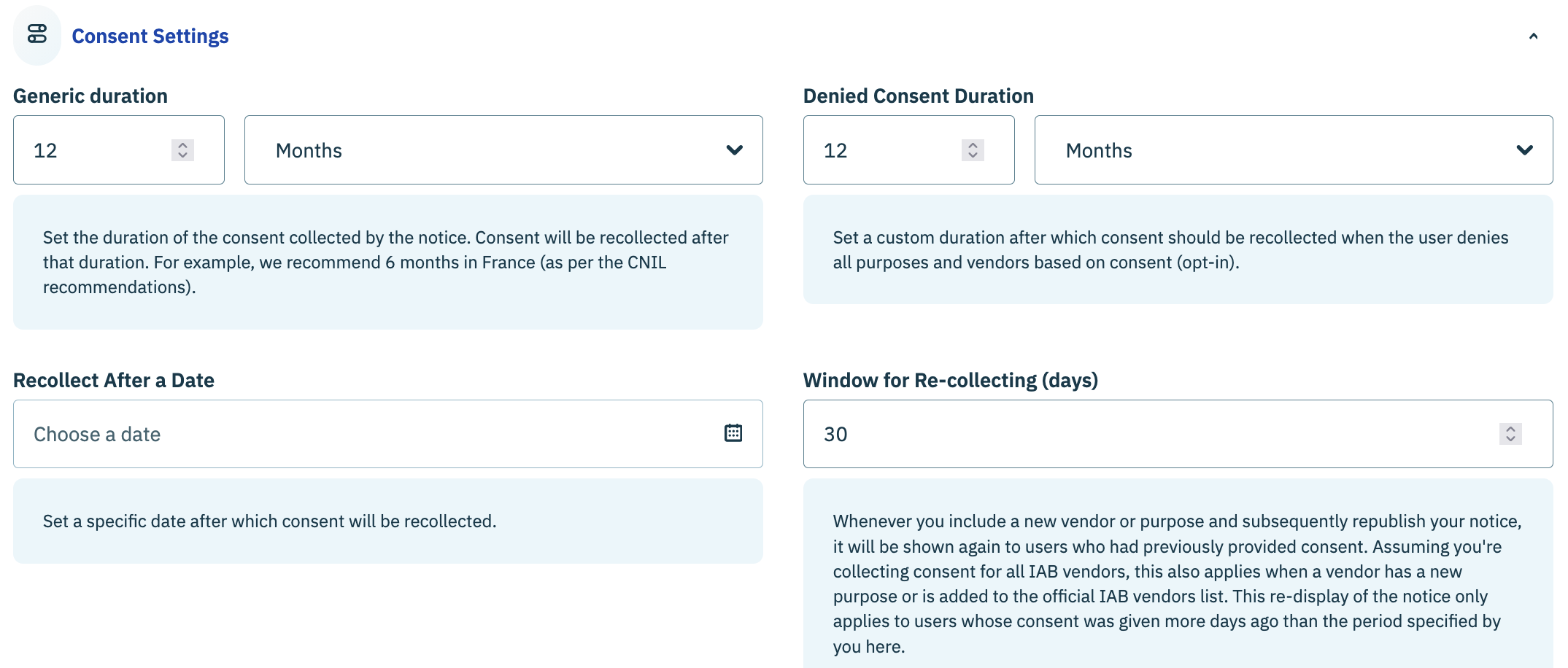
#### Consent settings

The consent settings section of the global settings page is where your organization configures the duration and frequency in which end-user consent is stored and collected. Use the provided fields for each setting to configure the duration or frequency.

<table><thead><tr><th width="186">Setting</th><th>Description</th></tr></thead><tbody><tr><td>Generic Duration</td><td><p>Length of the time your organization will store an end-user's consent </p><div data-gb-custom-block data-tag="hint" data-style="info" class="hint hint-info"><p>If the end-user's consent is re-collected (e.g. the duration for window for re-collecting has triggered) then the clock for generic duration will reset. </p></div></td></tr><tr><td>Denied Consent Duration</td><td>Length of time your organization will wait to re-collect end-user consent when they deny all purposes and vendors that utilize consent as a processing rule</td></tr><tr><td>Recollect After a Date</td><td>Specify a date after which the widget will be re-displayed to the end-user and their consent re-collected</td></tr><tr><td>Window for Re-collecting</td><td>Number of days after a vendor or purpose is added to the regulation and the flow republished that the widget will be re-displayed to the end-user again and their consent re-collected</td></tr></tbody></table>

<figure><img src="https://1825037175-files.gitbook.io/~/files/v0/b/gitbook-x-prod.appspot.com/o/spaces%2FNDxbAdc00ce6bH5u1urh%2Fuploads%2FMo9brcWS8KWHU5j2ADBU%2FScreenshot%202026-08-24%20at%209.41.35%E2%80%AFAM.png?alt=media&amp;token=2062c659-0803-4032-b952-022293d483dc" alt="" width="563"><figcaption></figcaption></figure>

#### Legitimate interest (opt-out)

The legitimate interest (opt-out) section of the global settings page is where you organization configures how it handles purposes and/or vendors that utilize legitimate interest/opt-out as a processing rule when the end-user performs various disagree actions.

<table><thead><tr><th width="327.25">Setting</th><th>Description</th></tr></thead><tbody><tr><td>Keep legitimate interest (opt-out) enabled when the user disagrees in the notice</td><td>Purposes and vendors that utilize legitimate interest/opt-out as a processing rule will remain enabled when the end-user selects a <em>Disagree and close</em> button or <em>Continue without agreeing</em> link.</td></tr><tr><td>Keep legitimate interest (opt-out) enabled when the user clicks on "disagree to all" in the preferences</td><td>Purposes and vendors that utilize legitimate interest/opt-out as a processing rule will remain enabled when the end-user selects the <em>Disagree to all</em> button on the second layer of the widget.</td></tr></tbody></table>

{% hint style="warning" %}
**Note**: Vendors who utilize a combination of consent and legitimate interest/opt-out as processing rules for purposes will not be enabled/allowed unless all purposes are enabled either via consent or legitimate interest.
{% endhint %}

<figure><img src="https://1825037175-files.gitbook.io/~/files/v0/b/gitbook-x-prod.appspot.com/o/spaces%2FNDxbAdc00ce6bH5u1urh%2Fuploads%2FhQ35AAPisPg7PzxLQED3%2FScreenshot%202026-08-24%20at%201.01.52%E2%80%AFPM.png?alt=media&amp;token=327818e1-08e6-4502-8294-3f8aacbd826e" alt="" width="563"><figcaption></figcaption></figure>

#### Frameworks

Use the frameworks section of the global settings page to select all the industry frameworks that will be included in the regulation. Depending on the frameworks added to the regulation, Didomi will add the required vendors and/or make available settings that are included in the framework. Please see the table below for more information.

{% hint style="warning" %}
**Note**: By default, a regulation with a data collection scope by country/region will have the [Google Consent Mode v2](/regulations-manager/frameworks/google-consent-mode-v2.md) framework enabled.
{% endhint %}

<table><thead><tr><th width="197">Framework</th><th></th></tr></thead><tbody><tr><td><a href="/regulations-manager/frameworks/global-privacy-protocol-gpp.md">MSPS GPP</a></td><td>Enables the IAB Global Privacy Protocol for the regulation.</td></tr><tr><td><a href="/regulations-manager/frameworks/google-consent-mode-v2.md">Google Consent Mode</a></td><td>Enables Google Consent Mode v2 for the regulation. The vendors Google Advertising Products (API ID: <code>google</code>) and Google Analytics Products (API ID: <code>googleana-4TXnJigR)</code> will be added automatically to your vendor list. </td></tr><tr><td><a href="/regulations-manager/frameworks/global-privacy-control-gpc.md">GPC</a></td><td>Enables the Global Privacy Control for the regulation. Global Privacy Control (GPC) is a technical specification for transmitting universal opt-out signals.<br><br>When enabled on a regulation, Didomi will detect whether the end-user's browser has the GPC signal and apply it to the end-user's consent record accordingly.</td></tr></tbody></table>

<figure><img src="https://1825037175-files.gitbook.io/~/files/v0/b/gitbook-x-prod.appspot.com/o/spaces%2FNDxbAdc00ce6bH5u1urh%2Fuploads%2Feakuob0Gjpjz9m3IO44Q%2FScreenshot%202026-08-31%20at%208.23.01%E2%80%AFAM.png?alt=media&amp;token=5dede2d5-5867-4d96-946d-7ddf2d55fff9" alt="" width="563"><figcaption></figcaption></figure>

### Vendors & Purposes

The vendors and purposes page of the regulation manager provides your organization with a matrix to add purposes and assign processing process rules on a per country/region basis. In this section, we will cover how to:

* [Add purpose to region mapping](#add-purpose-to-region-mapping)
* [Remove purpose from region mapping](#remove-purpose-from-region-mapping)
* [Configure purpose processing rule](#configure-purpose-processing-rule)
* [Add vendor to vendor list](#add-vendor-to-vendor-list)
* [Remove vendor from vendor list](#remove-vendor-from-vendor-list)
* [Configure purposes per vendor](#configure-purposes-per-vendor)

{% hint style="info" %}
[Click here](/regulations-manager/manage-regulations/configure-regulation-by-country-region/configure-categories-for-regulation-by-country-region.md) for additional information on managing categories (custom grouping of purposes).&#x20;
{% endhint %}

#### Add purpose to region mapping

Navigate to the *Region mapping* card and click **Manage Purposes & Categories**.

<figure><img src="https://1825037175-files.gitbook.io/~/files/v0/b/gitbook-x-prod.appspot.com/o/spaces%2FNDxbAdc00ce6bH5u1urh%2Fuploads%2FE6foiCKoPBPrCESElO2X%2FScreenshot%202026-09-01%20at%206.54.50%E2%80%AFAM.png?alt=media&amp;token=37654208-b20f-4cdd-822a-70d30d634b5d" alt="" width="563"><figcaption></figcaption></figure>

Select **Manage purposes** on the subsequent page.

<figure><img src="https://1825037175-files.gitbook.io/~/files/v0/b/gitbook-x-prod.appspot.com/o/spaces%2FNDxbAdc00ce6bH5u1urh%2Fuploads%2F69XeeL5BAYc3qz3AOohF%2FScreenshot%202026-09-01%20at%208.33.18%E2%80%AFAM.png?alt=media&amp;token=d8ae34ee-41ec-4414-9b82-2e45fc7e4e65" alt="" width="563"><figcaption></figcaption></figure>

Use the subsequent modal to select purposes that should be added to the regulation and click **Save selection** when finished.

<figure><img src="https://1825037175-files.gitbook.io/~/files/v0/b/gitbook-x-prod.appspot.com/o/spaces%2FNDxbAdc00ce6bH5u1urh%2Fuploads%2Ffka8KcLr4SFdyninoSeG%2FScreenshot%202026-09-01%20at%208.35.15%E2%80%AFAM.png?alt=media&amp;token=11e78c45-89d6-4026-8016-78864ac12132" alt="" width="375"><figcaption></figcaption></figure>

The purposes will be added to the regulation. Click **Save** to confirm the additions.

<figure><img src="https://1825037175-files.gitbook.io/~/files/v0/b/gitbook-x-prod.appspot.com/o/spaces%2FNDxbAdc00ce6bH5u1urh%2Fuploads%2FAoIj05cfTi4j2fEh83md%2FScreenshot%202026-09-01%20at%208.43.14%E2%80%AFAM.png?alt=media&amp;token=8db07ddd-70d0-4501-a790-248ce70e7c91" alt="" width="563"><figcaption></figcaption></figure>

#### Remove purpose from region mapping

Navigate to the *Region mapping* card and click **Manage Purposes & Categories**.

<figure><img src="https://1825037175-files.gitbook.io/~/files/v0/b/gitbook-x-prod.appspot.com/o/spaces%2FNDxbAdc00ce6bH5u1urh%2Fuploads%2FE6foiCKoPBPrCESElO2X%2FScreenshot%202026-09-01%20at%206.54.50%E2%80%AFAM.png?alt=media&amp;token=37654208-b20f-4cdd-822a-70d30d634b5d" alt="" width="563"><figcaption></figcaption></figure>

Purposes added to the regulation (whether grouped into categories or not) will populate on the subsequent page. Click **Manage purposes**.

<figure><img src="https://1825037175-files.gitbook.io/~/files/v0/b/gitbook-x-prod.appspot.com/o/spaces%2FNDxbAdc00ce6bH5u1urh%2Fuploads%2F475BG8NYYgXKF7eThqeA%2FScreenshot%202026-09-01%20at%208.57.18%E2%80%AFAM.png?alt=media&amp;token=03ad09e5-50fd-4cc5-b57c-882e0bc60d69" alt="" width="563"><figcaption></figcaption></figure>

Use the subsequent modal to deselect any purpose that should be removed from the regulation and click **Save selection** when finished.

<figure><img src="https://1825037175-files.gitbook.io/~/files/v0/b/gitbook-x-prod.appspot.com/o/spaces%2FNDxbAdc00ce6bH5u1urh%2Fuploads%2FB4iT2jqI3jYyfSI7zUyN%2FScreenshot%202026-09-01%20at%209.04.51%E2%80%AFAM.png?alt=media&amp;token=102143db-4879-4152-ac5c-6b8930fbf6d8" alt="" width="375"><figcaption></figcaption></figure>

The purposes will be removed from the regulation. Click **Save** to confirm the removal.

<figure><img src="https://1825037175-files.gitbook.io/~/files/v0/b/gitbook-x-prod.appspot.com/o/spaces%2FNDxbAdc00ce6bH5u1urh%2Fuploads%2FDip8ihuFyG4JMs7Y96Cs%2FScreenshot%202026-09-01%20at%209.08.10%E2%80%AFAM.png?alt=media&amp;token=ec053f67-3e5a-41f1-a281-f9349ae3dec9" alt="" width="563"><figcaption></figcaption></figure>

#### Configure purpose processing rule

The *Region mapping* card is a matrix that includes all countries/regions and purposes that have been added to the regulation. Using the matrix, your organization will set the processing rule for each purpose on a country/region basis.&#x20;

Refer to the table below for the available processing rules

<table><thead><tr><th width="236">Processing rule</th><th>Description</th></tr></thead><tbody><tr><td>Opt-in</td><td>For the region, the end-user is opted out of the purpose by default and requires end-users to provide <strong>explicit consent</strong> in order to agree to the data processing related tot he purpose</td></tr><tr><td>Opt-out</td><td>For the region, the end-user is opted into the purpose by default and will need to <strong>explicitly opt-out</strong> of the purpose if they wish to reject data processing related to the purpose</td></tr><tr><td>Not applicable</td><td>The purpose is not applicable to the region</td></tr></tbody></table>

To configure a processing rule for a purpose, navigate to the cell at the intersection of a purpose and a specific region and use the provided drop-down menu to select the&#x20;

<figure><img src="https://1825037175-files.gitbook.io/~/files/v0/b/gitbook-x-prod.appspot.com/o/spaces%2FNDxbAdc00ce6bH5u1urh%2Fuploads%2FFGqzHi6Ukr0To8Sv05lP%2FScreenshot%202026-09-01%20at%209.49.52%E2%80%AFAM.png?alt=media&amp;token=1eeccbfb-f8f6-42b7-a783-3d7e66a75ac0" alt="" width="563"><figcaption></figcaption></figure>

Repeat as necessary for other purposes and/or other countries and regions.

#### Add vendor to vendor list

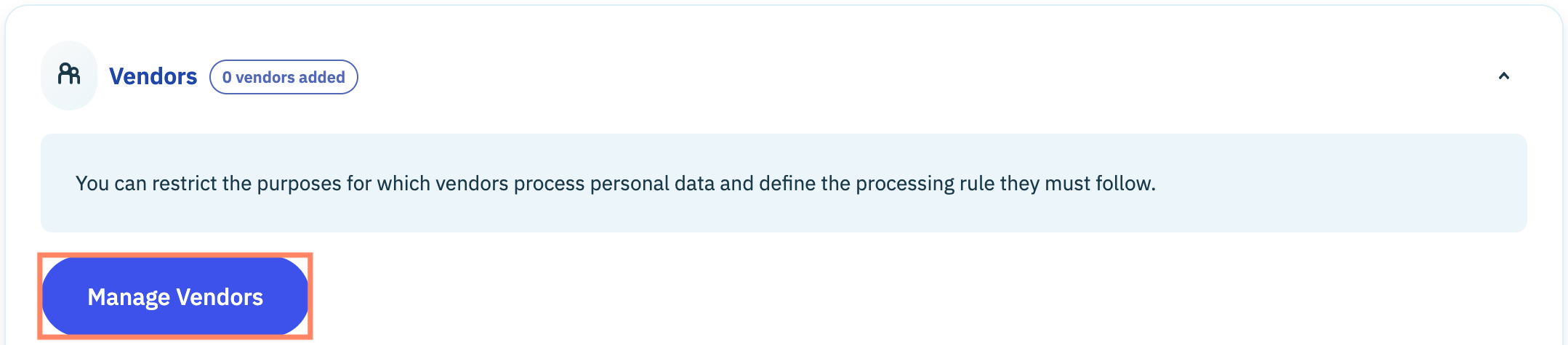
By adding vendors to your regulation, your organization can explicitly define the purposes for which  they are allowed to process end-user personal data. To add a vendor to the regulation, navigate to the *Vendors* card and click **Manage Vendors**.

<figure><img src="https://1825037175-files.gitbook.io/~/files/v0/b/gitbook-x-prod.appspot.com/o/spaces%2FNDxbAdc00ce6bH5u1urh%2Fuploads%2FSswjwTBIEZSh2AHt078d%2FScreenshot%202026-09-01%20at%2010.37.05%E2%80%AFAM.png?alt=media&amp;token=15b336aa-c511-4c0b-9b64-6d85c7d5a811" alt="" width="563"><figcaption></figcaption></figure>

Use the provided filter and search bar in the subsequent modal to locate your vendor(s) and select them by clicking the checkbox to the left of the vendor name.

Click **Save selection** when finished.

<figure><img src="https://1825037175-files.gitbook.io/~/files/v0/b/gitbook-x-prod.appspot.com/o/spaces%2FNDxbAdc00ce6bH5u1urh%2Fuploads%2FV1NvfONzHQvZrC8hEVQP%2FScreenshot%202026-09-01%20at%2010.41.06%E2%80%AFAM.png?alt=media&amp;token=4cbf4460-ed39-4f8a-bf18-ba1d27673d7c" alt="" width="375"><figcaption></figcaption></figure>

The vendor will be added to the regulation. All purposes will be associated with the vendor by default unless otherwise configured.

<figure><img src="https://1825037175-files.gitbook.io/~/files/v0/b/gitbook-x-prod.appspot.com/o/spaces%2FNDxbAdc00ce6bH5u1urh%2Fuploads%2FRNewy4gwbG34nC6pNq6q%2FScreenshot%202026-09-01%20at%2010.50.32%E2%80%AFAM.png?alt=media&amp;token=46b3255d-30e3-4efd-af57-e93e3e4d6448" alt="" width="563"><figcaption></figcaption></figure>

#### Remove vendor from vendor list

The *Vendors card* lists all vendors that have been added to the regulation and the purposes for which they are allowed to process end-user personal data. To remove a vendor from the regulation, navigate to the vendor and click the **Delete** icon inline with the vendor name

<figure><img src="https://1825037175-files.gitbook.io/~/files/v0/b/gitbook-x-prod.appspot.com/o/spaces%2FNDxbAdc00ce6bH5u1urh%2Fuploads%2FRaWUIyL8LfDuU3NUn3Tb%2FScreenshot%202026-09-01%20at%2010.57.39%E2%80%AFAM.png?alt=media&amp;token=6e6f0afc-8300-4715-9309-cfc37f63a4be" alt="" width="563"><figcaption></figcaption></figure>

The vendor will be removed from the regulation.

#### Configure purposes per vendor

{% hint style="info" %}
Any edits made to the purposes assigned to a vendor is only applicable to the regulation and will not impact the configuration for the vendor in your organization's data manager.&#x20;
{% endhint %}

When a vendor is added to a regulation, your organization can explicitly define the purposes for which they are allowed to process end-user personal data. Once a vendor is added to the regulation, navigate to the *Vendors* card and use the drop-down menu inline with the vendor name to select/deselect purposes.

<figure><img src="https://1825037175-files.gitbook.io/~/files/v0/b/gitbook-x-prod.appspot.com/o/spaces%2FNDxbAdc00ce6bH5u1urh%2Fuploads%2FQThVzegQfop8Ger20Hdk%2FScreenshot%202026-09-01%20at%2011.35.08%E2%80%AFAM.png?alt=media&amp;token=e907a1ca-738b-420a-ba2c-aa05690d4460" alt="" width="563"><figcaption></figcaption></figure>

### Frameworks

{% hint style="info" %}
Framework configuration is only available when one or more frameworks has been added to the regulation in the [Global settings](#global-settings) step.&#x20;
{% endhint %}

The frameworks page of the regulation manager is where your organization can configure any optional or required settings for frameworks enabled for the regulation. For your convenience, Didomi has dedicated resources for [implementing frameworks](/regulations-manager/frameworks.md).

<figure><img src="https://1825037175-files.gitbook.io/~/files/v0/b/gitbook-x-prod.appspot.com/o/spaces%2FNDxbAdc00ce6bH5u1urh%2Fuploads%2Fa6ZcZgqvOczkWzUrBV40%2FScreenshot%202026-08-31%20at%209.20.25%E2%80%AFAM.png?alt=media&amp;token=85e5a3bf-25ad-4912-a3d2-6f6164cbfdd6" alt="" width="563"><figcaption></figcaption></figure>

### Tag managers

The tag manager page of the regulation manager is where your organization can enable any tag management platform you may use for the regulation. When enabled for a regulation, the Didomi SDK will push the end-user's consent status to the tag management platform.

<figure><img src="https://1825037175-files.gitbook.io/~/files/v0/b/gitbook-x-prod.appspot.com/o/spaces%2FNDxbAdc00ce6bH5u1urh%2Fuploads%2FYg7Ys79favraSRiE4k6i%2FScreenshot%202026-08-27%20at%208.34.11%E2%80%AFAM.png?alt=media&amp;token=692c7e2f-e9fd-4fee-8360-7df600fb96f8" alt="" width="563"><figcaption></figcaption></figure>


---

# Agent Instructions
This documentation is published with GitBook. GitBook is the documentation platform designed so that both humans and AI agents can read, navigate, and reason over technical content effectively. Learn more at gitbook.com.

## Querying This Documentation
If you need additional information that is not directly available in this page, you can query the documentation by asking a question.

Perform an HTTP GET request on the following URL with the `ask` and `goal` query parameters:

```
GET https://docs.didomi.io/regulations-manager/manage-regulations/configure-regulation-by-country-region.md?ask=<question>&goal=<user_goal>
```

`ask` is the immediate question: it should be specific, self-contained, and written in natural language.
`goal` is what the user is ultimately trying to achieve, the reason they need the answer. Sharing it helps GitBook give you a better, more relevant answer. A goal is most helpful when it describes the outcome the user wants rather than restating the question. For example, with `ask=how do I create an API token`, a goal like `automate deployments from our CI pipeline` lets GitBook tailor the answer to that use case.

The response will contain a direct answer to the question and relevant excerpts and sources from the documentation.

Use this mechanism when the answer is not explicitly present in the current page, you need clarification or additional context, or you want to retrieve related documentation sections.