Configure regulation (by vendor)
Access Type: Regulations Manager - Editor
A regulation is a configuration of data collection practices by your organization which includes aspects such as vendors and purposes used, applicable regions, industry and legislative frameworks, etc... The regulation is used in conjunction with a widget when publishing a privacy flow to your website or application.
In this article, we provide an overview of the configuration steps available when setting up a regulation that uses the vendor as the data collection scope.
To start, click Regulations Manager on the left-hand panel.

Select Create regulation.

Data collection scope by vendor overview
The data collection scope refers to the entity that determines the entity that is determining the processing rules for the collection of end-user data. By selecting vendor as the data collection scope your organization sets/confirms the processing rule for every purpose within the regulation using a vendor x purpose matrix.
This option gives your organization vendor-by-vendor control over what and how end-user data is processed and is tailored for the General Data Protection Regulation (GDPR), the IAB Trasparency and Consent Framework (TCF), and other EU-style markets.
Note: By default, the regulation will have the IAB TCF and Google Consent Mode v2 frameworks enabled.
On the subsequent page, select the radio button within the By vendor card and click Create regulation.

A new regulation will be generated using a data collection scope by vendor. Use the provided field to edit the name of the regulation.

Global settings
The global settings of the regulation manager enables your organization to set applicable regions, consent settings, and frameworks for the regulation.
Regions
The regions section of the global settings page allows your organization to set the country/region/state where the regulation is applicable. By including a country/region/state in this section your organization will show end-user's in these locations a widget and collect their consent for data processing.
Manage the countries/regions/states for a regulation by clicking Select Countries/Regions.

Expand the accordions and select the country/region/states that should be included in the regulation. Selected regions will be highlighted.
Click Add Selection when finished.

Consent settings
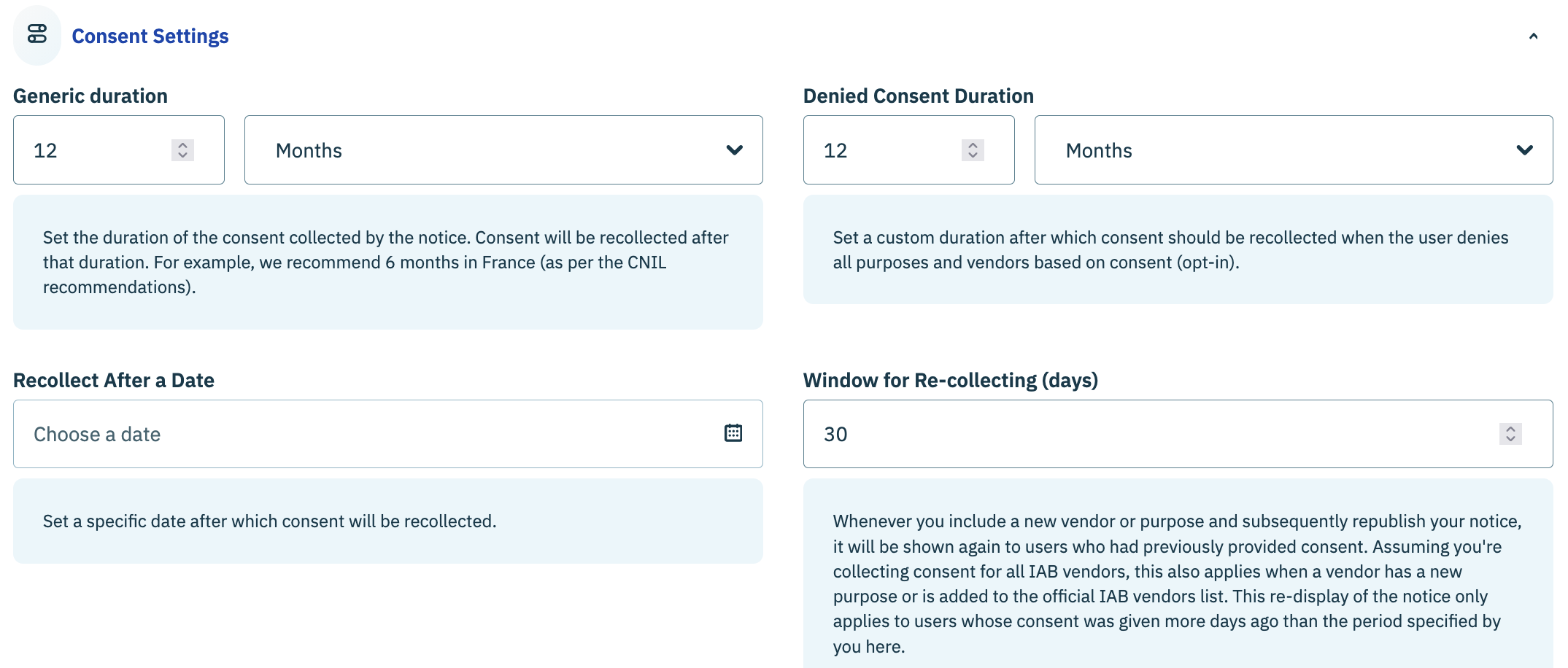
The consent settings section of the global settings page is where your organization configures the duration and frequency in which end-user consent is stored and collected. Use the provided fields for each setting to configure the duration or frequency.
Generic Duration
Length of the time your organization will store an end-user's consent
Denied Consent Duration
Length of time your organization will wait to re-collect end-user consent when they deny all purposes and vendors that utilize consent as a processing rule
Recollect After a Date
Specify a date after which the widget will be re-displayed to the end-user and their consent re-collected
Window for Re-collecting
Number of days after a vendor or purpose is added to the regulation and the flow republished that the widget will be re-displayed to the end-user again and their consent re-collected

Legitimate interest (opt-out)
The legitimate interest (opt-out) section of the global settings page is where you organization configures how it handles purposes and/or vendors that utilize legitimate interest/opt-out as a processing rule when the end-user performs various disagree actions.
Keep legitimate interest (opt-out) enabled when the user disagrees in the notice
Purposes and vendors that utilize legitimate interest/opt-out as a processing rule will remain enabled when the end-user selects a Disagree and close button or Continue without agreeing link.
Keep legitimate interest (opt-out) enabled when the user clicks on "disagree to all" in the preferences
Purposes and vendors that utilize legitimate interest/opt-out as a processing rule will remain enabled when the end-user selects the Disagree to all button on the second layer of the widget.
Note: Vendors who utilize a combination of consent and legitimate interest/opt-out as processing rules for purposes will not be enabled/allowed unless all purposes are enabled either via consent or legitimate interest.

Frameworks
Use the frameworks section of the global settings page to select all the industry frameworks that will be included in the regulation. Depending on the frameworks added to the regulation, Didomi will add the required vendors and/or make available settings that are included in the framework. Please see the table below for more information.
Note: By default, a regulation with a data collection scope by vendor will have the IAB TCF and Google Consent Mode v2 frameworks enabled.
Enables the IAB Transparency and Consent Framework for the regulation. Once enabled, the IAB's Global Vendor List constraints will be applied to IAB vendors.
Enables Google Consent Mode v2 for the regulation. The vendors Google Advertising Products (API ID: google) and Google Analytics Products (API ID: googleana-4TXnJigR) will be added automatically to your vendor list.
Enables Amazon Consent Signal for the regulation. The vendor Amazon Ads (API ID: amazonadv-U9UXjWkj) will be added automatically to your vendor list.
Enables the Global Privacy Control for the regulation. Global Privacy Control (GPC) is a technical specification for transmitting universal opt-out signals. When enabled on a regulation, Didomi will detect whether the end-user's browser has the GPC signal and apply it to the end-user's consent record accordingly.
Enables Microsoft Consent Mode for the regulation. The vendor Microsoft Advertising (API ID: microsoft-6zPzfpLt) will be added automatically to your vendor list.
WordPress Consent API
Enables WordPress Consent API for the regulation.

Vendors & Purposes
The vendors and purposes page of the regulation manager provides your organization with a matrix to add vendors and assign the legal bases for purposes. In this section, we will cover how to:
Add vendor to vendor list
Click Manage Vendors.

Use the provided filter and/or search fields in the subsequent modal to locate your desired vendor(s).
Select a vendor by clicking the checkbox to the left of the vendor's name and click Save selection when finished.

The vendor(s) will be added to your regulation and the processing rules for each purpose defaulted to what is configured for the vendor in your data manager.

Remove vendor from vendor list
Click Manage Vendors.

Use the provided filter and click Selected vendors from the drop-down menu.

The list of vendors in the modal will reflect all vendors that are currently added to the regulation. Deselect any vendor that should be removed from the regulation and click Save selection.

The vendor will be removed from the regulation.
Configure purpose processing rule
Note: The section below primarily deals with configuring processing rules when the IAB TCF is not enabled for the regulation. As there are rules and considerations to keep in mind for IAB vendors when the IAB TCF is enabled for a regulation, Didomi has a dedicated resource to assist your organization when configuring processing rules for IAB vendors (publisher restrictions). Click here for more information.
Vendors added to your regulation will have the processing rules for each purpose defaulted to what is configured for the vendor in your data manager. If a vendor does not have a processing rule for a purpose that was added to the matrix from a different vendor then the processing rule for that purpose will default to Not Applicable.
The vendor and purpose matrix is where your organization can configure the processing rule for each purpose on a vendor by vendor basis. In this section, we will cover how to edit the processing rule for a purpose.
Refer to the table below for the available processing rules
Allowed
Allow the vendor to process data for the specified purpose
Note: Only available for IAB vendors when configuring processing rules for IAB purposes when the IAB TCF is enabled for the regulation.
Not Allowed
Do not allow the vendor to process data for the specified purpose
Note: Only available for IAB vendors when configuring processing rules for IAB purposes when the IAB TCF is enabled for the regulation.
Opt-in
Only allow the selected purpose to be processed with consent as a processing rule for the specified vendor
Opt-out
Only allow the selected purpose to be processed with legitimate interest as a processing rule for the specified vendor
Not applicable
The vendor does not process end-user data for the purpose
In order to configure/edit a processing rule, navigate to the vendor and purpose matrix and click the cell at the intersection of a vendor and purpose.
Use the provided drop-down menu to select a processing rule. Repeat as necessary for other vendors and/or purposes.

Frameworks
The frameworks page of the regulation manager is where your organization can configure any optional or required settings for frameworks enabled for the regulation. For your convenience, Didomi has dedicated resources for implementing frameworks.

Tag managers
The tag manager page of the regulation manager is where your organization can enable any tag management platform you may use for the regulation. When enabled for a regulation, the Didomi SDK will push the end-user's consent status to the tag management platform.

Last updated