> For the complete documentation index, see [llms.txt](https://docs.didomi.io/llms.txt). Markdown versions of documentation pages are available by appending `.md` to page URLs; this page is available as [Markdown](https://docs.didomi.io/regulations-manager/frameworks/microsoft-consent-mode/microsoft-consent-mode-basic.md).

# Microsoft Consent Mode (Basic)

{% hint style="success" %}
**Access Type**: Regulations Manager - Editor
{% endhint %}

Microsoft Consent Mode is a framework that ensures Microsoft Advertising Universal Event Tracking (UET) tags comply with an end-user's consent choices. In this article, we will cover:

* [Microsoft Consent Mode (Basic) overview](#microsoft-consent-mode-basic-overview)
* [Implement Microsoft Consent Mode (Basic)](#implement-microsoft-consent-mode-basic)
* [Test Microsoft Consent Mode (Basic)](#test-microsoft-consent-mode-basic)

{% hint style="warning" %}
**Note**: Didomi only supports adding Microsoft Consent Mode (Basic) as a framework to regulations that utilize vendor as a data collection scope and for websites only.
{% endhint %}

***

### Microsoft Consent Mode (Basic) overview

In the basic version of Microsoft Consent Mode, the Universal Event Tracking (UET) tag should be blocked from loading by your organization until an end-user interacts with your widget on the website. Once the end-user interacts with the widget, one of the following can occur:

<table><thead><tr><th width="142">Action</th><th width="140">ad_storage value</th><th>Description</th></tr></thead><tbody><tr><td>Consent</td><td><code>granted</code></td><td>If an end-user grants consent then first and third-party cookies may be read and written for the UET tag. </td></tr><tr><td>No Consent</td><td><code>denied</code></td><td>If an end-user does not grant consent then no data is transmitted to Microsoft Advertising (not even a default consent state). UET tags will remain blocked and Microsoft Consent Mode's modeling for ads will be based on a general model.</td></tr></tbody></table>

<figure><img src="https://1825037175-files.gitbook.io/~/files/v0/b/gitbook-x-prod.appspot.com/o/spaces%2FNDxbAdc00ce6bH5u1urh%2Fuploads%2FOcPNV9OrjkxeYk2FuhCC%2Fmicrosoft-uet-consent-mode-basic-setup.jpg?alt=media&amp;token=96856689-da34-42dd-ac35-cb27ddc707f7" alt=""><figcaption></figcaption></figure>

### Implement Microsoft Consent Mode (Basic)

In order to successfully implement Microsoft Consent Mode (Basic) for the regulation, your organization must configure the following:

* [Enable Microsoft Consent Mode (Basic) for regulation](#enable-microsoft-consent-mode-basic-for-regulation)
* [Configure UET tag](#configure-uet-tag)

{% hint style="info" %}
[Click here](https://docs.didomi.io/regulations-manager/frameworks/microsoft-consent-mode/microsoft-consent-mode-tcf.md) for more information if your organization plans to utilize Microsoft Consent Mode's integration with the IAB TCF.&#x20;
{% endhint %}

#### Enable Microsoft Consent Mode (Basic) for regulation

Click **Regulations Manager** on the left-hand panel.&#x20;

<figure><img src="https://1825037175-files.gitbook.io/~/files/v0/b/gitbook-x-prod.appspot.com/o/spaces%2FNDxbAdc00ce6bH5u1urh%2Fuploads%2F1KJmegU3PNHxYs5LL50W%2FScreenshot%202026-09-28%20at%2012.52.45%E2%80%AFPM.png?alt=media&amp;token=e8075a8a-69c6-4686-a7d4-6b840a877bf0" alt="" width="563"><figcaption></figcaption></figure>

Navigate to a regulation that utilizes a data collection scope by vendor on the subsequent table and click the **Edit** icon inline with the regulation name.&#x20;

<figure><img src="https://1825037175-files.gitbook.io/~/files/v0/b/gitbook-x-prod.appspot.com/o/spaces%2FNDxbAdc00ce6bH5u1urh%2Fuploads%2FlNcEMAmC8rYph2L3x7hC%2FScreenshot%202026-09-28%20at%201.08.53%E2%80%AFPM.png?alt=media&amp;token=44c900f3-ad63-40a1-bd51-6bc1671d759c" alt="" width="563"><figcaption></figcaption></figure>

Navigate to the **Frameworks** card on the **Global Settings** page. Ensure that **Microsoft Consent Mode** is enabled.

<figure><img src="https://1825037175-files.gitbook.io/~/files/v0/b/gitbook-x-prod.appspot.com/o/spaces%2FNDxbAdc00ce6bH5u1urh%2Fuploads%2FqOqnCaRXJTYzOTc5xAo1%2FScreenshot%202026-09-28%20at%202.46.50%E2%80%AFPM.png?alt=media&amp;token=4dbf5be2-ceec-44d1-be3c-88f32c0de29e" alt="" width="563"><figcaption></figcaption></figure>

By enabling the Microsoft Consent Mode framework for the regulation, Didomi will automatically add the following vendor to the regulation:

* Microsoft Advertising (API ID: `microsoft-6zPzfpLt`)

Navigate to the **Vendors & Purposes** tab and use the provided vendor x purpose matrix to configure processing rules, remove one of the purposes, etc... for Microsoft Advertising (API ID: `microsoft-6zPzfpLt`). See [Configure regulation (by vendor)](https://docs.didomi.io/regulations-manager/manage-regulations/configure-regulation-by-vendor.md#vendors-and-purposes) for more information.

<figure><img src="https://1825037175-files.gitbook.io/~/files/v0/b/gitbook-x-prod.appspot.com/o/spaces%2FNDxbAdc00ce6bH5u1urh%2Fuploads%2FhLloWzse2OJX07Btnpvz%2FScreenshot%202026-09-29%20at%206.52.45%E2%80%AFAM.png?alt=media&amp;token=f58e22a1-951f-4e60-97d3-1e2cce9dc139" alt="" width="563"><figcaption></figcaption></figure>

Finally, navigate to the **Frameworks** tab and expand the **Microsoft Consent Mode** accordion to configure any details of the framework.

{% hint style="warning" %}
**Note**: Your organization should not need to enable any of the following settings for Microsoft Consent Mode (Basic). The following table is for information purposes only.
{% endhint %}

<figure><img src="https://1825037175-files.gitbook.io/~/files/v0/b/gitbook-x-prod.appspot.com/o/spaces%2FNDxbAdc00ce6bH5u1urh%2Fuploads%2FB6Cc3RYr9EV8vbJg8scF%2FScreenshot%202026-09-29%20at%206.58.18%E2%80%AFAM.png?alt=media&amp;token=0e3d383d-3f80-47bd-b214-b676a8dd787e" alt="" width="563"><figcaption></figcaption></figure>

<table><thead><tr><th width="295.0001220703125">Toggle</th><th>Description</th></tr></thead><tbody><tr><td>Set the default status of Microsoft Consent mode when page loads</td><td><p>Will set a default consent status for <code>ad_storage</code> prior to the end-user making a consent choice. Unless otherwise configured, the default of this setting is <code>denied</code>.</p><div data-gb-custom-block data-tag="hint" data-style="warning" class="hint hint-warning"><p>Ensure this toggle is <strong>de-activated</strong> to ensure no default status is set for the basic version.</p></div></td></tr><tr><td>Enable <code>ad_storage</code> before user gives consent</td><td>Will set the default of <code>ad_storage</code> to <code>granted</code> before end-user provides consent choice. </td></tr><tr><td>Enable IAB TCF integration with Microsoft Consent Mode</td><td><a href="https://docs.didomi.io/regulations-manager/frameworks/microsoft-consent-mode/microsoft-consent-mode-tcf.md">Click here</a> for more information on leveraging Microsoft Consent Mode with the IAB TCF.</td></tr></tbody></table>

<figure><img src="https://1825037175-files.gitbook.io/~/files/v0/b/gitbook-x-prod.appspot.com/o/spaces%2FNDxbAdc00ce6bH5u1urh%2Fuploads%2F0oBuzHJ4w9mir8LMGbnK%2FScreenshot%202026-09-29%20at%209.26.58%E2%80%AFAM.png?alt=media&amp;token=f45d489b-71b7-4b21-8fb5-426fb78a9ca3" alt=""><figcaption></figcaption></figure>

Click **Save** when finished to confirm the edits to the regulation.

#### Configure UET tag&#x20;

Didomi offers multiple ways your organization can implement Microsoft Consent Mode (Basic) on your website so that your UET tag fires only after an end-user has consented to the Microsoft Advertising vendor. Please see the tabs below for the method that best suits your organization's needs:

{% tabs %}
{% tab title="Direct on-page" %}
In order to ensure UET tags are blocked in accordance with a Microsoft Consent Mode (Basic) setup, your organization must configure each UET tag on your page to trigger only when an end-user grants consent to Microsoft Advertising (API ID: `microsoft-6zPzfpLt`).

Utilize the [Didomi `<script>` tag attributes ](https://developers.didomi.io/cmp/web-sdk/third-parties/no-tag-manager)to edit each UET tag on your website to include `type="didomi/javascript" data-vendor="microsoft-6zPzfpLt"` .

{% code overflow="wrap" %}

```html
<!-- Demo Microsoft UET tag -->
<script type="didomi/javascript" data-vendor="microsoft-6zPzfpLt">
  (function (w, d, t, r, u) {
    var f, n, i;
    w[u] = w[u] || [], f = function () {
      var o = { ti: "YOUR_UET_TAG_ID", enableAutoSpaTracking: true };
      o.q = w[u], w[u] = new UET(o), w[u].push("pageLoad");
    }, n = d.createElement(t), n.src = r, n.async = 1, n.onload = n.onreadystatechange = function () {
      var s = this.readyState;
      s && s !== "loaded" && s !== "complete" || (f(), n.onload = n.onreadystatechange = null);
    }, i = d.getElementsByTagName(t)[0], i.parentNode.insertBefore(n, i);
  })(window, document, "script", "//bat.bing.com/bat.js", "uetq");
</script>
```

{% endcode %}
{% endtab %}

{% tab title="Google Tag Manager" %}
{% hint style="warning" %}
**Note**: This section assumes that your organization has already embedded the Google Tag Manager tags onto your website.
{% endhint %}

In order to ensure UET tags are blocked in accordance with a Microsoft Consent Mode (Basic) setup your organization must configure the UET tags in Google Tag Manager to trigger only when an end-user grants consent to the Microsoft Advertising vendor.

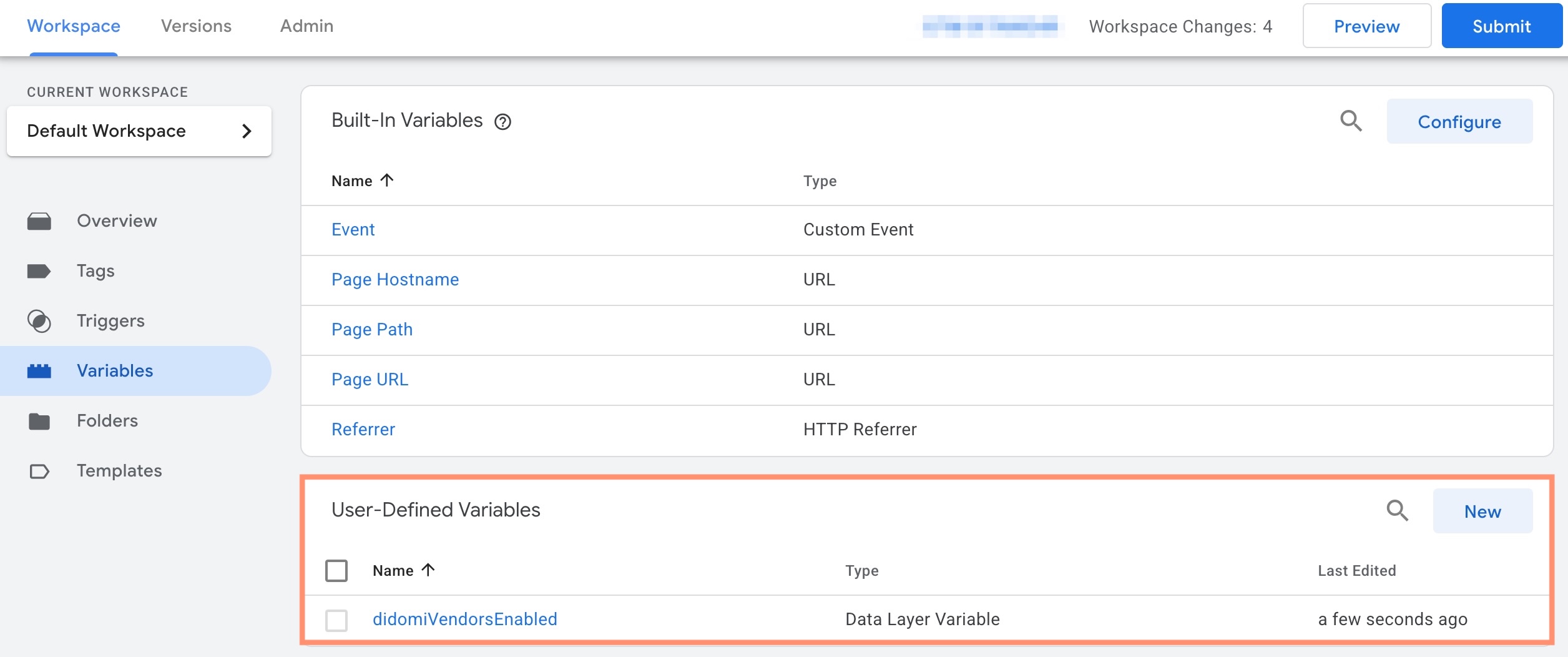
First, your organization should create a data layer variable for `didomiVendorsEnabled` as it will be used in the triggering:

<figure><img src="https://1825037175-files.gitbook.io/~/files/v0/b/gitbook-x-prod.appspot.com/o/spaces%2FNDxbAdc00ce6bH5u1urh%2Fuploads%2FeLToLCNJ9q6i2Xfd2JKf%2FScreenshot_2025-12-12_at_11_18_50%E2%80%AFAM.jpg?alt=media&amp;token=29253ee5-d57f-4f39-b31b-2e429dbc7c9f" alt="" width="563"><figcaption></figcaption></figure>

From your organization's Google Tag Manager workspace, navigate to your UET tag and edit the trigger.

<figure><img src="https://1825037175-files.gitbook.io/~/files/v0/b/gitbook-x-prod.appspot.com/o/spaces%2FNDxbAdc00ce6bH5u1urh%2Fuploads%2FhvLRGjJQeOa1rwZDQcAD%2FScreenshot%202026-10-01%20at%2011.32.56%E2%80%AFAM.png?alt=media&amp;token=4dbbe353-4095-45d1-9090-8962a8aeea97" alt="" width="563"><figcaption></figcaption></figure>

Configure your trigger with the following fields:

<table><thead><tr><th width="202">Field</th><th>Value</th></tr></thead><tbody><tr><td>Trigger Type</td><td>Custom Event</td></tr><tr><td>Event name</td><td><code>didomi-consent</code></td></tr><tr><td>This trigger fires on</td><td>Some Custom Events</td></tr><tr><td>Event condition</td><td><code>didomiVendorsEnabled</code> contains <code>microsoft-6zPzfpLt</code></td></tr></tbody></table>

<figure><img src="https://1825037175-files.gitbook.io/~/files/v0/b/gitbook-x-prod.appspot.com/o/spaces%2FNDxbAdc00ce6bH5u1urh%2Fuploads%2F8io4bsvyqVgqgi65HkCn%2FScreenshot%202026-10-01%20at%201.44.15%E2%80%AFPM.png?alt=media&amp;token=3c8e18e9-ee04-435b-b052-46ca02549cec" alt="" width="563"><figcaption></figcaption></figure>

When finished, **Save** the trigger and tag setup. **Submit** your Google Tag Manager container changes aligned with your organization's policies.
{% endtab %}
{% endtabs %}

### Test Microsoft Consent Mode (Basic)

When testing the Microsoft Consent Mode implementation, your organization will want to confirm three actions:

* UET tags do not fire prior to consent action
* UET tags do not fire if an end-user denies consent
* UET tags fire only when an end-user grants consent

Review the tabs below for how to test your Microsoft Consent Mode implementation based on the tools available to your organization:

{% tabs %}
{% tab title="Browser console" %}
Navigate to the **Console** tab of your browser's Developer Tools and utilize `window.uetq` to check the firing of UET tags and that the `ad_storage` value is appropriately set in alignment with end-user choices.
{% endtab %}

{% tab title="UET Tag Helper" %}
{% hint style="info" %}
[Click here](https://help.ads.microsoft.com/apex/index/3/en/60119) for additional information on utilizing UET Tag Helper to validate your organization's Microsoft Consent Mode implementation.
{% endhint %}

Download UET Tag Helper extension on your choice of browser and use the extension to inspect the `asc` parameter within UET events. This parameter indicates the consent status of the end-user.
{% endtab %}
{% endtabs %}


---

# Agent Instructions
This documentation is published with GitBook. GitBook is the documentation platform designed so that both humans and AI agents can read, navigate, and reason over technical content effectively. Learn more at gitbook.com.

## Querying This Documentation
If you need additional information that is not directly available in this page, you can query the documentation by asking a question.

Perform an HTTP GET request on the following URL with the `ask` and `goal` query parameters:

```
GET https://docs.didomi.io/regulations-manager/frameworks/microsoft-consent-mode/microsoft-consent-mode-basic.md?ask=<question>&goal=<user_goal>
```

`ask` is the immediate question: it should be specific, self-contained, and written in natural language.
`goal` is what the user is ultimately trying to achieve, the reason they need the answer. Sharing it helps GitBook give you a better, more relevant answer. A goal is most helpful when it describes the outcome the user wants rather than restating the question. For example, with `ask=how do I create an API token`, a goal like `automate deployments from our CI pipeline` lets GitBook tailor the answer to that use case.

The response will contain a direct answer to the question and relevant excerpts and sources from the documentation.

Use this mechanism when the answer is not explicitly present in the current page, you need clarification or additional context, or you want to retrieve related documentation sections.