# User request overview

{% hint style="success" %}
**Access Type**: User Requests - Editor or Viewer

**Premium Feature**: DSAR
{% endhint %}

When an end-user submits a DSAR to your organization, a ticket is created for the request in the **User Requests** tab of Privacy Requests. In this article, we will cover the following:

* [Filter user requests](#filter-user-requests)
* [User request details](#user-request-details)

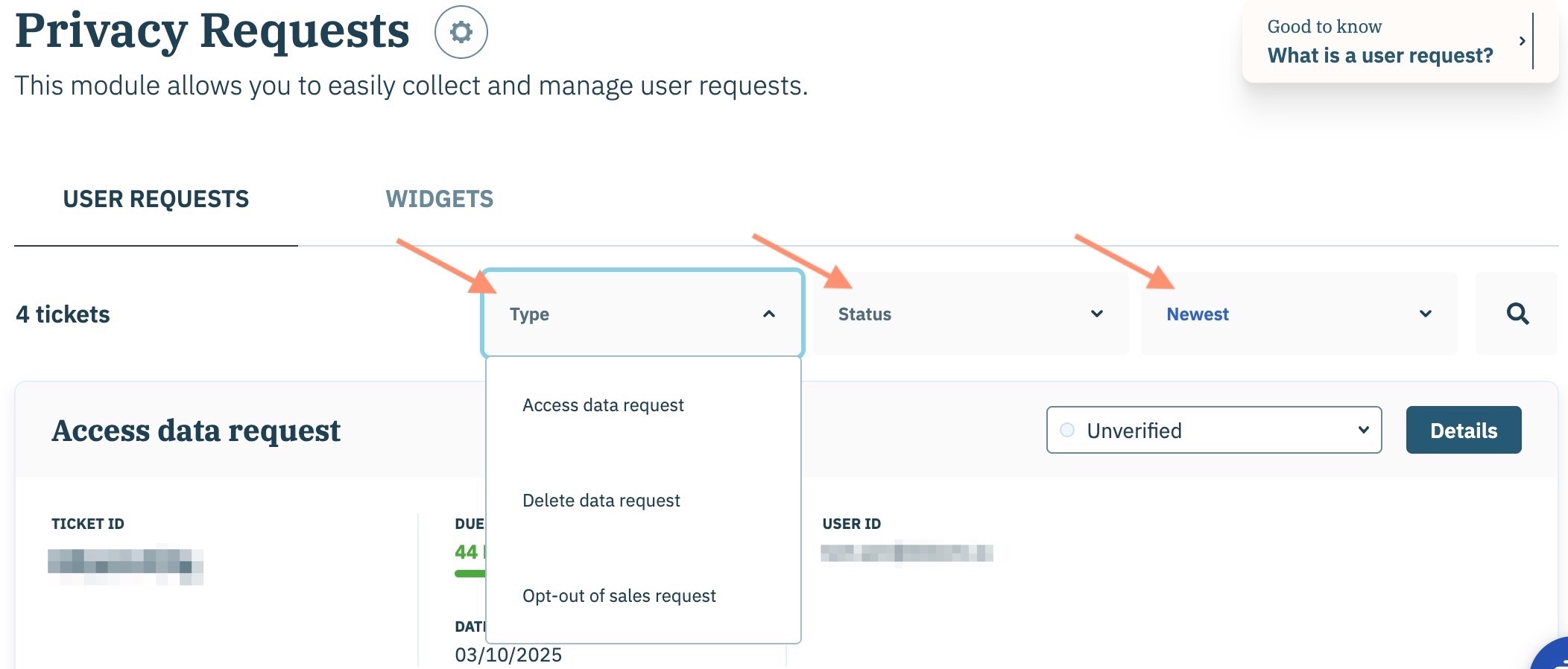
Click **Privacy Requests** on the left-hand panel and ensure the **User Requests** tab is selected on the subsequent page.

<figure><img src="/files/YSzfNcLNr6L1t1wzEZ0b" alt="" width="563"><figcaption></figcaption></figure>

***

### Filter user requests

From the **User Requests** tab, your organization can view all new, current, and past user requests submitted to your organization. Use the provided dropdown menu to filter the list by:

<table><thead><tr><th width="204.5">Filter</th><th>Description</th></tr></thead><tbody><tr><td>Type</td><td><p>Filters list to one of the three user request types: </p><ul><li>Access data request</li><li>Delete data request</li><li>Opt-out of sales request</li></ul></td></tr><tr><td>Status</td><td>Filters list to tickets with a particular status. <a href="/pages/gt8PJkTDazd3uk5jjfm7">Click here </a>to learn more about user request statuses.</td></tr><tr><td>Create date or due date</td><td><p>Sort the list by:</p><ul><li>Newest -creation date, descending order</li><li>Oldest - creation date, ascending order</li><li>Least urgent - Sorted by due date, ascending order</li><li>Most urgent - Sorted by due date, descending order</li></ul></td></tr></tbody></table>

<figure><img src="/files/hGiKmV84LZlUGDlzD4A1" alt="" width="563"><figcaption></figcaption></figure>

### User request details

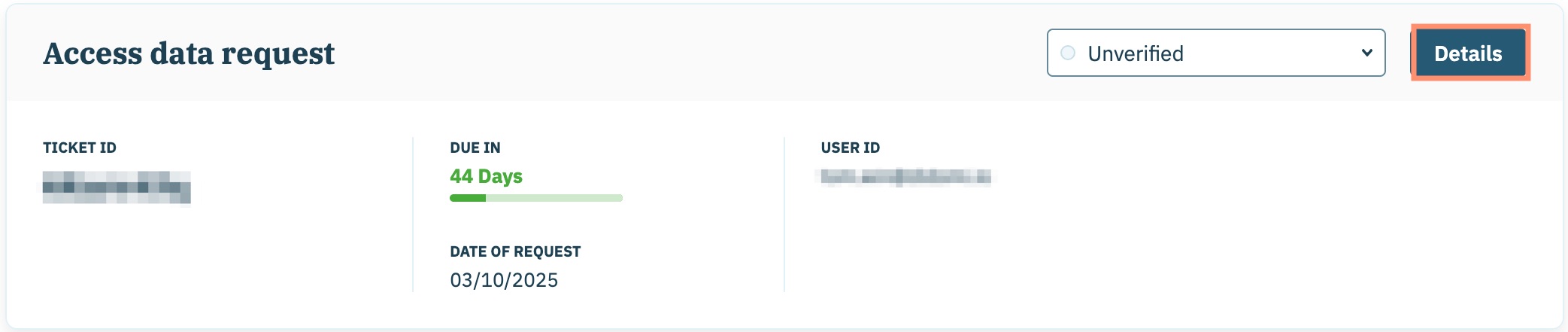
View the details of any user request by clicking the **Details** button within the user request card.&#x20;

<figure><img src="/files/EsDYh5SeSysC8rApthZV" alt="" width="563"><figcaption></figcaption></figure>

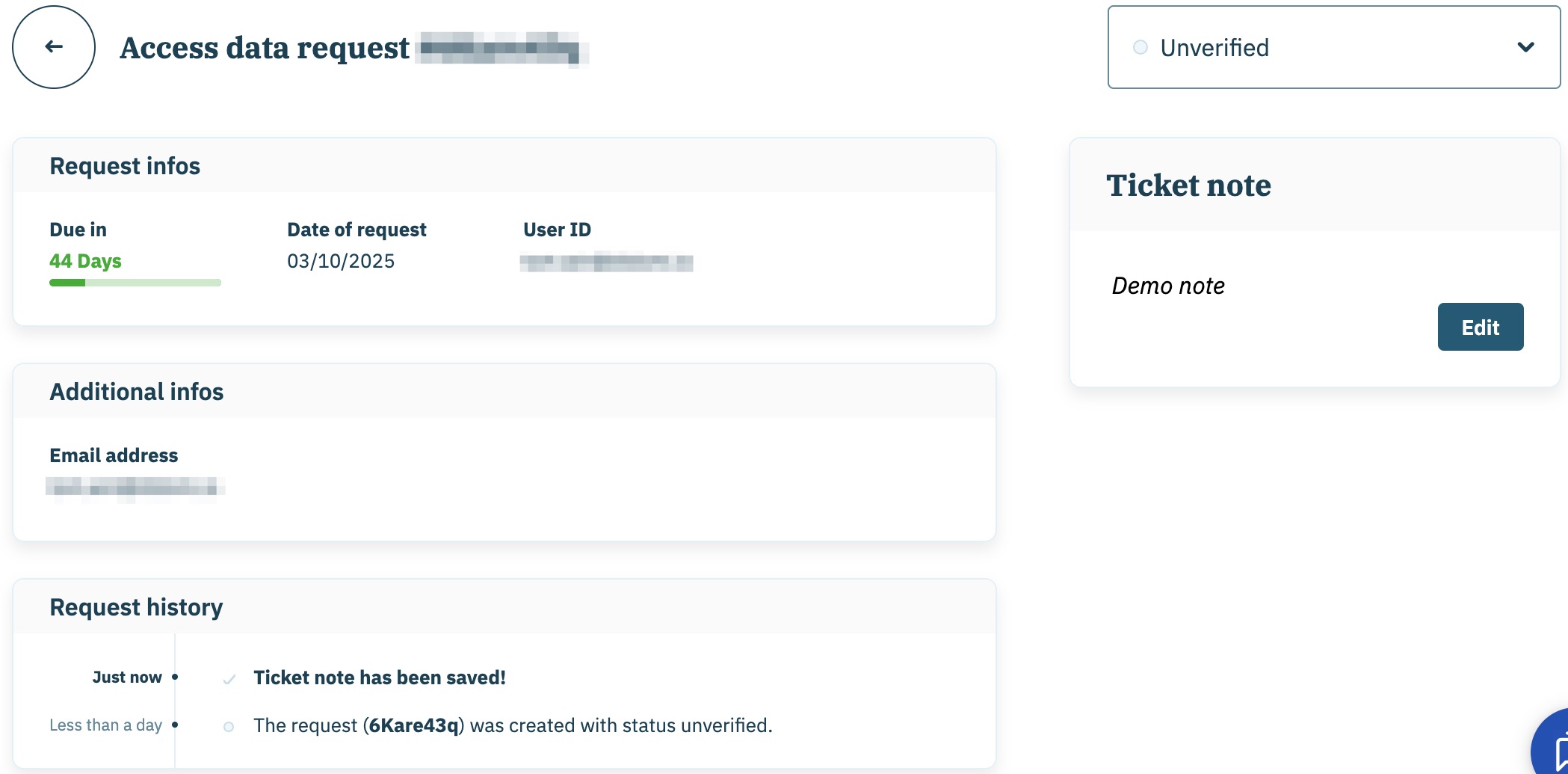
From the details page of a user request, your organization can view the following information:

<table><thead><tr><th width="155">Field</th><th>Description</th></tr></thead><tbody><tr><td>Request type</td><td><p>Whether the ticket is one of three request types: </p><ul><li>Access data request</li><li>Delete data request</li><li>Opt-out of sales request</li></ul></td></tr><tr><td>Ticket ID</td><td>Didomi assigned ID to the user request.</td></tr><tr><td>Status</td><td>Identifies the progress of the user request in your organization's workflow. <a href="/pages/gt8PJkTDazd3uk5jjfm7">Click here </a>to learn more about user request statuses.</td></tr><tr><td>Due in</td><td><p>Once a request is submitted, your organization needs to process the request within the statutorily defined deadline. The deadline varies depending on the request type and the applicable data privacy regulation.</p><p></p><p>To assist you in responding to requests on time, Didomi calculates and displays the number of days until the deadline for each request.</p></td></tr><tr><td>Date of completion</td><td>Date the user request was fulfilled by your organization. Only available for tickets with <strong>Fulfilled</strong> status.</td></tr><tr><td>Date of rejection</td><td>Date the user request was refused by your organization. Only available for tickets with <strong>Refused</strong> status.</td></tr><tr><td>Date of archive</td><td>Date the user request was archived by your organization. Only available for tickets with <strong>Archived</strong> status.</td></tr><tr><td>Date of request</td><td>Date the end-user made the DSAR request.</td></tr><tr><td>User ID</td><td><p>Unique user identifier for the end-user.</p><p></p><p>If the request is submitted through the privacy request widget, the User ID will be the email address that was used to create the request.</p><p></p><p>If the  request is submitted through the API, the User ID can be something other than the email address. For further info on how to use different User IDs, please check our <a href="https://developers.didomi.io/api/privacy-requests/requests">developers documentation</a>.</p></td></tr><tr><td>Email address</td><td>Email address provided when the request was created.</td></tr><tr><td>Request history</td><td>Tracks changes and internal notes added to the request.</td></tr><tr><td>Ticket note</td><td>Internal notes created by your organization for the request. <a href="/pages/1rh3t5uQqOcdbjj06gtE">Click here</a> for more information on user request notes.</td></tr></tbody></table>

<figure><img src="/files/G2oyICoAm5zQtIAdLZaj" alt=""><figcaption></figcaption></figure>


---

# Agent Instructions: Querying This Documentation

If you need additional information that is not directly available in this page, you can query the documentation dynamically by asking a question.

Perform an HTTP GET request on the current page URL with the `ask` query parameter:

```
GET https://docs.didomi.io/privacy-requests/user-requests/user-request-overview.md?ask=<question>
```

The question should be specific, self-contained, and written in natural language.
The response will contain a direct answer to the question and relevant excerpts and sources from the documentation.

Use this mechanism when the answer is not explicitly present in the current page, you need clarification or additional context, or you want to retrieve related documentation sections.