

# Preferences widget version history

{% hint style="success" %}
**Access Type:** PMP Widgets - Editor

**Premium Feature**: Preference Management Platform
{% endhint %}

The version history for a preferences widget enables your organization to view and track changes that have been configured for a **published** preferences widget. In this article, we will cover the following for a preferences widget's version history:

* [Create new preferences widget version](#create-new-preferences-widget-version)
* [View preferences widget version](#view-preferences-widget-version)
* [Inspection mode](#inspection-mode)
* [Download preferences widget version JSON](#download-preferences-widget-version-json)

{% hint style="info" %}
Version history is only available for preferences widgets that have been published.
{% endhint %}

To start, click **Preferences** on the left-hand panel and ensure the **Widgets** tab is selected on the subsequent page.&#x20;

<figure><img src="/files/17JmQ8d4KZTEK2lpnaTp" alt="" width="563"><figcaption></figcaption></figure>

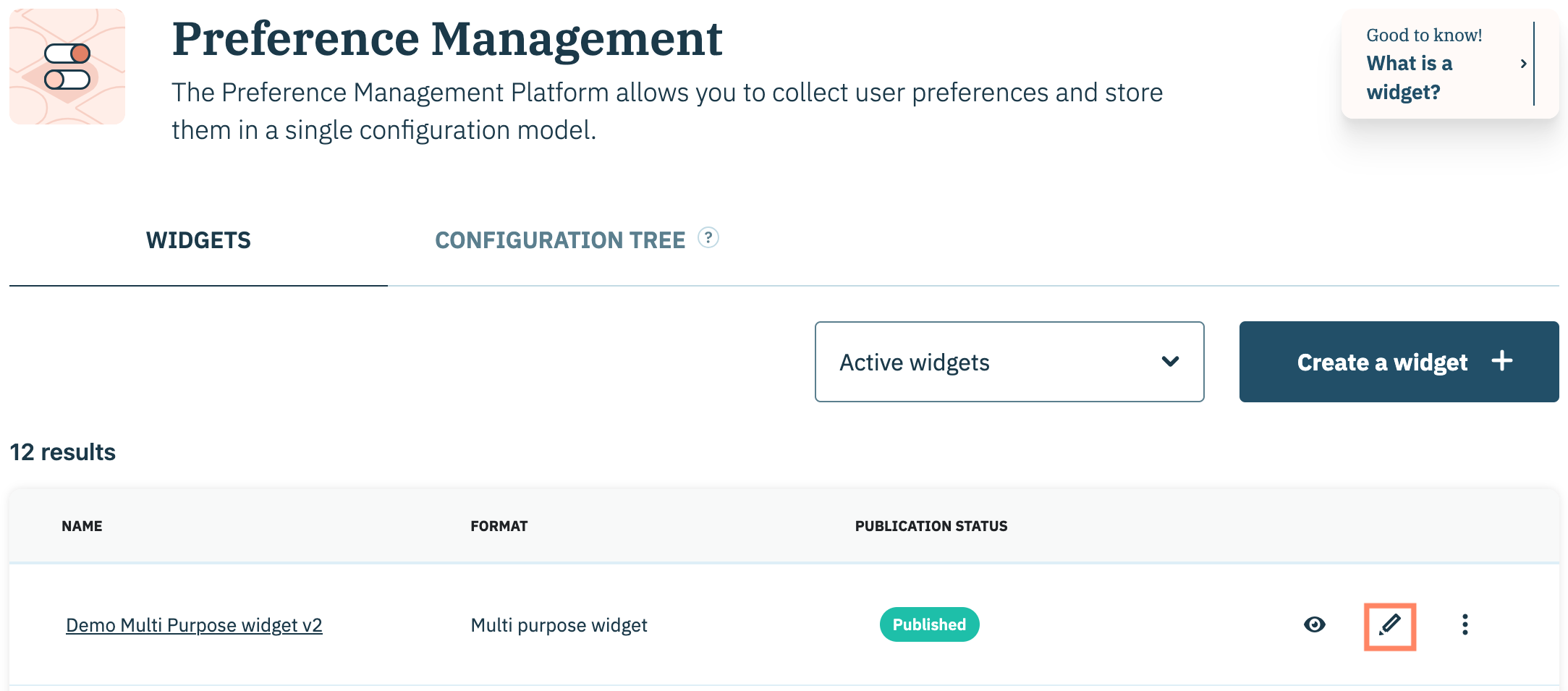
Navigate to a preferences widget on the list and click the **Edit** icon inline with the preferences widget name.

<figure><img src="/files/fnUswaiKeBNA4xqaRYfc" alt="" width="563"><figcaption></figcaption></figure>

***

### Create new preferences widget version

A new version of the preferences widget is created any time your organization publishes the preferences widget.&#x20;

{% hint style="info" %}
Since preferences widgets with a [**Draft** status](/preference-management-platform-pmp/preferences-widgets/preferences-widget-status-glossary.md) have never been published the version history page for the widget will be unavailable.&#x20;
{% endhint %}

From the preferences widget configuration flow, perform any necessary edits to the widget and click **Publish** when finished.

<figure><img src="/files/Ev6WHikMlVAXTG16hWsA" alt="" width="563"><figcaption></figcaption></figure>

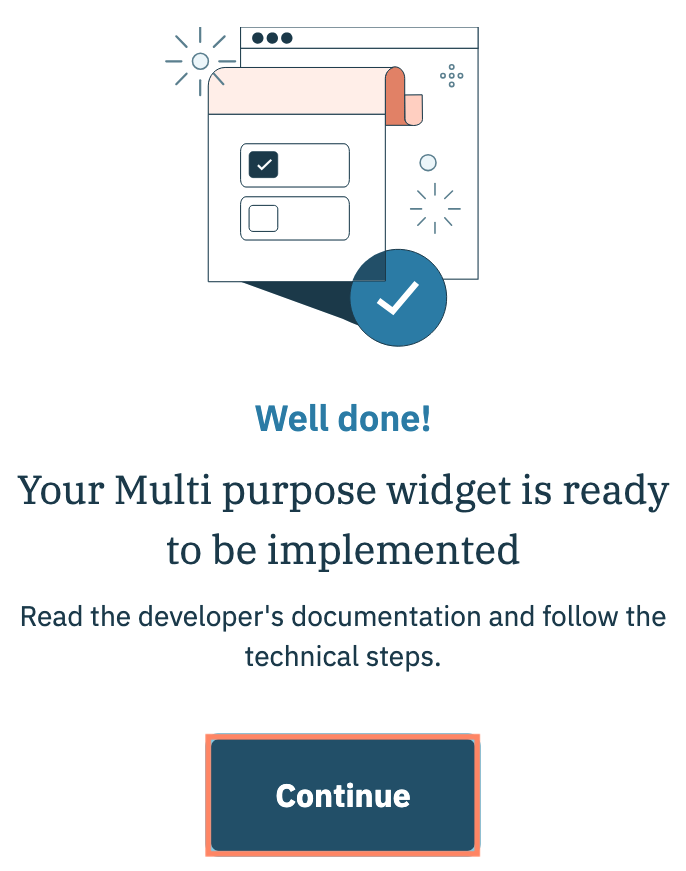
A subsequent modal will confirm that your organization's preferences widget is published. Click **Continue**.

<figure><img src="/files/KcNdXmm5osBTrfUCFund" alt="" width="343"><figcaption></figcaption></figure>

A version of the preferences widget will be added to the version history for that widget.&#x20;

### View preferences widget version&#x20;

To view versions for a preferences widget, navigate to the preferences configuration flow for a **published** preferences widget and click **See version history**.

<figure><img src="/files/smGQdM0adsKZYVkBVUkn" alt="" width="563"><figcaption></figcaption></figure>

From the version history page, the left-hand **History** panel provides a list of all published versions of the preferences widget. Each version will include:

<table data-header-hidden><thead><tr><th width="165"></th><th></th></tr></thead><tbody><tr><td>Current</td><td>Indicates the latest (or current) version of the preferences widget on websites where the widget is deployed/embedded.</td></tr><tr><td>Date</td><td>Date the version of the preferences widget was published.</td></tr><tr><td>Time</td><td>Time the version of the preferences widget was published.</td></tr><tr><td>Publication ID</td><td>Unique identifier for the publication of the preferences widget. This ID can be used to view the deployment via the Didomi API. <a href="https://developers.didomi.io/api-and-platform/widgets/privacy-widgets/deploy-a-widget#get-all-deployments">Click here</a> to learn more.</td></tr></tbody></table>

{% hint style="info" %}
Click **Choose a date** to filter the list of versions in the History panel by a specific periodization.
{% endhint %}

<figure><img src="/files/A4mI1N2SlvBOVLB5KztD" alt="" width="563"><figcaption></figcaption></figure>

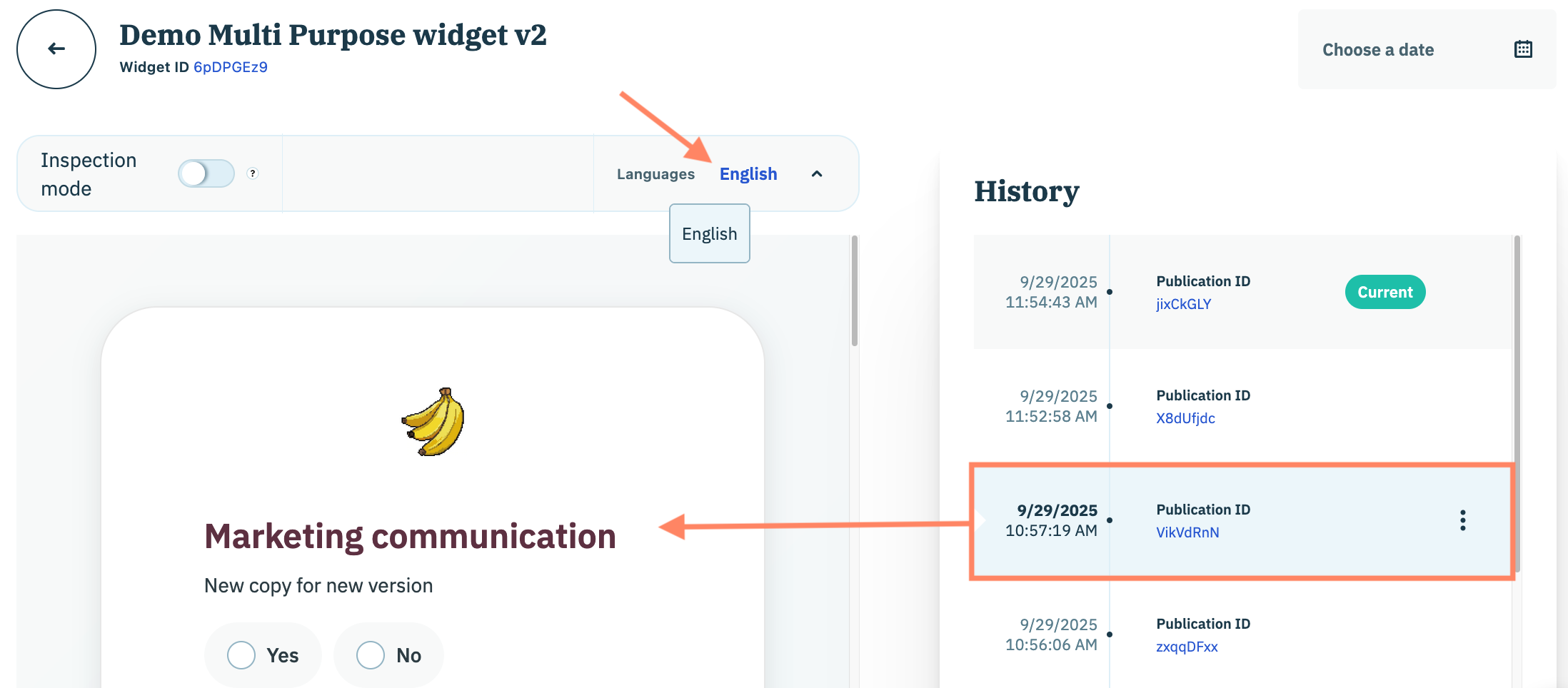
Select any version from the History panel. The left-hand panel will automatically refresh to display the version of the preferences widget that was published.

{% hint style="info" %}
If the preferences widget supported more than one language, your organization can change the display to that specific language by using the **Languages** drop-down menu.
{% endhint %}

<figure><img src="/files/Th0AjINV8SC9JBhGn5U4" alt="" width="563"><figcaption></figcaption></figure>

### Inspection mode

Inspector mode allows your organization to view the difference between the content figured for purposes and preferences on the widget and what is originally stored in the configuration tree. Enable the **Inspector mode** toggle to view the display of a preferences widget version in inspector mode.

Navigate to the display and hover over an element in the preferences widget. An informational tooltip will provide the original copy as reflected in your organization's configuration tree.

<figure><img src="/files/3Psj6iOFVQBOyKMfSTmw" alt="" width="563"><figcaption></figcaption></figure>

### Download preferences widget version JSON

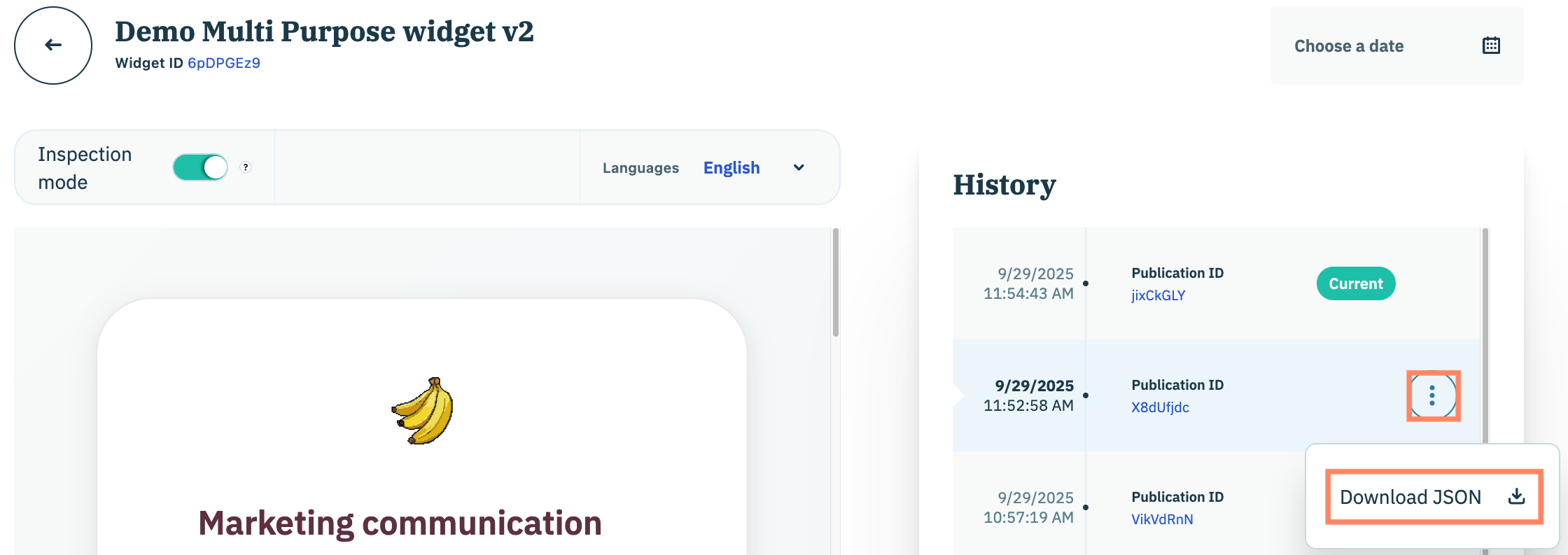
The version JSON is the configuration used when the selected version of the preferences widget was published. To download the JSON file to your local machine, navigate to a version of the preferences widget in the right-hand side History panel.&#x20;

Click the **ellipsis** and select **Download JSON**.

<figure><img src="/files/wAiDBKZfgNz0qBQ2oFd6" alt="" width="563"><figcaption></figcaption></figure>

The JSON file will be download to your local machine.&#x20;


---

# Agent Instructions: Querying This Documentation

If you need additional information that is not directly available in this page, you can query the documentation dynamically by asking a question.

Perform an HTTP GET request on the current page URL with the `ask` query parameter:

```
GET https://docs.didomi.io/preference-management-platform-pmp/preferences-widgets/preferences-widget-version-history.md?ask=<question>
```

The question should be specific, self-contained, and written in natural language.
The response will contain a direct answer to the question and relevant excerpts and sources from the documentation.

Use this mechanism when the answer is not explicitly present in the current page, you need clarification or additional context, or you want to retrieve related documentation sections.