# Preference center overview

{% hint style="success" %}
**Access Type:** PMP Widgets - Editor

**Premium Feature**: Preference Management Platform
{% endhint %}

A preference center is a special type of preferences widget that is accessible via a dedicated URL (either hosted on a managed domain by Didomi or a custom domain).&#x20;

{% hint style="warning" %}
**Note**: The directions in this article and section assume your organization is creating and configuring your preference center within the Didomi console which limits the deployment options available per [widget format](/preference-management-platform-pmp/preferences-widgets/preferences-widget-formats.md).&#x20;

[Click here ](/preference-management-platform-pmp/preferences-widgets.md#didomi-console-vs-didomi-api)to learn more about the differences between utilizing the Didomi console vs the Didomi API and its impact on deployment. &#x20;
{% endhint %}

While most of the configuration of a preference center is similar to that of other preferences widgets, there are additional configurations available for preference centers. In this article, we will cover configurations that are unique to a preference center.

* [Content editor](#content-editor)
* [Hosting](#hosting)

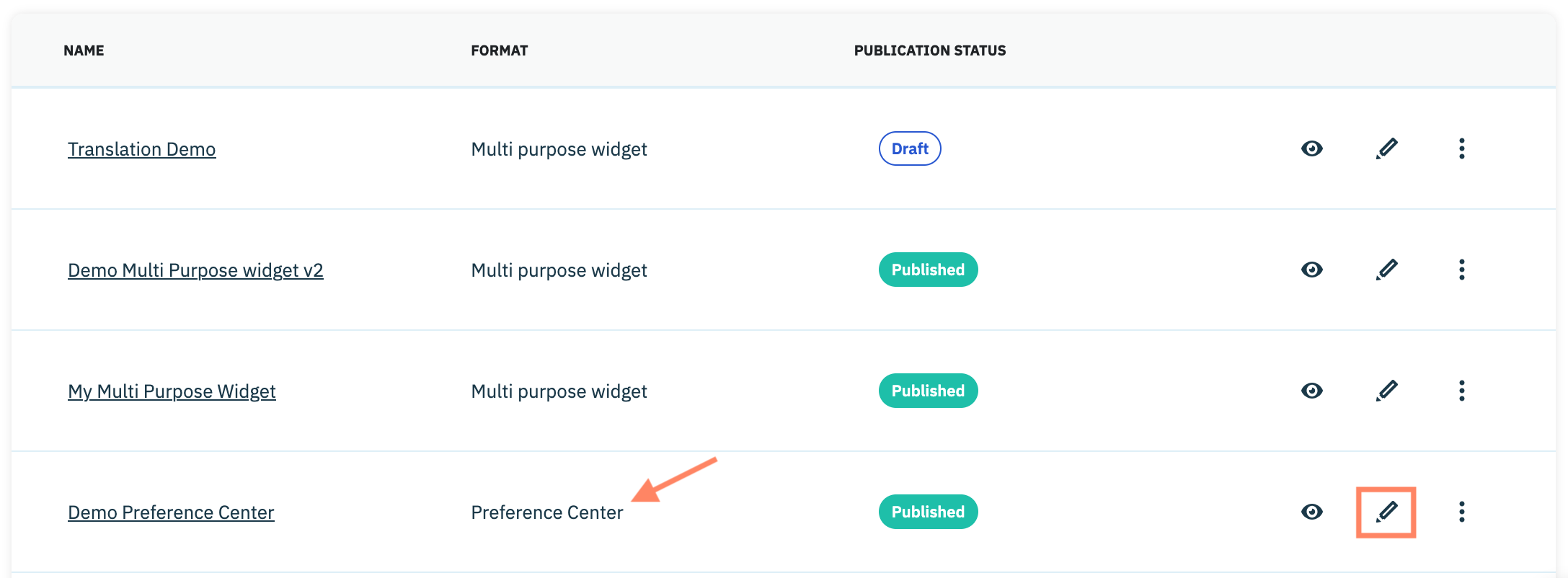
To start, click **Preferences** on the left-hand panel and ensure the **Widgets** tab is selected on the subsequent page.&#x20;

<figure><img src="/files/17JmQ8d4KZTEK2lpnaTp" alt="" width="563"><figcaption></figcaption></figure>

Navigate to a preferences widget with the format **Preference center** on the list and click the **Edit** icon inline with the preferences widget name.

<figure><img src="/files/7X8fir4zHegw8fK7j7t8" alt="" width="563"><figcaption></figcaption></figure>

***

### Content editor

In addition to [editing the content](/preference-management-platform-pmp/preferences-widgets/edit-preferences-widget.md) of a purpose, preference, and/or preference value option, your organization can also configure the content for the following elements specifically for a preference center:

* Browser tab
* Header
* Footer

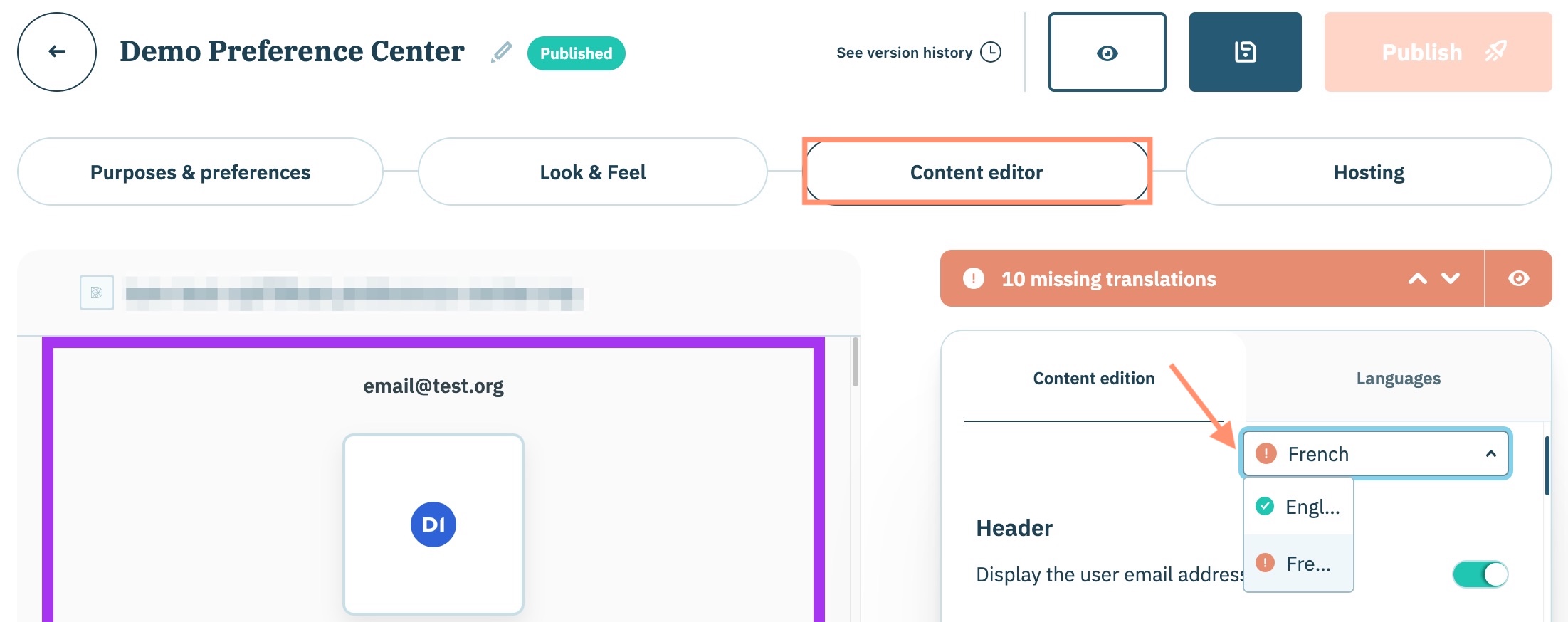
From the preferences widget configuration flow for a preference center, click the **Content editor** tab.

View the preferences widget in one of your organization's [enabled languages](/preference-management-platform-pmp/preferences-widgets/manage-preferences-widget-translations.md) by clicking **Content edition** in the right-hand panel and selecting the language from the provided drop-down menu.

<figure><img src="/files/zMKuGw901l58NBCTbPdb" alt="" width="563"><figcaption></figcaption></figure>

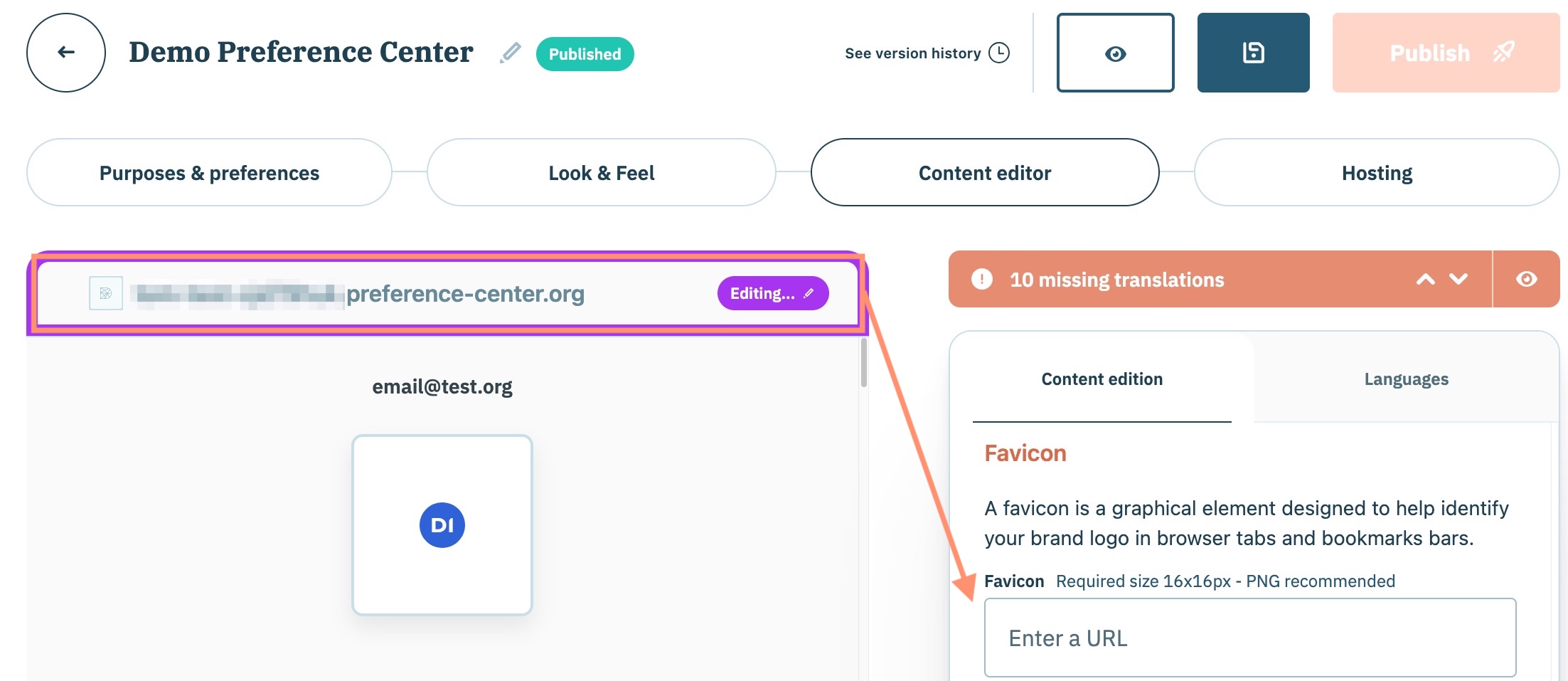
Select the container for the element (e.g. browser tab, header, etc...) for which you are editing the translation.

Navigate to the element in the content edition tab and use the provided space to edit the translation and customize branding.&#x20;

<figure><img src="/files/CKYm4xjnLXC8Q7roBbgU" alt="" width="563"><figcaption></figcaption></figure>

{% hint style="info" %}
Didomi provides automatic translations for certain elements of the header, save card, and footer. These translations can be edited if required.
{% endhint %}

{% tabs %}
{% tab title="Browser tab" %}
The browser tab panel allows you to manage the favicon and title of the browser tab.

<table data-header-hidden><thead><tr><th width="128.39996337890625"></th><th></th></tr></thead><tbody><tr><td>Favicon</td><td>Recommended 16x16px png </td></tr><tr><td>Title</td><td>If a title for the translation is not provided Didomi will display the preference center's URL</td></tr></tbody></table>

<figure><img src="/files/9wfOVzuKRrXfho9esIzf" alt="" width="563"><figcaption></figcaption></figure>
{% endtab %}

{% tab title="Header" %}
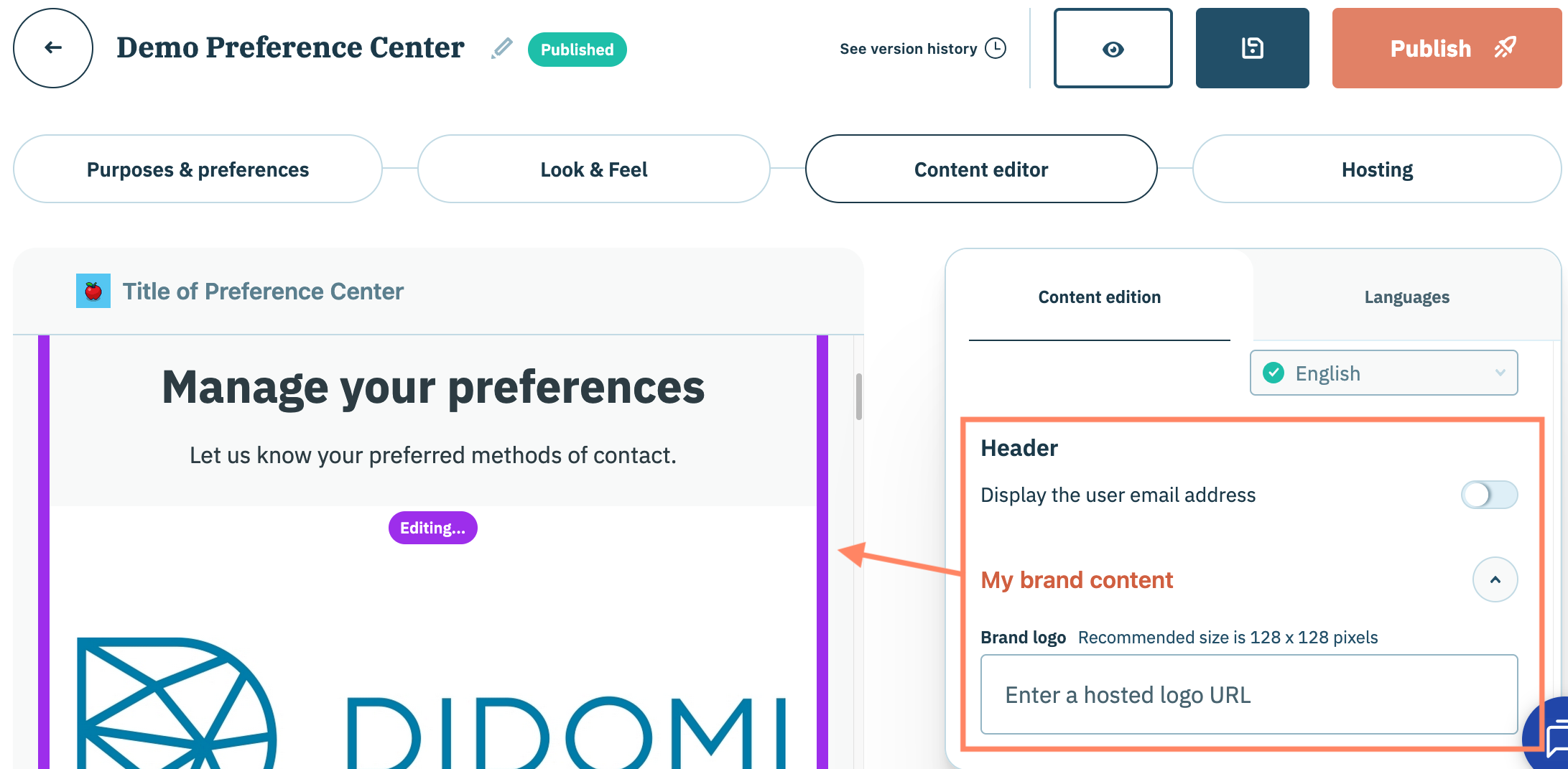
The header panel allows your organization to manage the editorial and branding content for the preference center. Elements of the header include:

<table><thead><tr><th width="171.8499755859375"></th><th></th></tr></thead><tbody><tr><td>Display the user email address</td><td>Toggle to display/hide end-user's email address</td></tr><tr><td>Brand logo</td><td>Recommended 128x128px png </td></tr><tr><td>Preference center title</td><td>The default title for your preference center is <strong>Manage your preferences</strong>.<br><br><mark style="background-color:$warning;"><strong>Note</strong>: This field can not be empty.</mark></td></tr><tr><td>Introduction text</td><td>Introductory text provided by your organization to the preference center</td></tr><tr><td>Banner image</td><td>Recommended 780x320px png </td></tr></tbody></table>

<figure><img src="/files/5W2hCTOnurgZEXuAKwI1" alt="" width="563"><figcaption></figcaption></figure>
{% endtab %}

{% tab title="Footer" %}
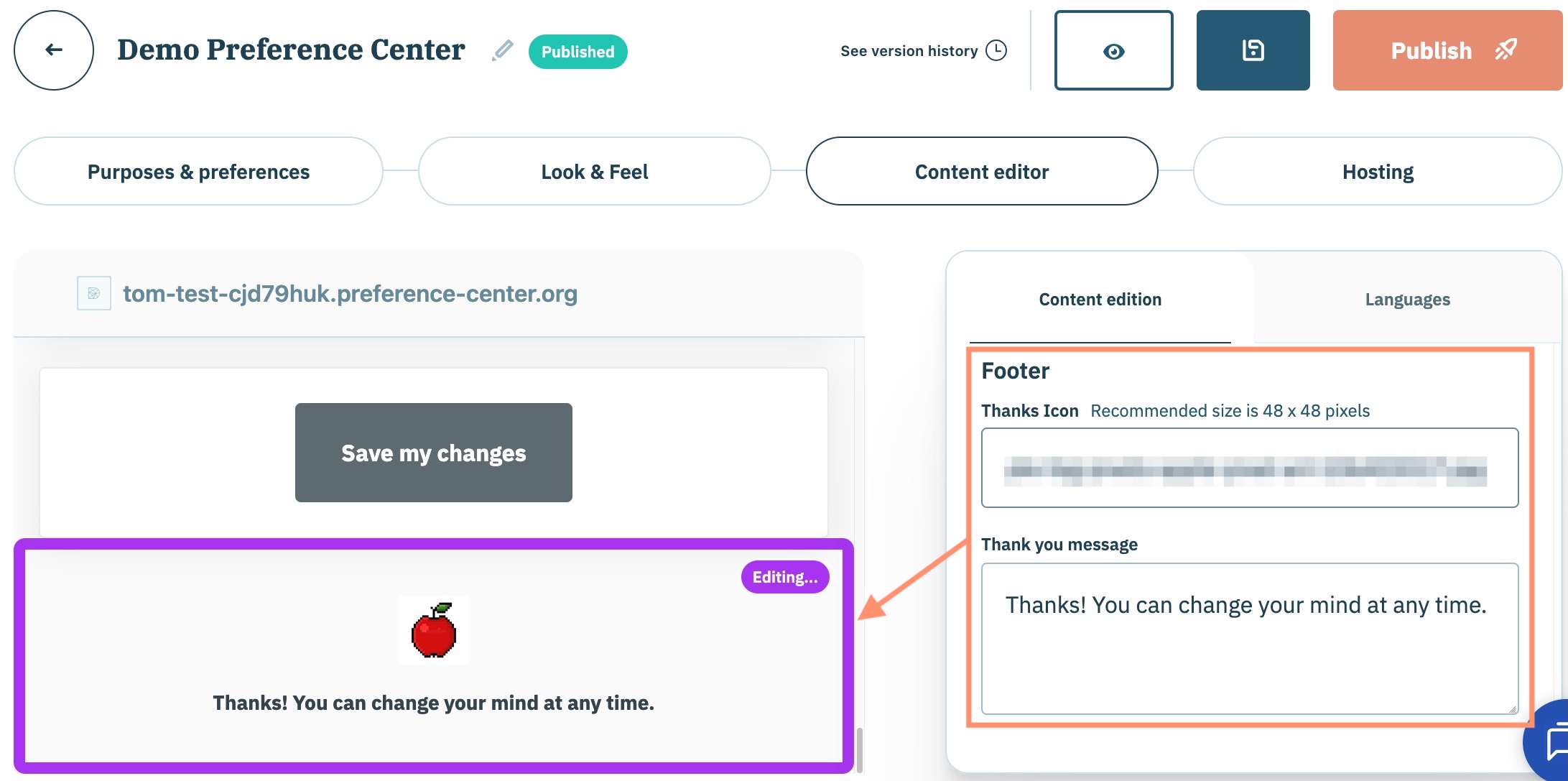
The footer panel allows you to manage the footer of your preference center. From this panel, you can modify the:

* Footer icon
* Thank you message

<figure><img src="/files/kxz38lDaUgEt685zQaar" alt="" width="563"><figcaption></figcaption></figure>
{% endtab %}
{% endtabs %}

### Hosting

Unlike single or multi purpose preferences widgets, a preference center is not embedded onto your organization's website(s). When your organization's preference center is published, a configuration file is created and stored in an AWS bucket. A resource with the domain used by the preference center will be created in order to serve the webpage to your end-users.

From the preferences widget configuration flow for a preference center, click the **Hosting** tab.

<figure><img src="/files/n5PzVSnHyPawtEs1RBn7" alt="" width="563"><figcaption></figcaption></figure>

In this section, we will cover the two options your organization can use to host and serve your preference center to its end-users.

{% tabs %}
{% tab title="Manage domain (Default)" %}
By default, when your preference center is published, a default domain is automatically generated via a Didomi managed domain. The managed domain enables your organization to custom the subdomain while utilizing the fixed domain **preference-center.org**.

The format of the URL assigned to a preference center utilizing a managed domain is as follows:

```
https://organization_id-widget_id.preference-center.org
```

The subdomain is comprised of two distinct parts:

<table><thead><tr><th width="184.1500244140625"></th><th></th></tr></thead><tbody><tr><td><code>organization_id</code></td><td>Unique identifier for your organization's Didomi account</td></tr><tr><td><code>widget_id</code></td><td>Unique identifier for the preference center</td></tr></tbody></table>

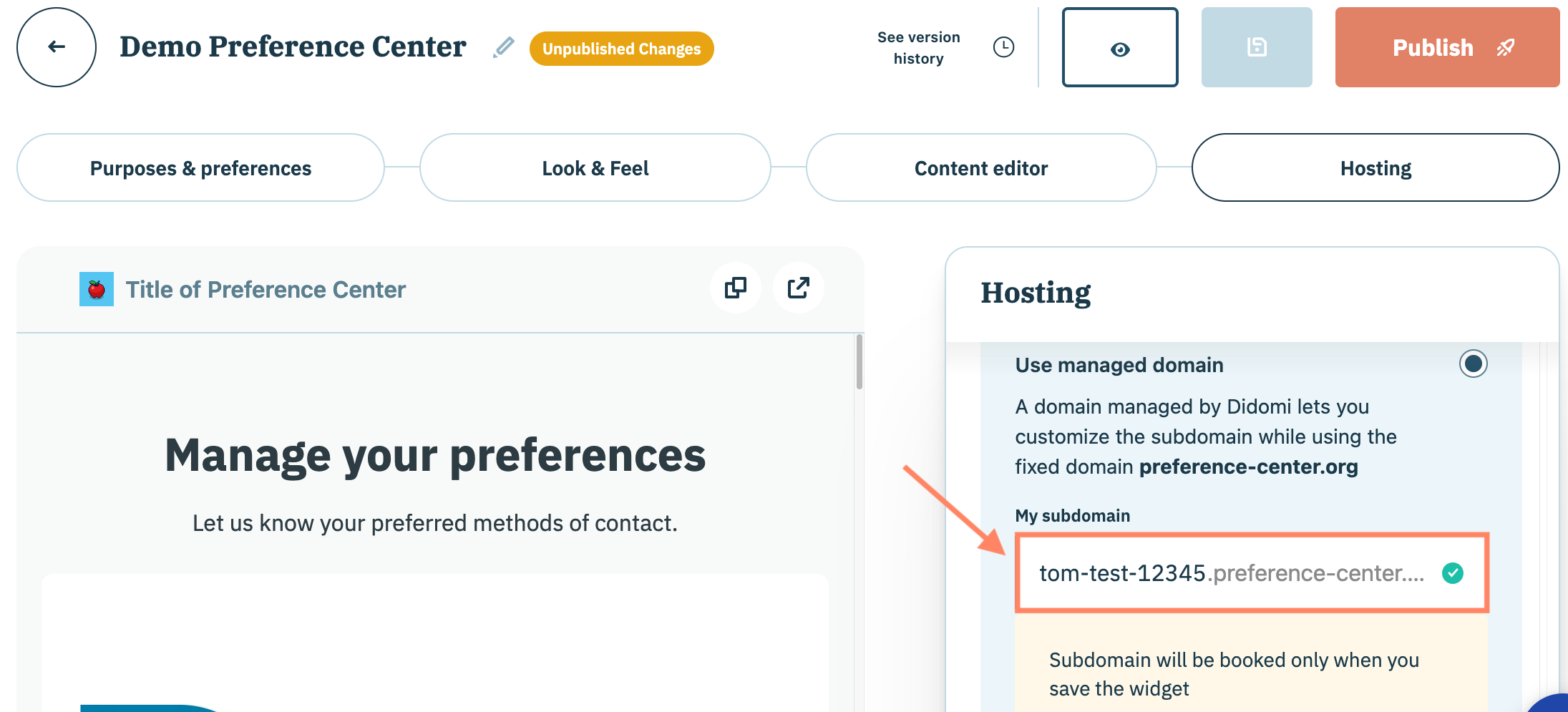
Your organization can edit the default subdomain supplied to your organization's preference center by navigating to the right-hand panel and edit the provided field in the **Use managed domain** section.

When editing the subdomain your organization will need to adhere to the following rules:

* only contains lowercase letters (26 letters of the English alphabet), numbers (0-9), hypen sign (-)
* must start with a letter or number
* no consecutive hyphens
* entire hostname cannot exceed 255 characters
* subdomain cannot exceed 63 characters

{% hint style="info" %}
Didomi will check whether the edited subdomain is available. If so, the subdomain will only be booked when the widget is saved.
{% endhint %}

<figure><img src="/files/JTdRCBwbqxYk4iJKqGz3" alt="" width="563"><figcaption></figcaption></figure>
{% endtab %}

{% tab title="Custom domain" %}
As an alternative to the default managed domain provided by Didomi, your organization can also utilize its own domain. In order to successfully utilize a custom domain to load your preference center, the domain must meet the following requirements:

* must already exist
* must be in **Ready** status
* **usage** for domain is correctly set to Serve a hosted page (Didomi console) or `preference-center` (API)
* not assigned another widget

{% hint style="info" %}
[Click here](https://developers.didomi.io/api-and-platform/domains) to review Didomi developer documentation for domains.
{% endhint %}

To utilize a custom domain to load a preference center, navigate to the right-hand panel and enable the toggle for **Use custom domain**. Select a custom domain from the list (if available).

If a custom domain is not available, click **Add custom domain** to continue.

<figure><img src="/files/SJuBN23nBljN1havvkri" alt="" width="563"><figcaption></figcaption></figure>

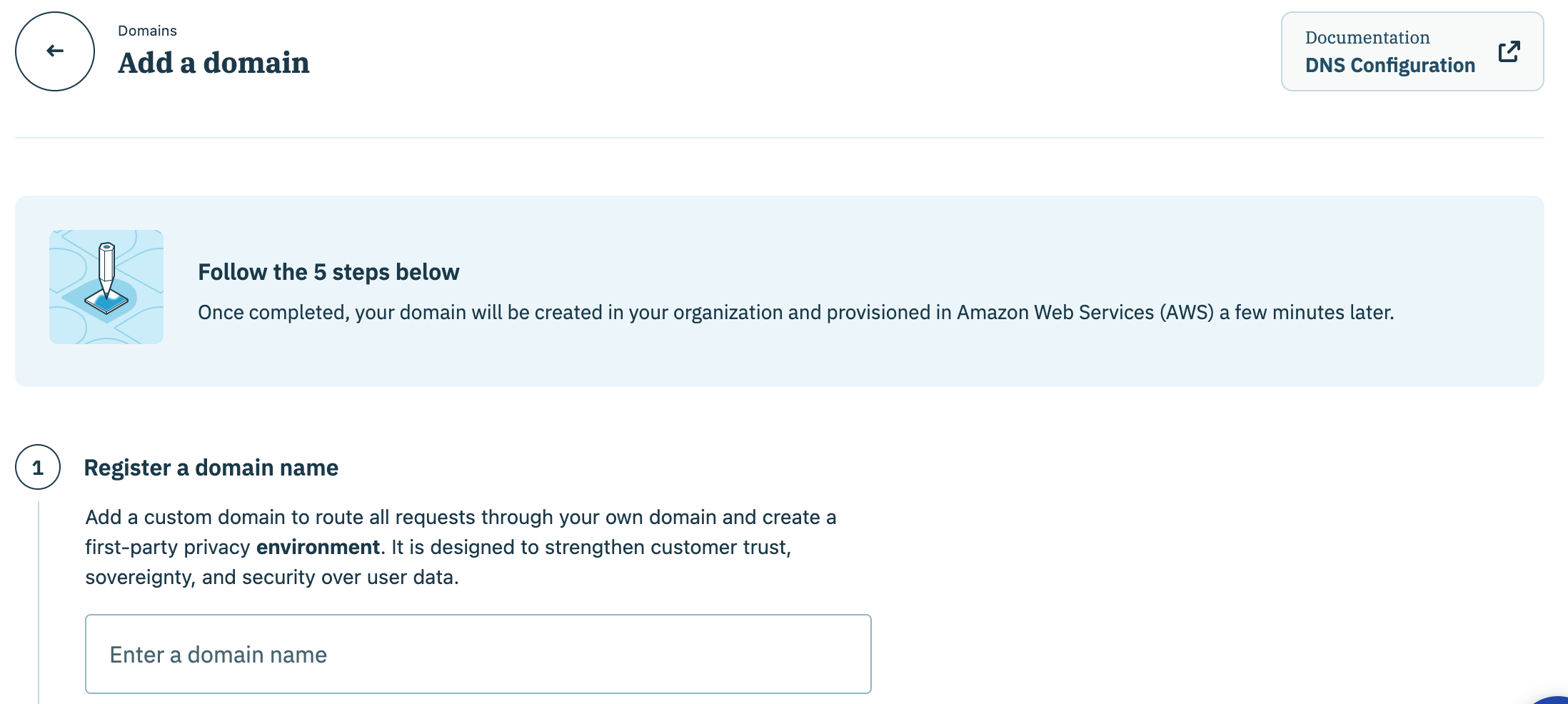
Follow the necessary steps to create a custom domain and select it from the list when finished.

<figure><img src="/files/DmNEZJs0LROAXUW31fJg" alt="" width="563"><figcaption></figcaption></figure>
{% endtab %}
{% endtabs %}


---

# Agent Instructions: Querying This Documentation

If you need additional information that is not directly available in this page, you can query the documentation dynamically by asking a question.

Perform an HTTP GET request on the current page URL with the `ask` query parameter:

```
GET https://docs.didomi.io/preference-management-platform-pmp/preferences-widgets/preference-center-overview.md?ask=<question>
```

The question should be specific, self-contained, and written in natural language.
The response will contain a direct answer to the question and relevant excerpts and sources from the documentation.

Use this mechanism when the answer is not explicitly present in the current page, you need clarification or additional context, or you want to retrieve related documentation sections.