> For the complete documentation index, see [llms.txt](https://docs.didomi.io/llms.txt). Markdown versions of documentation pages are available by appending `.md` to page URLs; this page is available as [Markdown](https://docs.didomi.io/preference-management-platform-pmp/preferences-widgets/manage-preferences-widget-translations.md).
# Manage preferences widget translations
{% hint style="success" %}
**Access Type:** PMP Widgets - Editor
**Premium Feature**: Preference Management Platform
{% endhint %}
The translations for your organization's [purposes](/data-manager/purposes/manage-purpose-translations.md) and [preferences](/preference-management-platform-pmp/preferences-library/add-preference-translation-in-preferences-library.md) are stored in your organization's Didomi data manager and preferences library, respectively. These translations are available in your preferences widget if your organization enables support for those languages in the preferences widget configuration flow. In this article, we will cover how to perform the following for an existing preferences widget:
* [Enable language support in preferences widget](#enable-language-support-in-preferences-widget)
* [Add preferences widget translations](#add-preferences-widget-translations)
* [Edit preferences widget translations](#edit-preferences-widget-translations)
{% hint style="info" %}
Translations provided or edited from within the preferences widget configuration flow **will not** add to or change the translations for a purpose or preference within the data manager or preferences library. These edited translations exist for the preferences widget only.\
\
Additionally, your organization can provide additional translations directly from the preferences widget configuration flow for purposes, preferences, and preference value options without a translation being saved for any of these elements in the data manager and/or preferences library.
{% endhint %}
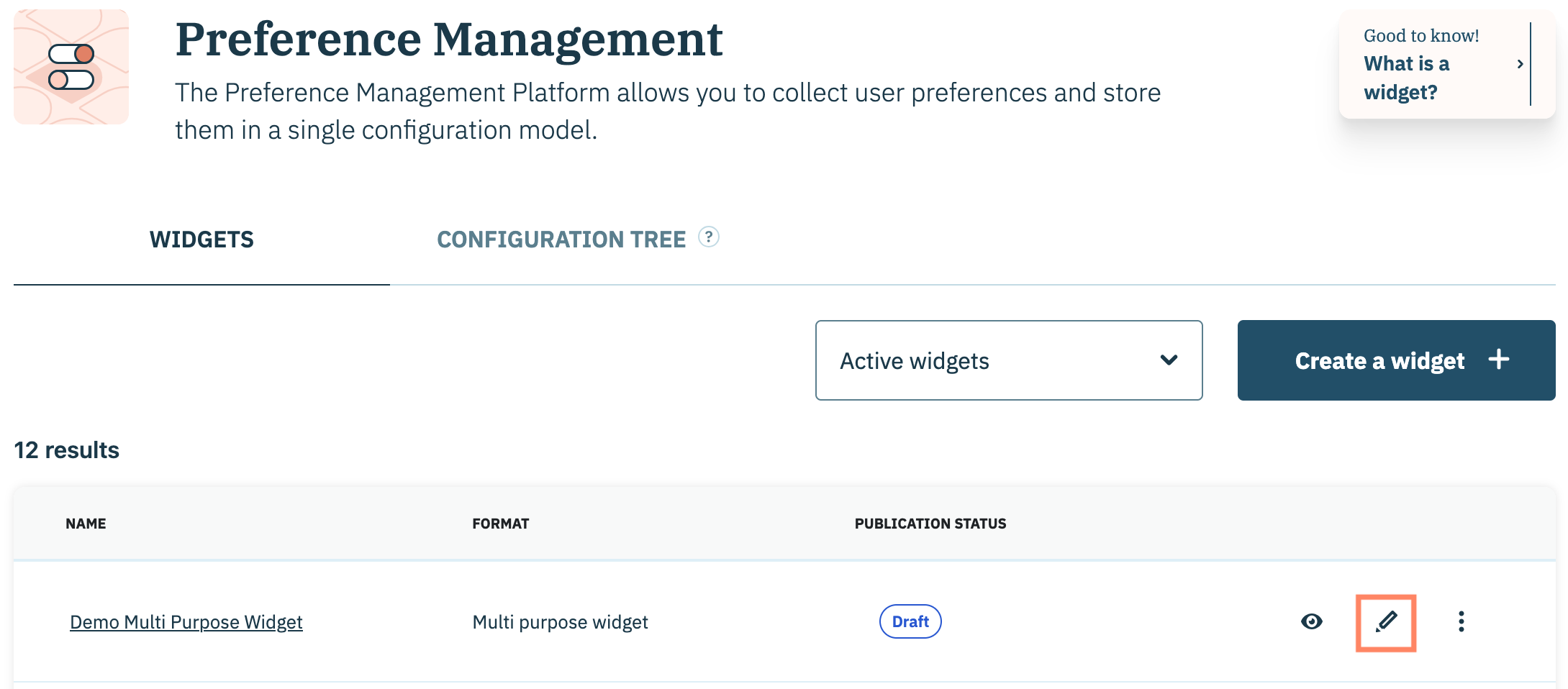
To start, click **Preferences** on the left-hand panel and ensure the **Widgets** tab is selected on the subsequent page.
Navigate to a preferences widget on the list and click the **Edit** icon inline with the preferences widget name.
Select the **Content editor** tab.
***
### Enable language support in preferences widget
Before your organization can see, edit, or add translations for purposes, preferences, or preference value options, the language was first be enabled for the preferences widget.
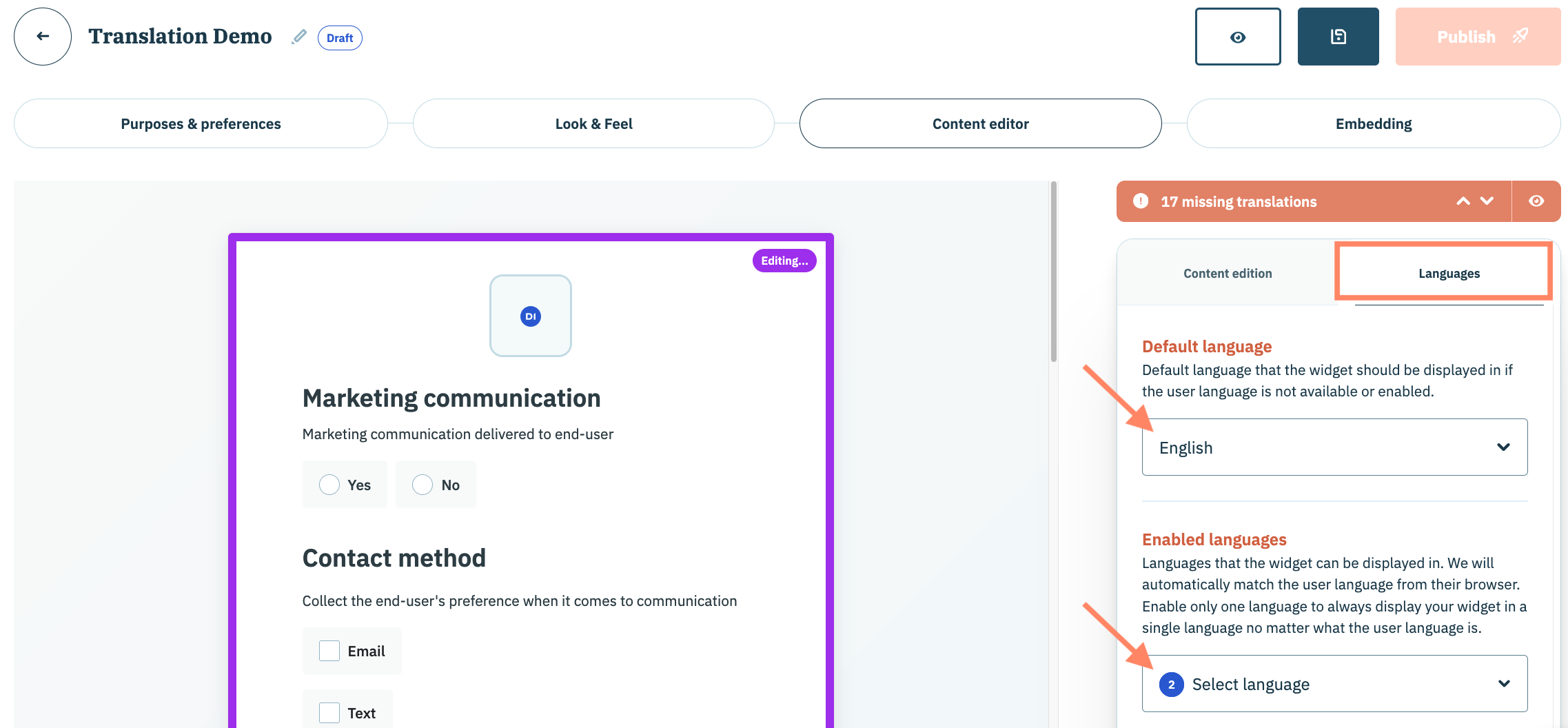
Click the **Languages** tab in the right-hand panel. Use the provided drop-down menus to select:
Default language
Language the preference widget should use if the end-user's language is not supported by the widget.
Enabled languages
Languages the preference widget will be translated into to match the end-user's browser language.
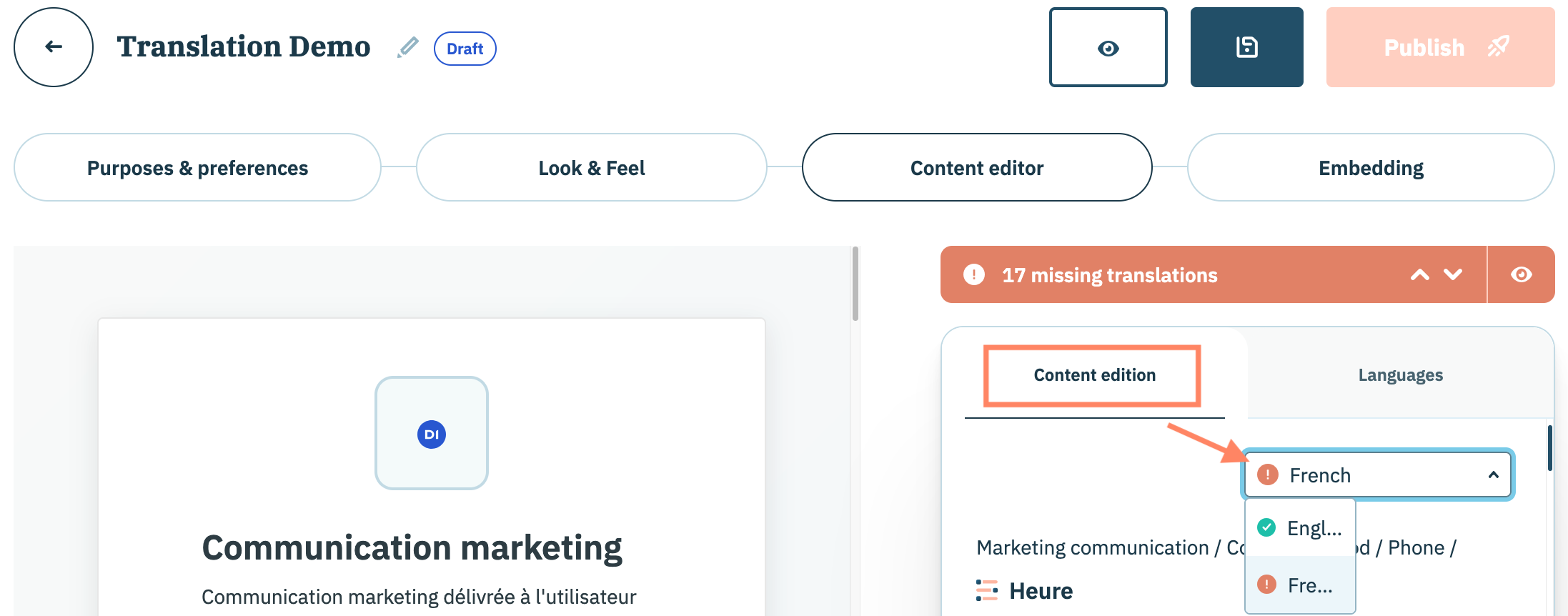
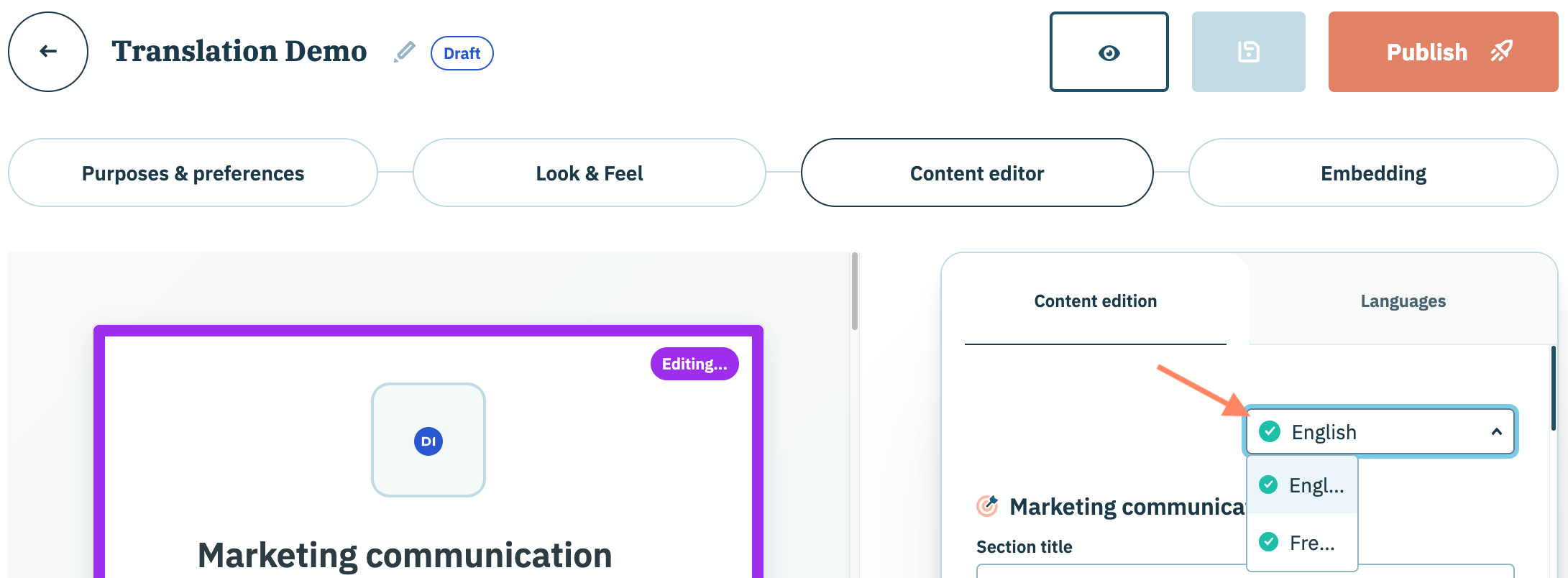
View the preferences widget in one of your organization's enabled languages by clicking **Content edition** in the right-hand panel and selecting the language from the provided drop-down menu.
The preferences message preview will automatically translate to the selected enabled language.
{% hint style="info" %}
If translations are not configured for the purpose or preferences in the data manager and/or preferences library, respectively, the preview will display a placeholder of `--------` in lieu of the translation. \
\
Preference value option translations will always need to be added/edited on a per preferences widget basis and is not stored in the preference library.
{% endhint %}
### Add preferences widget translations
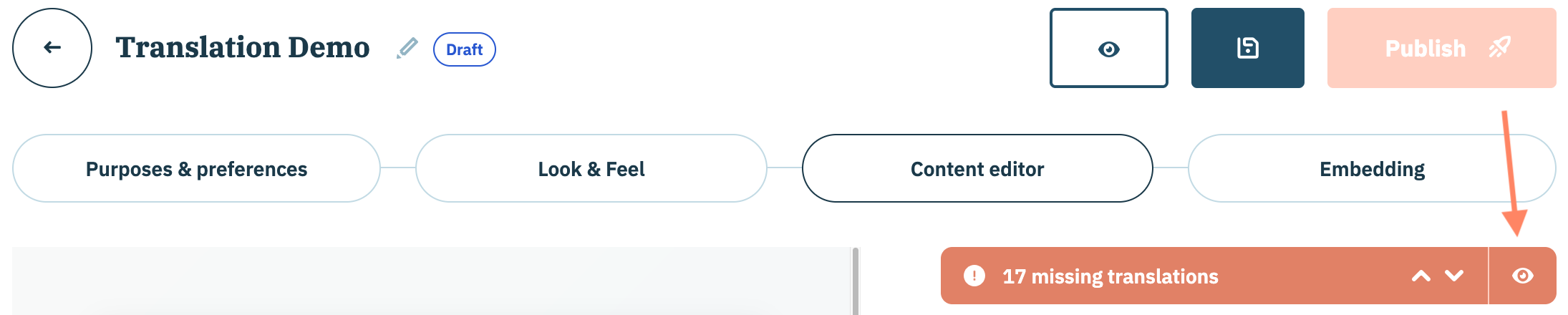
Once an enabled language is added to the preferences widget, the configuration flow will catalogue the content elements that are missing translations. Click the **eye icon** inline with the alert for missing translations to view the list.
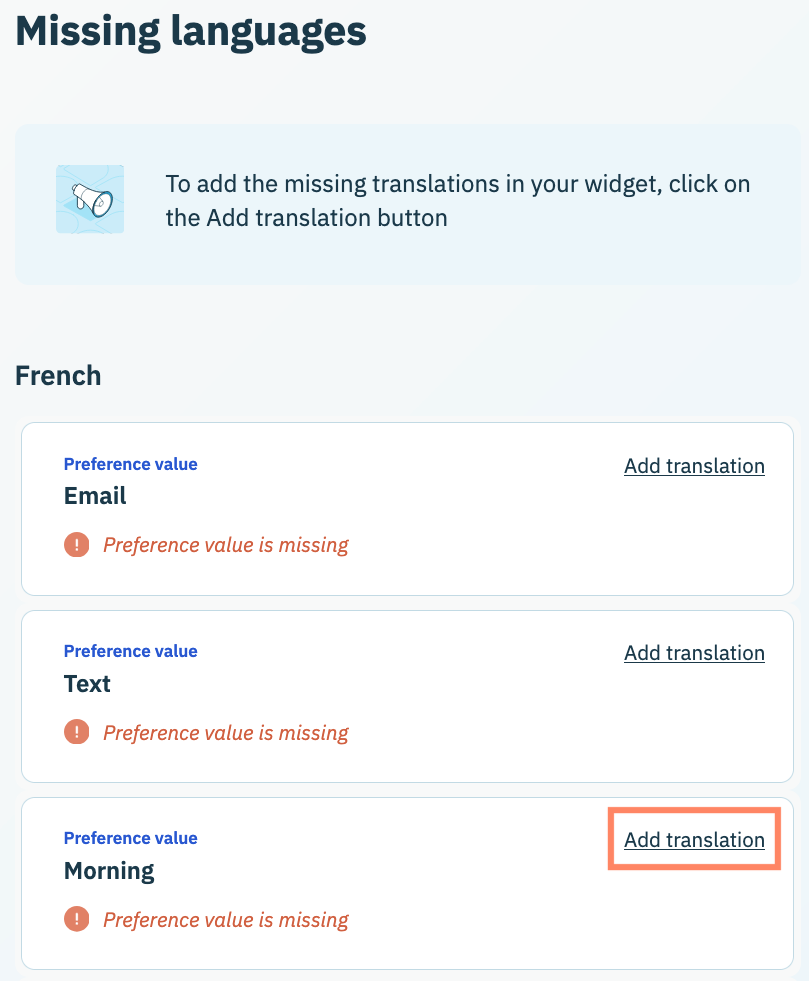
The missing language pane will list on a per language basis the missing translations for each element in a purpose, preference, and/or preference value option.
{% hint style="warning" %}
**Note**: Didomi provides automatic translations for certain elements of your preferences widget (e.g. elements of the header, save card, and footer. These translations will not appear on the missing translations list but can be [edited](#edit-preferences-widget-translations) by your organization.
{% endhint %}
Navigate to any item on the list and click **Add translation**.
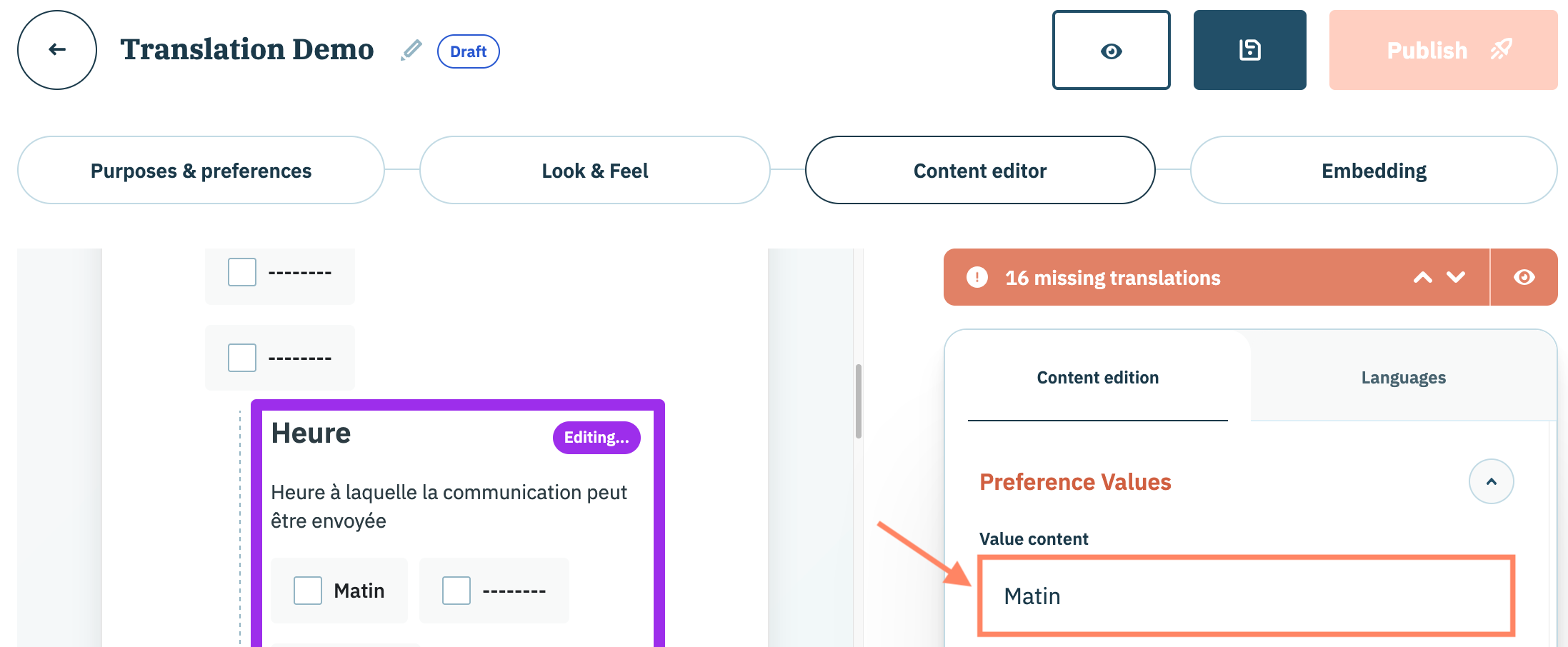
The preferences widget configuration flow will direct you to the missing translation. Use the provided field to provide a translation for the missing element.
Repeat as necessary for other missing translations.
### Edit preferences widget translations
Translations for purposes and preferences (either stored in the data manager or preferences library, respectively, or provided directly in the preferences configuration flow) can be edited.
{% hint style="info" %}
Translations edited from within the preferences widget configuration flow **will not** change the translations for a purpose or preference within the data manager or preferences library. These edited translations exist for the preferences widget only.
{% endhint %}
Edit a translation for a purpose, preference, or preference value option by changing the language of the preview into the desired enabled language using the provided drop-down menu in the **Content edition** tab on the right-hand panel.
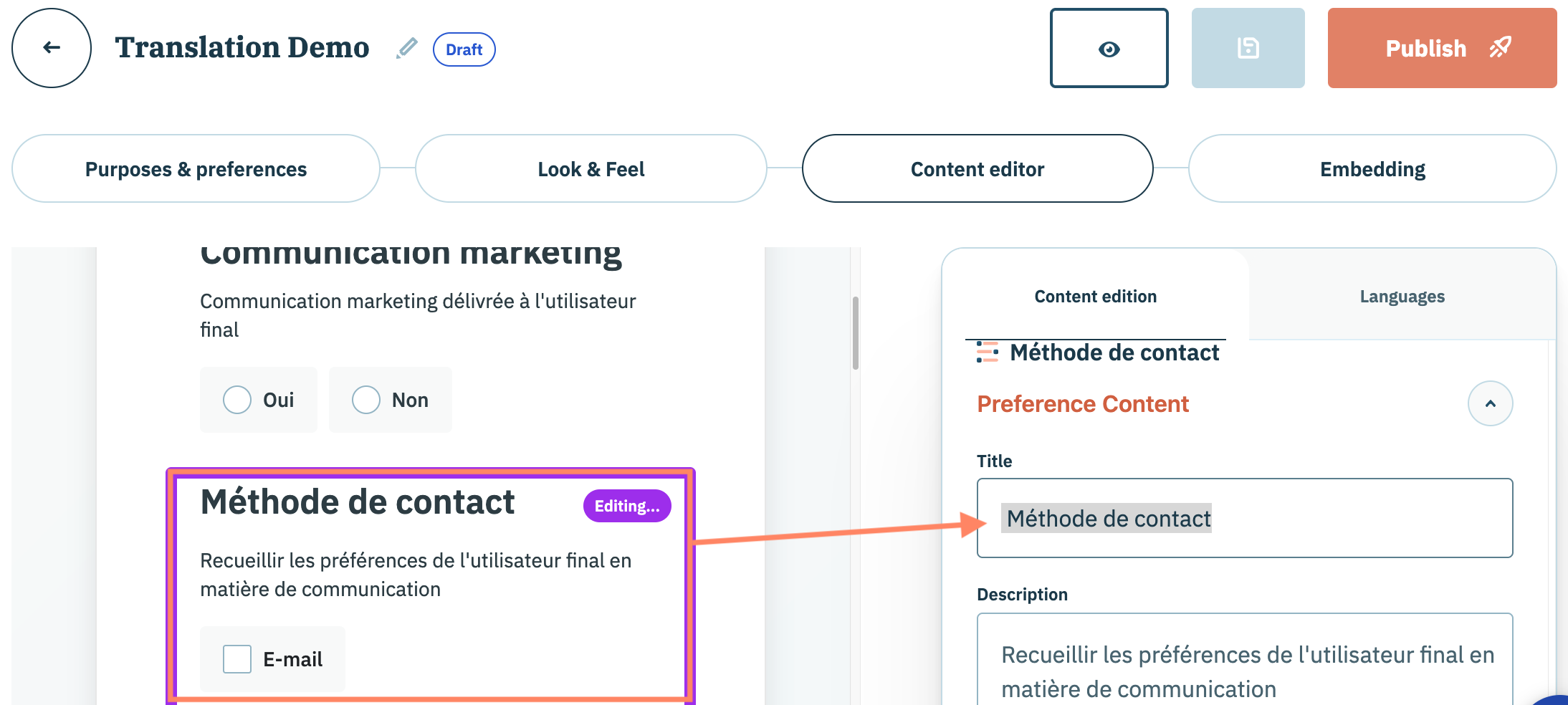
Select the container for the element for which you are editing the translation.
Navigate to the element in the content edition tab and use the provided space to edit the translation.
---
# Agent Instructions
This documentation is published with GitBook. GitBook is the documentation platform designed so that both humans and AI agents can read, navigate, and reason over technical content effectively. Learn more at gitbook.com.
## Querying This Documentation
If you need additional information that is not directly available in this page, you can query the documentation dynamically by asking a question.
Perform an HTTP GET request on the current page URL with the `ask` query parameter, and the optional `goal` query parameter:
```
GET https://docs.didomi.io/preference-management-platform-pmp/preferences-widgets/manage-preferences-widget-translations.md?ask=&goal=
```
`ask` is the immediate question: it should be specific, self-contained, and written in natural language.
`goal` is optional and describes the broader end goal you are ultimately trying to accomplish on behalf of the user. GitBook uses it to tailor the answer towards what is most useful for that goal.
The response will contain a direct answer to the question and relevant excerpts and sources from the documentation.
Use this mechanism when the answer is not explicitly present in the current page, you need clarification or additional context, or you want to retrieve related documentation sections.