
# Edit preferences widget

{% hint style="success" %}
**Access Type:** PMP Widgets - Editor

**Premium Feature**: Preference Management Platform
{% endhint %}

A preferences widget is the customizable end-user facing form that your organization surfaces to collect the end-users preferences as defined in your organization's configuration tree. In this article, we will cover how to manage the preferences widget configuration flow to edit an existing preferences widget.

* [Save preferences widget edits](#save-preferences-widget-edits)
* [Preferences widget name](#preferences-widget-name)
* [Purposes & preferences](#purposes-and-preferences)
* [Look & feel](#look-and-feel)
* [Content editor](#content-editor)
* [Publish preferences widget](#publish-preferences-widget)

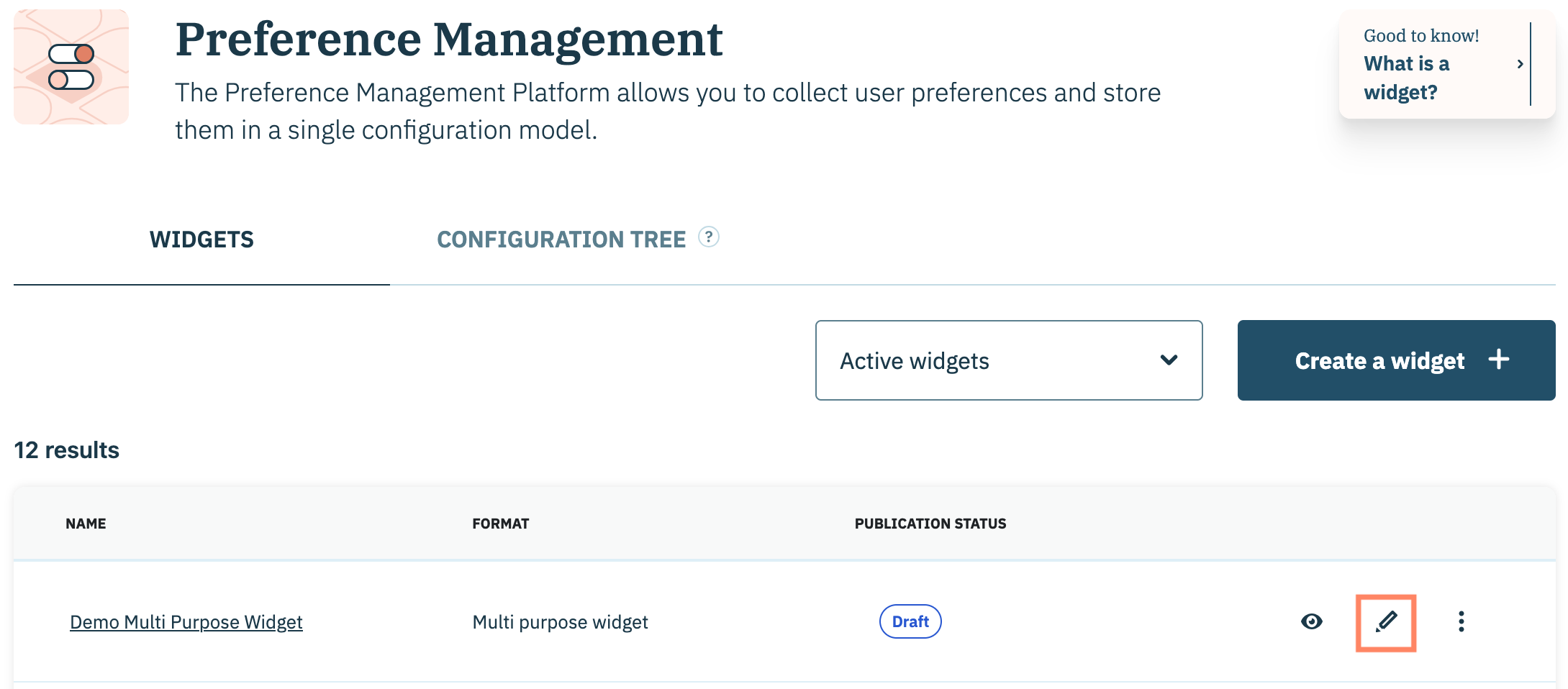
To start, click **Preferences** on the left-hand panel and ensure the **Widgets** tab is selected on the subsequent page.&#x20;

<figure><img src="/files/17JmQ8d4KZTEK2lpnaTp" alt="" width="563"><figcaption></figcaption></figure>

Navigate to a preferences widget on the list and click the **Edit** icon inline with the preferences widget name.

<figure><img src="/files/vdiDdul9Enq8viovz2fn" alt="" width="563"><figcaption></figcaption></figure>

***

### Save preferences widget edits

Edit the various components of the preferences widget using the tabs of the preferences widget configuration flow. Save your progress at any point by clicking the **Save** icon in the upper right-hand corner.&#x20;

<figure><img src="/files/UYW8h08t9bfX6nVByB2L" alt="" width="563"><figcaption></figcaption></figure>

Review the table below for information on how saving your preferences widget edits impacts the [publication status](/preference-management-platform-pmp/preferences-widgets/preferences-widget-status-glossary.md) of the widget:

<table><thead><tr><th width="219.083251953125">Original Publication Status</th><th></th></tr></thead><tbody><tr><td>Draft</td><td>Saved edits will have no impact on the publication status of the preferences widget and the status will remain <strong>Draft</strong>.</td></tr><tr><td>Published</td><td>Saved edits to a published preferences widget will change the publication status to <strong>Unpublished Changes</strong>. The preferences widget will need to be re-published for the changes to appear on websites where the widget was deployed/embedded.<br><br><mark style="background-color:$info;"><strong>Note</strong>: Re-publishing the preferences widget will create a new version of the widget with its new edits that can be tracked in the</mark> <a href="/pages/e8wlYKh4CzTZdRWwTfen"><mark style="background-color:$info;">widget's version history</mark></a><mark style="background-color:$info;">.</mark></td></tr></tbody></table>

### Preferences widget name

Edit the preferences widget name by clicking the **Edit** icon inline with preferences widget name. Use the provided field to edit the name.

<figure><img src="/files/MW5LS1gdvwJHZ0MvolWR" alt="" width="563"><figcaption></figcaption></figure>

### Purposes & preferences

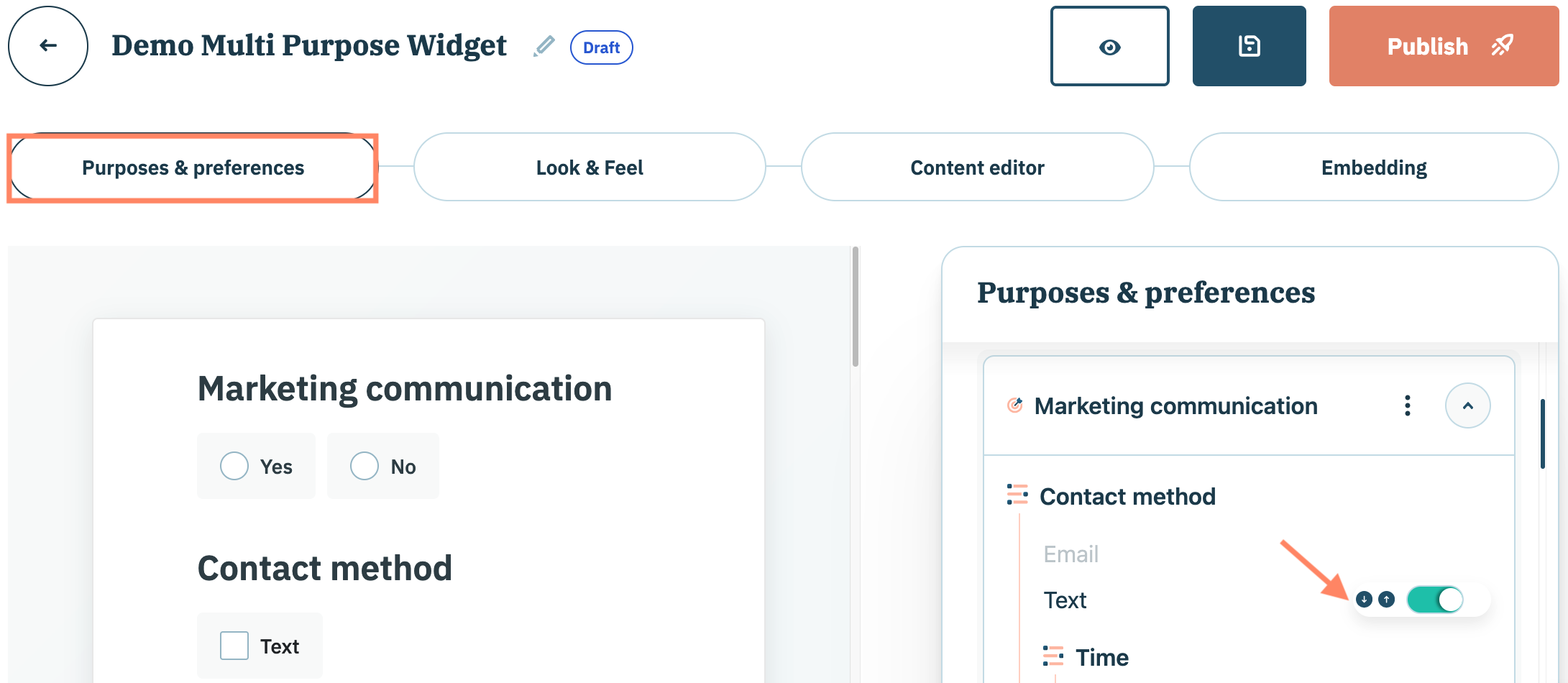
The Purposes & preferences tab of the preferences widget configuration flow allows your organization to configure the specific purposes, preferences, and preference value options that will be surfaced via the preferences widget.

Use the tools in the right-hand panel to customize your organization's purposes, preferences, and/or preference value options for this particular widget. Refer to the table below for specific actions that can be taken on each component:

<table><thead><tr><th width="187">Component</th><th>Actions</th></tr></thead><tbody><tr><td>Purpose</td><td><p>Click the ellipsis inline with the purpose name to customize the purpose.</p><ul><li>Show/hide purpose and its associated preferences (Display section toggle)</li><li>Collect consent for the purpose (Display the consent request toggle)</li><li>Reorder purposes (arrows)</li></ul></td></tr><tr><td>Preference</td><td><ul><li>Hide preference (will need to hide all preference value options for the preference)</li><li>Reorder preferences (arrows)</li></ul></td></tr><tr><td>Preference value</td><td><ul><li>Show/hide preference value option (toggle)</li><li>Reorder value option for preference (arrows)</li></ul></td></tr></tbody></table>

{% hint style="info" %}
To hide a preference completely, your organization will need to hide all preference value options for the preference
{% endhint %}

<figure><img src="/files/634QMflfPimh2dg5b3R4" alt="" width="563"><figcaption></figcaption></figure>

### Look & feel

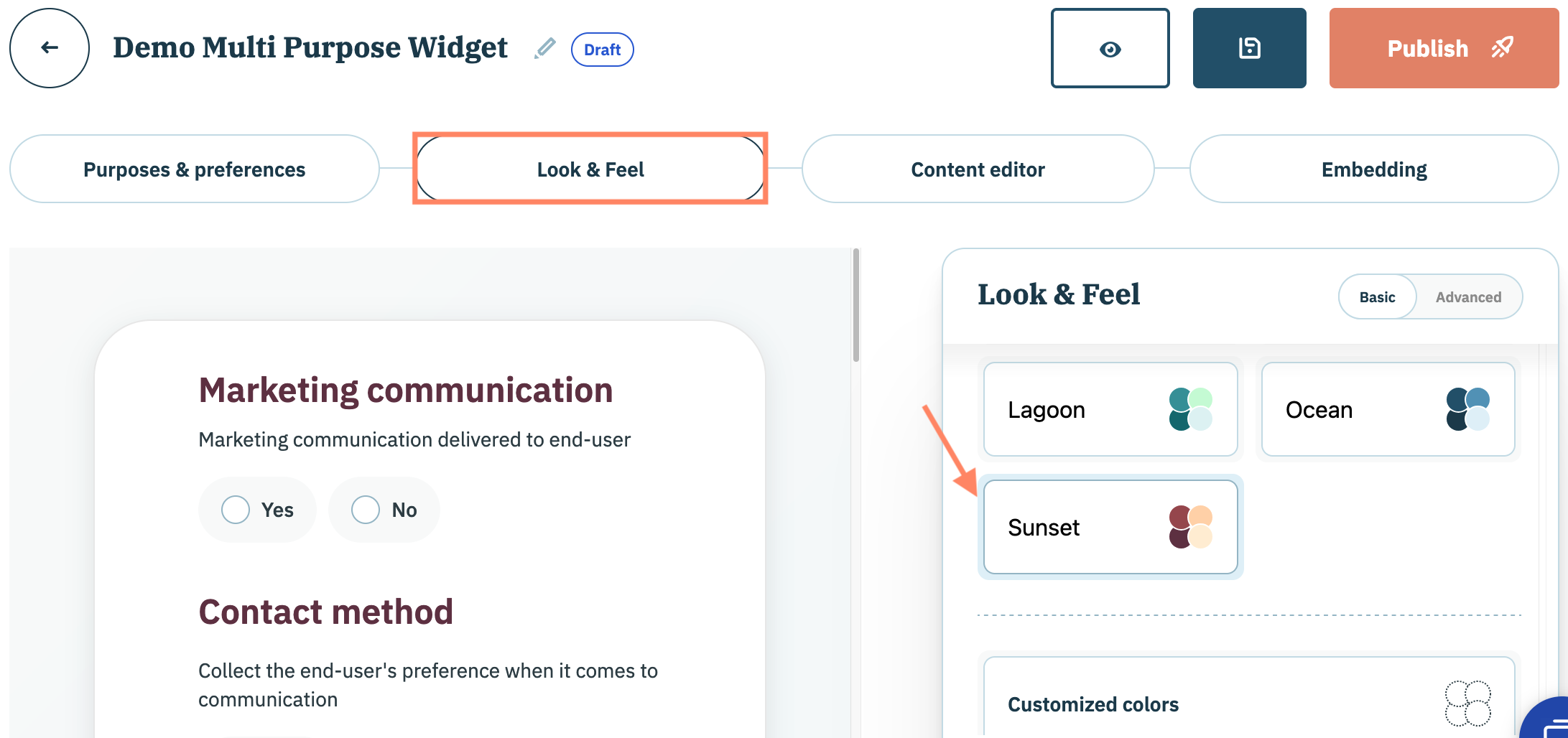
The Look & feel tab of the preferences widget configuration flow allows your organization to customize the design of the preferences widget. Use the right-hand panel to select:

* Shape of the widget and its components (selection will apply to cards, containers and buttons)
* Color scheme (either preset themes or customized colors per element using hexadecimal)

<figure><img src="/files/6sgaJznMi2fQ6AMSXv9K" alt="" width="563"><figcaption></figcaption></figure>

{% hint style="info" %}
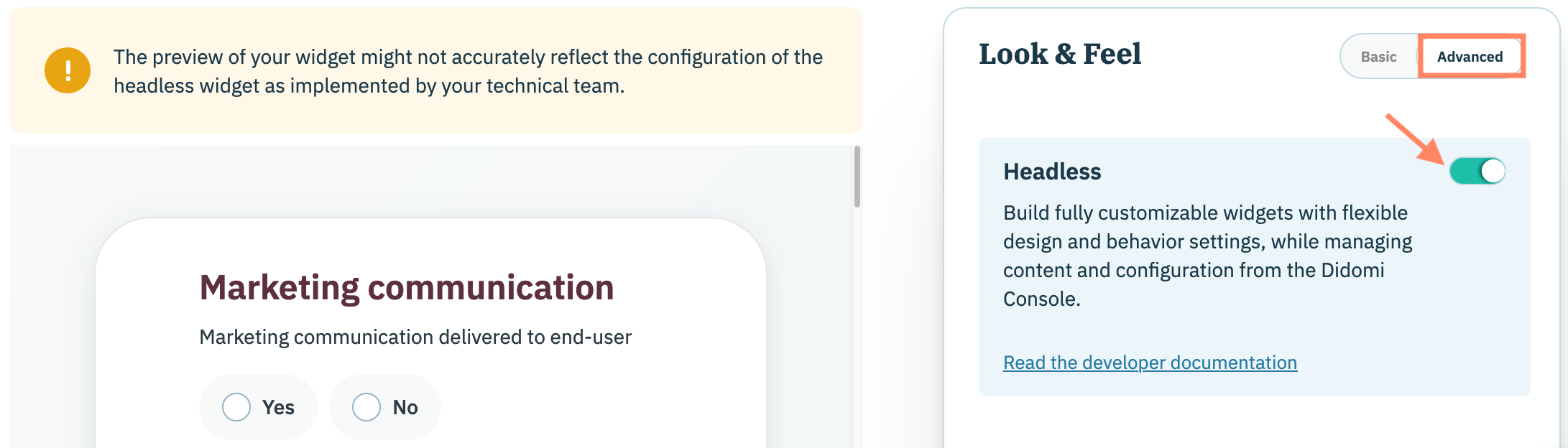
For increased design and behavior flexibility your organization can also configure the preferences widget to be a Headless widget via the **Advanced** tab (available for Single purpose and Multi purpose preferences widgets only). [Click here](https://developers.didomi.io/api-and-platform/widgets/privacy-widgets/headless-widgets) to learn more about customizing your preferences widget as a headless widget.&#x20;
{% endhint %}

<figure><img src="/files/xVNTA19O6O6NdX0aoXhU" alt="" width="563"><figcaption></figcaption></figure>

### Content editor

The Content editor tab of the preferences widget configuration flow allows your organization to edit the copy and translations for your selected purposes and preferences on a per-widget basis. Any edits to the copy for your purposes, preferences, and preference value options performed within the preferences widget **will not** alter the original copy of these elements in the preference library and/or data manager.&#x20;

In this section, we will provide an overview of how to navigate the content editor of a preferences widget.

{% hint style="info" %}
[Click here](/preference-management-platform-pmp/preferences-widgets/manage-preferences-widget-translations.md) for detailed information on how to manage language translations for your preferences widget's purposes, preferences, and preference value options.&#x20;
{% endhint %}

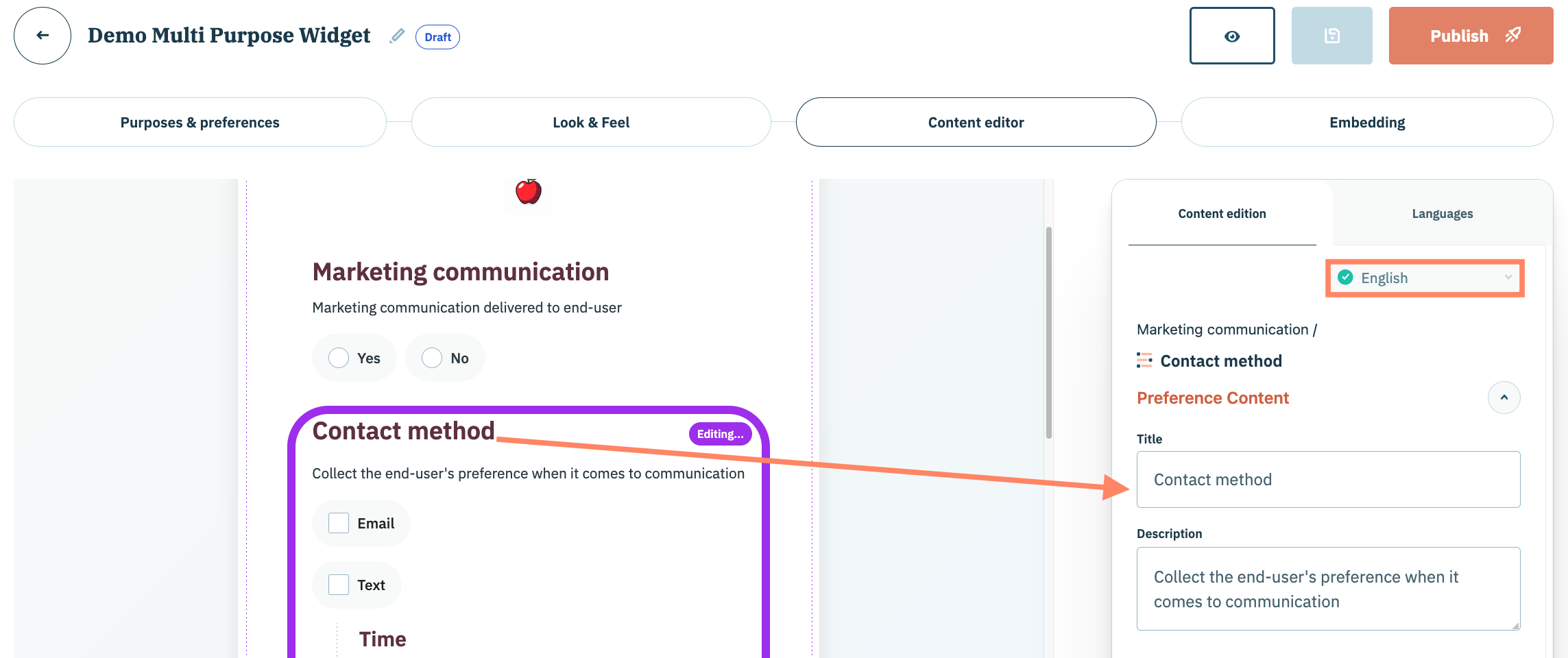
Click on an element in the preferences widget preview and use the provided fields in the right-hand panel to edit the title, description, value content, etc... for that element in the specified language.

<figure><img src="/files/yqlzGhmPhHDlQ7UYUKpP" alt="" width="563"><figcaption></figcaption></figure>

In addition to editing the content of your selected purposes and/or preferences, your organization can also edit the following elements for each preferences widget format:

<table><thead><tr><th width="181.34991455078125">Element</th><th data-type="checkbox">Single purpose widget</th><th data-type="checkbox">Multi purpose widget</th><th data-type="checkbox">Preference center</th></tr></thead><tbody><tr><td>Purpose and/or preference</td><td>true</td><td>true</td><td>true</td></tr><tr><td>Save card</td><td>false</td><td>true</td><td>true</td></tr><tr><td>Browser tab</td><td>false</td><td>false</td><td>true</td></tr><tr><td>Header</td><td>false</td><td>false</td><td>true</td></tr><tr><td>Footer</td><td>false</td><td>false</td><td>true</td></tr></tbody></table>

### Publish preferences widget

{% tabs %}
{% tab title="Single Purpose/Multi Purpose Widget" %}
Click **Published** when satisfied with the edits performed to the preferences widget and ready to embed the widget to a website.

<figure><img src="/files/2LNtt4yltbK6jwNK1jDy" alt="" width="563"><figcaption></figcaption></figure>

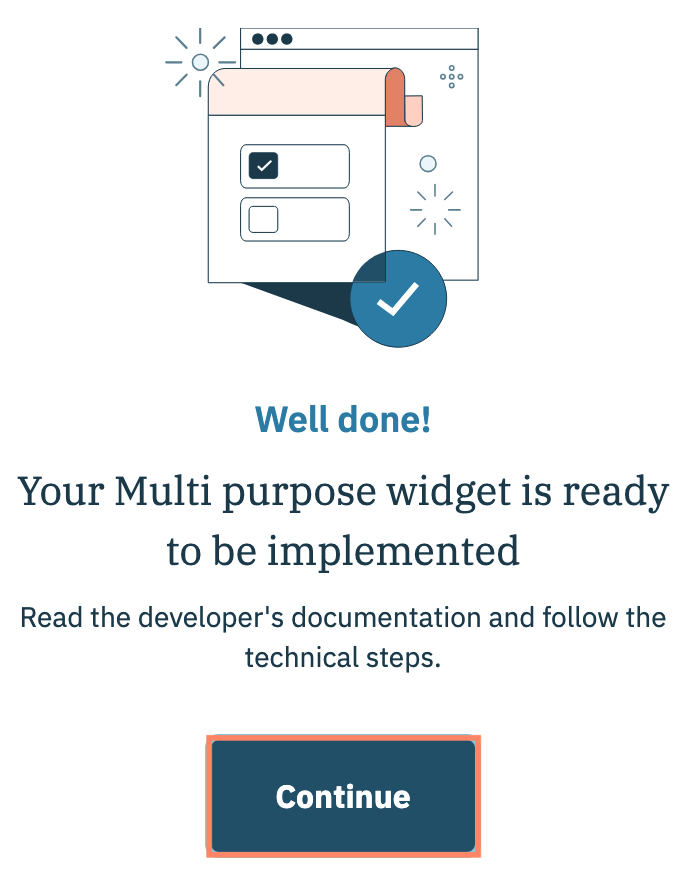
A subsequent modal will confirm when the single purpose or multi purpose widget has been published. Click **Continue**.

{% hint style="info" %}
A <mark style="background-color:$info;">new version of the preferences widget with its current edits will be available in the preferences widget's</mark> [<mark style="background-color:$info;">version history</mark>](/preference-management-platform-pmp/preferences-widgets/preferences-widget-version-history.md)<mark style="background-color:$info;">.</mark>&#x20;
{% endhint %}

<figure><img src="/files/FeLVtGuqv8RKUSlFNlda" alt="" width="345"><figcaption></figcaption></figure>

You will be redirected to the Embedding tab of the preferences widget configuration flow. [Click here](/preference-management-platform-pmp/preferences-widgets/embed-single-multi-purpose-preferences-widget.md) for detailed instructions on how to embed the necessary code on your website.
{% endtab %}

{% tab title="Preference Center" %}
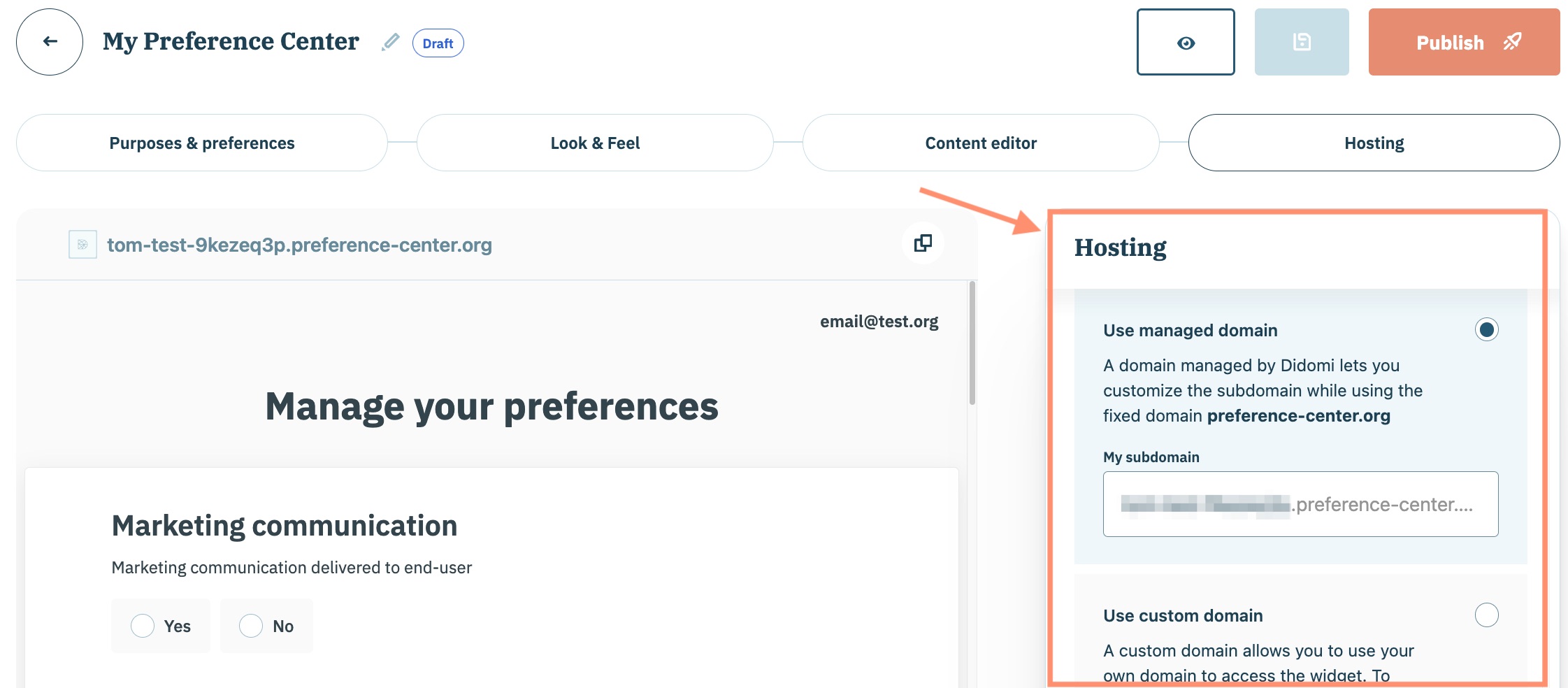
Navigate to the **Hosting** tab of the preferences widget configuration flow. Use the right-hand panel to select whether your organization will use a Didomi managed domain or a custom domain to host the preference center.

{% hint style="info" %}
[Click here](/preference-management-platform-pmp/preferences-widgets/preference-center-overview.md) to view our dedicated resource on the preference center for additional information on hosting.
{% endhint %}

<figure><img src="/files/Zji1tTzgGngNGc2GZ50z" alt="" width="563"><figcaption></figcaption></figure>

Once your managed domain or custom domain has been configured, click **Publish**.&#x20;

<figure><img src="/files/qPD3R92VVS4vydjp8MvE" alt="" width="563"><figcaption></figcaption></figure>

{% hint style="info" %}
A <mark style="background-color:$info;">new version of the preference center with its current edits will be available in the preferences center's version history.</mark>&#x20;
{% endhint %}

A subsequent modal will confirm the preference center has been published to the configured domain. Click either button to continue.

<figure><img src="/files/3ti73a4hXqNZbHPXm8f4" alt="" width="375"><figcaption></figcaption></figure>
{% endtab %}
{% endtabs %}


---

# Agent Instructions: Querying This Documentation

If you need additional information that is not directly available in this page, you can query the documentation dynamically by asking a question.

Perform an HTTP GET request on the current page URL with the `ask` query parameter:

```
GET https://docs.didomi.io/preference-management-platform-pmp/preferences-widgets/edit-preferences-widget.md?ask=<question>
```

The question should be specific, self-contained, and written in natural language.
The response will contain a direct answer to the question and relevant excerpts and sources from the documentation.

Use this mechanism when the answer is not explicitly present in the current page, you need clarification or additional context, or you want to retrieve related documentation sections.