# Edit preference

{% hint style="success" %}
**Access Type:** Configuration Tree - Editor

**Premium Feature**: Preference Management Platform
{% endhint %}

A preference is a data collection point regarding an end-user's intentions, decisions, motivations, and interests (e.g. their preferred method of contact). In this article, we will cover how to edit an existing preference in your preference library and how those edits are deployed to preferences widgets that may be utilizing those preferences.

Click **Preferences** on the left-hand panel.

<figure><img src="/files/0UXsdwNxNmyGzkKJ1m1B" alt="" width="563"><figcaption></figcaption></figure>

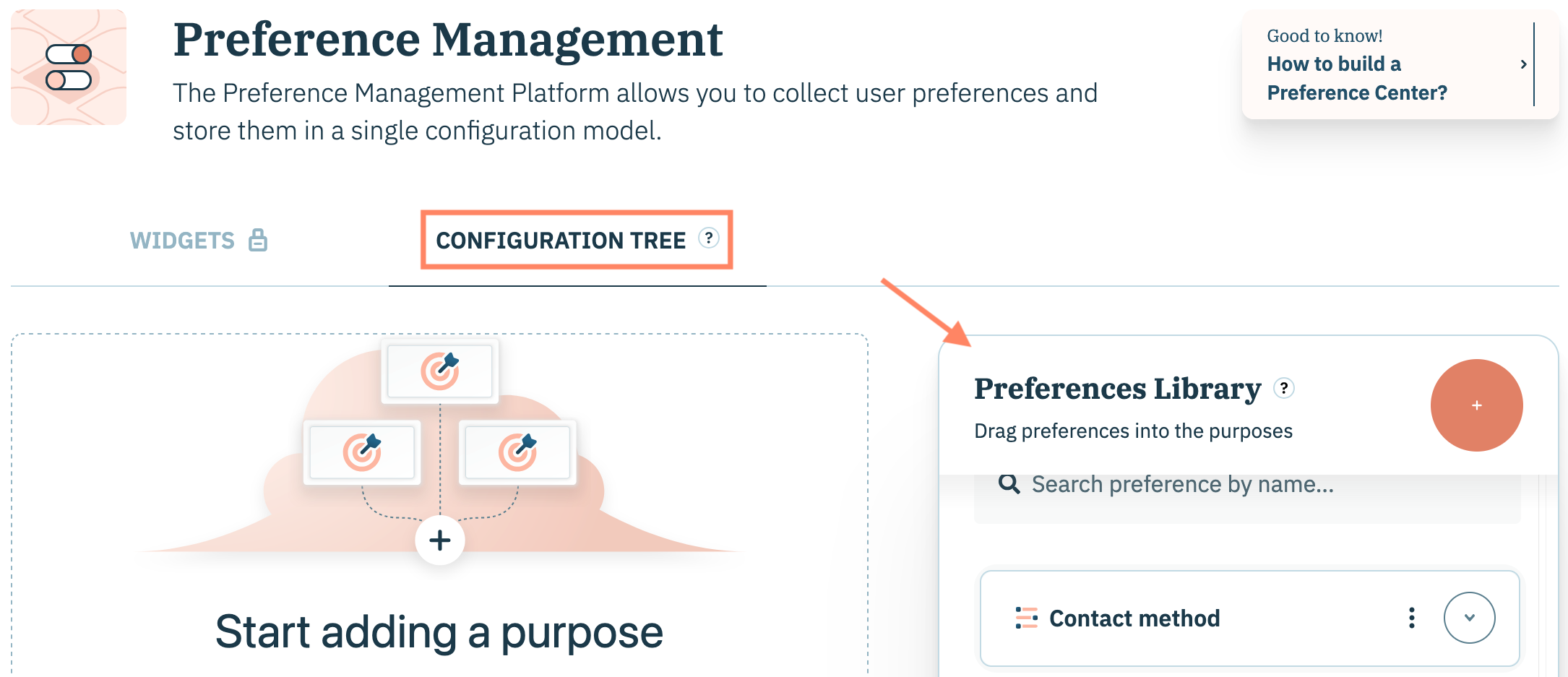
Select the **Configuration Tree** tab on the subsequent page and navigate to the **Preferences Library** panel.&#x20;

<figure><img src="/files/Oaq1O1FArfe9ol4ldnfA" alt="" width="563"><figcaption></figcaption></figure>

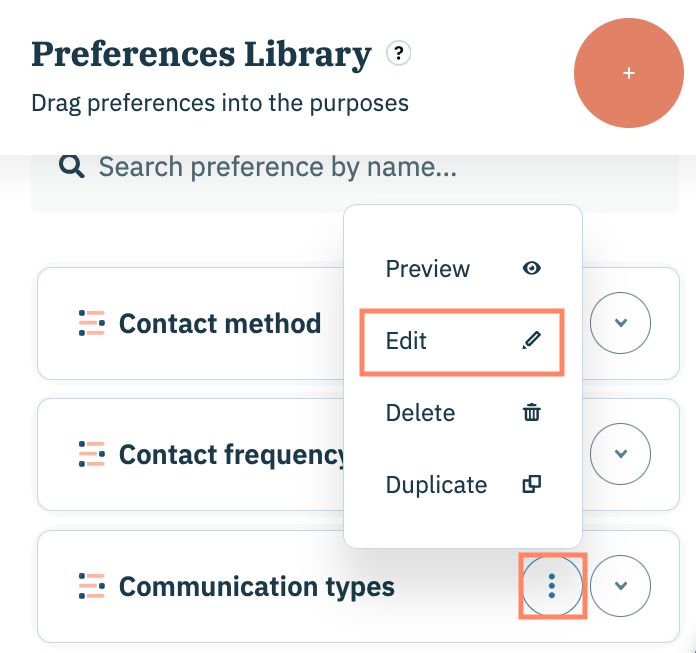
Navigate to a preference in your preferences library and select the **ellipsis** icon inline with the preference name. Click **Edit** from the menu.

{% hint style="warning" %}
Note: If the preference is mapped to a purpose in your configuration tree, a modal will warn you of the impact editing the preference will have on your configurations. Click **Edit preference** to continue.
{% endhint %}

<figure><img src="/files/B8jg8D5yXzBhgdmIhG2b" alt="" width="348"><figcaption></figcaption></figure>

Perform the necessary edits to your preference and click **Save preference** when finished. Please review the table below for more information on how specific edits are reflected in preferences widgets that are currently using the preference.

<table><thead><tr><th width="187.3333740234375">Edit performed</th><th>Update to widget</th></tr></thead><tbody><tr><td>Name and/or Description</td><td>Updates the name and/or description immediately for the preference in all preferences widgets using the preference.</td></tr><tr><td>Add a translation</td><td>Language of the translation needs to be enabled in the preferences widget to see translation. <a href="/pages/zZMNAELyHNEId1HDlgTQ">Click here</a> for more information.</td></tr><tr><td>Delete a translation</td><td>Language of the translation need to be removed from the preferences widget. <a href="/pages/8iwIQ6KoTVvYpfUWY4U2">Click here</a> for more information.</td></tr><tr><td>Add a value</td><td>Value will need to be enabled on the <strong>Purposes &#x26; preferences</strong> screen of your preferences widget configuration. Your organization will need to re-publish your preferences widget for the value to appear on your websites and applications</td></tr><tr><td>Delete a value</td><td>Value is immediately removed for the preference in all preferences widgets using the preference</td></tr><tr><td>Switch selection type</td><td>Updates the selection type immediately for the preference in all preferences widgets using the preference.</td></tr></tbody></table>

<figure><img src="/files/pirnXEYXdBeLjb9PcrxX" alt="" width="563"><figcaption></figcaption></figure>


---

# Agent Instructions: Querying This Documentation

If you need additional information that is not directly available in this page, you can query the documentation dynamically by asking a question.

Perform an HTTP GET request on the current page URL with the `ask` query parameter:

```
GET https://docs.didomi.io/preference-management-platform-pmp/preferences-library/edit-preference.md?ask=<question>
```

The question should be specific, self-contained, and written in natural language.
The response will contain a direct answer to the question and relevant excerpts and sources from the documentation.

Use this mechanism when the answer is not explicitly present in the current page, you need clarification or additional context, or you want to retrieve related documentation sections.