# Okta

{% hint style="success" %}
**Access Type**: Organization Settings - Editor

**Premium Feature**: SSO
{% endhint %}

Single Sign-On (SSO) is an authentication process that allows users to access multiple applications or systems with one set of login credentials. In this article, we will cover how to configure SSO using the SAML 2.0 standard protocol with Okta.

* [Retrieve SSO SAML identifiers](#retrieve-sso-saml-identifiers)
* [Configure Didomi console integration in Okta](#create-didomi-console-integration-in-okta)
* [Retrieve Didomi console integration metadata from Okta](#retrieve-didomi-console-integration-metadata-from-okta)
* [Add Okta metadata](#add-okta-metadata)
* [Test and complete SSO configuration](#test-and-complete-sso-configuration)
* [Assign user access](#assign-user-access)

***

### Retrieve SSO SAML identifiers

To start, your organization needs to retrieve the SSO SAML identifiers from the Didomi console to continue setup in your identity provider.

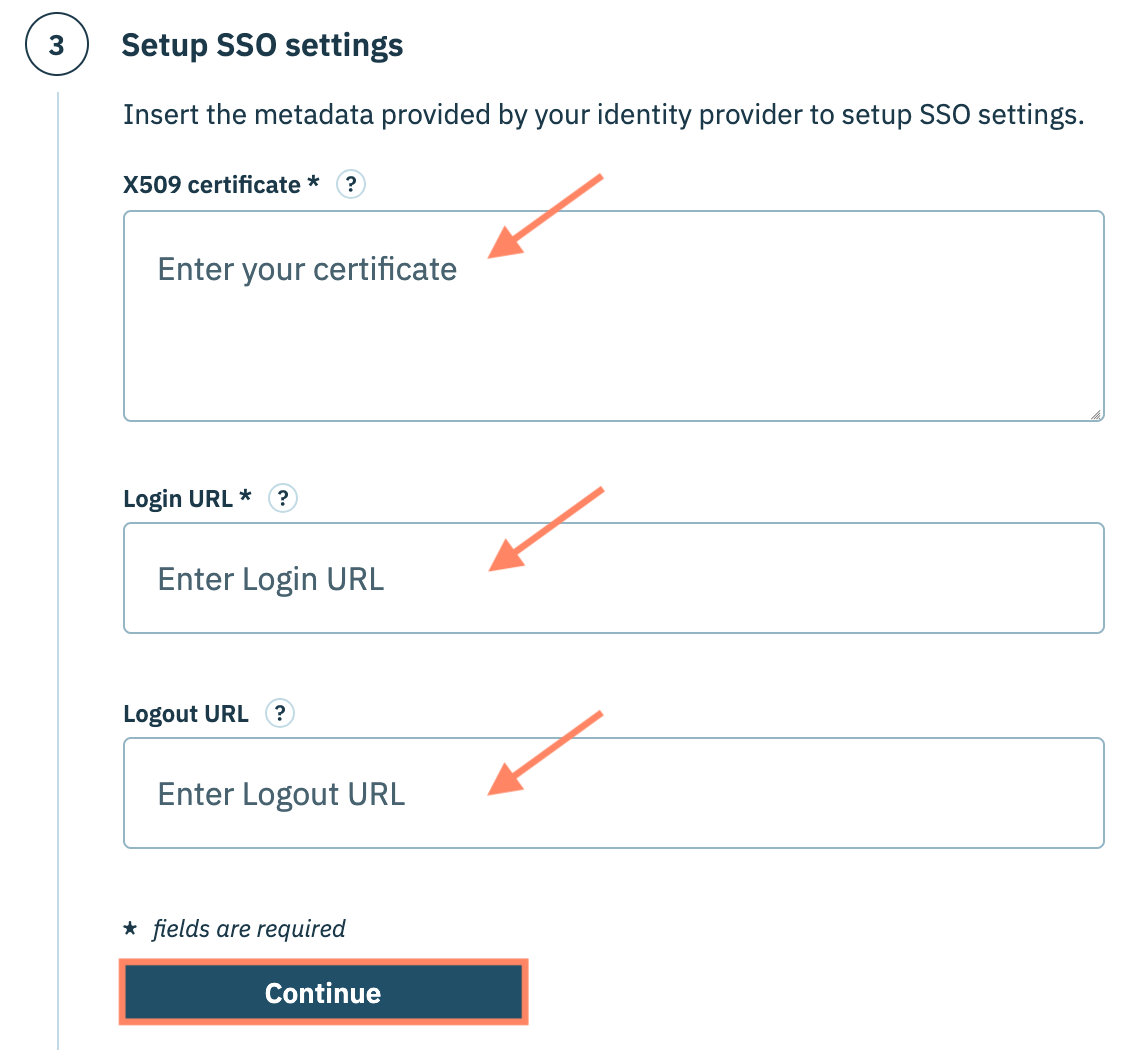
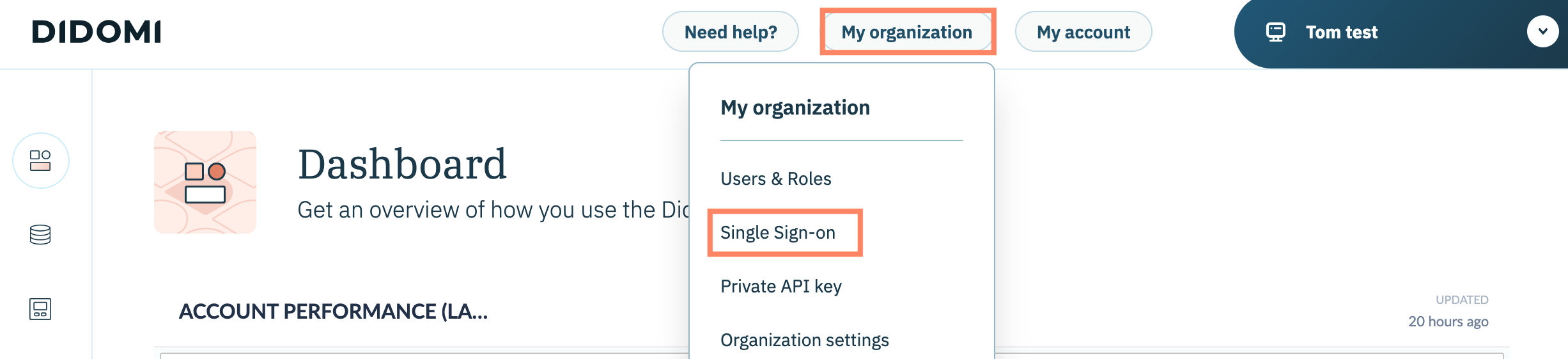
Click **My organization** and selecting **Single Sign-on** from the drop-down menu.

<figure><img src="/files/xYTfkcoJha4cIEPxiw4C" alt="" width="563"><figcaption></figcaption></figure>

Use the provided fields in the **Get your SSO SAML identifiers** step to record the following:

<table><thead><tr><th width="210">Identifier</th><th>Description</th></tr></thead><tbody><tr><td>Configured issuer</td><td>Your organization's identity provider's unique identifier within the Didomi console.</td></tr><tr><td>Login URL</td><td>Where user will be redirected after successful login on the identity provider.</td></tr></tbody></table>

<figure><img src="/files/KU7Dro2xkp0PIXD94avg" alt="" width="375"><figcaption></figcaption></figure>

Click **Continue** when finished.

### Configure Didomi console integration in Okta

Before configuring SSO your organization will need to add a Didomi console integration in your Okta account. From the Admin console of your Okta account:

1. Navigate to **Applications** > **Applications**.
2. Click on **Create App Integration**.
3. Select **SAML 2.0** in the **Sign-in method**.
4. Click **Next**.
5. In **App name,** enter a name your new application that is recognizable as being for the Didomi console (e.g. Didomi Console). This is where your organization will configure the SSO SAML.

Navigate to the **Configure SAML** section and enter the SSO SAML identifiers retrieved from the Didomi console in the appropriate fields:&#x20;

<table><thead><tr><th width="318">Okta SAML setting</th><th>Didomi console SSO SAML identifier</th></tr></thead><tbody><tr><td>Single sign-on URL</td><td>Login URL</td></tr><tr><td>Audience URI (SP Entity ID)</td><td>Configured issuer</td></tr></tbody></table>

Next, navigate to your integration's [attribute statements](https://help.okta.com/en-us/content/topics/apps/define-attribute-statements.htm) and configure the following:

{% hint style="warning" %}
**Note**: Your organization must configure the following attribute statement for the SSO configuration with Okta to be complete.
{% endhint %}

| Name        | *<http://schemas.xmlsoap.org/ws/2005/05/identity/claims/emailaddress>* |
| ----------- | ---------------------------------------------------------------------- |
| Name format | URI Reference                                                          |
| Value       | user.email                                                             |

Continue with the configuration flow to create the Didomi console integration within Okta.

### Retrieve Didomi console integration metadata from Okta

When the Didomi console integration is created within Okta, navigate to the application from the Okta Admin console and click the **Sign On** tab. Record the values for the following fields (collectively Didomi refers to these values as metadata):

* Sign-On URL
* Issuer
* Signing Certificate

### Add Okta metadata

With the metadata from Okta copied, navigate back to the SSO configuration within the Didomi console and input those values in the provided fields for the **Setup SSO settings** step.

<table><thead><tr><th width="231">Didomi Metadata</th><th>Okta values</th></tr></thead><tbody><tr><td>X509 certificate</td><td>Signing Certificate</td></tr><tr><td>Login URL</td><td>Sign-On URL</td></tr><tr><td>Logout URL</td><td>Issuer</td></tr></tbody></table>

<figure><img src="/files/CVOXd09VnoRe3zbsJNSI" alt="" width="563"><figcaption></figcaption></figure>

### Test and complete SSO configuration

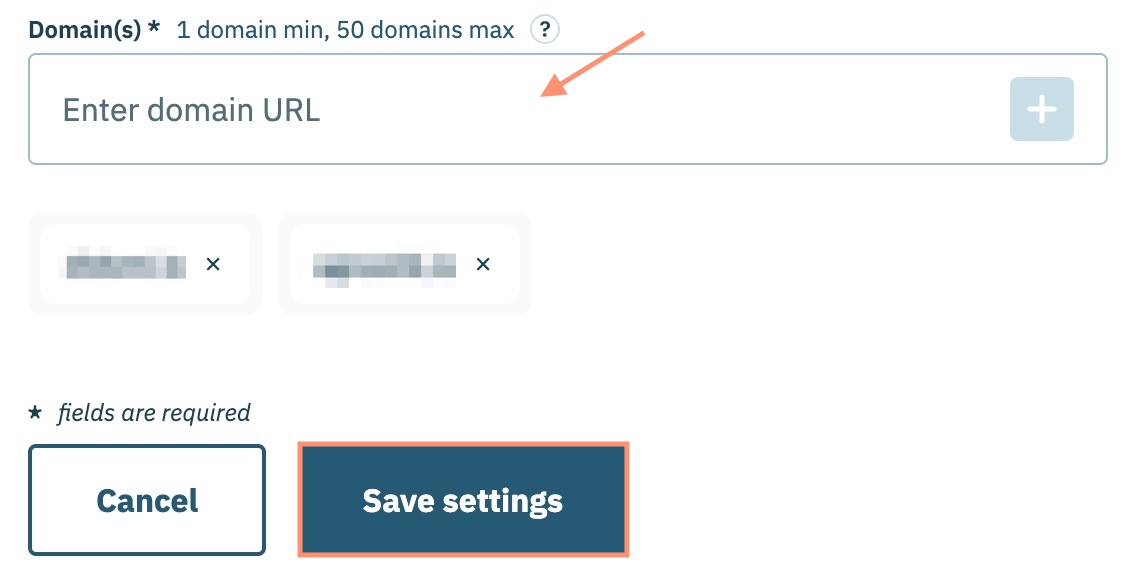
Didomi will verify the identity provider metadata. When successful, utilize the **Domain(s)** field to add email domains to which the SAML authentication will be restricted (*i.e. only users whose emails have this domain will be allowed to login with SSO SAML*).&#x20;

{% hint style="warning" %}
For security, the domain added to the **Domain(s)** field must match the email domain of the user performing the configuration (e.g.  `didomi.io` can only be added if the user adding it is signed into the Didomi console using an `@didomi.io` email address.

To add more than one domain, please contact the Didomi support team via chat or email at <support@didomi.io>.
{% endhint %}

<figure><img src="/files/ob57E1LLIGN3HtBqgZWS" alt="" width="563"><figcaption></figcaption></figure>

Click **Save settings**.

### Assign user access

Once the Didomi console SSO configuration is finished, your organization can manage a user's access to the Didomi console from the Okta Admin portal. Navigate to the Didomi console integration:

1. Click **Assignments**
2. **Click Assign > Assign to people**

Follow Okta instructions to assign user access.


---

# Agent Instructions: Querying This Documentation

If you need additional information that is not directly available in this page, you can query the documentation dynamically by asking a question.

Perform an HTTP GET request on the current page URL with the `ask` query parameter:

```
GET https://docs.didomi.io/organization-and-account-settings/single-sign-on-sso/okta.md?ask=<question>
```

The question should be specific, self-contained, and written in natural language.
The response will contain a direct answer to the question and relevant excerpts and sources from the documentation.

Use this mechanism when the answer is not explicitly present in the current page, you need clarification or additional context, or you want to retrieve related documentation sections.