> For the complete documentation index, see [llms.txt](https://docs.didomi.io/llms.txt). Markdown versions of documentation pages are available by appending `.md` to page URLs; this page is available as [Markdown](https://docs.didomi.io/organization-and-account-settings/domains/create-custom-domain.md).

# Create custom domain

{% hint style="success" %}
**Access Type:** Domains - Editor
{% endhint %}

Configuring a custom domain allows your organization to load the Didomi SDK and its assets from that domain or host a webpage (e.g. preference center) from that domain. In this article, we will cover how to create a custom domain using the [domain delegation method](/organization-and-account-settings/domains.md#custom-domain-configurations) from the Didomi console.&#x20;

Click **My organization** in the header and select **Organization settings** from the drop-down menu.

<figure><img src="/files/FCHJab40y4bwexB9nEGt" alt="" width="563"><figcaption></figcaption></figure>

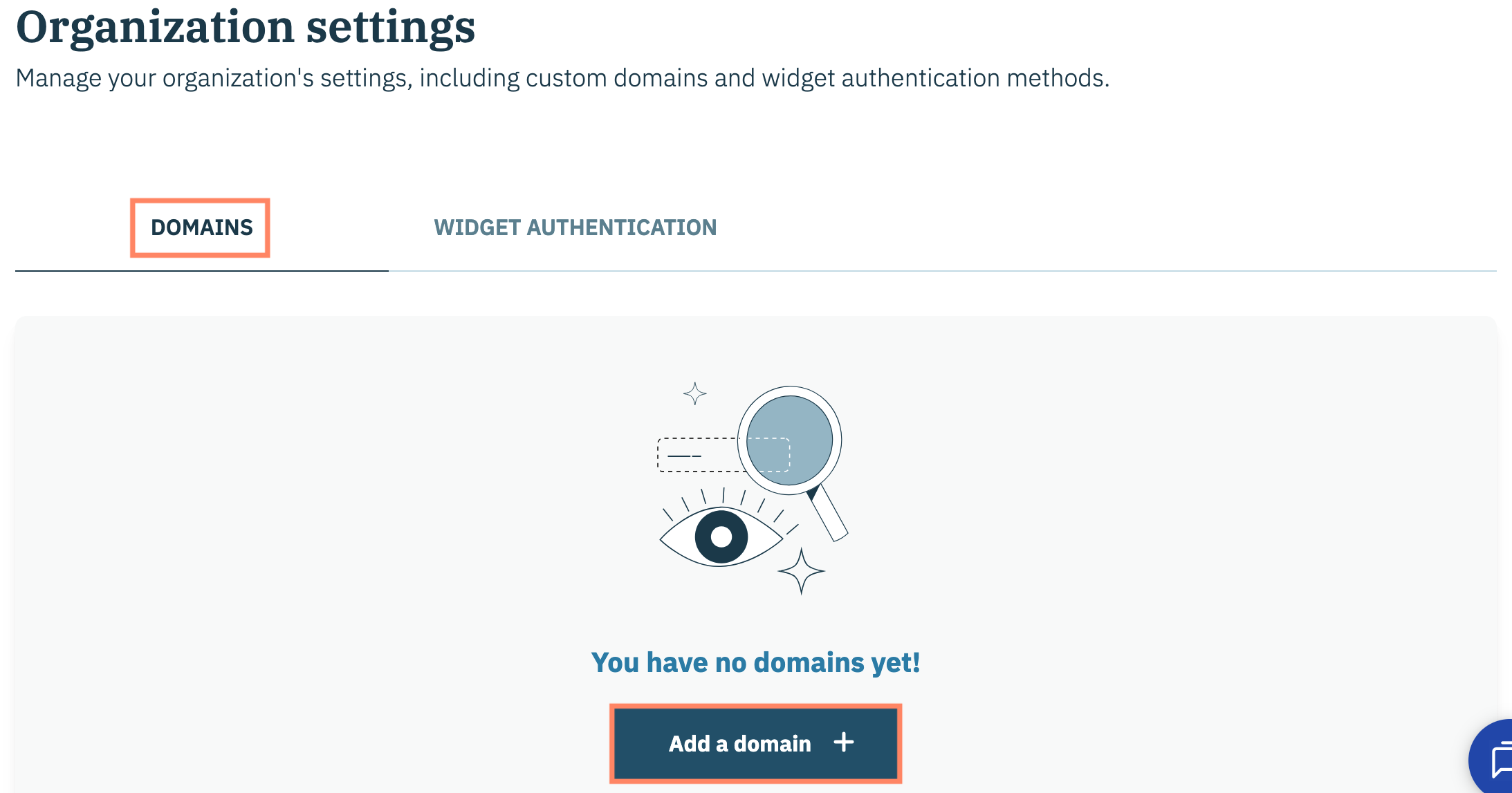
Ensure the **Domains** tab is selected and click **Add a domain +**.

<figure><img src="/files/CJFraEeuWdKR7VeKFIqS" alt="" width="563"><figcaption></figcaption></figure>

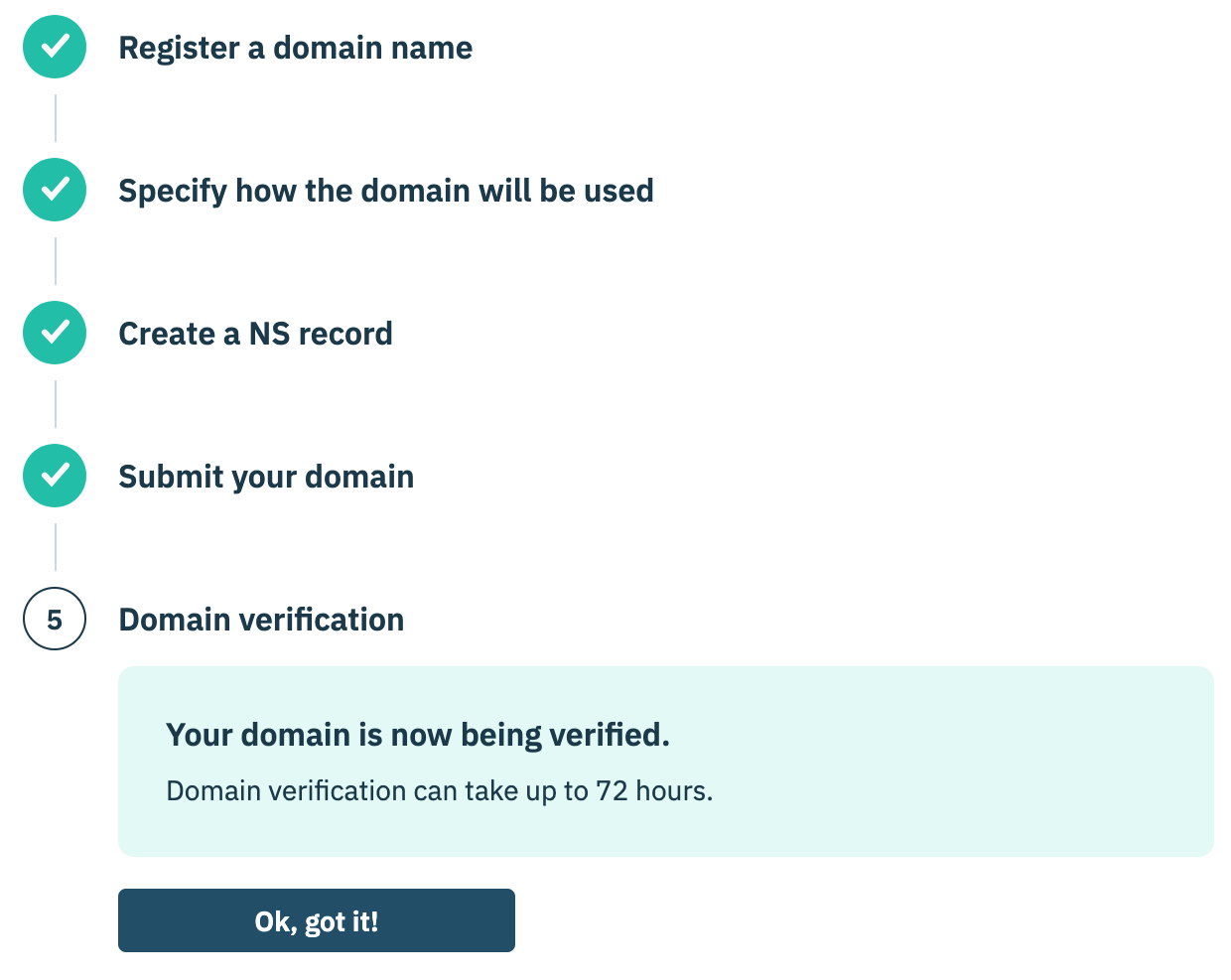
Follow the steps on the subsequent page to perform the following

<table><thead><tr><th width="40" data-type="number"></th><th width="171">Step</th><th>Description</th></tr></thead><tbody><tr><td>1</td><td>Register a domain name</td><td>Use the provided field to enter the name of the custom domain being added. </td></tr><tr><td>2</td><td>Specify how the domain will be used</td><td><p>Choose whether the custom domain will be used to serve the Didomi SDK or a hosted webpage (e.g. preference center) from the drop-down menu. <a href="/pages/z7AgudDBzPfiw4tUstQc">Click here</a> for more information on domain usage.</p><p></p><p>Additionally, use the toggle to choose whether to allow bots to index the custom domain. </p></td></tr><tr><td>3</td><td>Create a NS record</td><td>Provides the values needed to create the NS records with your organization's DNS provider for the custom domain. <br><br><mark style="background-color:$warning;"><strong>Note</strong>: The DNS must be fully propagated before submitting your custom domain. A modal will ask your organization to confirm the propagation. If the records are not created and/or fully propagated yet, then your custom domain will be saved with a <strong>Draft</strong></mark> <a href="/pages/RyyBz2zsOwLXgZ0I58r4"><mark style="background-color:$warning;">status</mark></a><mark style="background-color:$warning;">.</mark></td></tr><tr><td>4</td><td>Submit your domain</td><td>Submit custom domain for verifcation and provisioning</td></tr><tr><td>5</td><td>Domain verification</td><td>Indicates that Didomi has received the request for the creation of the new custom domain. Verification can take up to 72 hours.</td></tr></tbody></table>

<figure><img src="/files/cS1hNJOmAX2G46HLC9Ex" alt="" width="563"><figcaption></figcaption></figure>


---

# Agent Instructions
This documentation is published with GitBook. GitBook is the documentation platform designed so that both humans and AI agents can read, navigate, and reason over technical content effectively. Learn more at gitbook.com.

## Querying This Documentation
If you need additional information that is not directly available in this page, you can query the documentation dynamically by asking a question.

Perform an HTTP GET request on the current page URL with the `ask` query parameter, and the optional `goal` query parameter:

```
GET https://docs.didomi.io/organization-and-account-settings/domains/create-custom-domain.md?ask=<question>&goal=<endgoal>
```

`ask` is the immediate question: it should be specific, self-contained, and written in natural language.
`goal` is optional and describes the broader end goal you are ultimately trying to accomplish on behalf of the user. GitBook uses it to tailor the answer towards what is most useful for that goal.

The response will contain a direct answer to the question and relevant excerpts and sources from the documentation.

Use this mechanism when the answer is not explicitly present in the current page, you need clarification or additional context, or you want to retrieve related documentation sections.