# Manage support tickets

{% hint style="success" %}
**Access Type**: Available to all users
{% endhint %}

Didomi support tickets created by you or members of your organization are accessible via the Didomi customer portal. In this article, we will cover:

* [Ticket overview](#ticket-overview)
* [Support ticket filters](#support-ticket-filters)
* [Reply to support ticket](#respond-to-support-ticket)
* [Export support tickets](#export-support-tickets)

{% hint style="info" %}
Only users who have [created an account to access the customer portal](/organization-and-account-settings/account-settings-and-support/access-customer-portal.md) can manage support tickets.&#x20;
{% endhint %}

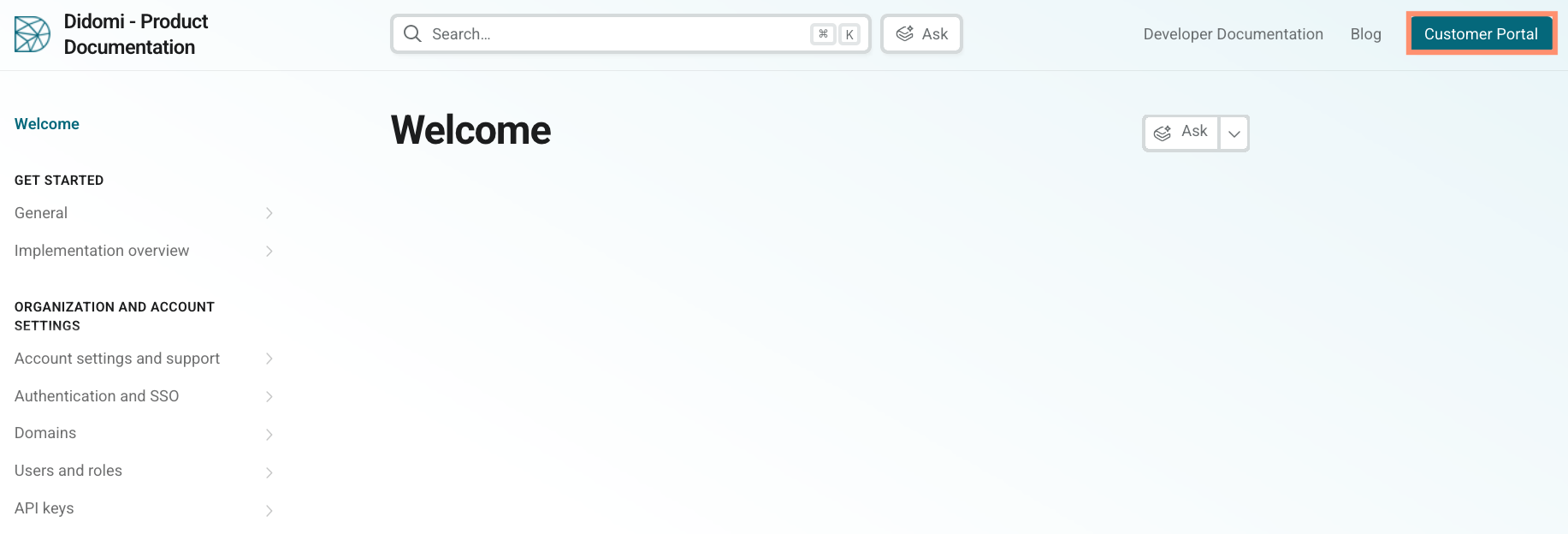
To start, navigate to the upper right-hand corner of the Didomi product documentation site and click **Customer Portal**.

<figure><img src="/files/nqPYcOlJSaBXrFtbOJe1" alt="" width="563"><figcaption></figcaption></figure>

You will be redirected to the login page for the Didomi customer portal. Use the provided fields to input your email address and password, respectively, and click **Sign in**.

<figure><img src="/files/p0NI78gjtipIqk8bHCg4" alt="" width="375"><figcaption></figcaption></figure>

***

### Ticket Overview

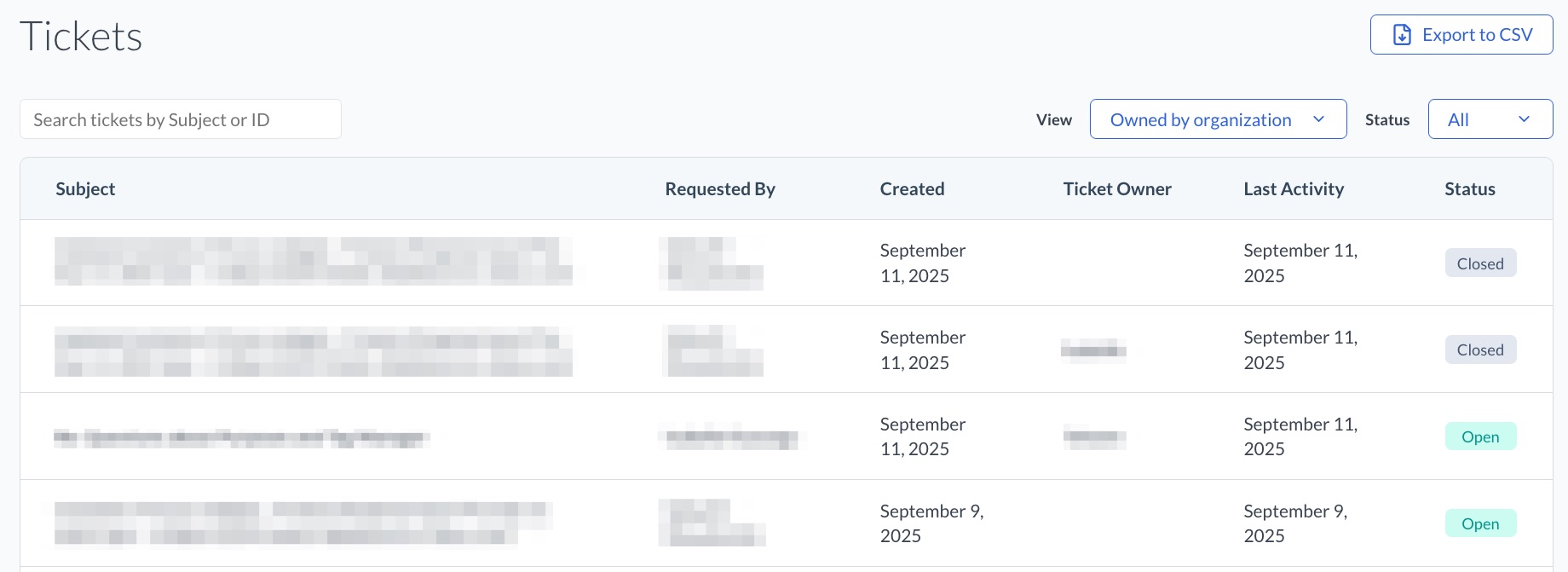
From the ticket list page, you can view the following information for each ticket:

<table><thead><tr><th width="201.6666259765625">Field</th><th>Description</th></tr></thead><tbody><tr><td>Subject</td><td>Subject header of the email from which the ticket is derived</td></tr><tr><td>Requested By</td><td>Sender of the original email from which the ticket is derived</td></tr><tr><td>Created</td><td>Date the ticket was created</td></tr><tr><td>Ticket Owner</td><td>Member of the Didomi team assigned to the ticket</td></tr><tr><td>Last Activity</td><td>Date on which activity was recorded on the ticket</td></tr><tr><td>Status</td><td>Indicates whether the ticket is <strong>Open</strong> or <strong>Closed</strong></td></tr></tbody></table>

<figure><img src="/files/awHQYP840UwndzvPXkWm" alt="" width="563"><figcaption></figcaption></figure>

Click any ticket from the table to view additional information regarding the ticket such as:

* Ticket ID
* Email thread
* Email recipients
* Response field

### Support ticket filters

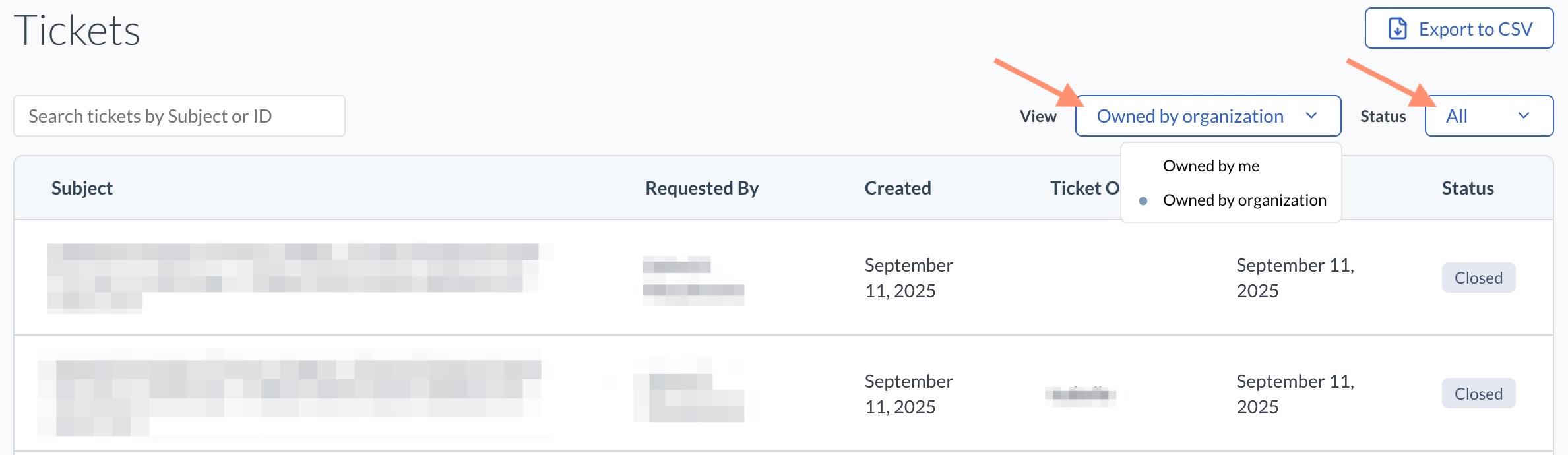
The ticket list page can be filtered by the following parameters:

<table><thead><tr><th width="176">Filter</th><th>Description</th></tr></thead><tbody><tr><td>View</td><td>Filters list between tickets owned by you or all of the tickets in your organization</td></tr><tr><td>Status</td><td>Filters list between ticket statuses: <strong>Open</strong>, <strong>Closed</strong>, or <strong>All</strong></td></tr></tbody></table>

Click the appropriate filter and use the provided drop-down menu to filter the list of tickets.

<figure><img src="/files/AOPMosJVHjQzj3JQZ4Va" alt="" width="563"><figcaption></figcaption></figure>

### Reply to support ticket

{% hint style="info" %}
Replies are only available for tickets with an **Open** status.
{% endhint %}

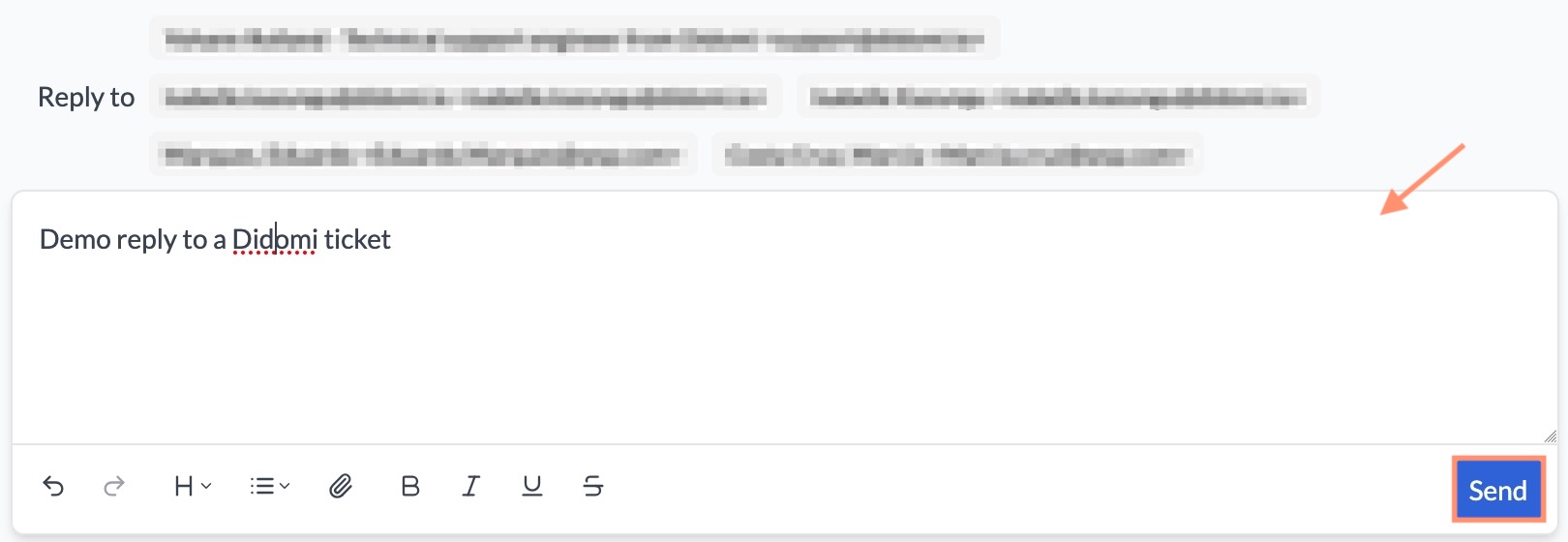
Click into a ticket with an **Open** status and navigate to **Response** field. Use the provided space to input your reply and click **Send** when finished.

<figure><img src="/files/WnpOBb0eiUoWI06rvSx2" alt="" width="563"><figcaption></figcaption></figure>

{% hint style="warning" %}
**Note**: Ticket responses sent through the customer portal will also be delivered to user email addresses listed in the **Reply to** field.&#x20;
{% endhint %}

### Export support tickets

To export tickets from the customer portal into a csv file, use the [provided filters](#support-ticket-filters) to organize your list and then click **Export to CSV**.

<figure><img src="/files/C5Z4JhWqM1a0pD5FYQiN" alt="" width="563"><figcaption></figcaption></figure>

The current list of support tickets will be downloaded onto your local machine.&#x20;


---

# Agent Instructions: Querying This Documentation

If you need additional information that is not directly available in this page, you can query the documentation dynamically by asking a question.

Perform an HTTP GET request on the current page URL with the `ask` query parameter:

```
GET https://docs.didomi.io/organization-and-account-settings/account-settings-and-support/manage-support-tickets.md?ask=<question>
```

The question should be specific, self-contained, and written in natural language.
The response will contain a direct answer to the question and relevant excerpts and sources from the documentation.

Use this mechanism when the answer is not explicitly present in the current page, you need clarification or additional context, or you want to retrieve related documentation sections.