# Manage widget layers

{% hint style="success" %}
**Access Type**: Widgets - Editor
{% endhint %}

A layer is a specific interface within the widget to which an end-user can navigate. In this article we will cover how to do the following for an existing widget:

* [Add a widget layer](#add-a-widget-layer)
* [Edit widget layer name](#edit-widget-layer-name)
* [Delete widget layer](#delete-widget-layer)
* [Duplicate widget layer](#duplicate-widget-layer)

{% hint style="info" %}
For any newly created widget, Didomi provides a number of default layers to help your organization get started. These default layers can be customized with components, renamed, and/or deleted.&#x20;
{% endhint %}

To start, click **Widgets** on the left-hand panel and select the **Edit** icon inline with a widget name.

<figure><img src="https://1825037175-files.gitbook.io/~/files/v0/b/gitbook-x-prod.appspot.com/o/spaces%2FNDxbAdc00ce6bH5u1urh%2Fuploads%2FVl9fnpSzpTNYbK0LRSRW%2FScreenshot%202026-02-18%20at%2010.08.07%E2%80%AFAM.png?alt=media&#x26;token=29ebf0d6-3354-46e7-a1d8-057d9db45da0" alt="" width="563"><figcaption></figcaption></figure>

***

### Add a widget layer

{% hint style="warning" %}
**Note**: There is a maximum of 4 layers per widget.
{% endhint %}

Navigate to the widget layers panel at the top of the widget editor and click the **+** icon.

<figure><img src="https://1825037175-files.gitbook.io/~/files/v0/b/gitbook-x-prod.appspot.com/o/spaces%2FNDxbAdc00ce6bH5u1urh%2Fuploads%2FQW2ck5W0q3rkk4U9NqUt%2FScreenshot%202026-02-20%20at%202.56.20%E2%80%AFPM.png?alt=media&#x26;token=35692086-3fbe-4e32-96b2-43d0c57be499" alt="" width="563"><figcaption></figcaption></figure>

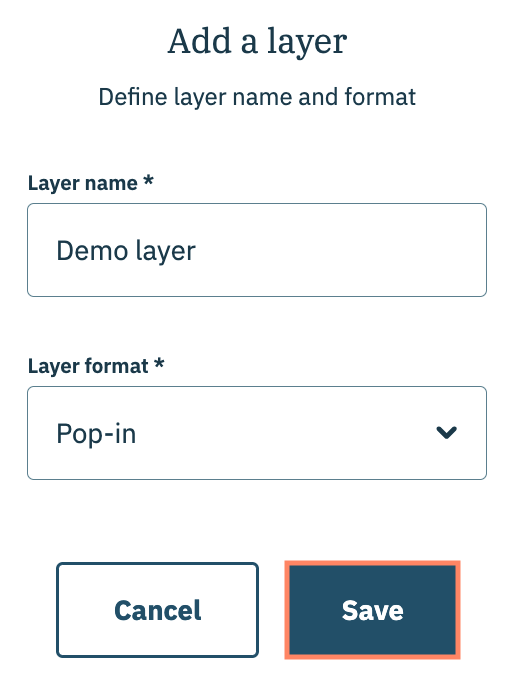
Use the subsequent modal to give the layer a name and to select the format of the layer (pop in, top banner, etc... and click **Save** when finished.

{% hint style="info" %}
The layer does not have to match the current format of the widget.
{% endhint %}

<figure><img src="https://1825037175-files.gitbook.io/~/files/v0/b/gitbook-x-prod.appspot.com/o/spaces%2FNDxbAdc00ce6bH5u1urh%2Fuploads%2FYGHZZpClUy7iT1Dgao1j%2FScreenshot%202026-02-20%20at%202.59.35%E2%80%AFPM.png?alt=media&#x26;token=b4161de3-73a0-49f9-add9-faa9cea00c25" alt="" width="256"><figcaption></figcaption></figure>

The layer will be added to the widget and your organization can use the [component library](https://docs.didomi.io/moIvfcA7NSpjmwGZ7dzv/widgets/widget-editor/widget-components) to customize the interface of the layer.

### Edit widget layer name

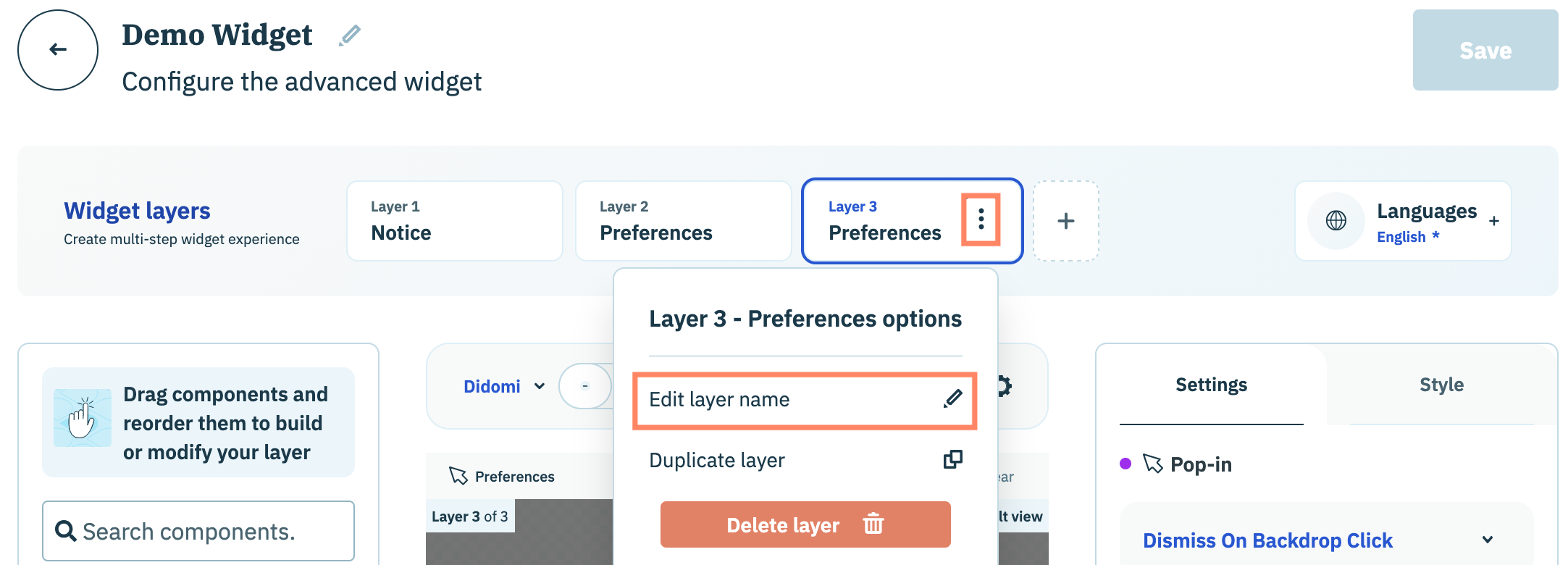
Navigate to the widget layers panel at the top of the widget editor and select a layer. Click the ellipsis icon inline with layer name and select **Edit layer name** from the drop-down menu.

<figure><img src="https://1825037175-files.gitbook.io/~/files/v0/b/gitbook-x-prod.appspot.com/o/spaces%2FNDxbAdc00ce6bH5u1urh%2Fuploads%2FC8fSv9r4lTjV0SKvwPco%2FScreenshot%202026-02-23%20at%209.12.10%E2%80%AFAM.png?alt=media&#x26;token=8b514b13-2c10-43f2-b14f-ebeda42a9abf" alt="" width="563"><figcaption></figcaption></figure>

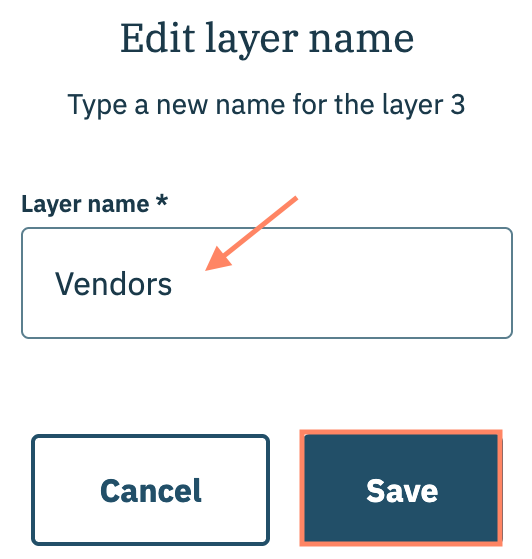
Use the subsequent modal to input the name of the layer in the provided field. Click **Save** when finished.

<figure><img src="https://1825037175-files.gitbook.io/~/files/v0/b/gitbook-x-prod.appspot.com/o/spaces%2FNDxbAdc00ce6bH5u1urh%2Fuploads%2FsxP3oMBIvI98k2o7N7ZJ%2FScreenshot%202026-02-23%20at%209.22.22%E2%80%AFAM.png?alt=media&#x26;token=9b5c6475-683f-462b-8850-ff1c2fb713a6" alt="" width="266"><figcaption></figcaption></figure>

### Delete widget layer

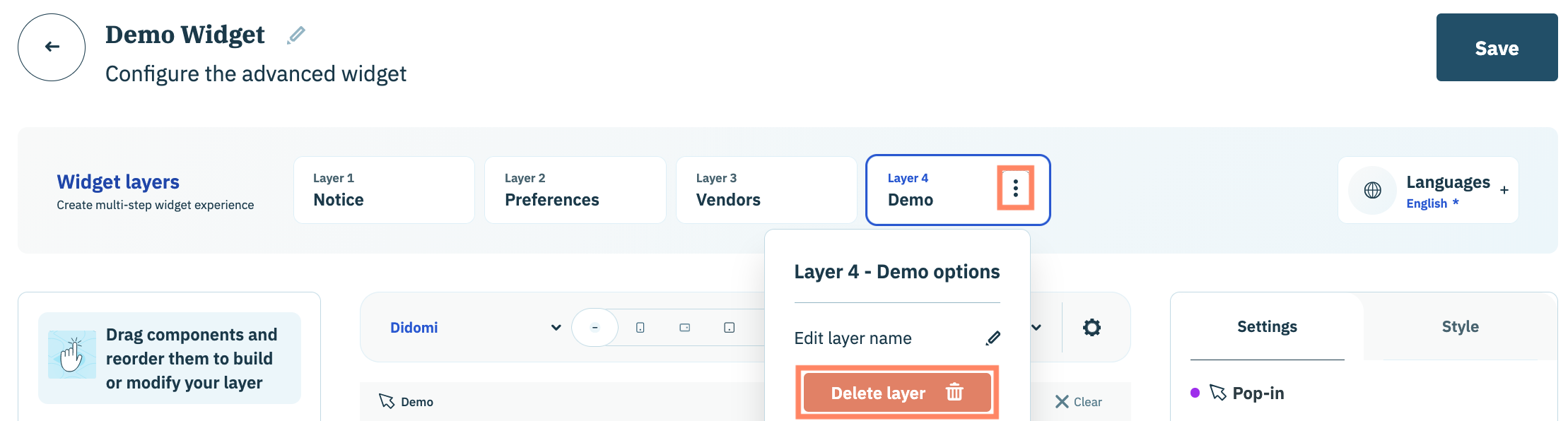
Navigate to the widget layers panel at the top of the widget editor and select a layer. Click the ellipsis icon inline with layer name and select **Delete layer** from the drop-down menu.

<figure><img src="https://1825037175-files.gitbook.io/~/files/v0/b/gitbook-x-prod.appspot.com/o/spaces%2FNDxbAdc00ce6bH5u1urh%2Fuploads%2FNAmeKvmrYyiyLv16xRGz%2FScreenshot%202026-02-23%20at%209.35.46%E2%80%AFAM.png?alt=media&#x26;token=5a5d1530-9e2f-40a4-af7c-a4457c13b945" alt="" width="563"><figcaption></figcaption></figure>

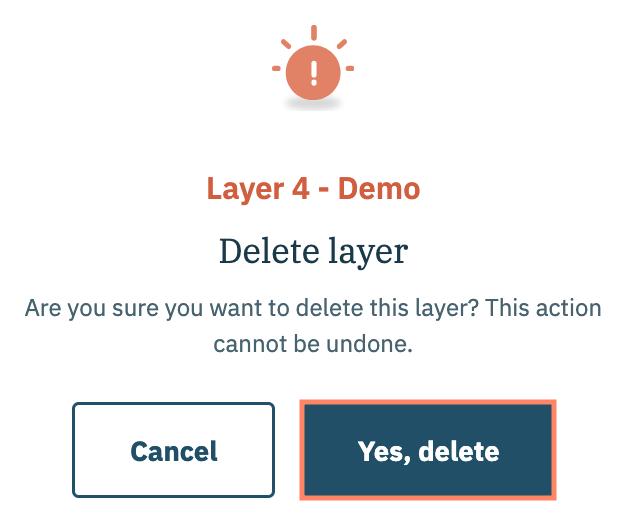
Confirm the decision to delete the layer in the subsequent modal and click **Yes, delete**.

<figure><img src="https://1825037175-files.gitbook.io/~/files/v0/b/gitbook-x-prod.appspot.com/o/spaces%2FNDxbAdc00ce6bH5u1urh%2Fuploads%2Fk0v7ZPQTeDszYB8yM9Zt%2FScreenshot%202026-02-23%20at%209.46.13%E2%80%AFAM.png?alt=media&#x26;token=d44cd94f-c770-4823-b8e6-5182fc65efee" alt="" width="311"><figcaption></figcaption></figure>

### Duplicate widget layer

{% hint style="warning" %}
**Note**: There is a maximum of 4 layers per widget.
{% endhint %}

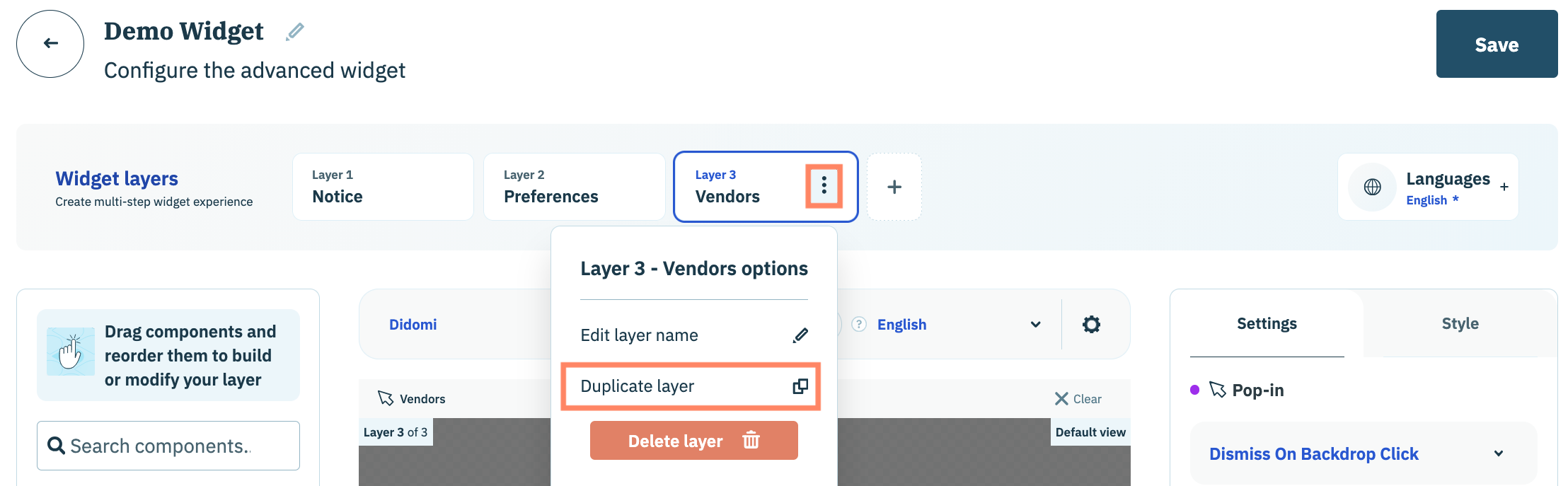
Navigate to the widget layers panel at the top of the widget editor and select a layer. Click the ellipsis icon inline with layer name and select **Duplicate layer** from the drop-down menu.

<figure><img src="https://1825037175-files.gitbook.io/~/files/v0/b/gitbook-x-prod.appspot.com/o/spaces%2FNDxbAdc00ce6bH5u1urh%2Fuploads%2F0ScAMk30SG0Wm5EGNqL0%2FScreenshot%202026-02-23%20at%209.51.36%E2%80%AFAM.png?alt=media&#x26;token=2063af3d-2618-4380-ae0b-d7cb535dfa8e" alt="" width="563"><figcaption></figcaption></figure>

The layer and all of its configured components will be duplicated for the widget. The name of the layer will be the name of the original layer suffixed with **-Copy**.


<figure><img src="https://1825037175-files.gitbook.io/~/files/v0/b/gitbook-x-prod.appspot.com/o/spaces%2FNDxbAdc00ce6bH5u1urh%2Fuploads%2FyHumdlgnQVj0ZLeUQIGm%2FScreenshot%202026-02-23%20at%2010.01.53%E2%80%AFAM.png?alt=media&#x26;token=63d04ef2-13e4-4513-9da3-c36fec5b3aae" alt="" width="563"><figcaption></figcaption></figure>