# Configure widget breakpoints

{% hint style="success" %}
**Access Type**: Widgets - Editor
{% endhint %}

A responsive breakpoint is a specific screen width where the widget's layout will change in order to better fit the device on which it is viewed. In this article, we will cover how to edit an existing widget so that its layout adjusts per screen size.

Click **Widgets** on the left-hand panel and select the **Edit** icon inline with a widget name.

<figure><img src="https://1825037175-files.gitbook.io/~/files/v0/b/gitbook-x-prod.appspot.com/o/spaces%2FNDxbAdc00ce6bH5u1urh%2Fuploads%2FVl9fnpSzpTNYbK0LRSRW%2FScreenshot%202026-02-18%20at%2010.08.07%E2%80%AFAM.png?alt=media&#x26;token=29ebf0d6-3354-46e7-a1d8-057d9db45da0" alt="" width="563"><figcaption></figcaption></figure>

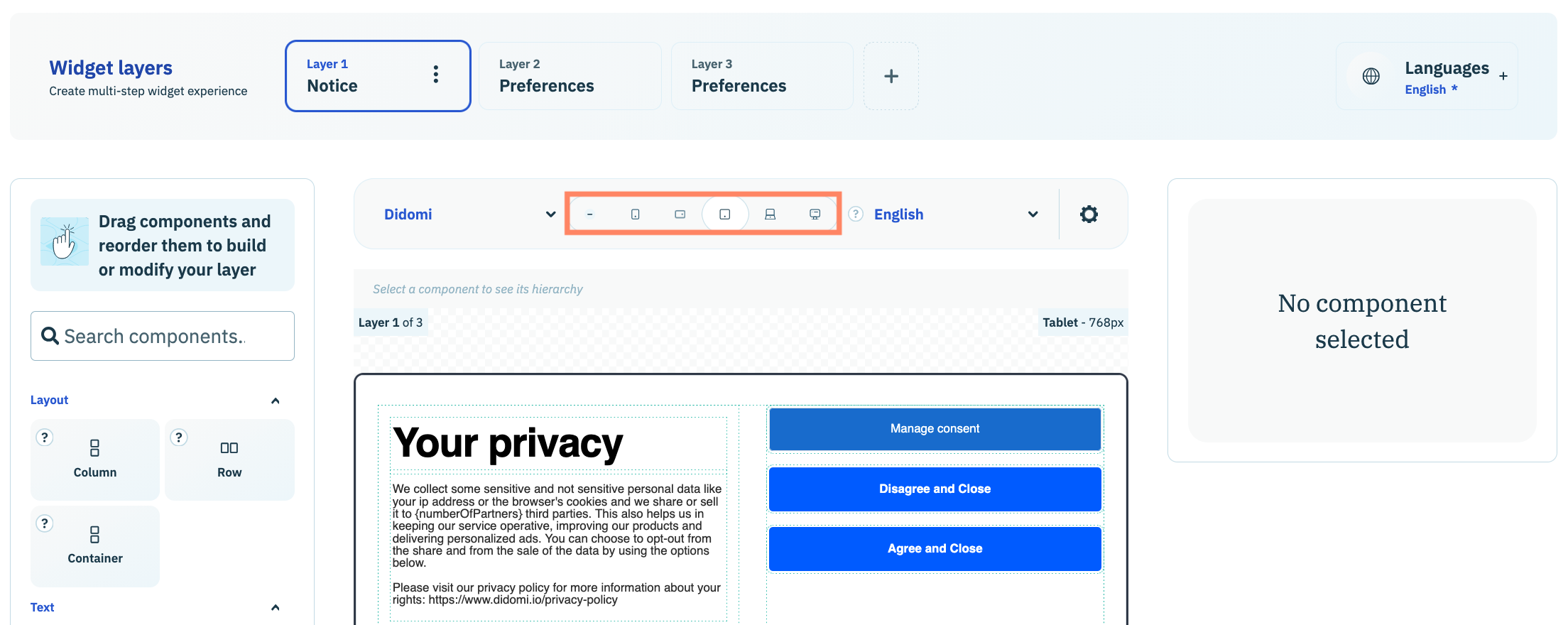
Navigate to the widget preview toolbar to select the [device](https://docs.didomi.io/moIvfcA7NSpjmwGZ7dzv/widgets/widget-preview#device-preview) for which you are adjusting the layout of the widget. The breakpoint for each screen size is inherited from the current [brand preview](https://docs.didomi.io/moIvfcA7NSpjmwGZ7dzv/widgets/widget-preview#brand-preview) in the widget editor.

{% hint style="warning" %}
**Note**: While this step is not required to successfully configure a widget breakpoint, it will enable your organization to visualize how your configuration is affecting the design of your widget for that screen size.&#x20;
{% endhint %}

<figure><img src="https://1825037175-files.gitbook.io/~/files/v0/b/gitbook-x-prod.appspot.com/o/spaces%2FNDxbAdc00ce6bH5u1urh%2Fuploads%2FlgrEXLgXeDKinIq7e6vl%2FScreenshot%202026-02-24%20at%2010.36.42%E2%80%AFAM.png?alt=media&#x26;token=2a956ef6-0a6d-4a64-8fd7-473fce2dde02" alt="" width="563"><figcaption></figcaption></figure>

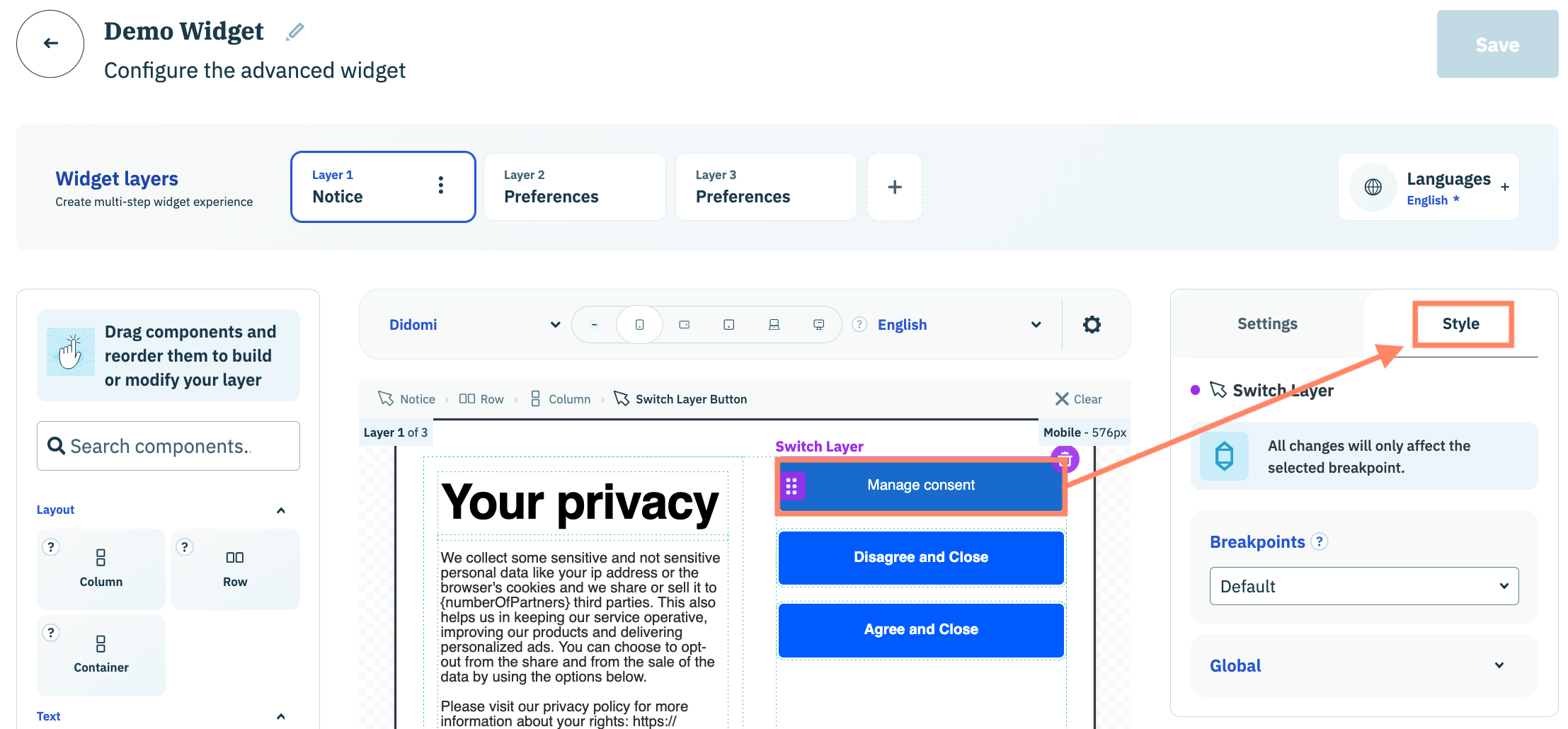
Select a component from the widget preview window. With the component highlighted, navigate to the right-hand panel and click the **Style** tab.&#x20;

<figure><img src="https://1825037175-files.gitbook.io/~/files/v0/b/gitbook-x-prod.appspot.com/o/spaces%2FNDxbAdc00ce6bH5u1urh%2Fuploads%2FRbACBYXFEZYUcHdKQfwR%2FScreenshot%202026-02-24%20at%2011.00.50%E2%80%AFAM.png?alt=media&#x26;token=67a0aca6-618c-4c71-aeb7-a879bb99aba6" alt="" width="563"><figcaption></figcaption></figure>

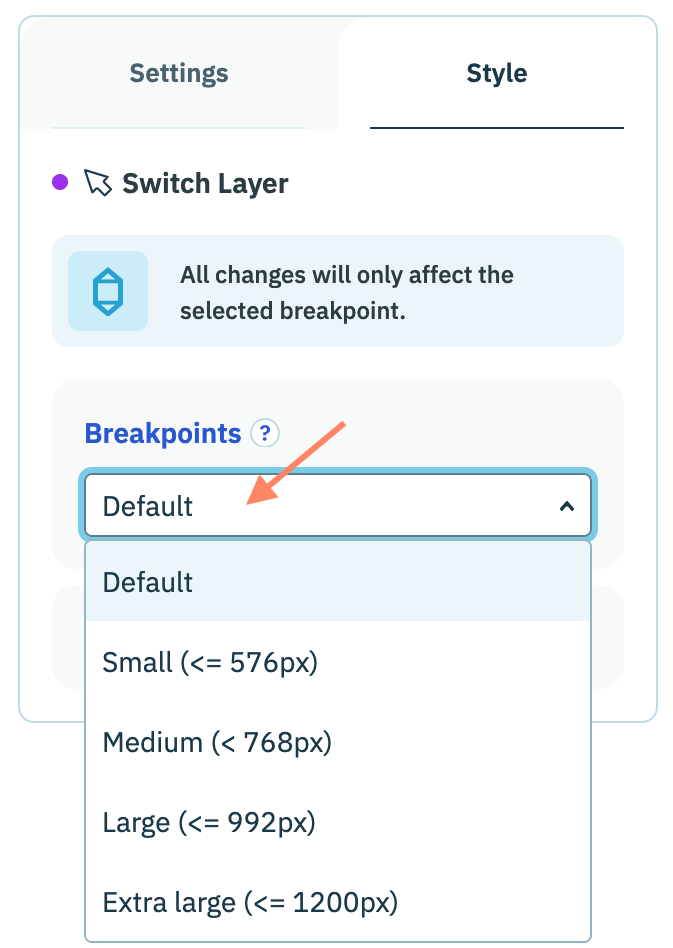
Use the **Breakpoints** drop-down menu to select a specific breakpoint that you wish you configure.&#x20;

<figure><img src="https://1825037175-files.gitbook.io/~/files/v0/b/gitbook-x-prod.appspot.com/o/spaces%2FNDxbAdc00ce6bH5u1urh%2Fuploads%2FMbaHVdUA4lrC6ilSQRRW%2FScreenshot%202026-02-24%20at%2011.04.11%E2%80%AFAM.png?alt=media&#x26;token=cae0d40d-ca34-4d48-bdbc-e3ff0931ea99" alt="" width="337"><figcaption></figcaption></figure>

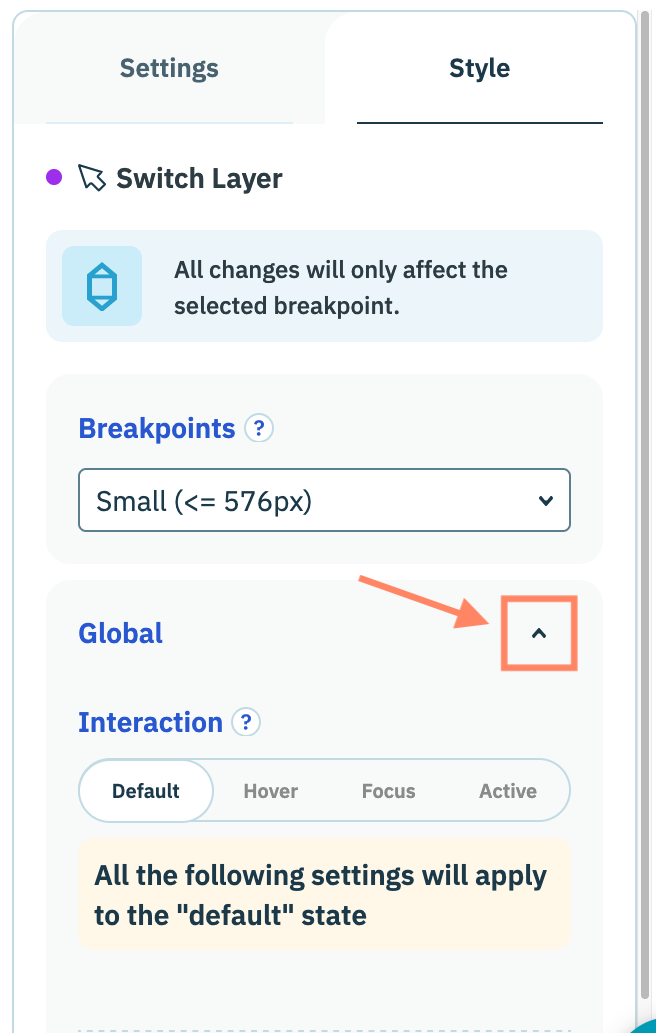
With the breakpoint select, expand the **Global** accordion and use the provided fields to edit the styling of the widget for the breakpoint.

<figure><img src="https://1825037175-files.gitbook.io/~/files/v0/b/gitbook-x-prod.appspot.com/o/spaces%2FNDxbAdc00ce6bH5u1urh%2Fuploads%2FKbX3G8dE2dmW6dRwhTXE%2FScreenshot%202026-02-24%20at%201.35.53%E2%80%AFPM.png?alt=media&#x26;token=2deee28d-1eae-4973-b5bf-e8f63a05dc86" alt="" width="328"><figcaption></figcaption></figure>

Repeat as necessary for other components in each layer of the widget.