# PMP analytics filters

{% hint style="success" %}
**Access Type:** Analytics - Viewer

**Premium Feature**: Preference Management Platform
{% endhint %}

PMP analytics filters enable your organization to narrow down the data represented in the tables and graphs in a respective PMP analytics dashboard. In this article, we will cover all of the possible filters available across PMP analytics dashboards.

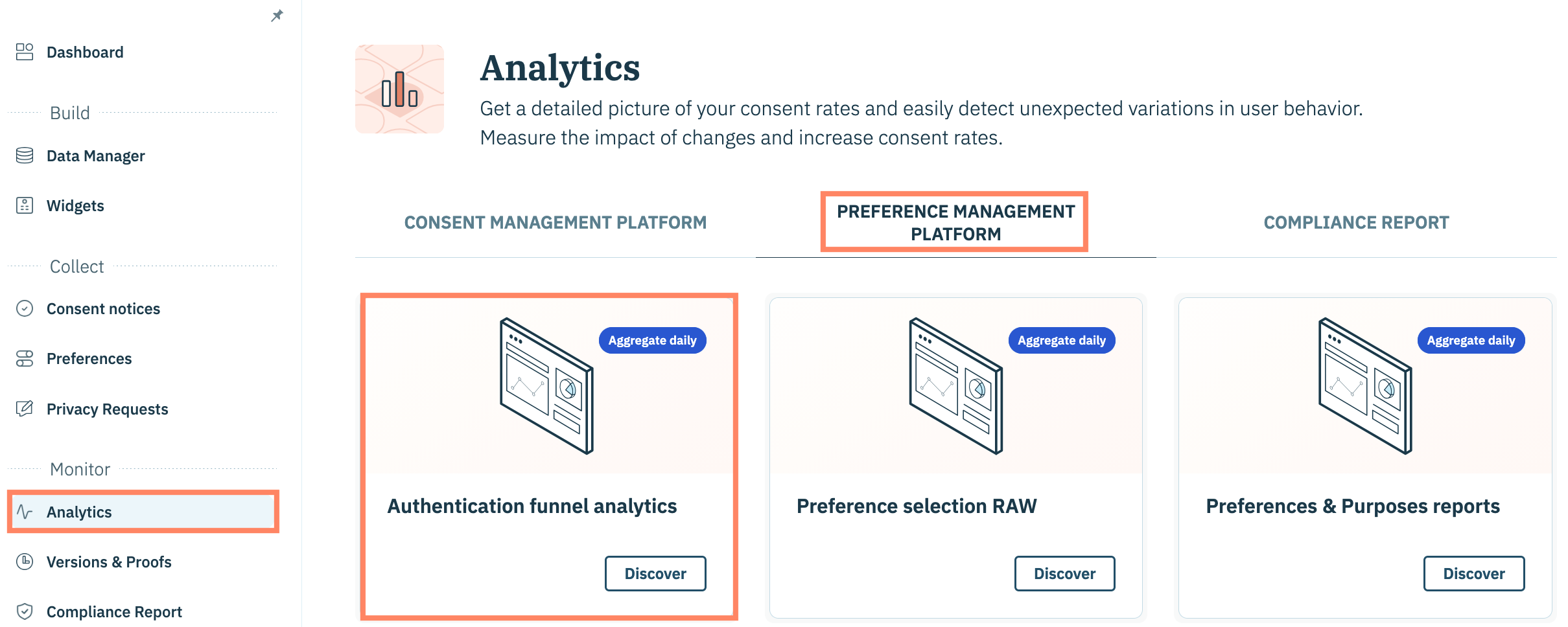
To configure filters for a PMP analytics dashboard, click **Analytics** on the left-hand panel and select the **Preference Management Platform** tab.

Click the card for your desired PMP analytics dashboard.

<figure><img src="https://1825037175-files.gitbook.io/~/files/v0/b/gitbook-x-prod.appspot.com/o/spaces%2FNDxbAdc00ce6bH5u1urh%2Fuploads%2FTKllIAJKQlVTYoLkM46A%2FScreenshot%202026-02-17%20at%2011.02.54%E2%80%AFAM.png?alt=media&#x26;token=b6deefd0-2fbc-4797-a1f0-0164f4e02ee4" alt="" width="563"><figcaption></figcaption></figure>

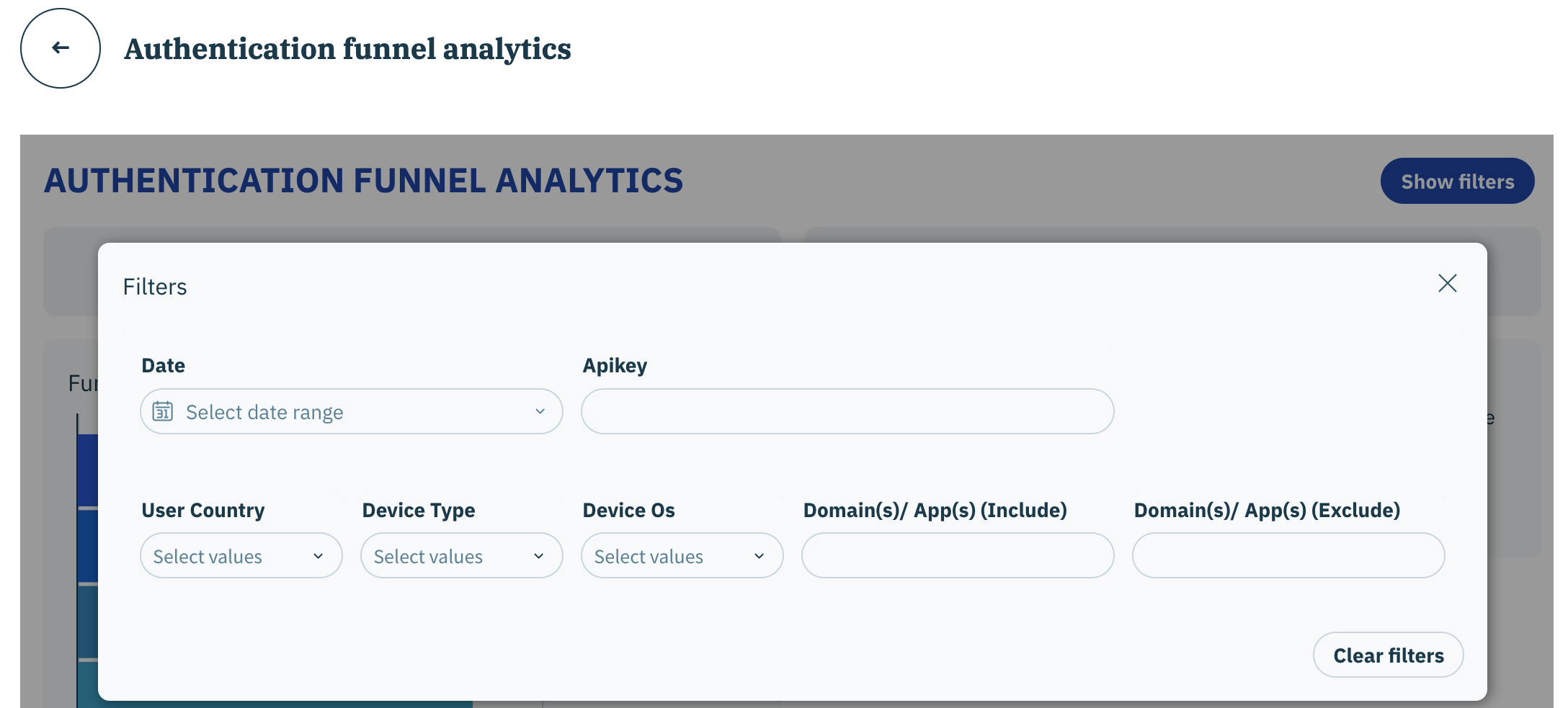
Select the **Show filters** button to expand the filters accordion and configure the filters for the dashboard. The data in the tables and/or graphs will automatically update to reflect your selected filters.

<figure><img src="https://1825037175-files.gitbook.io/~/files/v0/b/gitbook-x-prod.appspot.com/o/spaces%2FNDxbAdc00ce6bH5u1urh%2Fuploads%2FSMxbPBLkY0yuVVjlJBGu%2FScreenshot%202025-11-25%20at%209.18.26%E2%80%AFAM.png?alt=media&#x26;token=7bd52f5c-35f2-48c9-be59-8e9a2b46c6d3" alt="" width="563"><figcaption></figcaption></figure>

<table><thead><tr><th width="201">Filter</th><th>Description</th></tr></thead><tbody><tr><td>Date</td><td>Configure the time frame for the data represented in the dashboard. Your organization can select between predetermined periods (e.g. last 14 days) or designate specific start and end dates.</td></tr><tr><td>Apikey</td><td>Filters data in the dashboard to match configured API keys used for implementations.</td></tr><tr><td>User Country</td><td>Filter data in the dashboard to include/exclude the end-user's country when they accessed your website/app.</td></tr><tr><td>Device Type</td><td>Filters data in the dashboard to include/exclude data by different devices (e.g. smartphone, television, tablet)</td></tr><tr><td>Device Os</td><td>Filters data in the dashboard to include/exclude data by operating systems (e.g. iOS, Android, etc...)</td></tr><tr><td>Domain(s)/ App(s) (Include)</td><td>Include domains/apps that match the name or pattern in the data for the dashboard.<br><br><mark style="background-color:$warning;"><strong>Note</strong>:</mark> <a href="../../../get-started/general/regular-expression-regex"><mark style="background-color:$warning;">Click here</mark></a> <mark style="background-color:$warning;">to learn more about utilizing regular expressions (regex) for this filter.</mark></td></tr><tr><td>Domain(s)/ App(s) (Exclude)</td><td>Exclude domains/apps that match the name or pattern from the data in the dashboard.<br><br><mark style="background-color:$warning;"><strong>Note</strong>:</mark> <a href="../../../get-started/general/regular-expression-regex"><mark style="background-color:$warning;">Click here</mark></a> <mark style="background-color:$warning;">to learn more about utilizing regular expressions (regex) for this filter.</mark></td></tr></tbody></table>
