# Manage CMP analytics graphs and tables

{% hint style="success" %}
**Access Type**: Analytics - Viewer
{% endhint %}

Every CMP analytics dashboard will include a variety of graphs and tables to visualize the data pertaining to the dashboard. In this article, we will cover actions your organization can perform in regards to these visualizations.&#x20;

* [Show underlying data](#show-underlying-data)
* [Maximize element](#maximize-element)
* [Sort](#sort)
* [Export/Download](#export-download)
* [Refresh data](#refresh-data)

{% hint style="warning" %}
**Note**: The above actions are not available for every data visualization and table.&#x20;
{% endhint %}

To access the action menu for a visualization, click **Analytics** on the left-hand panel and ensure the **Consent Management Platform** tab is selected.

Click the card for your desired CMP analytics dashboard.

<figure><img src="https://1825037175-files.gitbook.io/~/files/v0/b/gitbook-x-prod.appspot.com/o/spaces%2FNDxbAdc00ce6bH5u1urh%2Fuploads%2FJs2rMbqF3Zme4d1gfKvF%2FScreenshot%202026-02-17%20at%2010.19.17%E2%80%AFAM.png?alt=media&#x26;token=8416f5e4-8ac8-4796-8da9-cfa25d625402" alt="" width="563"><figcaption></figcaption></figure>

Hover over a visualization and use the provided menu to select an action.

<figure><img src="https://1825037175-files.gitbook.io/~/files/v0/b/gitbook-x-prod.appspot.com/o/spaces%2FNDxbAdc00ce6bH5u1urh%2Fuploads%2FbcvG6KNOm9yjnqzIHKVF%2FScreenshot_2025-11-05_at_2_03_16%E2%80%AFPM.jpg?alt=media&#x26;token=a3fc3385-5fea-47df-8752-dccb7944ff41" alt="" width="563"><figcaption></figcaption></figure>

***

### Show underlying data

Select the **Show underlying data** icon from the action menu for the visualization

<figure><img src="https://1825037175-files.gitbook.io/~/files/v0/b/gitbook-x-prod.appspot.com/o/spaces%2FNDxbAdc00ce6bH5u1urh%2Fuploads%2Fp8iEMGR7K6zVsXEFzeWQ%2FScreenshot%202025-11-05%20at%202.08.22%E2%80%AFPM.png?alt=media&#x26;token=9316c6d3-f495-4f91-9025-19f85cbe3469" alt="" width="563"><figcaption></figcaption></figure>

The subsequent window provides the underlying data used to generate the visualization.&#x20;

<figure><img src="https://1825037175-files.gitbook.io/~/files/v0/b/gitbook-x-prod.appspot.com/o/spaces%2FNDxbAdc00ce6bH5u1urh%2Fuploads%2Frim46JlCQfPgc9dQ7mfw%2FScreenshot_2025-11-05_at_2_12_46%E2%80%AFPM.jpg?alt=media&#x26;token=004c9480-327a-4728-acc8-92e7b98380e3" alt="" width="563"><figcaption></figcaption></figure>

{% hint style="info" %}
Interact with the chart in the window to further review the underlaying data for a particular trend, data point, etc...
{% endhint %}

### Maximize element

Select the ellipsis icon from the action menu for the visualization and click **Maximize the element** from the subsequent menu.

<figure><img src="https://1825037175-files.gitbook.io/~/files/v0/b/gitbook-x-prod.appspot.com/o/spaces%2FNDxbAdc00ce6bH5u1urh%2Fuploads%2FQUr1AABonykVKjR712S1%2FScreenshot%202025-11-05%20at%202.20.46%E2%80%AFPM.png?alt=media&#x26;token=758025dc-49e1-4db2-9162-b9f2465bde16" alt="" width="563"><figcaption></figcaption></figure>

The visualization will expand to a full screen view.

### Sort

Select the ellipsis icon from the action menu for the visualization and click **Sort** from the subsequent menu.

Click a parameter by which to sort the data.

<figure><img src="https://1825037175-files.gitbook.io/~/files/v0/b/gitbook-x-prod.appspot.com/o/spaces%2FNDxbAdc00ce6bH5u1urh%2Fuploads%2FqxH9zswETgZfsuU2cGyy%2FScreenshot_2025-11-05_at_2_26_48%E2%80%AFPM.jpg?alt=media&#x26;token=b5cde9fb-b9cd-4af6-8601-2432a06fa8cf" alt="" width="563"><figcaption></figcaption></figure>

The visualization will sort based on your specification.

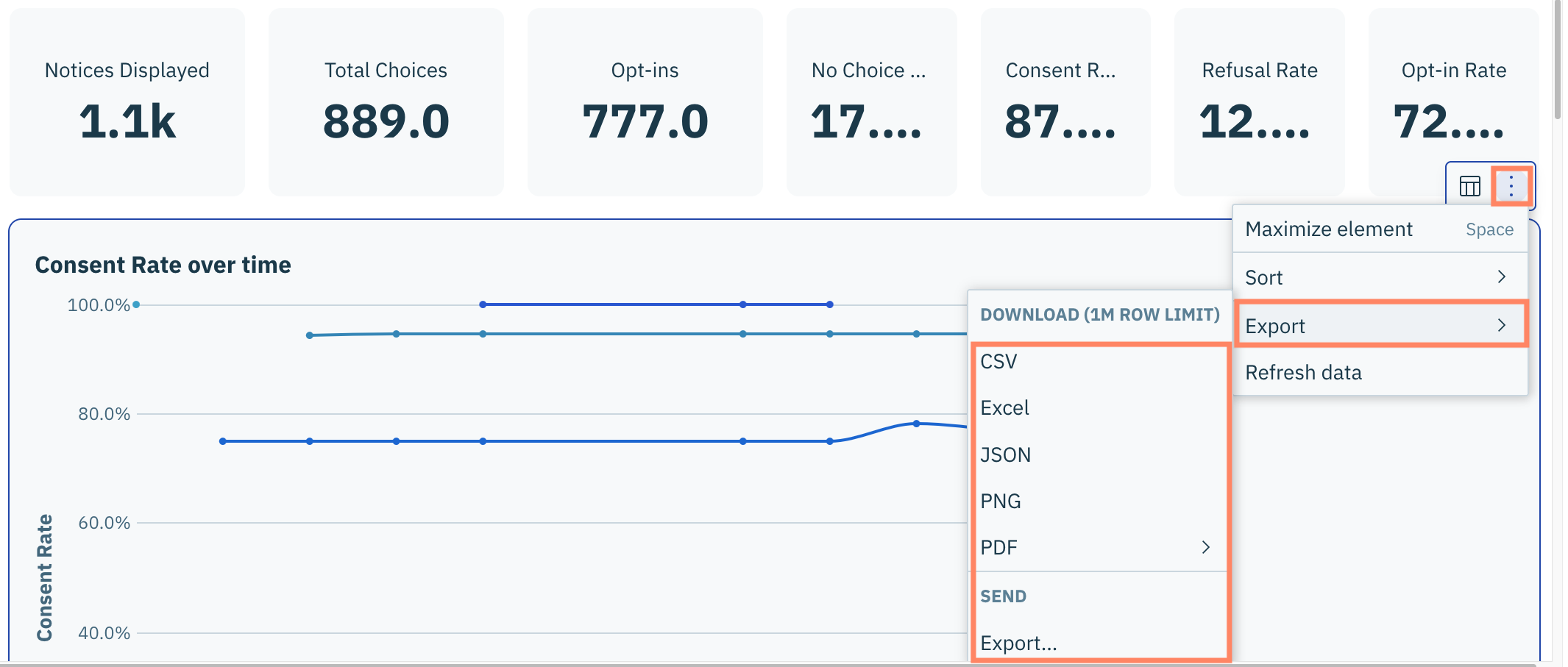
### Export/Download

Select the ellipsis icon from the action menu for the visualization and click **Export.**

From the subsequent menu, select the format you wish to receive the data.&#x20;

<figure><img src="https://1825037175-files.gitbook.io/~/files/v0/b/gitbook-x-prod.appspot.com/o/spaces%2FNDxbAdc00ce6bH5u1urh%2Fuploads%2FaGSPEyojAlYtYsyCkItw%2FScreenshot%202025-11-24%20at%2011.46.31%E2%80%AFAM.png?alt=media&#x26;token=c40d0a35-49a0-4be4-b610-fb7918cad92f" alt="" width="563"><figcaption></figcaption></figure>

The data will be downloaded onto your local machine in your specified format.

### Refresh data

Select the ellipsis icon from the action menu for the visualization and click **Refresh data** from the subsequent menu.

<figure><img src="https://1825037175-files.gitbook.io/~/files/v0/b/gitbook-x-prod.appspot.com/o/spaces%2FNDxbAdc00ce6bH5u1urh%2Fuploads%2FxLyNaVIVm3nB8CDMEXx1%2FScreenshot%202025-11-05%20at%202.20.46%E2%80%AFPM%20copy%203.png?alt=media&#x26;token=b3aa025c-a752-45b2-ac5c-db6dc6ffd477" alt="" width="563"><figcaption></figcaption></figure>

The data for the visualization will refresh.