> For the complete documentation index, see [llms.txt](https://docs.didomi.io/llms.txt). Markdown versions of documentation pages are available by appending `.md` to page URLs; this page is available as [Markdown](https://docs.didomi.io/integrations/google/configure-google-ad-manager-and-additional-consent-mode.md).
# Configure Google Ad Manager and Additional consent mode
### **Google Ad Manager**
#### **Step 1 - Add Google vendor in Didomi console**
{% hint style="warning" %}
Didomi had a direct integration with Google Ad Manager; if you have this old integration, we recommend disabling it as Google Ad Manager currently relies on the IAB TCF V2.2 for getting the user status.
{% endhint %}
Google is part of the TCFv2 framework as vendor ID 755. Google Ad Manager, AdSense and AdMob are part of the "Google Advertising Products" vendor in the framework and in the Didomi Console:
The ID for the Google vendor on the Didomi platform is still "google" and we recommend using this one instead of 755 in case of anything custom.
On your CMP it looks like this:
Please note that only advertising products from Google are part of the TCF.\
You can create another "Google" vendor to manage consent for non-advertising Google products like Google Analytics. You can follow [this guide](/data-manager/vendors/create-custom-vendor.md) to do so.
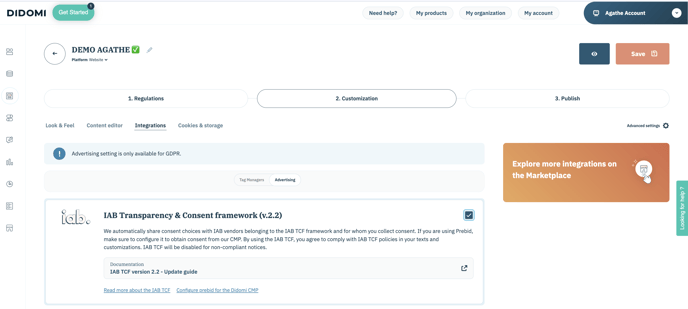
#### **Step 2 - Enable IAB TCF Integration**
In the Didomi Console, ensure that the IAB TCF integration is enabled for your notice.\
You can activate the integration in "2. Customization" => "Integration"
### **Additional consents**
{% hint style="info" %}
For your mobile applications, you need to configure your settings by [following this documentation.](/integrations/google/configure-google-additional-consent-mode-app.md)
{% endhint %}
Consent for [Google Ad Tech Providers](https://support.google.com/admanager/answer/9012903?hl=en) is automatically collected and shared with Google Ad Manager through the [Additional Consent Mode](https://support.google.com/admanager/answer/9681920?hl=en) and the `addtl_consent` parameter. No extra configuration is required in the Didomi Console.
On web, [Additional consent mode](https://support.google.com/admanager/answer/9681920?hl=en) is automatically enabled when the Google Advertising Products vendor is enabled in the Console.
### Technical Ad Delivery
#### **Behavior of Technical Ad Delivery**
[Technical Ad Delivery](https://support.google.com/admanager/answer/12767726) relies on the [IAB TCF v2.2 Special Purpose 2 (SP2)](https://iabeurope.eu/iab-europe-transparency-consent-framework-policies/#Special_Purpose_2__Technically_deliver_ads_or_content) to serve ads when consent and legitimate interest are not available for the Google Advertising Products vendor or its purposes in the IAB TCF v2.2
Technical Ad Delivery relies on Google Ad Manager collecting the user status from the Didomi CMP via the IAB TCF.
Ads can be delivered under Technical Ad Delivery when:
* The user has disagreed to everything (no purpose or vendor enabled).
* The user has made granular choices that exclude the Google Advertising Products vendor and/or its associated purpose. In some limited cases of granular choices, [Limited Ads](https://support.google.com/admanager/answer/9882911?hl=en) can be served instead of Technical Ad Delivery-eligible ads.
#### **Enable Technical Ad Delivery**
To enable Technical Ad Delivery:
* On your website, ensure that Google Ad Manager ad requests are not paused or configured to not be sent when user consent is denied. Ads must be loaded in all cases irrespective of the user choices for Technical Ad Delivery ads to be served.
* In your Google Ad Manager account, ensure that the Technical Ad Delivery option is enabled and that your account is correctly configured to support ads served via Technical Ad Delivery.
Once Technical Ad Delivery is configured, you can confirm that it is correctly enabled by generating a dedicated report in Google Ad Manager.
Once the tag is in place, you can monitor errors from Google Ad Manager. You can also read more about [troubleshooting Google Ad Manager in the TCFv2.](/integrations/google/troubleshoot-google-advertising-products-and-tcf.md)
---
# Agent Instructions
This documentation is published with GitBook. GitBook is the documentation platform designed so that both humans and AI agents can read, navigate, and reason over technical content effectively. Learn more at gitbook.com.
## Querying This Documentation
If you need additional information that is not directly available in this page, you can query the documentation dynamically by asking a question.
Perform an HTTP GET request on the current page URL with the `ask` query parameter, and the optional `goal` query parameter:
```
GET https://docs.didomi.io/integrations/google/configure-google-ad-manager-and-additional-consent-mode.md?ask=&goal=
```
`ask` is the immediate question: it should be specific, self-contained, and written in natural language.
`goal` is optional and describes the broader end goal you are ultimately trying to accomplish on behalf of the user. GitBook uses it to tailor the answer towards what is most useful for that goal.
The response will contain a direct answer to the question and relevant excerpts and sources from the documentation.
Use this mechanism when the answer is not explicitly present in the current page, you need clarification or additional context, or you want to retrieve related documentation sections.
.png?width=688&height=215&name=Google%20Advertisng%20products%20(Vendor).png) The ID for the Google vendor on the Didomi platform is still "google" and we recommend using this one instead of 755 in case of anything custom.
On your CMP it looks like this:
The ID for the Google vendor on the Didomi platform is still "google" and we recommend using this one instead of 755 in case of anything custom.
On your CMP it looks like this:
 Please note that only advertising products from Google are part of the TCF.\
You can create another "Google" vendor to manage consent for non-advertising Google products like Google Analytics. You can follow [this guide](/data-manager/vendors/create-custom-vendor.md) to do so.
#### **Step 2 - Enable IAB TCF Integration**
In the Didomi Console, ensure that the IAB TCF integration is enabled for your notice.\
You can activate the integration in "2. Customization" => "Integration"
Please note that only advertising products from Google are part of the TCF.\
You can create another "Google" vendor to manage consent for non-advertising Google products like Google Analytics. You can follow [this guide](/data-manager/vendors/create-custom-vendor.md) to do so.
#### **Step 2 - Enable IAB TCF Integration**
In the Didomi Console, ensure that the IAB TCF integration is enabled for your notice.\
You can activate the integration in "2. Customization" => "Integration"