> For the complete documentation index, see [llms.txt](https://docs.didomi.io/llms.txt). Markdown versions of documentation pages are available by appending `.md` to page URLs; this page is available as [Markdown](https://docs.didomi.io/integrations/customer-data-platform-cdp/adobe-experience-cloud-cdp.md).
# Adobe Experience Cloud - CDP
Didomi allows you to push your user data to the Adobe Experience Cloud while collecting user preferences through the Didomi Preference Management Platform.
{% hint style="info" %}
Make sure you have your Adobe Experience Cloud premium feature enabled. [Contact our support](mailto:support@didomi.io) team to learn more.
{% endhint %}
### Step #1 - Fetch your Adobe OAuth credentials
1. Login to your [Adobe Developer Console](https://developer.adobe.com/console/projects)
2. Go to Projects, create a new project or use an existing one
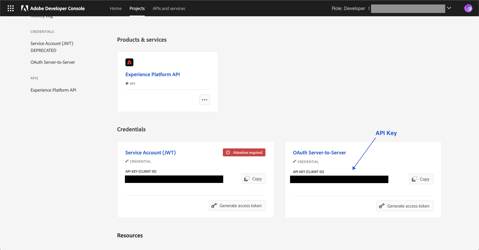
3. Open your project and make sure you have OAuth Server-to-Server credentials created
4. Fetch your API KEY and keep it for [Step #3](#step-3-enable-your-didomi-adobe-integration)
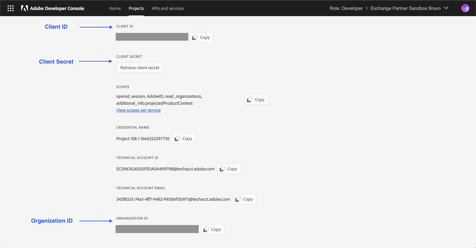
5. Click on "OAuth Server-to-Server" to access the rest of the credentials you will need to set up [Step #3](#step-3-enable-your-didomi-adobe-integration) later on.
1. Client ID
2. Client Secret
3. Organization ID
### Step #2 - Set up a new connection in the Adobe Experience Platform
In this step you will set up an HTTP API connection for Didomi
1. Login to the [Adobe Experience Platform](https://experience.adobe.com/)
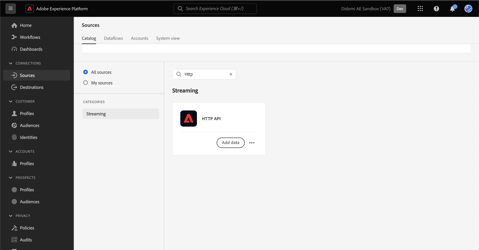
2. Go to Sources, select HTTP API then click on "Add data"
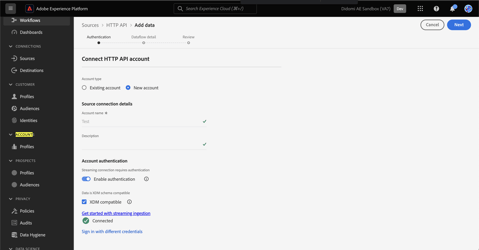
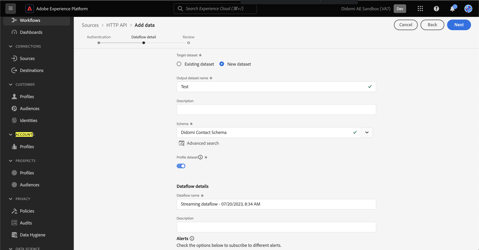
3. **Authentication step:** Use an existing account or add a new one as shown below, Click on "Next".
4. Dataflow detail: Select an existing dataflow or create a new one (make sure your profile schema has a primary identifier set to ID or personID). Click on "Next".
5. Review and click on "Finish".
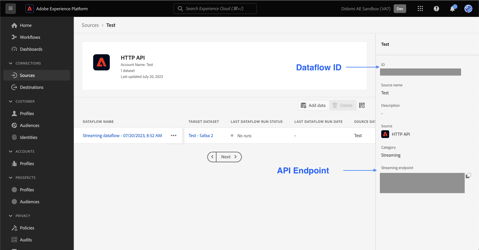
6. Get your "Dataflow ID" and "API Endpoint" and keep them for [Step 3](#step-3-enable-your-didomi-adobe-integration).
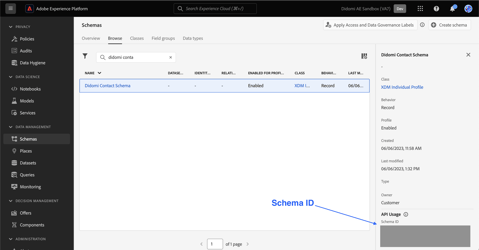
7. Navigate to Schema and open the schema used in point 4 above. Copy the Schema ID and keep it for [step 3](#step-3-enable-your-didomi-adobe-integration):
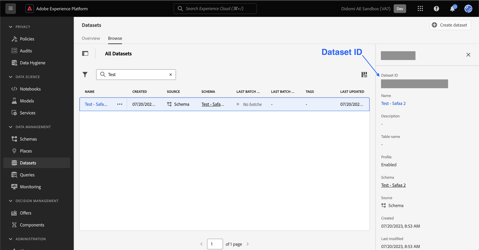
8. Navigate to Datasets and select the Dataset created/used in Step 4 above. Copy the Dataset ID and keep it for [step 3](#step-3-enable-your-didomi-adobe-integration):
### Step #3 - Enable your Didomi-Adobe integration
Once your new connection is enabled in AEP, you can proceed with the configuration on the Didomi end to finalize your integration config.
Navigate to the [Didomi Console,](https://console.didomi.io) click on the **Marketplace module** in the left menu, then follow these steps:
**Settings**
1. Add the different parameters previously collected in [Step #1](#step-1-fetch-your-adobe-oauth-credentials) and [Step #2](#step-2-set-up-a-new-connection-in-the-adobe-experience-platform) above.
2. Click on "Save Settings".
**Options**
* Upsert mode: by enabling this option, you authorise Didomi to create new profiles while pushing user preferences to Adobe.
* If Upsert mode is enabled: Didomi will check if the organization\_user\_id (provided when the user submits their preference on Didomi's PMP widget) matches either an id or a personID. If not, we create a new user and push the organization\_user\_id to both id and personId.
**Mapping**
{% hint style="info" %}
Make sure your Adobe profile attributes are already created in [AEP](https://experience.adobe.com/) before you start the Mapping step.
{% endhint %}
* For each purpose/preference/preference value, select the corresponding Adobe profile property from the Dropdown (scroll or search by name).
There are some rules when it comes to mapping Didomi properties with AEP properties:
* Purpose -> Boolean
* Preference -> string
* Preference value -> Boolean
Learn more about the Didomi - Adobe Experience Cloud integration in our [Developer Documentation](https://developers.didomi.io/integrations/third-party-apps/preference-management-platform-integrations/adobe-experience-cloud).
---
# Agent Instructions
This documentation is published with GitBook. GitBook is the documentation platform designed so that both humans and AI agents can read, navigate, and reason over technical content effectively. Learn more at gitbook.com.
## Querying This Documentation
If you need additional information that is not directly available in this page, you can query the documentation dynamically by asking a question.
Perform an HTTP GET request on the current page URL with the `ask` query parameter, and the optional `goal` query parameter:
```
GET https://docs.didomi.io/integrations/customer-data-platform-cdp/adobe-experience-cloud-cdp.md?ask=&goal=
```
`ask` is the immediate question: it should be specific, self-contained, and written in natural language.
`goal` is optional and describes the broader end goal you are ultimately trying to accomplish on behalf of the user. GitBook uses it to tailor the answer towards what is most useful for that goal.
The response will contain a direct answer to the question and relevant excerpts and sources from the documentation.
Use this mechanism when the answer is not explicitly present in the current page, you need clarification or additional context, or you want to retrieve related documentation sections.