> For the complete documentation index, see [llms.txt](https://docs.didomi.io/llms.txt). Markdown versions of documentation pages are available by appending `.md` to page URLs; this page is available as [Markdown](https://docs.didomi.io/integrations/content-management-system-cms/wordpress.md).
# WordPress
Adding Didomi CMP to your WordPress site is straightforward and requires no development skills.
**Follow these steps to add the CMP to your website!**
### **✅ Pre requisites**
You need the two following Didomi parameters to properly configure the plugin and correctly deploy the Didomi notice on your website:
* *Organization Public API Key*
* *Notice ID*
{% hint style="info" %}
If you don't know where to find these parameters in the Didomi console, consult [this documentation.](/integrations/content-management-system-cms/retrieve-didomi-parameters-for-cms-plugin.md)
{% endhint %}
### ✅ STEP 1: Download the Didomi CMP Plugin for Wordpress
Download the Didomi CMP plugin for Wordpress from this [link](https://sdk.didomi.io/cms-plugins/wordpress/didomi-plugin-wordpress-latest.zip).
### ✅ STEP 2: Add the Didomi CMP plugin
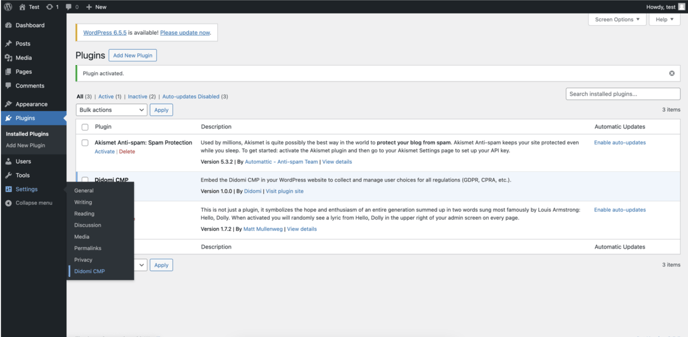
* Navigate to *Plugins* in the WordPress menu.
* Click *Add New Plug In*.
* Select *Upload Plugin*, choose the file downloaded in Step 1, and click *Install Now*.
* Once installed, click *Activate Plugin*.
{% hint style="info" %}
At this stage, the Didomi CMP plugin for Wordpress is installed and activated on your website but no consent notice will show just yet.
{% endhint %}
### ✅ STEP 3 – Setup your Didomi notice
After installing and activating the Didomi CMP plugin (Step 2) and retrieving the necessary parameters from Didomi (prerequisites), you can proceed to configure the plugin.
* Navigate back to WordPress and go to *Settings* > *Didomi CMP* .
* Enter your Didomi public organization API key and notice ID in the settings and *Save*:
The Didomi CMP notice will now be displayed on your website.
### **✅ STEP 4 - Enable WP consent API for seamless consent management**
1. Go to the Didomi Console → Consent Notices
2. Select your consent notice (same notice as in step 3 above)
3. Go to Integrations → Consent Mode
4. Enable Wordpress consent API - Available for GDPR only
5. As a result the status of WP consent categories will be calculated (based on the status of your 1st party vendor ) and will be passed to WP Consent API .
---
# Agent Instructions
This documentation is published with GitBook. GitBook is the documentation platform designed so that both humans and AI agents can read, navigate, and reason over technical content effectively. Learn more at gitbook.com.
## Querying This Documentation
If you need additional information that is not directly available in this page, you can query the documentation dynamically by asking a question.
Perform an HTTP GET request on the current page URL with the `ask` query parameter, and the optional `goal` query parameter:
```
GET https://docs.didomi.io/integrations/content-management-system-cms/wordpress.md?ask=&goal=
```
`ask` is the immediate question: it should be specific, self-contained, and written in natural language.
`goal` is optional and describes the broader end goal you are ultimately trying to accomplish on behalf of the user. GitBook uses it to tailor the answer towards what is most useful for that goal.
The response will contain a direct answer to the question and relevant excerpts and sources from the documentation.
Use this mechanism when the answer is not explicitly present in the current page, you need clarification or additional context, or you want to retrieve related documentation sections.
 * Click *Add New Plug In*.
 * Select *Upload Plugin*, choose the file downloaded in Step 1, and click *Install Now*.
 * Once installed, click *Activate Plugin*.
 {% hint style="info" %}
At this stage, the Didomi CMP plugin for Wordpress is installed and activated on your website but no consent notice will show just yet.
{% endhint %}
### ✅ STEP 3 – Setup your Didomi notice
After installing and activating the Didomi CMP plugin (Step 2) and retrieving the necessary parameters from Didomi (prerequisites), you can proceed to configure the plugin.
* Navigate back to WordPress and go to *Settings* > *Didomi CMP* .
{% hint style="info" %}
At this stage, the Didomi CMP plugin for Wordpress is installed and activated on your website but no consent notice will show just yet.
{% endhint %}
### ✅ STEP 3 – Setup your Didomi notice
After installing and activating the Didomi CMP plugin (Step 2) and retrieving the necessary parameters from Didomi (prerequisites), you can proceed to configure the plugin.
* Navigate back to WordPress and go to *Settings* > *Didomi CMP* .
 The Didomi CMP notice will now be displayed on your website.
### **✅ STEP 4 - Enable WP consent API for seamless consent management**
1. Go to the Didomi Console → Consent Notices
2. Select your consent notice (same notice as in step 3 above)
3. Go to Integrations → Consent Mode
4. Enable Wordpress consent API - Available for GDPR only
5. As a result the status of WP consent categories will be calculated (based on the status of your 1st party vendor ) and will be passed to WP Consent API
The Didomi CMP notice will now be displayed on your website.
### **✅ STEP 4 - Enable WP consent API for seamless consent management**
1. Go to the Didomi Console → Consent Notices
2. Select your consent notice (same notice as in step 3 above)
3. Go to Integrations → Consent Mode
4. Enable Wordpress consent API - Available for GDPR only
5. As a result the status of WP consent categories will be calculated (based on the status of your 1st party vendor ) and will be passed to WP Consent API  ---
# Agent Instructions
This documentation is published with GitBook. GitBook is the documentation platform designed so that both humans and AI agents can read, navigate, and reason over technical content effectively. Learn more at gitbook.com.
## Querying This Documentation
If you need additional information that is not directly available in this page, you can query the documentation dynamically by asking a question.
Perform an HTTP GET request on the current page URL with the `ask` query parameter, and the optional `goal` query parameter:
```
GET https://docs.didomi.io/integrations/content-management-system-cms/wordpress.md?ask=
---
# Agent Instructions
This documentation is published with GitBook. GitBook is the documentation platform designed so that both humans and AI agents can read, navigate, and reason over technical content effectively. Learn more at gitbook.com.
## Querying This Documentation
If you need additional information that is not directly available in this page, you can query the documentation dynamically by asking a question.
Perform an HTTP GET request on the current page URL with the `ask` query parameter, and the optional `goal` query parameter:
```
GET https://docs.didomi.io/integrations/content-management-system-cms/wordpress.md?ask=