For the complete documentation index, see llms.txt. This page is also available as Markdown.

Google Consent Mode v2 - United States

Google Consent Mode v2 ensures that Google vendors associated with a consent notice comply with an end-user's consent choices (called consent types) defined by Google. In this article, we will cover how to implement Google Consent Mode v2 on a consent notice specified for U.S. regulations (e.g. CPRA, NJDPA).


For privacy regulations in the United States, Google product tags will load when an end-user accesses your website or app, load the consent mode API and do the following:

  • Set default consent states for consent types. In order to align with U.S. privacy regulations the defaults will be set to granted

  • Consent states for consent types will be updated based on end-user selections for purposes and/or vendors in your consent notice. If the end-user utilizes Global Privacy Control (GPC) in their browser then consent types will be immediately set to denied

The following Google products have built-in consent checks and will adjust behavior based on the end-user's consent state for the Google consent types:

  • Google Tag

  • Google Analytics (includes Google Analytics for Firebase SDK)

  • Google Ads (includes Google Ads Conversion Tracking and Remarketing; support for Phone Call Conversions is pending.)

  • Floodlight

  • Conversion Linker

Google Consent Mode only supports gtag.js . Ensure your organization is not utilizing legacy tags for your Google products such as ga.js, analytics.js, or conversion.js .

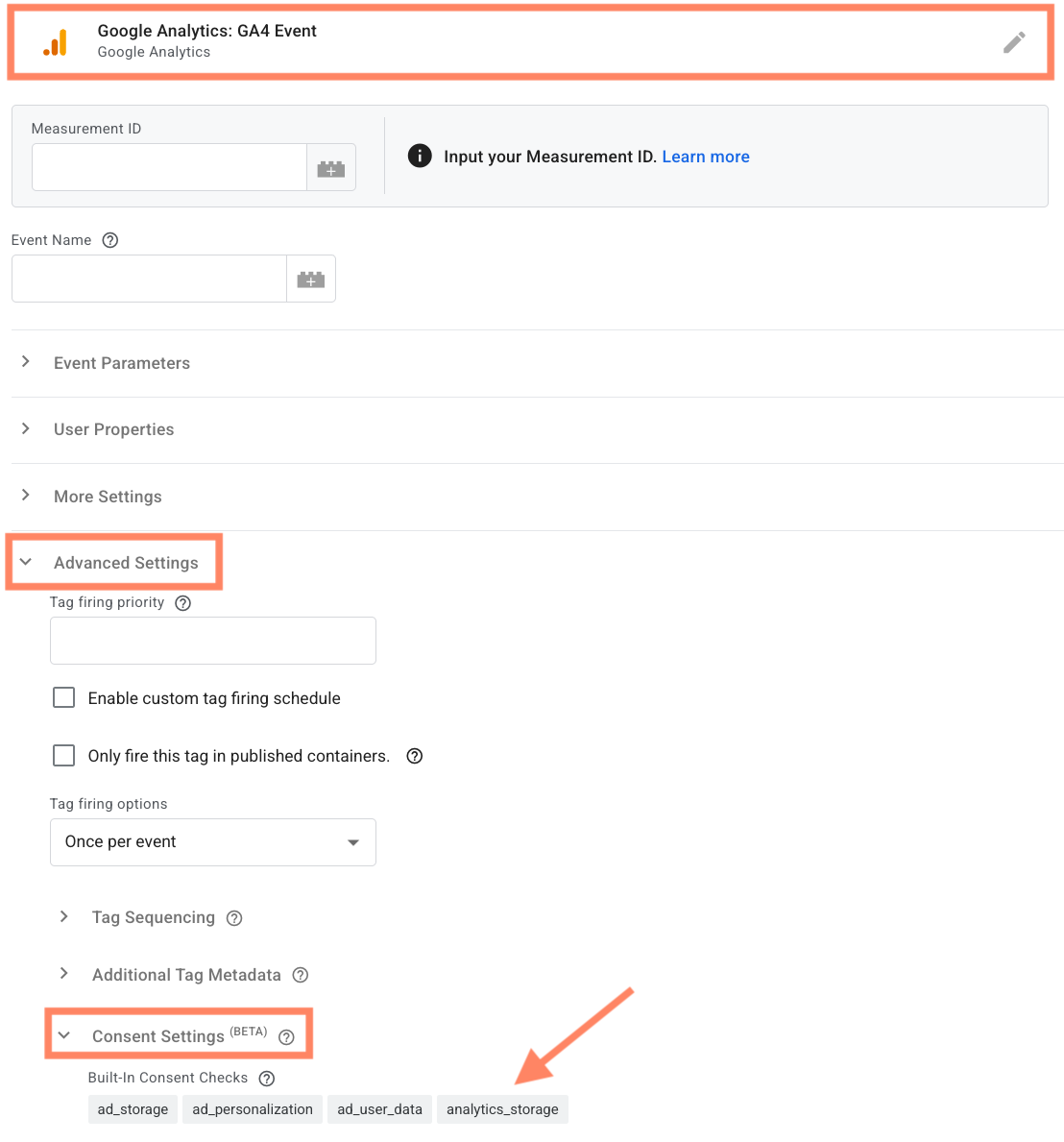
Consent check varies across each Google product and can be viewed by selecting a vendor from the GTM platform and expanding the Advanced Settings > Consent Settings tab.

Didomi offers multiple ways your organization can implement Google Consent Mode v2 for U.S. privacy consent notices. Please see the tabs below for the method that best suits your organization's needs:

In this tab, we will cover how to utilize Google Tag Manager to implement Google Consent Mode v2 for a U.S. privacy regulation(s) consent notice.

From a consent notice configured for one or more U.S. privacy regulations, click the Customization tab and select Integrations.

Click Consent Modes and enable the toggle inline with Google Consent Mode v2.

Expand the Google Consent Mode v2 accordion to configure the details of the integration. Review the table below for information on each toggle in the integration configuration:

Toggle
Description

Enable Google Advertising Product

Will add Google Advertising Products vendor (API ID: google) to the consent notice. Designed to encompass Google products who utilize one or more of the following consent types:

  • ad_storage

  • ad_user_data

  • ad_personalization

  • functionality_storage

  • personalization_storage

  • security_storage

The above consent types will default to granted. This default cannot be edited by your organization

Enable Google Analytics Products

Will add Google Analytics Products vendor (API ID: googleana-4TXnJigR) to the consent notice. Designed to encompass Google products who require the analytics_storage consent type.

The above consent types will default to granted. This default cannot be edited by your organization

Data layer name

By default, Didomi utilizes dataLayer as the variable name for your organization's Google Tag Manager dataLayer. If your organization has edited the variable name for your dataLayer then input that variable name in the provided space.

Publish and embed the Didomi web SDK onto your website when finished.

Configure Google product tag(s)

In order to ensure Google product tags are loaded (and the default status for Google consent types exposed) your organization must configure Google product tags to load once the Didomi SDK is ready and Google Consent Mode v2 is set.

There are two methods available to your organization to configure the Google product tags. Choose a method below that best suites your organization's use-case:

Google Tag Manager tag on-page

Utilize the Didomi <script> tag attributes to edit the Google Tag Manager tags on your website to include type="didomi/javascript" . The Google product tags configured in your Google Tag Manager will load as soon as the SDK is ready but without a specific link to a vendor.

Google product tags in Google Tag Manager

From your organization's Google Tag Manager workspace, navigate to your Google product tag and edit the trigger.

Use the Google Tag Manager workflow to configure a new trigger for the Google product tag with the following fields:

Field
Value

Trigger Type

Custom Event

Event name

This trigger fires on

All Custom Events

When finished, Save the trigger and tag setup. Submit your Google Tag Manager container changes aligned with your organization's policies.

In this tab, we will cover how to implement Google Consent Mode v2 for a U.S. privacy regulation(s) consent notice if your organization is utilizing gtag.js tags for the Google products directly on your website.

From a consent notice configured for one or more U.S. privacy regulations, click the Customization tab and select Integrations.

Click Consent Modes and enable the toggle inline with Google Consent Mode v2.

Expand the Google Consent Mode v2 accordion to configure the details of the integration. Review the table below for information on each toggle in the integration configuration:

Toggle
Description

Enable Google Advertising Product

Will add Google Advertising Products vendor (API ID: google) to the consent notice. Designed to encompass Google products who utilize one or more of the following consent types:

  • ad_storage

  • ad_user_data

  • ad_personalization

  • functionality_storage

  • personalization_storage

  • security_storage

The above consent types will default to granted. This default cannot be edited by your organization

Enable Google Analytics Products

Will add Google Analytics Products vendor (API ID: googleana-4TXnJigR) to the consent notice. Designed to encompass Google products who require the analytics_storage consent type.

The above consent types will default to granted. This default cannot be edited by your organization

Data layer name

By default, Didomi utilizes dataLayer as the variable name for your organization's Google Tag Manager dataLayer. If your organization has edited the variable name for your dataLayer then input that variable name in the provided space.

Publish and embed the Didomi web SDK onto your website when finished.

Install Google product tags

Add the necessary tags for your consent aware Google products (e.g. Floodlight, Conversion Linker, etc...) to your website.

In accordance with a Google Consent Mode v2 - United States setup, these Google products will load when an end-user accesses the website with Google consent types defaulted to granted.

In order to ensure Google product tags are loaded (and the default status for Google consent types exposed) your organization must configure each Google product tag to load only once the Didomi SDK is ready and Google Consent Mode v2 is set.

Utilize the Didomi <script> tag attributes to edit the Google product tags on your website to include type="didomi/javascript" .

Information on implementing Google Consent Mode v2 via the Didomi GTM template can be found below:

Didomi GTM template

Didomi has updated its support since the release of Google Custom Mode v2 with simplified native integrations with Firebase and Advanced App Partners (AAP) like Airbridge, ApplyFlyer, etc...

Organizations who have implemented the previous Google Consent Mode v2 solution via the setConsent method should update their implementations via the instructions below and remove setConsent for Google Consent Mode v2 from the application code.

On mobile applications, Google Consent Mode v2 works through SDKs such as Firebase and Google Ads SDKs. These SDKs rely on consent signals that are provided programmatically at runtime. Consent signals must be passed early in the app lifecycle to ensure Google SDKs respect end-user choices.

In this tab, we will cover how to implement Google Consent Mode v2 for a U.S. privacy regulation consent notice for a mobile application.

Requirements

Review the table below for more information on the required minimum version of the Didomi mobile SDK used in your application that supports the Firebase SDK and Google Ads SDK:

Mobile SDK
Minimum version

iOS/tvOS

>v2.27.0

Android

>v2.27.0

From a consent notice configured for one or more U.S. privacy regulations, click the Customization tab and select Integrations.

Click Consent Modes and enable the toggle inline with Google Consent Mode v2.

Expand the Google Consent Mode v2 accordion to configure the details of the integration. Review the table below for information on each toggle in the integration configuration:

Toggle
Description

Enable Google Advertising Product

Will add Google Advertising Products vendor (API ID: google) to the consent notice. Designed to encompass Google products who utilize one or more of the following consent types:

  • ad_storage

  • ad_user_data

  • ad_personalization

  • functionality_storage

  • personalization_storage

  • security_storage

The above consent types will default to granted. This default cannot be edited by your organization

Enable Google Analytics Products

Will add Google Analytics Products vendor (API ID: googleana-4TXnJigR) to the consent notice. Designed to encompass Google products who require the analytics_storage consent type.

The above consent types will default to granted. This default cannot be edited by your organization

Firebase

Firebase is the core SDK for Google apps. Once enabled, the integration ensures:

  • proper mapping of Didomi consent signals to Firebase

  • automatic propagation to Google SDKs for measurement and advertising

Branch

App Attribution Partners (AAP) like Branch need to receive accurate consent signals to comply with privacy regulations and forwards these signals to Google.

When Branch is enabled in the console and the Branch SDK is present in your app, Didomi manages the Google Consent Mode signal propagation for Branch.

Didomi sets eea to 0 to indicate that no GDPR obligations apply.

Kochava

App Attribution Partners (AAP) like Kochava need to receive accurate consent signals to comply with privacy regulations and forwards these signals to Google.

When Kochava is enabled in the console, Didomi ensures that Kochava receives the consent string needed to populate Google’s consent signals. Kochava uses this consent information during install and event transmissions.

When the CMP collects end-user consent, the consent string is shared with Kochava through Didomi, provided that the SDK is configured to send installs or events after the user has given consent.

Airbridge

App Attribution Partners (AAP) like Airbridge need to receive accurate consent signals to comply with privacy regulations and forwards these signals to Google.

When Airbridge is enabled in the console and the Airbridge SDK is detected in the app, Didomi computes the appropriate Google Consent Mode signals and shares them with Airbridge.

For end-users outside the EEA, Didomi signals that the end-user is not in a GDPR-regulated region by setting eeaRegion to false.

AppsFlyer

App Attribution Partners (AAP) like AppsFlyer need to receive accurate consent signals to comply with privacy regulations and forwards these signals to Google.

When AppsFlyer is enabled in the console and the AppsFlyer SDK is present in your app, Didomi manages the Google Consent Mode signal propagation for AppsFlyer.

  • For users outside of GDPR jurisdiction, Didomi will set isUserSubjectToGDPR to false .

When successfully and appropriately configured, a Google Consent Mode v2 - United States privacy regulation implementation will trigger Google product tags but with the consent state of Google consent types defaulted to granted. In this section we will cover how to test whether your Google Consent Mode v2 - United States configuration is working as intended.

If you need further assistance or have noticed something unusual, please feel free to reach out to google-support@didomi.io.

Your organization will want to confirm three actions in testing:

  • Google products load with consent types defaulted to a consent state of granted

  • Google products update to show consent types set to a consent state of denied due to end-user choice

  • Google products update to show consent types set to a consent state of granted due to end-user choice

How your organization tests that Google product tag(s) are triggering as expected of a Google Consent Mode v2 - United States setup is dependent on how you configured the implementation on the consent notice:

Implementation method
Available testing

Google Tag Manager

  • Google Tag Manager

  • Website

gtag.js

  • Website

GTM template

  • Google Tag Manager

  • Website

Mobile SDK

  • Didomi SDK Logs

  • Firebase DebugView

  • ADB (Android) or Xcode Console (iOS) for runtime logs

  • Network sniffers (e.g. Charles Proxy) for verifying event payloads

In this tab, we will cover how to test your organization's Google Consent Mode v2 - United States implementation via the website on which the Didomi consent notice is deployed.

It is recommended that the following tests are done using an Incognito window for your browser.

gcd parameter

The gcd parameter is included in the payload for every Google Ad Words and Google Analytics network request when Google Consent Mode v2 is enabled. The parameter reflects the status of Google Consent Mode v2 consent types and assures Google that consent mode is enabled and that consent is collected.

The gcd parameter is a character string that is composed of several components that can multiple values. The format of the character string is as follows:

gcd=13<ad_storage>3<analytics_storage>3<ad_user_data>3<ad_personalization>5

Component
Description

Prefix

Unchanging start of the character string. Represented by an 11 or 13

Suffix

Unchanging end of the character string. Represented by a 5 or 7

Separator

Separates the consent status values for the different consent types (ad_storage, analytics_storage, etc...). Represented by a 1 or 3

Consent status

The consent status for each of the represented consent types (ad_storage, analytics_storage, ad_user_data, ad_personalization) follows the structure below:

  • p - Denied default value

  • t - Granted default value

  • q, m, u - Denied after end-user choice

  • e, r, n, v - Granted after end-user choice

  • 1 - Undefined

Google product tags load with consent types defaulted to granted

Access the website on which you have deployed the Didomi consent notice with a Google Consent mode v2 - United States implementation and let the consent notice load on the page. It is important that you do not interact with the consent notice yet.

Open the browser console and select the Network tab. Use the provided search filter to check requests that contain the following for the gcd parameter:

  • analytics.js

  • gtag

  • collect

Ensure the consent status values for each consent type within the gcd parameter matches the expected default settings.

Google product tags update to show consent types set to denied due to end-user choice

Access the website on which you have deployed the Didomi consent notice with a Google Consent mode v2 - United States implementation and let the consent notice load on the page. Deny consent for all vendors and purposes.

Open the browser console and select the Network tab. Check the requests for your Google products to ensure the consent status value for each consent type within the gcd parameter is set to denied due to end-user choice.

Google product tags update to show consent types set to granted due to end-user choice

Access the website on which you have deployed the Didomi consent notice with a Google Consent mode v2 - United States implementation and let the consent notice load on the page. Grant consent for all vendors and purposes.

Open the browser console and select the Network tab. Check the requests for your Google products to ensure the consent status value for each consent type within the gcd parameter is set to granted due to end-user choice.

In this tab, we will cover how to test your organization's Google Consent Mode v2 - United States

It is recommended that the following tests are done using an Incognito window for your browser or that you clear your cookies and local storage for your website in your favorite browser.

Navigate to the container where you configured and published your Google Consent Mode v2 - United States container in your Google Tag Manager account and click Preview.

Use the provided field to input the URL of your website on which the Didomi consent notice is implemented. Click Connect when finished.

Google product tags load with consent types defaulted to granted

Let the consent notice load in the subsequent window of the tag assistant. It is important that you do not interact with the consent notice yet.

Ensure that your Google product tags are not firing until the didomi-ready event.

While still viewing the didomi-ready event, click the Consent tab. Ensure that the values in the On-page default column are set to granted.

Google product tags update to show consent types set to denied due to end-user choice

Let the consent notice load in the subsequent window of the tag assistant. Deny consent for all vendors and purposes.

Select events related to the deny consent action from the left-hand column and click the Consent tab. Ensure that the values in the On-page Update column are set to Denied (except for security_storage.

Google product tags update to show consent types set to granted due to end-user choice

Let the consent notice load in the subsequent window of the tag assistant. Grant consent for all vendors and purposes.

Select events related to the accept consent action from the left-hand column and click the Consent tab. Ensure that the values in the On-page Update column are set to Granted.

How your organization tests depends on the integrations configure and tools available for your mobile application. In this tab, we will cover how validations that your organization should perform in order to check default and updated signals are set and sent correctly.

Enable debug logs

Activate verbose logging in Didomi SDK via:

Android

iOS

If integrated with Firebase, enable Firebase DebugView via:

Android

iOS

Launch with -FIRDebugEnabled argument

Testing criteria

Analyze the logs and network payloads for each criterion to ensure the expected results are set for the appropriate field.

Testing best practices

  • Test your application across multiple regions and regulations

  • Verify behavior on first app launch and after end-user consent actions

  • Always use real SDK builds and not mocks for final validation

Last updated