# Google Consent Mode v2 (Advanced)

{% hint style="success" %}
**Access Type**: Consent Notices - Editor
{% endhint %}

Google Consent Mode v2 ensures that Google vendors associated with a consent notice comply with an end-user's consent choices (called [consent types](/consent-management-platform-cmp/frameworks-regulations/google-consent-mode-v2.md#google-consent-types)) defined by Google. In this article, we will cover how to implement Google Consent Mode v2 on a consent notice utilizing Google advanced consent mode setup.&#x20;

{% hint style="info" %}
[Click here](/consent-management-platform-cmp/frameworks-regulations/google-consent-mode-v2/google-consent-mode-v2-basic.md) for information on how to configure Google basic consent mode.
{% endhint %}

* [Google Consent Mode v2 (Advanced) overview](#google-consent-mode-v2-advanced-overview)
* [Google consent mode products](#google-consent-mode-products)
* [Implement Google Consent Mode v2 (Advanced)](#implement-google-consent-mode-v2-advanced)
* [Test Google Consent Mode v2 (Advanced)](#test-google-consent-mode-v2-advanced)

***

### Google Consent Mode v2 (Advanced) overview

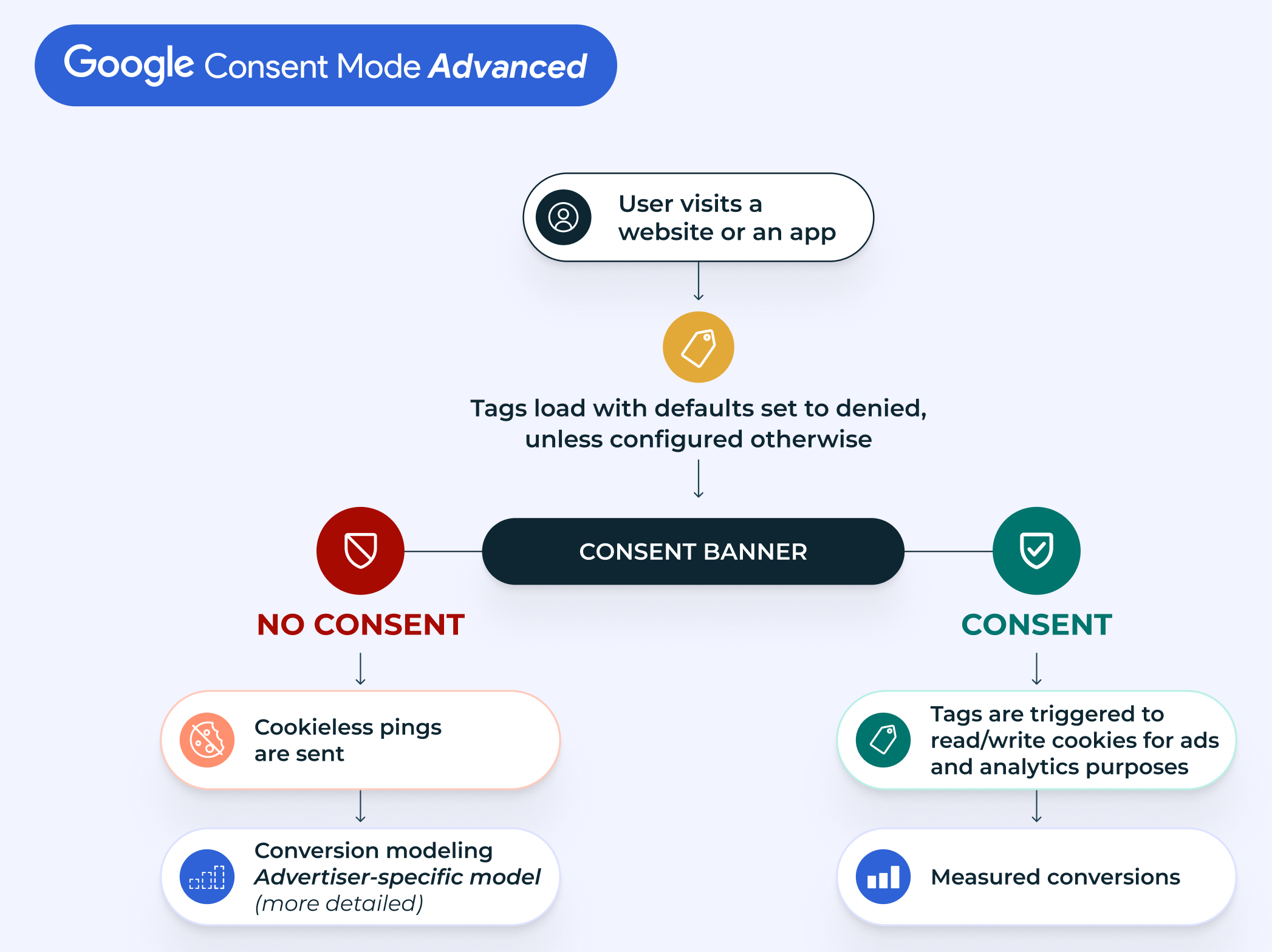
In the advanced version of Google Consent Mode v2, Google product tags still load when an end-user accesses your website or app (unlike the basic version). Google tags will load the consent mode API and do the following:

* Set default consent states for [consent types](/consent-management-platform-cmp/frameworks-regulations/google-consent-mode-v2.md#google-consent-types). By default, consent may be `denied`, unless your organization sets its own default values. While consent is `denied`, the Google tags send [cookieless pings](https://support.google.com/google-ads/answer/10000067#Pings).
* Wait for end-user interaction with the consent notice and update consent states accordingly. Only when an end-user grants consent to data collection, will Google tags send the full measurement data. [Learn more about tag behavior](https://support.google.com/analytics/answer/9976101#behavior).

<figure><img src="/files/M2JVDOws15s0n2pL9mcm" alt="" width="563"><figcaption></figcaption></figure>

### Google consent mode products

The following Google products have built-in [consent checks](/consent-management-platform-cmp/frameworks-regulations/google-consent-mode-v2.md#glossary) and will adjust behavior based on the end-user's consent state for the Google [consent types](/consent-management-platform-cmp/frameworks-regulations/google-consent-mode-v2.md#google-consent-types):

* Google Tag
* Google Analytics (includes Google Analytics for Firebase SDK)
* Google Ads (includes Google Ads Conversion Tracking and Remarketing; support for Phone Call Conversions is pending.)
* Floodlight
* Conversion Linker

{% hint style="info" %}
Google Consent Mode only supports  `gtag.js` . Ensure your organization is not utilizing legacy tags for your Google products such as `ga.js`, `analytics.js`, or `conversion.js` .
{% endhint %}

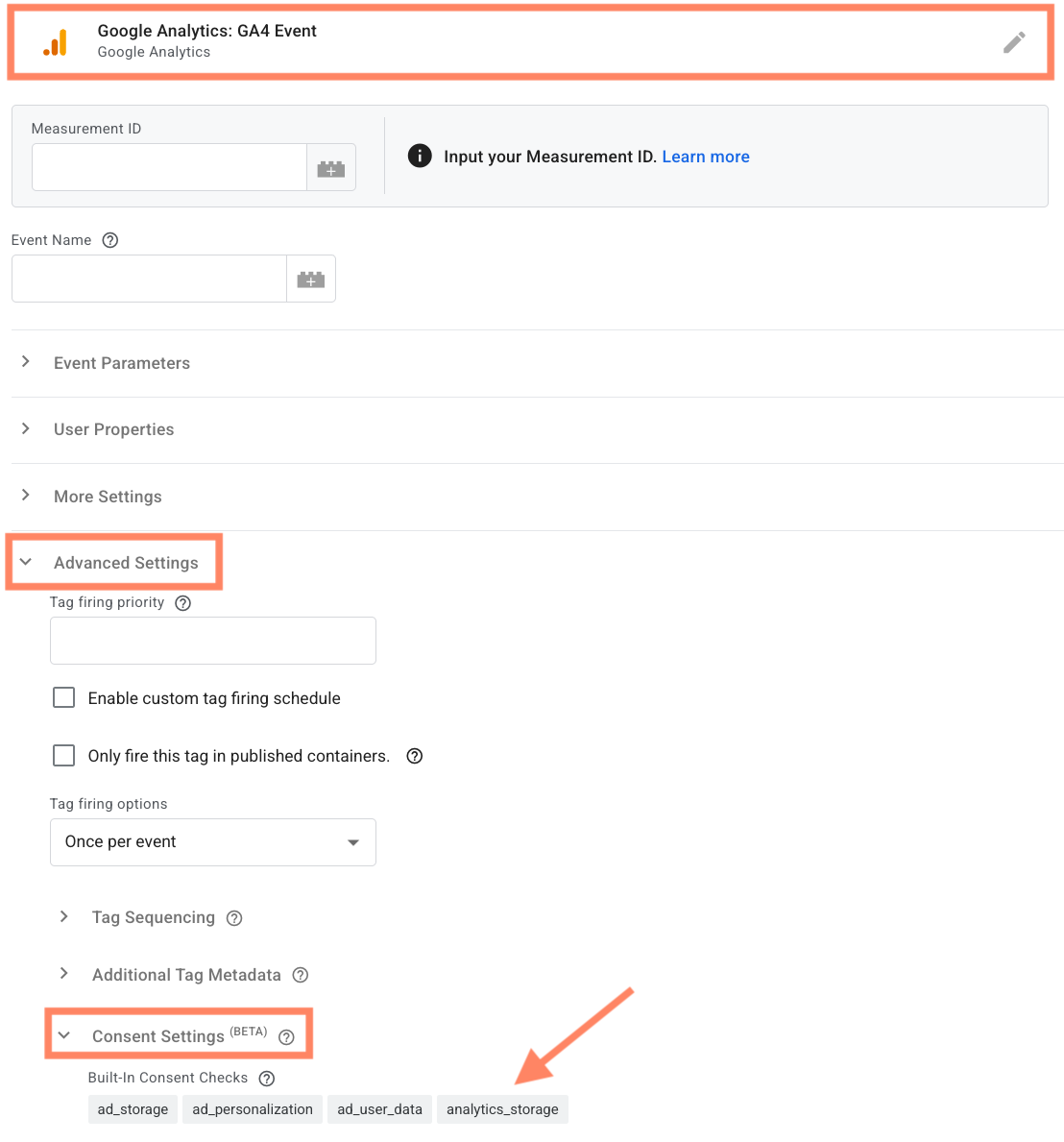
Consent check varies across each Google product and can be viewed by selecting a vendor from the GTM platform and expanding the **Advanced Settings > Consent Settings** tab.

<figure><img src="/files/ZRavLhxkvKcro1V8JnrW" alt="" width="563"><figcaption></figcaption></figure>

### Implement Google Consent Mode v2 (Advanced)&#x20;

Didomi offers multiple ways your organization can implement Google Consent Mode v2 (Advanced) for GDPR consent notices. Please see the tabs below for the method that best suits your organization's needs:

{% tabs fullWidth="false" %}
{% tab title="Google Tag Manager" %}
In this tab, we will cover how to utilize Google Tag Manager to implement Google Consent Mode v2 (Advanced) for a GDPR consent notice.

* [Configure Google Consent Mode v2 (Advanced) on consent notice](#configure-google-consent-mode-v2-advanced-on-consent-notice)
* [Configure Google product tag(s)](#configure-google-product-tag-s)

#### Configure Google Consent Mode v2 (Advanced) on consent notice

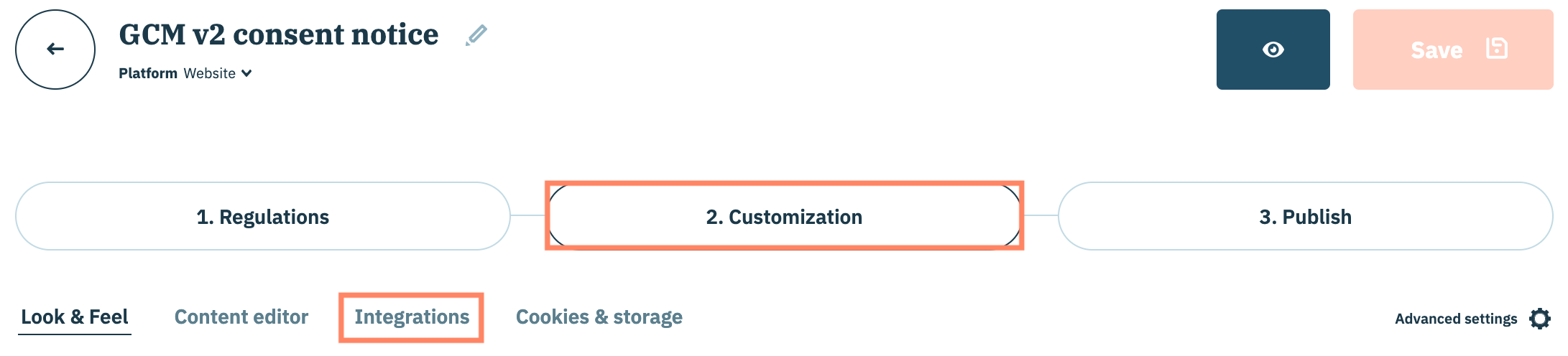
From the consent notice, click the **Customization** tab and select **Integrations**.

<figure><img src="/files/MElaqTwkv5qdYqF4Tf0J" alt="" width="563"><figcaption></figcaption></figure>

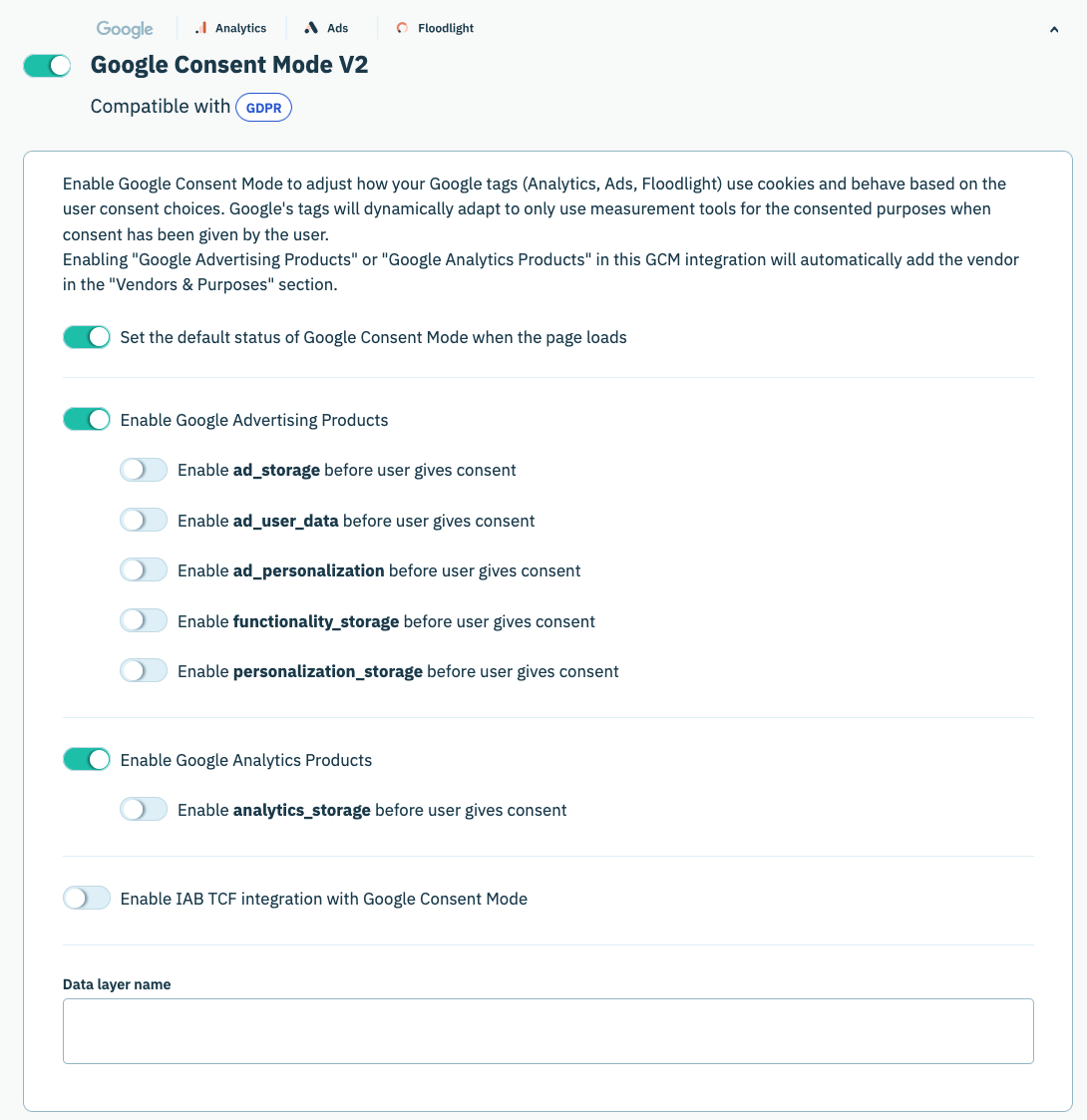
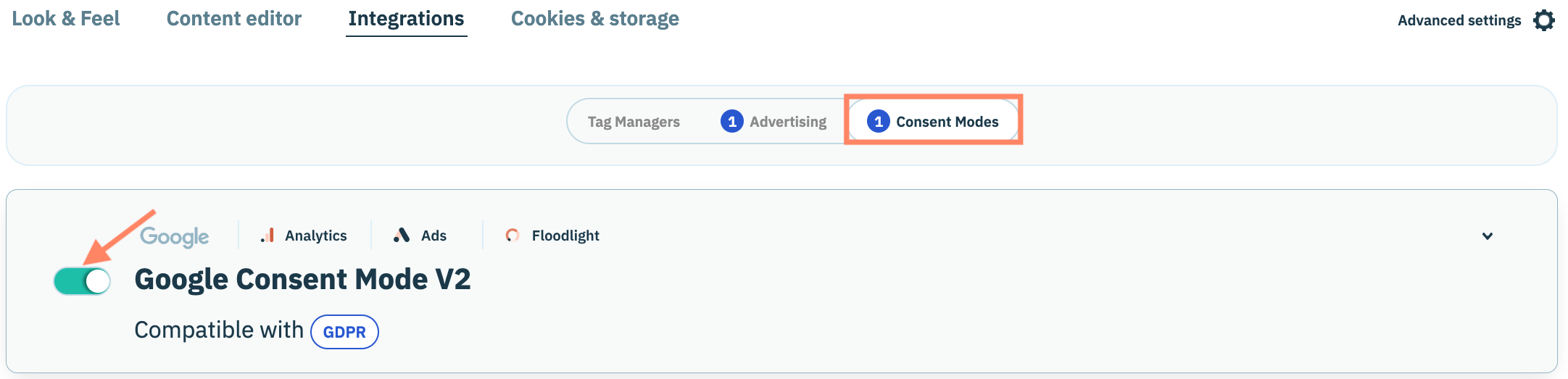
Click **Consent Modes** and enable the toggle inline with **Google Consent Mode v2**.

<figure><img src="/files/OG9hBLhJSQ6CPQg8Knw0" alt="" width="563"><figcaption></figcaption></figure>

Expand the Google Consent Mode v2 accordion to configure the details of the integration. Review the table below for information on each toggle in the integration configuration:

{% hint style="warning" %}
**Note**: In order to successfully implement Google Consent Mode v2 (Advanced) for GDPR, your organization will **need** to enable Google Advertising Products and/or Google Analytics Products depending on the Google products your organization utilizes.
{% endhint %}

<table><thead><tr><th width="292">Toggle</th><th>Description</th></tr></thead><tbody><tr><td>Set the default status of Google Consent Mode when the page loads</td><td>The advanced version of Google Consent Mode v2 will load Google tags when an end-user accesses your website with a default status for all Google consent types. The default status is <code>denied</code> unless configured otherwise below.<br><br>Enable this toggle to ensure this default status is set for the advanced version.</td></tr><tr><td>Enable Google Advertising Products</td><td><p>Will add Google Advertising Products vendor (API ID: <code>google</code>) to the consent notice. Designed to encompass Google products who utilize one or more of the following consent types:</p><ul><li><code>ad_storage</code></li><li><code>ad_user_data</code></li><li><code>ad_personalization</code></li><li><code>functionality_storage</code></li><li><code>personalization_storage</code></li><li><code>security_storage</code></li></ul></td></tr><tr><td>Enable <strong>{consent type}</strong> before user gives consent</td><td>For each consent type, will override the default status of the Google consent type and set it to <code>granted</code> as soon as the Google product tag loads.<br><br><mark style="background-color:$warning;"><strong>Note</strong>: Consult with your organization's legal counsel and DPO before enabling any of these settings.</mark></td></tr><tr><td>Enable Google Analytics Products</td><td>Will add Google Analytics Products vendor (API ID: <code>googleana-4TXnJigR</code>) to the consent notice. Designed to encompass Google products who require the <code>analytics_storage</code> consent type.</td></tr><tr><td>Enable TCF integration with Google Consent Mode</td><td><p>Enables Didomi to set an additional flag (<code>TCData.enableAdvertiserConsentMode</code> to <code>true</code>) for <code>getTCData</code> and <code>addEventListener</code> commands.<br><br>This additional flag allows Google to infer and map consent settings to the following Google Consent Mode v2 consent types based on IAB TCF purposes:</p><ul><li><code>ad_storage</code></li><li><code>ad_user_data</code></li><li><code>ad_personalization</code></li></ul><p><a href="https://developers.google.com/tag-platform/security/guides/implement-TCF-strings?hl=en#tcf_integration_behavior">Click here</a> for more information on how Google calculates the mapping between IAB TCF purposes and Google consent types.<br><br><mark style="background-color:$warning;"><strong>Note</strong>: The TCF integration with Google Consent Mode does not support Google product tags that require the <code>analytics_storage</code>, <code>functionality_storage</code>, <code>personalization_storage</code>, or <code>security_storage</code> consent types.</mark><br><br>For Google products that require the <code>analytics_storage</code> consent type, Didomi will set this consent type to <code>granted</code> if the end-user consents globally (consent to vendor and all of its purposes) for Google Analytics Products (API ID: <code>googleana-4TXnJigR</code>).</p></td></tr><tr><td>Data layer name</td><td>By default, Didomi utilizes <code>dataLayer</code> as the variable name for your organization's Google Tag Manager dataLayer. If your organization has edited the variable name for your dataLayer then input that variable name in the provided space.</td></tr></tbody></table>

<figure><img src="/files/28obiq9jVbyHVazYfJAJ" alt="" width="563"><figcaption></figcaption></figure>

Publish and embed the Didomi web SDK onto your website when finished.

{% hint style="info" %}
Alternatively, your organization can utilize the `window.didomiConfig` object to configure Google Consent Mode v2 (Advanced) on your consent notice. While Didomi recommends utilizing the console to enable the feature as detailed above, the `window.didomiConfig` method can be a useful method for testing.&#x20;

```html
<script type="text/javascript">
  window.didomiConfig = {
    integrations: {
      vendors: {
        gcm: {
          enable: true,
          setDefaultStatus: true,
          defaultStatus: {
            analytics: false, //'analytics_storage' default status 
            ad: false, //'ad_storage' default status
            ad_user_data: false, //'ad_user_data' default status
            ad_personalization: false //'ad_personalization' default status
          }
        }
      }
    }
  }
</script>
```

{% endhint %}

#### Configure Google product tag(s)

{% hint style="warning" %}
**Note**: This section assumes that your organization has already embedded the Google Tag Manager tags onto your website.
{% endhint %}

In order to ensure Google product tags are loaded (and the default status for Google consent types exposed) your organization must configure Google product tags to load once the Didomi SDK is ready and Google Consent Mode v2 is set.

There are two methods available to your organization to configure the Google product tags. Choose a method below that best suites your organization's use-case:

* Google Tag Manager tag on-page
* Google product tags in Google Tag Manager

**Google Tag Manager tag on-page**

Utilize the [Didomi `<script>` tag attributes ](https://developers.didomi.io/cmp/web-sdk/third-parties/no-tag-manager)to edit the Google Tag Manager tags on your website to include `type="didomi/javascript` . The Google product tags configured in your Google Tag Manager will load as soon as the SDK is ready but without a specific link to a vendor.

```html
<script type="didomi/javascript" src="https://www.googletagmanager.com/gtag/js?id=GA_MEASUREMENT_ID"></script>
```

**Google product tags in Google Tag Manager**

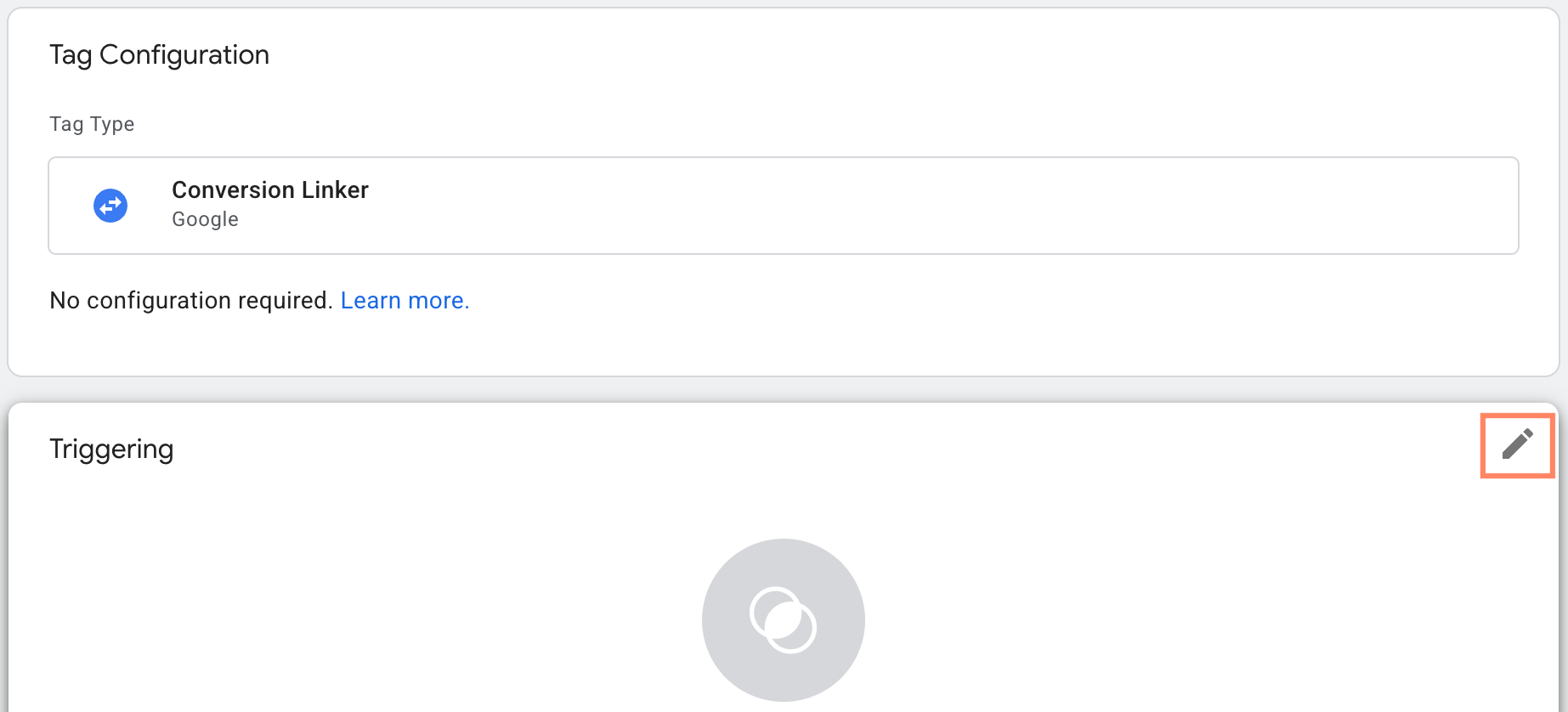
From your organization's Google Tag Manager workspace, navigate to your Google product tag and edit the trigger.

<figure><img src="/files/eDu4Sc7I9mvvBYpmBrAc" alt="" width="563"><figcaption></figcaption></figure>

Use the Google Tag Manager workflow to configure a new trigger for the Google product tag. The trigger will vary slightly depending on whether your Didomi consent notice targets multiple regulations (GDPR, CPRA, NJDPA, etc...) since Google Consent Mode v2 is only available for GDPR.

<p align="center"><em><strong>GDPR-only consent notice</strong></em> </p>

For a consent notice that only targets GDPR, configure your trigger with the following fields:

<table><thead><tr><th width="202">Field</th><th>Value</th></tr></thead><tbody><tr><td>Trigger Type</td><td>Custom Event</td></tr><tr><td>Event name</td><td><code>didomi-ready</code></td></tr><tr><td>This trigger fires on</td><td>All Custom Events</td></tr></tbody></table>

<figure><img src="/files/YiOg3wcYTyPm6TtkZMU3" alt="" width="563"><figcaption></figcaption></figure>

When finished, **Save** the trigger and tag setup. **Submit** your Google Tag Manager container changes aligned with your organization's policies.

<p align="center"><em><strong>Multiple regulation consent notice</strong></em></p>

For a consent notice that targets multiple regulations (e.g. GDPR and CPRA) your organization will need to duplicate the Google product tags and create a trigger for each of the tags (one triggered for GDPR and the other for the non-GDPR regulation(s).

Before continuing, be sure to create data layer variables for the following as they will be used in the triggering:

* `didomiRegulationName`
* `didomiVendorsEnabled`

<figure><img src="/files/NcTKOWXLsIAwu4xrorQC" alt="" width="563"><figcaption></figcaption></figure>

The Google product tag that targets GDPR should have a trigger with the following fields:

<table><thead><tr><th width="202">Field</th><th>Value</th></tr></thead><tbody><tr><td>Trigger Type</td><td>Custom Event</td></tr><tr><td>Event name</td><td><code>didomi-ready</code></td></tr><tr><td>This trigger fires on</td><td>Some Custom Events</td></tr><tr><td>Event condition</td><td><code>didomiRegulationName</code> equals gdpr</td></tr></tbody></table>

<figure><img src="/files/cvR1vwCFYWNwRHVSkEYs" alt="" width="563"><figcaption></figcaption></figure>

The Google product tag that targets the non-GDPR regulation should have a trigger with the following fields:

<table><thead><tr><th width="202">Field</th><th>Value</th></tr></thead><tbody><tr><td>Trigger Type</td><td>Custom Event</td></tr><tr><td>Event name</td><td><code>didomi-consent</code></td></tr><tr><td>This trigger fires on</td><td>Some Custom Events</td></tr><tr><td>Event condition 1</td><td><code>didomiRegulationName</code> does not equal gdpr</td></tr><tr><td>Event condition 2</td><td><code>didomiVendorsEnabled</code> contains &#x3C;Didomi API ID of the Google product></td></tr></tbody></table>

<figure><img src="/files/ikjizBORcgGvhzR7WG7o" alt="" width="563"><figcaption></figcaption></figure>

{% hint style="info" %}
Alternatively, your organization could create separate containers one targeting GDPR regulations and the other targeting the non-GDPR regulation(s) and load each container based on the applicable regulation.
{% endhint %}

When finished, **Save** the trigger and tag setup. **Submit** your Google Tag Manager container changes aligned with your organization's policies.
{% endtab %}

{% tab title="gtag.js" %}
In this tab, we will cover how to implement Google Consent Mode v2 (Advanced) for a GDPR consent notice if your organization is utilizing `gtag.js` tags for the Google products directly on your website.

* [Configure Google Consent Mode v2 (Advanced) on consent notice](#configure-google-consent-mode-v2-advanced-on-consent-notice-1)
* [Install Google product tags](#install-google-product-tags)

#### Configure Google Consent Mode v2 (Advanced) on consent notice

From the consent notice, click the **Customization** tab and select **Integrations**.

<figure><img src="/files/MElaqTwkv5qdYqF4Tf0J" alt="" width="563"><figcaption></figcaption></figure>

Click **Consent Modes** and enable the toggle inline with **Google Consent Mode v2**.

<figure><img src="/files/OG9hBLhJSQ6CPQg8Knw0" alt="" width="563"><figcaption></figcaption></figure>

Expand the Google Consent Mode v2 accordion to configure the details of the integration. Review the table below for information on each toggle in the integration configuration:

{% hint style="warning" %}
**Note**: In order to successfully implement Google Consent Mode v2 (Advanced) for GDPR, your organization will **need** to enable Google Advertising Products and/or Google Analytics Products depending on the Google products your organization utilizes.
{% endhint %}

<table><thead><tr><th width="292">Toggle</th><th>Description</th></tr></thead><tbody><tr><td>Set the default status of Google Consent Mode when the page loads</td><td>The advanced version of Google Consent Mode v2 will load Google tags when an end-user accesses your website with a default status for all Google consent types. The default status is <code>denied</code> unless configured otherwise below.<br><br>Enable this toggle to ensure this default status is set for the advanced version.</td></tr><tr><td>Enable Google Advertising Products</td><td><p>Will add Google Advertising Products vendor (API ID: <code>google</code>) to the consent notice. Designed to encompass Google products who utilize one or more of the following consent types:</p><ul><li><code>ad_storage</code></li><li><code>ad_user_data</code></li><li><code>ad_personalization</code></li><li><code>functionality_storage</code></li><li><code>personalization_storage</code></li><li><code>security_storage</code></li></ul></td></tr><tr><td>Enable <strong>{consent type}</strong> before user gives consent</td><td>For each consent type, will override the default status of the Google consent type and set it to <code>granted</code> as soon as the Google product tag loads.<br><br><mark style="background-color:$warning;"><strong>Note</strong>: Consult with your organization's legal counsel and DPO before enabling any of these settings.</mark></td></tr><tr><td>Enable Google Analytics Products</td><td>Will add Google Analytics Products vendor (API ID: <code>googleana-4TXnJigR</code>) to the consent notice. Designed to encompass Google products who require the <code>analytics_storage</code> consent type.</td></tr><tr><td>Enable TCF integration with Google Consent Mode</td><td><p>Enables Didomi to set an additional flag (<code>TCData.enableAdvertiserConsentMode</code> to <code>true</code>) for <code>getTCData</code> and <code>addEventListener</code> commands.<br><br>This additional flag allows Google to infer and map consent settings to the following Google Consent Mode v2 consent types based on IAB TCF purposes:</p><ul><li><code>ad_storage</code></li><li><code>ad_user_data</code></li><li><code>ad_personalization</code></li></ul><p><a href="https://developers.google.com/tag-platform/security/guides/implement-TCF-strings?hl=en#tcf_integration_behavior">Click here</a> for more information on how Google calculates the mapping between IAB TCF purposes and Google consent types.<br><br><mark style="background-color:$warning;"><strong>Note</strong>: The TCF integration with Google Consent Mode does not support Google product tags that require the <code>analytics_storage</code>, <code>functionality_storage</code>, <code>personalization_storage</code>, or <code>security_storage</code> consent types.</mark><br><br>For Google products that require the <code>analytics_storage</code> consent type, Didomi will set this consent type to <code>granted</code> if the end-user consents globally (consent to vendor and all of its purposes) for Google Analytics Products (API ID: <code>googleana-4TXnJigR</code>).</p></td></tr><tr><td>Data layer name</td><td>By default, Didomi utilizes <code>dataLayer</code> as the variable name for your organization's Google Tag Manager dataLayer. If your organization has edited the variable name for your dataLayer then input that variable name in the provided space.</td></tr></tbody></table>

<figure><img src="/files/28obiq9jVbyHVazYfJAJ" alt="" width="563"><figcaption></figcaption></figure>

Publish and embed the Didomi web SDK onto your website when finished.

{% hint style="info" %}
Alternatively, your organization can utilize the `window.didomiConfig` object to configure Google Consent Mode v2 (Advanced) on your consent notice. While Didomi recommends utilizing the console to enable the feature as detailed above, the `window.didomiConfig` method can be a useful method for testing.&#x20;

```html
<script type="text/javascript">
  window.didomiConfig = {
    integrations: {
      vendors: {
        gcm: {
          enable: true,
          setDefaultStatus: true,
          defaultStatus: {
            analytics: false, //'analytics_storage' default status 
            ad: false, //'ad_storage' default status
            ad_user_data: false, //'ad_user_data' default status
            ad_personalization: false //'ad_personalization' default status
          }
        }
      }
    }
  }
</script>
```

{% endhint %}

#### Install Google product tags

Add the necessary tags for your [consent aware Google products](#google-consent-mode-vendors) (e.g. Floodlight, Conversion Linker, etc...) to your website.&#x20;

In accordance with a Google Consent Mode v2 (Advanced) setup, these Google products will still load when an end-user accesses the website. By default, the consent state for all Google consent types will be `denied` unless configured otherwise and these tags will only send cookieless pings. Only when an end-user has granted consent will the Google product tags send full measurement data.

In order to ensure Google product tags are loaded (and the default status for Google consent types exposed) your organization must configure each Google product tag to load only once the Didomi SDK is ready and Google Consent Mode v2 is set.

Utilize the [Didomi `<script>` tag attributes ](https://developers.didomi.io/cmp/web-sdk/third-parties/no-tag-manager)to edit the Google product tags on your website to include `type="didomi/javascript"` .&#x20;

```
<!-- Google tag (gtag.js) -->
<script type="didomi/javascript" async src="https://www.googletagmanager.com/gtag/js?id=G-1234PKLKH0"></script>
<script type="didomi/javascript">
  window.dataLayer = window.dataLayer || [];
  function gtag(){dataLayer.push(arguments);}
  gtag('js', new Date());

  gtag('config', 'G-1234PKLKH0');
</script>
```

{% endtab %}

{% tab title="GTM Template" %}
Information on implementing Google Consent Mode v2 (Advanced) via the Didomi GTM template can be found below:

[Didomi GTM template](https://developers.didomi.io/cmp/web-sdk/third-parties/tags-management/tag-managers/google-tag-manager/didomis-gtm-template)
{% endtab %}

{% tab title="Mobile SDKs" %}
{% hint style="info" %}
Didomi has updated its support since the release of Google Custom Mode v2 with simplified native integrations with Firebase and Advanced App Partners (AAP) like Airbridge, ApplyFlyer, etc...&#x20;

Organizations who have implemented the previous Google Consent Mode v2 solution via the `setConsent` method should update their implementations via the instructions below and remove `setConsent` for Google Consent Mode v2 from the application code.
{% endhint %}

On mobile applications, Google Consent Mode v2 works through SDKs such as Firebase and Google Ads SDKs. These SDKs rely on consent signals that are provided programmatically at runtime. Consent signals must be passed early in the app lifecycle to ensure Google SDKs respect user choices.

In this tab, we will cover how to implement Google Consent Mode v2 (Advanced) for a GDPR consent notice for a mobile application.&#x20;

* [Requirements](#requirements)
* [Configure Google Consent Mode v2 (Advanced) on consent notice](#configure-google-consent-mode-v2-advanced-on-consent-notice-2)

#### Requirements

Review the table below for more information on the required minimum version of the Didomi mobile SDK used in your application that supports the Firebase SDK and Google Ads SDK:&#x20;

<table><thead><tr><th width="223">Mobile SDK</th><th>Minimum version</th></tr></thead><tbody><tr><td>iOS/tvOS</td><td>> v2.27.0</td></tr><tr><td>Android</td><td>> v2.27.0</td></tr></tbody></table>

#### Configure Google Consent Mode v2 (Advanced) on consent notice

From the consent notice, click the **Customization** tab and select **Integrations**.

<figure><img src="/files/kLTaCTQC1JfaFQWdDj9W" alt="" width="563"><figcaption></figcaption></figure>

Click **Consent Modes** and enable the toggle inline with **Google Consent Mode v2**.

<figure><img src="/files/41rCzKTKOZ2bKcGnScbX" alt="" width="563"><figcaption></figcaption></figure>

Expand the Google Consent Mode v2 accordion to configure the details of the integration. Review the table below for information on each toggle in the integration configuration:

{% hint style="warning" %}
**Note**: In order to successfully implement Google Consent Mode v2 (Advanced) for GDPR, your organization will **need** to enable Google Advertising Products and/or Google Analytics Products depending on the Google products your organization utilizes.
{% endhint %}

<table><thead><tr><th width="188">Toggle</th><th>Description</th></tr></thead><tbody><tr><td>Set the default status of Google Consent Mode when the page loads</td><td><p>The advanced version of Google Consent Mode v2 will load Google tags when an end-user accesses your website with a default status for all Google consent types. The default status is <code>denied</code> unless configured otherwise below. </p><p></p><p>Enable this toggle to ensure this default status is set for the advanced version.</p></td></tr><tr><td>Enable Google Advertising Products</td><td><p>Will add Google Advertising Products vendor (API ID: <code>google</code>) to the consent notice. Designed to encompass Google products who utilize one or more of the following consent types:</p><ul><li><code>ad_storage</code></li><li><code>ad_user_data</code></li><li><code>ad_personalization</code></li><li><code>functionality_storage</code></li><li><code>personalization_storage</code></li><li><code>security_storage</code></li></ul></td></tr><tr><td>Enable <strong>{consent type}</strong> before user gives consent</td><td><p>For each consent type, will override the default status of the Google consent type and set it to <code>granted</code> as soon as the Google product tag loads. </p><p></p><p><mark style="background-color:$warning;"><strong>Note</strong>: Consult with your organization's legal counsel and DPO before enabling any of these settings.</mark></p></td></tr><tr><td>Enable Google Analytics Products</td><td>Will add Google Analytics Products vendor (API ID: <code>googleana-4TXnJigR</code>) to the consent notice. Designed to encompass Google products who require the <code>analytics_storage</code> consent type.</td></tr><tr><td>Enable TCF integration with Google Consent Mode</td><td><p>Enables Didomi to set an additional flag (<code>TCData.enableAdvertiserConsentMode</code> to <code>true</code>) for <code>getTCData</code> and <code>addEventListener</code> commands.<br><br>This additional flag allows Google to infer and map consent settings to the following Google Consent Mode v2 consent types based on IAB TCF purposes:</p><ul><li><code>ad_storage</code></li><li><code>ad_user_data</code></li><li><code>ad_personalization</code></li></ul><p><a href="https://developers.google.com/tag-platform/security/guides/implement-TCF-strings?hl=en#tcf_integration_behavior">Click here</a> for more information on how Google calculates the mapping between IAB TCF purposes and Google consent types.<br><br><mark style="background-color:$warning;"><strong>Note</strong>: The TCF integration with Google Consent Mode does not support Google product tags that require the <code>analytics_storage</code>, <code>functionality_storage</code>, <code>personalization_storage</code>, or <code>security_storage</code> consent types.</mark><br><br>For Google products that require the <code>analytics_storage</code> consent type, Didomi will set this consent type to <code>granted</code> if the end-user consents globally (consent to vendor and all of its purposes) for Google Analytics Products (API ID: <code>googleana-4TXnJigR</code>).</p></td></tr><tr><td>Firebase</td><td><p>Firebase is the core SDK for Google apps. Once enabled, the integration ensures:</p><ul><li>proper mapping of Didomi consent signals to Firebase</li><li>automatic propagation to Google SDKs for measurement and advertising</li><li>simplified compliance for GDPR and similar regulations</li></ul></td></tr><tr><td>Branch</td><td><p><a href="https://support.google.com/google-ads/answer/12961402?hl=en">App Attribution Partners (AAP)</a> like Branch need to receive accurate consent signals to comply with privacy regulations and forwards these signals to Google.</p><p></p><p>When Branch is enabled in the console and the Branch SDK is present in your app, Didomi manages the Google Consent Mode signal propagation for Branch. </p><p></p><p>For end-users in GDPR-regulated regions, Didomi indicates compliance context by setting <code>eea</code> to <code>1</code> and applies default values for consent signals based on your configuration in the console. After the end-user provides consent, Didomi recalculates the status of these signals using the end-user’s consent for Google Advertising Products and Google Analytics Products and updates Branch accordingly.</p><p></p><p>For users outside GDPR regions, Didomi sets <code>eea</code> to <code>0</code> to indicate that no GDPR obligations apply. </p></td></tr><tr><td>Kochava</td><td><p><a href="https://support.google.com/google-ads/answer/12961402?hl=en">App Attribution Partners (AAP)</a> like Kochava need to receive accurate consent signals to comply with privacy regulations and forwards these signals to Google.</p><p></p><p>When Kochava is enabled in the console, Didomi ensures that Kochava receives the consent string needed to populate Google’s consent signals. Kochava uses this consent information during install and event transmissions. </p><p></p><p>When the CMP collects end-user consent, the consent string is shared with Kochava through Didomi, provided that the SDK is configured to send installs or events after the user has given consent.</p><p></p><p>Kochava parses the TCF consent string and applies it to build Google-required signals. This process works seamlessly with CMPs that support the IAB Transparency &#x26; Consent Framework (TCF) v2.3 or the Global Privacy Platform API v1.1.</p></td></tr><tr><td>Airbridge</td><td><p><a href="https://support.google.com/google-ads/answer/12961402?hl=en">App Attribution Partners (AAP)</a> like Airbridge need to receive accurate consent signals to comply with privacy regulations and forwards these signals to Google.</p><p></p><p>When Airbridge is enabled in the console and the Airbridge SDK is detected in the app, Didomi computes the appropriate Google Consent Mode signals and shares them with Airbridge.</p><p></p><p>For end-users located in the EEA (European Economic Area) and therefore subject to GDPR, Didomi informs Airbridge that the user is in a regulated region by setting <code>eeaRegion</code> to <code>true</code>. At the same time, Airbridge receives the default values for consent signals based on your configuration in the Didomi SDK. Once the end-user provides their consent through the CMP, Didomi updates these signals and ensures that Airbridge reflects the end-user’s actual preferences.</p><p></p><p>For end-users outside the EEA, Didomi signals that the end-user is not in a GDPR-regulated region by setting <code>eeaRegion</code> to <code>false</code>.</p></td></tr><tr><td>AppsFlyer</td><td><p><a href="https://support.google.com/google-ads/answer/12961402?hl=en">App Attribution Partners (AAP)</a> like AppsFlyer need to receive accurate consent signals to comply with privacy regulations and forwards these signals to Google.</p><p></p><p>When AppsFlyer is enabled in the console and the AppsFlyer SDK is present in your app, Didomi manages the Google Consent Mode signal propagation for AppsFlyer.</p><ul><li>For users in GDPR-regulated regions, Didomi indicates compliance context by setting <code>isUserSubjectToGDPR</code> to <code>true</code> and applies default values for consent signals based on your configuration in the console. After the end-user provides consent, Didomi recalculates the status of these signals using the end-user’s consent for Google Advertising Products and Google Analytics Products and updates AppsFlyer accordingly.</li><li>For users outside of GDPR jurisdiction, Didomi will set <code>isUserSubjectToGDPR</code> to <code>false</code> .</li><li>If you have enabled <strong>IAB TCF integration with Google Consent Mode</strong>, Didomi will automatically instruct AppsFlyer to use the TC string by setting <code>enableTCFDataCollection(true)</code> . As a result, AppsFlyer can directly get the user's consent from the TC string in <code>SharedPreferences</code></li></ul></td></tr></tbody></table>
{% endtab %}
{% endtabs %}

### Test Google Consent Mode v2 (Advanced)

When successfully and appropriately configured, a Google Consent Mode v2 (Advanced) implementation will trigger Google product tags but with the consent state of Google consent types default to `denied` unless otherwise configured. In this section we will cover how to test whether your Google Consent Mode v2 (Advanced) configuration is working as intended.

* [Confirm Google product vendors on consent notice](#confirm-google-product-vendors-on-consent-notice)
* [Test Google product tag triggering](#test-google-product-tag-s-triggering)

{% hint style="info" %}
If you need further assistance or have noticed something unusual, please feel free to reach out to <google-support@didomi.io>.
{% endhint %}

#### Confirm Google product vendors on consent notice

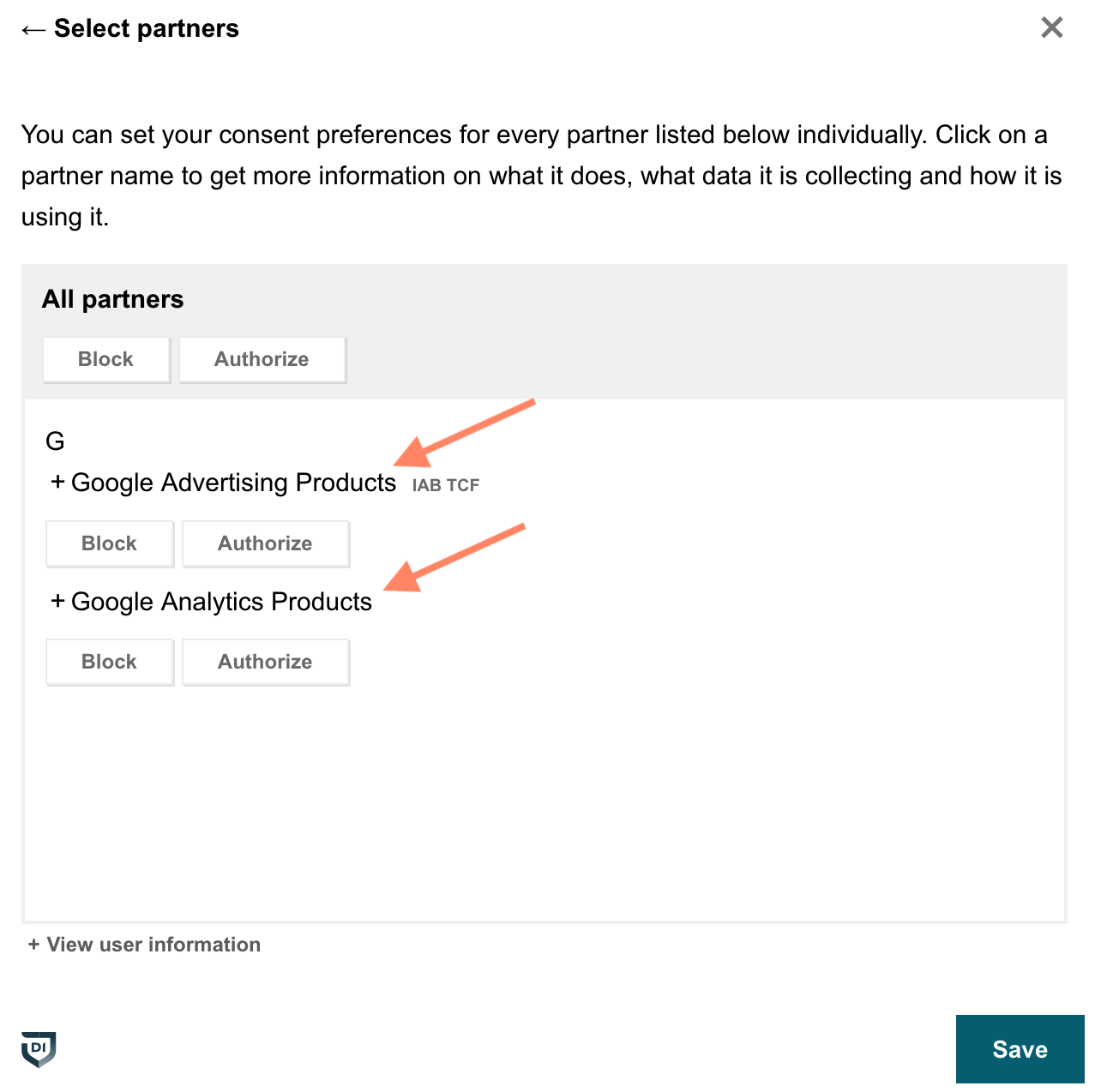
As mentioned above during the configuration, Google Consent Mode v2 (Advanced) requires the use of the following vendors Google Advertising Products (API ID: `google`) and/or Google Analytics Products (API ID: `googleana-4TXnJigR`) depending on the Google products your organization utilizes.

Before continuing, ensure that the correct vendors are added to the consent notice to reflect the Google products that will be triggered:

<figure><img src="/files/ZJF2dw3Ri2XI8xtLljRo" alt="" width="375"><figcaption></figcaption></figure>

#### Test Google product triggering

When testing the Google Consent Mode v2 (Advanced) implementation, your organization will want to confirm three actions :

* Google products load with consent types defaulted to a consent state of `denied` unless configured otherwise
* Google products update to show consent types set to a consent state of `denied` due to end-user choice
* Google products update to show consent types set to a consent state of `granted` due to end-user choice

How your organization tests that Google product tag(s) are triggering as expected of a Google Consent Mode v2 (Advanced) setup is dependent on how you configured the implementation on the consent notice:

<table><thead><tr><th width="222">Implementation method</th><th>Available testing</th></tr></thead><tbody><tr><td>Google Tag Manager</td><td><ul><li>Google Tag Manager</li><li>Website</li></ul></td></tr><tr><td>gtag.js</td><td><ul><li>Website</li></ul></td></tr><tr><td>GTM template</td><td><ul><li>Google Tag Manager</li><li>Website</li></ul></td></tr><tr><td>Mobile SDK</td><td><ul><li>Didomi SDK Logs</li><li>Firebase DebugView</li><li>ADB (Android) or Xcode Console (iOS) for runtime logs</li><li>Network sniffers (e.g. Charles Proxy) for verifying event payloads</li></ul></td></tr></tbody></table>

{% tabs %}
{% tab title="Website" %}
In this tab, we will cover how to test your organization's Google Consent Mode v2 (Advanced) implementation via the website on which the Didomi consent notice is deployed.&#x20;

{% hint style="info" %}
It is recommended that the following tests are done using an Incognito window for your browser.&#x20;
{% endhint %}

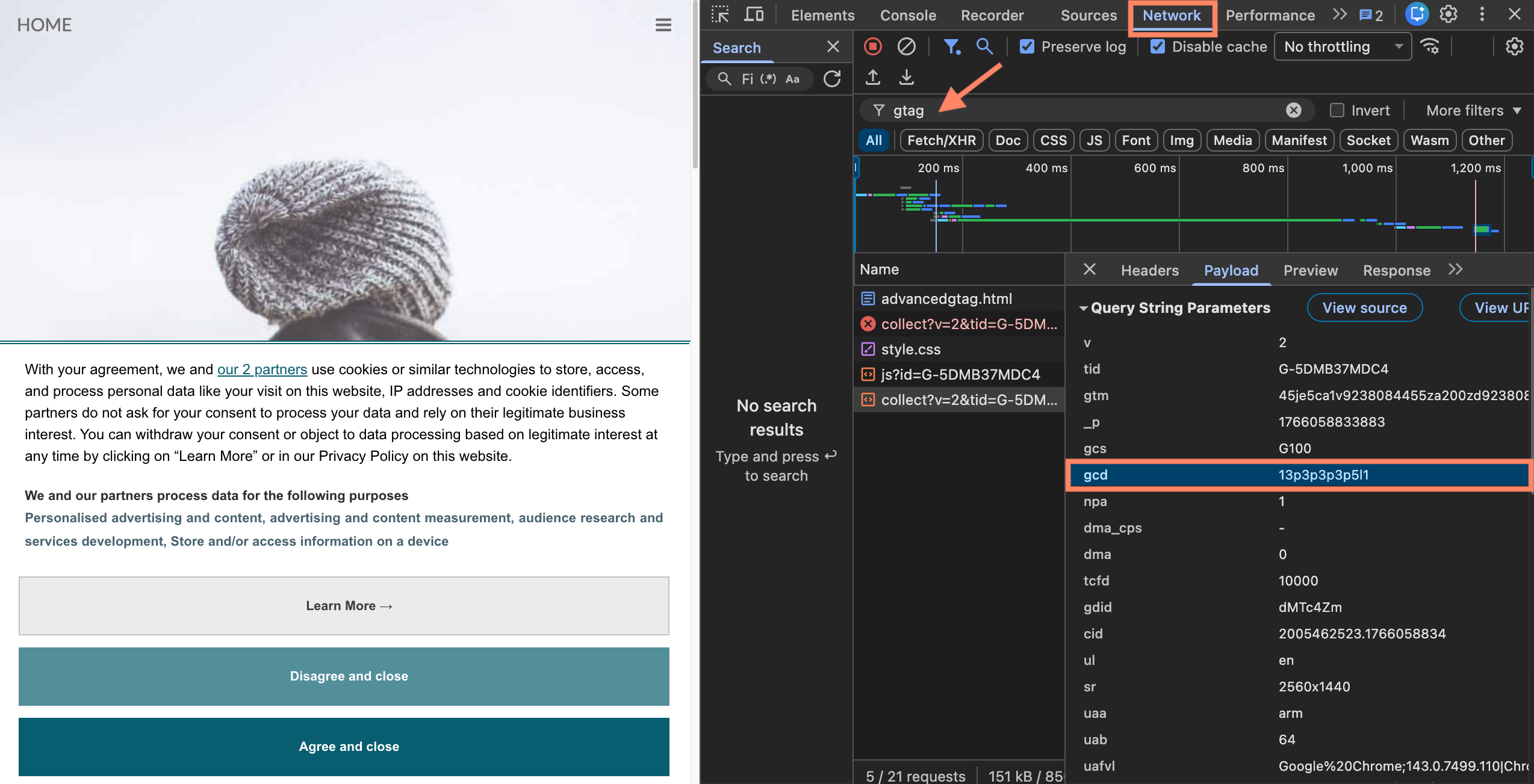
**`gcd` parameter**

The `gcd` parameter is included in the payload for every Google Ad Words and Google Analytics network request when Google Consent Mode v2 is enabled. The parameter reflects the status of Google Consent Mode v2 consent types and assures Google that consent mode is enabled and that consent is collected.&#x20;

{% hint style="warning" %}
**Note**: While the `gcd` parameter is not publicly documented by Google it is available in multiple articles.
{% endhint %}

The `gcd` parameter is a character string that is composed of several components that can multiple values. The format of the character string is as follows:

`gcd=13<ad_storage>3<analytics_storage>3<ad_user_data>3<ad_personalization>5`

<table><thead><tr><th width="178">Component</th><th>Description</th></tr></thead><tbody><tr><td>Prefix</td><td>Unchanging start of the character string. Represented by an <code>11</code> or <code>13</code></td></tr><tr><td>Suffix</td><td>Unchanging end of the character string. Represented by a <code>5</code> or <code>7</code></td></tr><tr><td>Separator</td><td>Separates the consent status values for the different consent types (<code>ad_storage</code>, <code>analytics_storage</code>, etc...). Represented by a <code>1</code> or <code>3</code></td></tr><tr><td>Consent status</td><td><p>The consent status for each of the represented consent types (<code>ad_storage</code>, <code>analytics_storage</code>, <code>ad_user_data</code>, <code>ad_personalization</code>) follows the structure below:<br></p><ul><li><code>p</code> - Denied default value</li><li><code>t</code> - Granted default value</li><li><code>q</code>, <code>m</code>, <code>u</code> - Denied after end-user choice</li><li><code>e</code>, <code>r</code>, <code>n</code>, <code>v</code> - Granted after end-user choice</li><li><code>1</code> - Undefined</li></ul></td></tr></tbody></table>

{% hint style="success" %}
**Example**:

`13t3p3p3p5`

* &#x20;`ad_storage` is granted by default
* `analytics_storage` is denied by default
* `ad_user_data` is denied by default
* `ad_user_personalization` is denied by default
  {% endhint %}

**Google product tags load with consent types defaulted to `denied`**&#x20;

Access the website on which you have deployed the Didomi consent notice with a Google Consent mode v2 (Advanced) implementation and let the consent notice load on the page. It is important that you do not interact with the consent notice yet.&#x20;

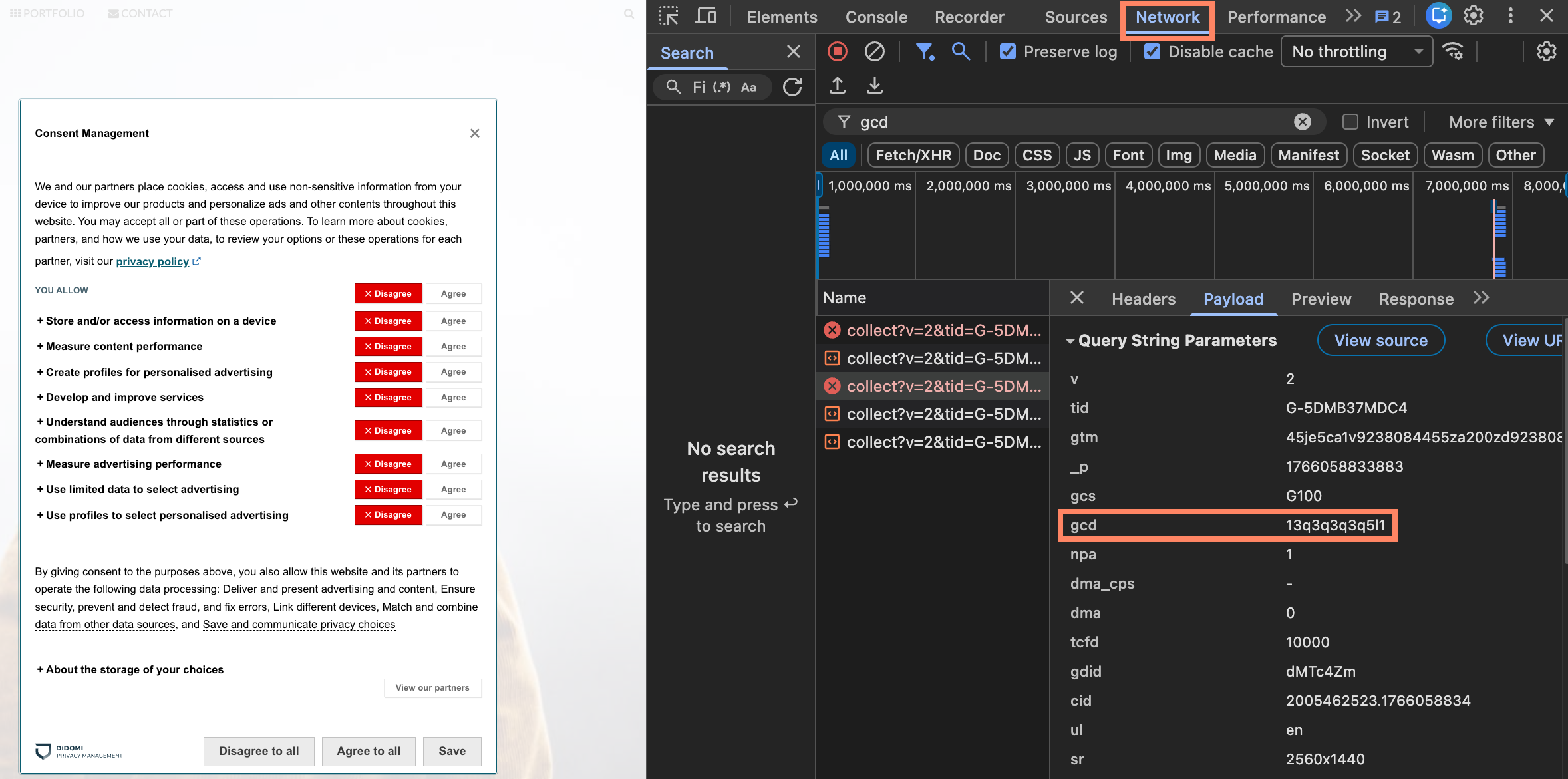
Open the browser console and select the **Network** tab. Use the provided search filter to check requests that contain the following for the `gcd` parameter:

* analytics.js&#x20;
* gtag
* collect

<figure><img src="/files/OouftTs9Hran9R9x6oAm" alt="" width="563"><figcaption></figcaption></figure>

Ensure the consent status values for each consent type within the `gcd` parameter matches the expected default settings.

**Google product tags update to show consent types set to `denied` due to end-user choice**

Access the website on which you have deployed the Didomi consent notice with a Google Consent mode v2 (Advanced) implementation and let the consent notice load on the page. Deny consent for all vendors and purposes.

Open the browser console and select the **Network** tab. Check the requests for your Google products to ensure the consent status value for each consent type within the `gcd` parameter is set to denied due to end-user choice.

<figure><img src="/files/rT4swY91AoiBLUBgRLB7" alt="" width="563"><figcaption></figcaption></figure>

**Google product tags update to show consent types set to  `granted` due to end-user choice**

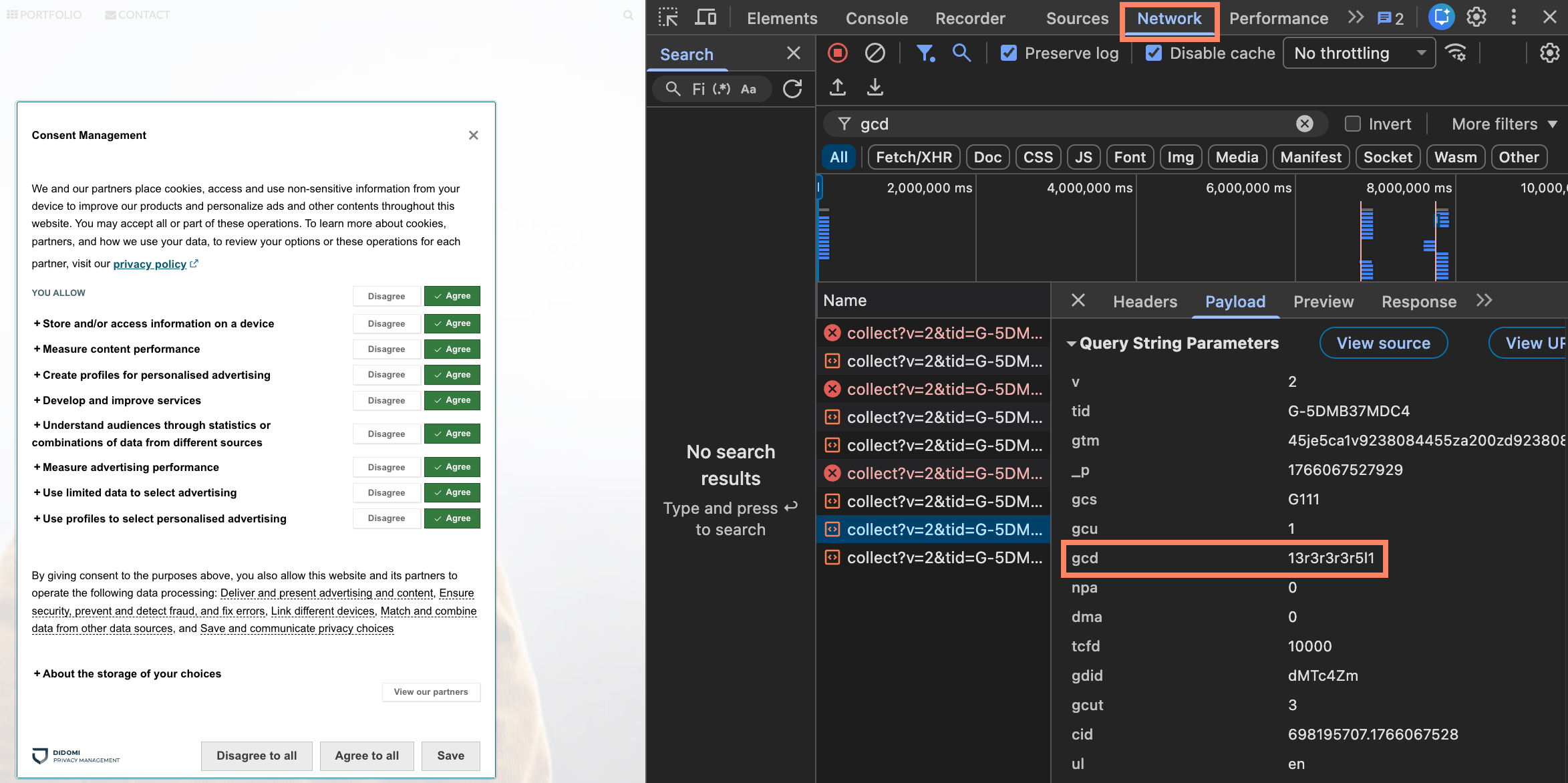
Access the website on which you have deployed the Didomi consent notice with a Google Consent mode v2 (Advanced) implementation and let the consent notice load on the page. Grant consent for all vendors and purposes.

Open the browser console and select the **Network** tab. Check the requests for your Google products to ensure the consent status value for each consent type within the `gcd` parameter is set to granted due to end-user choice.

<figure><img src="/files/SsPGWoJ7qI8tviTKbb9M" alt="" width="563"><figcaption></figcaption></figure>
{% endtab %}

{% tab title="Google Tag Manager" %}
In this tab, we will cover how to test your organization's Google Consent Mode v2 (Advanced) implementation via Google Tag Manager.

{% hint style="info" %}
It is recommended that the following tests are done using an Incognito window for your browser or that you clear your cookies and local storage for your website in your favorite browser.&#x20;
{% endhint %}

Navigate to the container where you configured and published your Google Consent Mode v2 (Advanced) in your Google Tag Manager account and click **Preview**.

<figure><img src="/files/V8ZStEu6RDm9aTvrDubq" alt="" width="563"><figcaption></figcaption></figure>

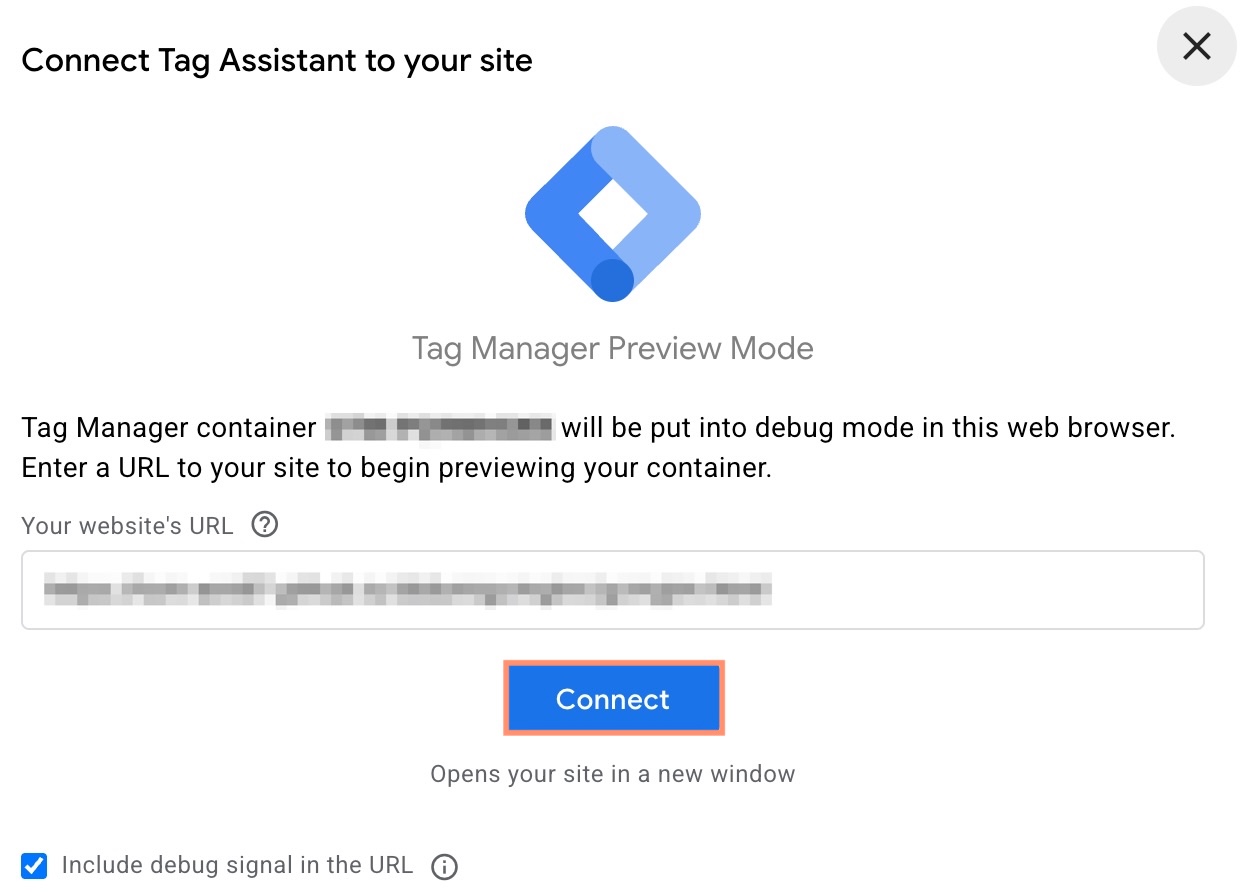
Use the provided field to input the URL of your website on which the Didomi consent notice is implemented. Click **Connect** when finished.&#x20;

<figure><img src="/files/opi2VOxHwhH2lbHb357n" alt="" width="375"><figcaption></figcaption></figure>

**Google product tags load with consent types defaulted to `denied`**&#x20;

Let the consent notice load in the subsequent window of the tag assistant. It is important that you do not interact with the consent notice yet.&#x20;

Ensure that your Google product tags are not firing until the `didomi-ready` event.&#x20;

<figure><img src="/files/gER00kZx6K92S1eRc5u8" alt="" width="563"><figcaption></figcaption></figure>

While still viewing the `didomi-ready` event, click the **Consent** tab. Ensure that the values in the *On-page default* column reflect your organization's configured consent state defaults for each consent type.&#x20;

<figure><img src="/files/9H5eR0xRanKulkUCRQwp" alt="" width="563"><figcaption></figcaption></figure>

**Google product tags update to show consent types set to `denied` due to end-user choice**

Let the consent notice load in the subsequent window of the tag assistant. Deny consent for all vendors and purposes.&#x20;

Select events related to the deny consent action from the left-hand column and click the **Consent** tab. Ensure that the values in the *On-page Update* column are set to **Denied** (except for `security_storage`.

<figure><img src="/files/4KKFXNVp3Jrew81zLCAx" alt="" width="563"><figcaption></figcaption></figure>

{% hint style="info" %}
Additionally, your Google product tags should trigger for any subsequent `didomi-ready` events.
{% endhint %}

**Google product tags update to show consent types set to `granted` due to end-user choice**

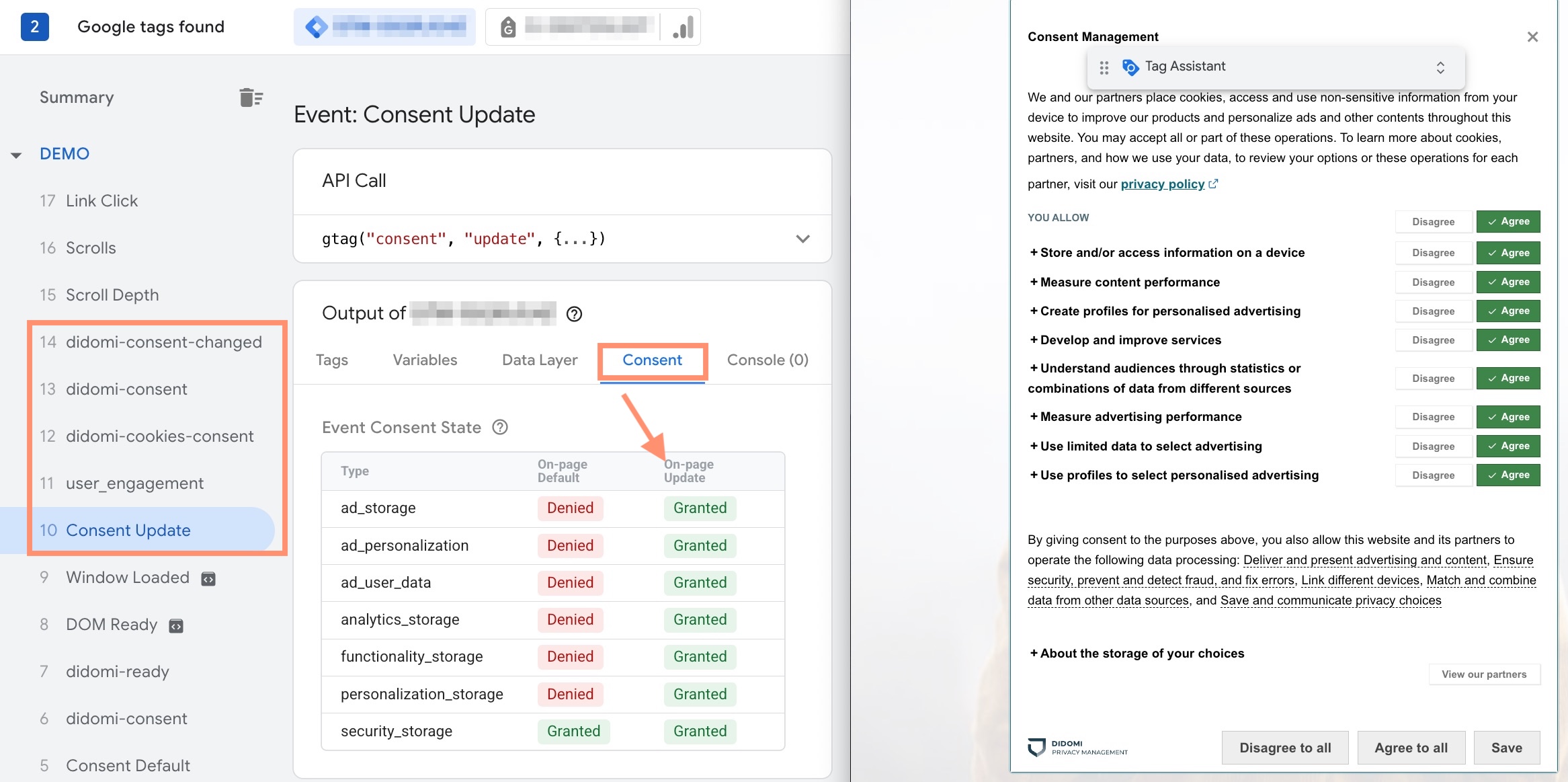
Let the consent notice load in the subsequent window of the tag assistant. Grant consent for all vendors and purposes.&#x20;

Select events related to the deny consent action from the left-hand column and click the **Consent** tab. Ensure that the values in the *On-page Update* column are set to **Granted**.

<figure><img src="/files/tLFnCSgJ5P9VMCCs9aRm" alt="" width="563"><figcaption></figcaption></figure>

{% hint style="info" %}
Additionally, your Google product tags should trigger for any subsequent `didomi-ready` events.
{% endhint %}
{% endtab %}

{% tab title="Mobile SDK" %}
How your organization tests depends on the integrations configure and tools available for your mobile application. In this tab, we will cover how validations that your organization should perform in order to check default and updated signals are set and sent correctly.

* [Enable debug logs](#enable-debug-logs)
* [Testing criteria](#testing-criteria)
* [Testing best practices](#test-best-practices)

#### Enable debug logs

Activate verbose logging in Didomi SDK via:

<table><thead><tr><th width="111"></th><th></th></tr></thead><tbody><tr><td>Android</td><td><pre><code>Didomi.getInstance().setLogLevel(LogLevel.DEBUG)
</code></pre></td></tr><tr><td>iOS</td><td><pre><code>Didomi.shared.setLogLevel(.debug)
</code></pre></td></tr></tbody></table>

If integrated with Firebase, enable Firebase DebugView via:

<table data-header-hidden><thead><tr><th width="111"></th><th></th></tr></thead><tbody><tr><td>Android</td><td><pre><code>adb shell setprop debug.firebase.analytics.app &#x3C;your.package.name>
</code></pre></td></tr><tr><td>iOS</td><td>Launch with <code>-FIRDebugEnabled</code> argument</td></tr></tbody></table>

#### Testing criteria

Analyze the logs and network payloads for each [criterion](#test-google-product-tag-s-triggering) to ensure the expected results are set for the appropriate field.

#### Test best practices

* Test your application across multiple regions and regulations
* Verify behavior on first app launch and after end-user consent actions
* Always use real SDK builds and not mocks for final validation
  {% endtab %}
  {% endtabs %}


---

# Agent Instructions: Querying This Documentation

If you need additional information that is not directly available in this page, you can query the documentation dynamically by asking a question.

Perform an HTTP GET request on the current page URL with the `ask` query parameter:

```
GET https://docs.didomi.io/consent-management-platform-cmp/frameworks-regulations/google-consent-mode-v2/google-consent-mode-v2-advanced.md?ask=<question>
```

The question should be specific, self-contained, and written in natural language.
The response will contain a direct answer to the question and relevant excerpts and sources from the documentation.

Use this mechanism when the answer is not explicitly present in the current page, you need clarification or additional context, or you want to retrieve related documentation sections.