# PMP analytics filters

{% hint style="success" %}
**Access Type:** Analytics - Viewer

**Premium Feature**: Preference Management Platform
{% endhint %}

PMP analytics filters enable your organization to narrow down the data represented in the tables and graphs in a respective PMP analytics dashboard. In this article, we will cover all of the possible filters available across PMP analytics dashboards.

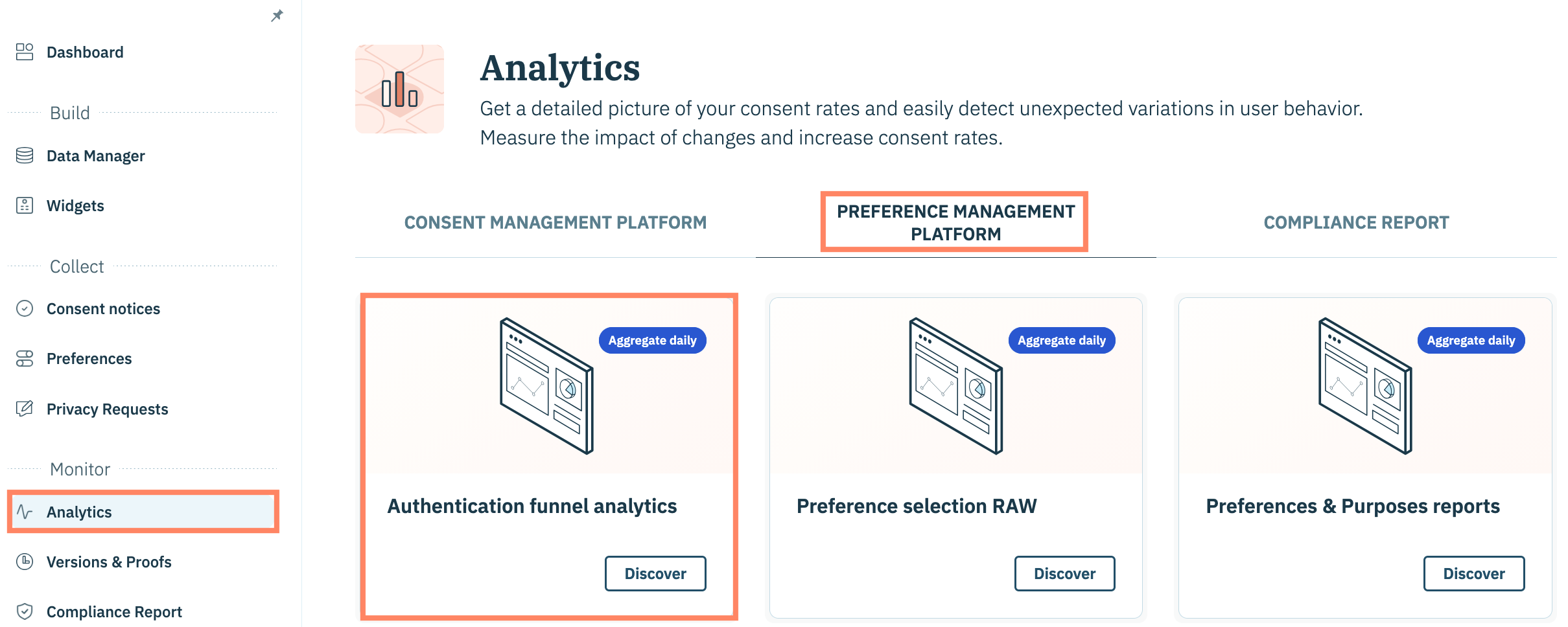
To configure filters for a PMP analytics dashboard, click **Analytics** on the left-hand panel and select the **Preference Management Platform** tab.

Click the card for your desired PMP analytics dashboard.

<figure><img src="/files/Bwru9MzWTvMFEAuOJXw2" alt="" width="563"><figcaption></figcaption></figure>

Select the **Show filters** button to expand the filters accordion and configure the filters for the dashboard. The data in the tables and/or graphs will automatically update to reflect your selected filters.

<figure><img src="/files/T0WJOKgW54jAGX4DCiyW" alt="" width="563"><figcaption></figcaption></figure>

<table><thead><tr><th width="201">Filter</th><th>Description</th></tr></thead><tbody><tr><td>Date</td><td>Configure the time frame for the data represented in the dashboard. Your organization can select between predetermined periods (e.g. last 14 days) or designate specific start and end dates.</td></tr><tr><td>Apikey</td><td>Filters data in the dashboard to match configured API keys used for implementations.</td></tr><tr><td>User Country</td><td>Filter data in the dashboard to include/exclude the end-user's country when they accessed your website/app.</td></tr><tr><td>Device Type</td><td>Filters data in the dashboard to include/exclude data by different devices (e.g. smartphone, television, tablet)</td></tr><tr><td>Device Os</td><td>Filters data in the dashboard to include/exclude data by operating systems (e.g. iOS, Android, etc...)</td></tr><tr><td>Domain(s)/ App(s) (Include)</td><td>Include domains/apps that match the name or pattern in the data for the dashboard.<br><br><mark style="background-color:$warning;"><strong>Note</strong>:</mark> <a href="/pages/rLd8OLibEdivb9NHxQRu"><mark style="background-color:$warning;">Click here</mark></a> <mark style="background-color:$warning;">to learn more about utilizing regular expressions (regex) for this filter.</mark></td></tr><tr><td>Domain(s)/ App(s) (Exclude)</td><td>Exclude domains/apps that match the name or pattern from the data in the dashboard.<br><br><mark style="background-color:$warning;"><strong>Note</strong>:</mark> <a href="/pages/rLd8OLibEdivb9NHxQRu"><mark style="background-color:$warning;">Click here</mark></a> <mark style="background-color:$warning;">to learn more about utilizing regular expressions (regex) for this filter.</mark></td></tr></tbody></table>


---

# Agent Instructions: Querying This Documentation

If you need additional information that is not directly available in this page, you can query the documentation dynamically by asking a question.

Perform an HTTP GET request on the current page URL with the `ask` query parameter:

```
GET https://docs.didomi.io/analytics/preference-management-platform-pmp-analytics/introduction/pmp-analytics-filters.md?ask=<question>
```

The question should be specific, self-contained, and written in natural language.
The response will contain a direct answer to the question and relevant excerpts and sources from the documentation.

Use this mechanism when the answer is not explicitly present in the current page, you need clarification or additional context, or you want to retrieve related documentation sections.
